 admin
admin 
A wireless mouse makes working on a computer, laptop, or tablet more convenient by eliminating the need for a wired connection. However, what happens when you lose your USB receiver or want to connect your mouse without using a USB port? Fortunately, some Logitech wireless mice can connect directly to compatible devices through Bluetooth.
If you are wondering how to connect a Logitech mouse without a USB receiver, the process is relatively simple, provided your mouse supports Bluetooth connectivity. You can pair your mouse with a Windows computer, MacBook, or compatible tablet by enabling Bluetooth and following a few straightforward steps.
In this beginner-friendly guide, you will learn how to connect a Logitech wireless mouse without a receiver, check Bluetooth compatibility, troubleshoot common connection problems, and understand which alternatives are available if your mouse does not support Bluetooth.
Can You Connect a Logitech Mouse Without a USB Receiver?
Yes, you can connect certain Logitech wireless mice without a USB receiver, but it depends on the model.
Many Logitech mice support Bluetooth, allowing them to connect directly to compatible computers and other devices. These models do not require a separate USB receiver for Bluetooth connections.
However, not every Logitech wireless mouse has Bluetooth functionality. Some models communicate exclusively through a dedicated USB receiver, such as a Unifying or Logi Bolt receiver.
Before attempting to connect your mouse, check its model number and connectivity specifications.
Logitech Mouse Connectivity Options
There are three common ways Logitech wireless mice connect to devices:
- Bluetooth: Connects directly to a compatible device without requiring a USB receiver.
- USB receiver: Uses a compatible wireless receiver plugged into the computer.
- Bluetooth and USB receiver: Some models support both connection methods, giving users additional flexibility.
If your mouse supports Bluetooth, you can generally connect it without a receiver. If it only supports a USB receiver, you will need a compatible replacement receiver or another supported solution.
How to Check If Your Logitech Mouse Supports Bluetooth
Before starting the pairing process, determine whether your Logitech mouse supports Bluetooth. This step can save time and help you avoid unnecessary troubleshooting.
1. Check the Mouse Model Number
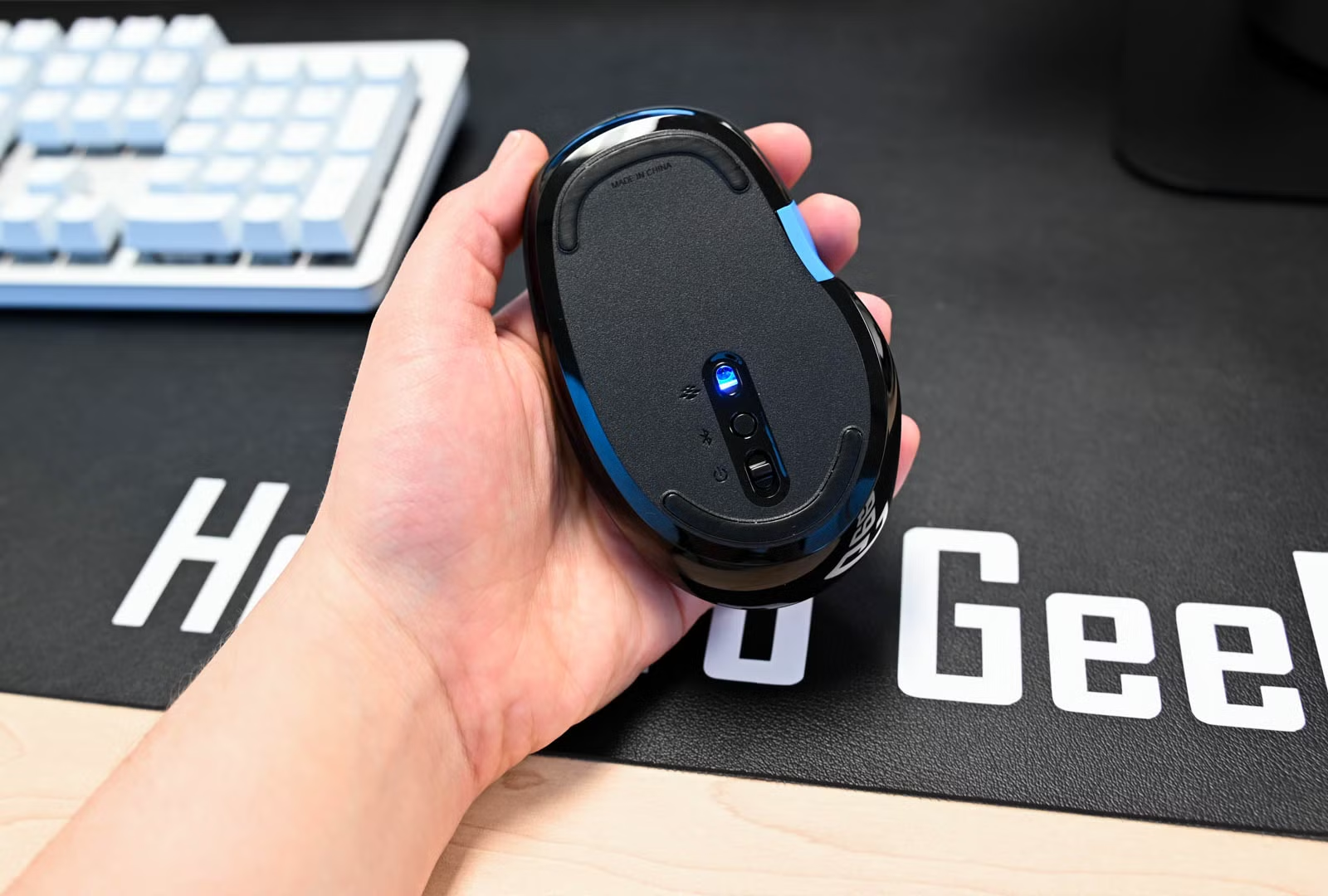
Look for the model name or number printed on the bottom of your mouse. You may also find this information inside the battery compartment.
Search for the model on Logitech’s official website and review its specifications to confirm whether Bluetooth connectivity is supported.
2. Look for a Bluetooth Symbol
Some Logitech mice have a Bluetooth symbol or a connection button on the bottom. A button marked with a Bluetooth icon or a device-switching symbol may indicate Bluetooth pairing functionality.
However, the presence of a button alone does not guarantee that the mouse supports Bluetooth. Check the product specifications for confirmation.
3. Check for an Easy-Switch Button
Certain Logitech mice include an Easy-Switch button that allows users to switch between multiple paired devices.
If your model supports Bluetooth, this button can help you select a device channel and begin pairing.
Once you have confirmed Bluetooth compatibility, you can proceed with the setup process.
How to Connect a Logitech Mouse Without a USB Receiver Using Bluetooth
Connecting a Bluetooth-compatible Logitech mouse is straightforward. The exact button locations and pairing instructions may differ depending on the model, but the general process is similar.
Step 1: Turn On Your Logitech Mouse
First, switch on your Logitech mouse using the power button, usually located on its underside.
If the mouse uses replaceable batteries, make sure they are installed correctly. For rechargeable models, ensure the battery has sufficient charge.
A low battery can prevent your mouse from entering pairing mode or maintaining a stable connection.
Step 2: Activate Bluetooth Pairing Mode
Press and hold the Bluetooth or device-switching button on your mouse until its indicator light starts blinking.
A blinking light commonly indicates that the mouse is ready to pair, although the exact behavior varies by model.
If your mouse has multiple device channels, select an available channel before initiating pairing.
Consult your model’s instructions if you are unsure how to activate pairing mode.
Step 3: Enable Bluetooth on Your Computer
Open your computer’s Bluetooth settings and make sure Bluetooth is switched on.
Keep your mouse close to the computer during the pairing process. This can help establish a reliable connection.
Step 4: Select Your Logitech Mouse
Look for your Logitech mouse in the list of available Bluetooth devices.
Its name may appear as a product name or model number. Select the correct device and follow any instructions displayed on your screen.
Once pairing is complete, your mouse should be ready to use.
How to Connect a Logitech Bluetooth Mouse to Windows 11
If you are using Windows 11, follow these steps to pair your mouse without a USB receiver.
- Turn on your Logitech Bluetooth mouse.
- Put the mouse into pairing mode.
- Open the Start menu and select Settings.
- Choose Bluetooth & devices.
- Make sure Bluetooth is enabled.
- Select Add device.
- Choose Bluetooth from the available options.
- Select your Logitech mouse from the device list.
- Follow any additional on-screen instructions.
After successful pairing, move your mouse to check whether the cursor responds correctly.
If the device does not appear, confirm that it is in pairing mode and that your computer supports Bluetooth.
How to Connect a Logitech Mouse to a MacBook Without a Receiver
MacBook users can also connect compatible Logitech Bluetooth mice directly to their computers.
Follow these instructions:
- Turn on your Logitech mouse.
- Activate Bluetooth pairing mode.
- Open the Apple menu and select System Settings.
- Click Bluetooth in the sidebar.
- Ensure Bluetooth is enabled.
- Find your Logitech mouse under nearby devices.
- Click Connect next to its name.
Once connected, test the mouse by moving it across your desk and checking the cursor.
If the mouse supports additional features, you may be able to customize its buttons or scrolling settings using compatible Logitech software.
How to Connect a Logitech Mouse to a Laptop Without a USB Receiver
Connecting a Logitech wireless mouse to a laptop without a USB receiver follows the same basic Bluetooth pairing process.
First, verify that your laptop has Bluetooth and that your mouse supports Bluetooth connectivity.
For a Windows laptop, open Bluetooth settings, select the option to add a device, and choose your Logitech mouse.
For a MacBook, open System Settings, select Bluetooth, and connect to the mouse when it appears.
If you are using another operating system, look for its Bluetooth device settings and follow the pairing instructions.
Remember that the mouse must support Bluetooth. A receiver-only mouse cannot connect directly through Bluetooth simply because your laptop has Bluetooth enabled.
What If Your Logitech Mouse Does Not Support Bluetooth?
If your Logitech mouse only works with a USB receiver, you cannot connect it directly through Bluetooth.
However, there are a few possible alternatives.
Use a Compatible Replacement Receiver
Some Logitech mice work with specific replacement receivers. Depending on the model, this may include a compatible Logitech Unifying receiver or Logi Bolt receiver.
These receiver types are not universally interchangeable. A Unifying-compatible mouse will not automatically work with a Logi Bolt receiver, and vice versa.
Check your mouse’s specifications before purchasing a replacement.
Use a Compatible USB Adapter
If your computer has limited USB ports, a compatible USB hub or adapter may allow you to connect the required receiver.
This does not eliminate the need for the receiver, but it can help if your laptop has only USB-C ports or lacks a suitable port.
Consider a Bluetooth-Compatible Mouse
If you frequently travel or use devices without available USB ports, a Bluetooth-compatible mouse may be more convenient.
Some Logitech models support both Bluetooth and receiver-based connections, making them suitable for different setups.
Troubleshooting: Logitech Mouse Not Connecting Without a USB Receiver
Sometimes, a Bluetooth mouse may not appear in the device list or may fail to connect. The following troubleshooting steps can help resolve common issues.
1. Check the Battery
A weak battery can cause connection problems. Replace the batteries or recharge the mouse before trying again.
2. Restart Bluetooth
Turn Bluetooth off and back on using your computer’s settings. Then put your mouse into pairing mode again.
3. Move the Mouse Closer
Keep the mouse near your computer during pairing. Avoid placing it too close to devices or objects that may interfere with the wireless connection.
4. Remove an Old Pairing
If your mouse was previously connected to another computer, it may need to be switched to an available pairing channel.
If the device is already listed on your computer but will not connect, remove or forget the old pairing and try pairing again.
5. Check the Device Channel
For Logitech mice with multiple connection channels, make sure you have selected the correct channel.
A mouse may be paired with another device on a different channel, so switching channels may help.
6. Restart Your Computer
Restarting your computer can resolve temporary Bluetooth or operating system issues.
After restarting, activate pairing mode on the mouse and attempt to connect again.
7. Confirm Bluetooth Compatibility
If your mouse never appears in the Bluetooth device list, verify that it actually supports Bluetooth.
A receiver-only Logitech mouse will not become Bluetooth-compatible through software updates or changes to computer settings.
Frequently Asked Questions
Yes, if your Logitech mouse supports Bluetooth. You can pair it directly with a compatible computer or tablet. Receiver-only models require a compatible receiver.
Turn on your Bluetooth-compatible mouse and activate pairing mode. Open Windows Settings, select Devices, and choose Bluetooth & other devices. Enable Bluetooth, select Add Bluetooth or other device, choose Bluetooth, and select your mouse.
Yes. If both your laptop and mouse support Bluetooth, you can pair them through your laptop’s Bluetooth settings without using a USB receiver.
Your mouse may not be in pairing mode, its battery may be low, or it may not support Bluetooth. Check the model specifications and retry the pairing process.
No. Logitech receivers use different wireless technologies and compatibility requirements. Check whether your mouse supports the specific receiver before purchasing or attempting to pair it.
Generally, no. A Bluetooth-compatible Logitech mouse can usually be paired through your computer’s built-in Bluetooth settings. Compatible Logitech software may provide additional customization features, but it is not normally required for basic pairing.
Conclusion
Connecting a Logitech wireless mouse without a USB receiver is possible when your mouse supports Bluetooth. By checking compatibility, activating pairing mode, and using your computer’s Bluetooth settings, you can establish a wireless connection without plugging in a receiver.
Whether you are using Windows 11, Windows 10, or a MacBook, the general setup process is simple. If your mouse does not appear in Bluetooth settings, confirm its connectivity specifications and check the battery, pairing mode, and device channel.
For additional instructions, read our related guide: How to Connect Logitech Wireless Mouse
With the correct connection method, you can enjoy the convenience of a wireless mouse while keeping your USB ports available for other devices.