 admin
Table of Contents
- Why Is Netflix Not Loading on Smart TV?
- 1. Check Whether Your Internet Is Working
- 2. Restart Your Smart TV Completely
- 3. Restart Your Router or Modem
- 4. Check Netflix on Another Device
- 5. Check for a Netflix Service Problem
- 6. Restart the Netflix App
- 7. Update the Netflix App
- 8. Update Your Smart TV Software
- 9. Clear Netflix Cache and Stored Data
- 10. Sign Out of Netflix and Sign In Again
- 11. Reinstall Netflix
- 12. Check the Wi-Fi Signal Strength
- 13. Try an Ethernet Connection
- 14. Check the Date and Time Settings
- Netflix Not Loading but Other Apps Work
- Netflix Stuck on a Black Screen
- Netflix Opens but Movies Won't Play
- Common Mistakes to Avoid
- A Simple Troubleshooting Order
- Key Takeaways
- Frequently Asked Questions
- Conclusion
You sit down to watch a movie, open Netflix on your television, and instead of seeing your profile or recommendations, the app stays stuck on the loading screen. If Netflix is not loading on your Smart TV, the problem can be surprisingly difficult to identify because several different components work together to deliver the service.
Your internet connection may be unstable, the Netflix app may have temporary data problems, the television software may be outdated, or the TV may simply need a proper restart. In some situations, the issue can also be on Netflix’s side.
The good news is that you do not need to reset your entire television immediately. This guide takes you through practical troubleshooting steps, starting with the simplest solutions and gradually moving toward more advanced fixes.
Why Is Netflix Not Loading on Smart TV?
Netflix depends on several things working correctly at the same time: your television’s operating system, the Netflix application, your network connection, and Netflix’s online service.
A problem with any of these components can prevent the app from loading normally.
Common causes include:
- Weak or unstable Wi-Fi
- Temporary Netflix application errors
- Outdated Netflix app
- Outdated Smart TV software
- Corrupted cached application data
- Router or modem problems
- Incorrect network configuration
- Temporary Netflix service problems
- A problem with an external streaming device
- Insufficient or unstable system resources
The symptoms can also vary. Netflix might remain on a black screen, display its logo indefinitely, freeze while opening, or open successfully but refuse to play a selected title.
1. Check Whether Your Internet Is Working
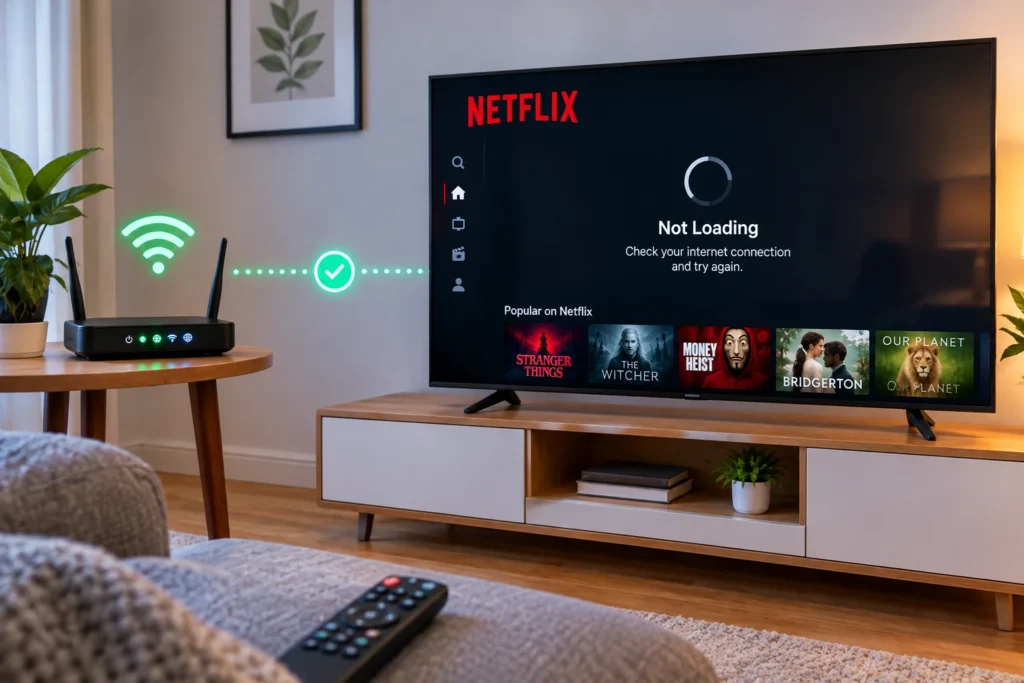
Before changing Netflix settings, determine whether your Smart TV actually has a reliable internet connection.
Open another streaming application on the television. If another online service also refuses to load, the problem may be related to your network rather than Netflix.
Check the TV’s network settings and confirm that it is connected to the correct Wi-Fi network.
Try this quick test:
- Open another internet-based app.
- Check whether it loads normally.
- Open your TV’s network settings.
- Confirm that the TV shows an active connection.
- Try Netflix again.
If other apps work perfectly but Netflix does not, continue with the Netflix-specific solutions below.
2. Restart Your Smart TV Completely
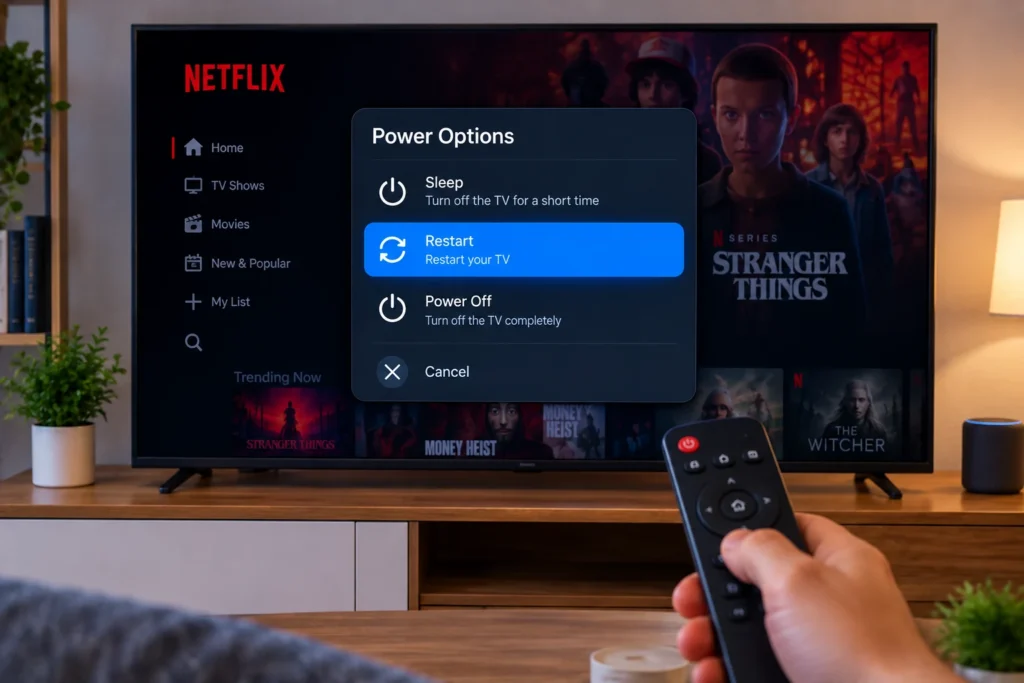
A restart is simple, but it can solve temporary software problems that are not obvious from the screen.
Many televisions enter standby mode when you press the power button. That is not always equivalent to completely restarting the TV.
If your television provides a Restart option, use it. Otherwise, you can perform a basic power cycle.
Try these steps:
- Turn the TV off.
- Unplug it from the power outlet.
- Wait for several seconds.
- Plug the TV back in.
- Turn it on.
- Wait for the internet connection to return.
- Open Netflix.
Now check whether the Netflix home screen loads.
If the problem was caused by a temporary software process, Netflix may start working normally after the restart.
3. Restart Your Router or Modem
If your internet connection is unstable, Netflix may get stuck while communicating with its servers.
Restarting your router can refresh the connection and eliminate temporary network problems.
Turn off your router or modem using its normal power procedure. Allow it to restart completely before opening Netflix again.
After the network is available:
- Check the Smart TV’s Wi-Fi connection.
- Open Netflix.
- Wait for the application to load.
- Select a title.
- Check whether playback begins.
If other devices in your home are also experiencing slow or unreliable internet access, investigate the network before focusing entirely on the television.
4. Check Netflix on Another Device
This is one of the most useful diagnostic steps because it helps determine where the problem is located.
Try opening Netflix on a smartphone, computer, or another supported device using the same internet connection.
If Netflix works on another device
The problem is more likely related to:
- Your Smart TV
- The Netflix application
- TV software
- The TV’s network configuration
If Netflix does not work anywhere
The problem may be related to your internet connection, Netflix account, or a broader Netflix service issue.
This simple comparison can save you from unnecessarily changing settings on your television.
5. Check for a Netflix Service Problem
Not every Netflix problem originates from your home.
Occasionally, online services experience temporary technical problems. If Netflix is having a broader service issue, restarting your television repeatedly will not necessarily solve it.
Check Netflix’s official Help Center or service information before performing major troubleshooting.
If there is a confirmed service problem, waiting for the service to recover may be the appropriate solution.
6. Restart the Netflix App
If Netflix opens but freezes during startup, close the application completely and launch it again.
Depending on your television, you may be able to close the application by returning to the Home screen or using the TV’s application management controls.
Then:
- Leave Netflix.
- Open another application.
- Return to the Home screen.
- Launch Netflix again.
- Try playing a title.
If your television provides a Force Stop option, you can use it before reopening Netflix.
The exact procedure varies between manufacturers, so do not worry if your TV does not display the same menu names.
7. Update the Netflix App
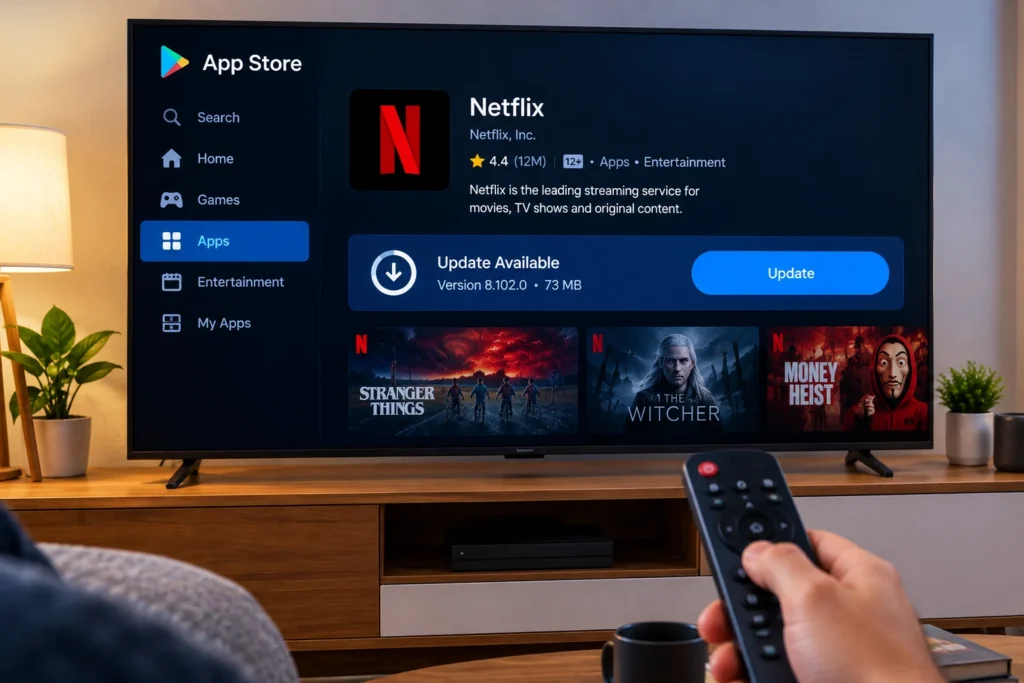
An outdated application can sometimes create compatibility problems with newer television software or Netflix’s service.
Open the app store on your Smart TV and search for Netflix.
If an Update button appears, install the available update.
After updating:
- Restart the TV if requested.
- Open Netflix.
- Sign in if necessary.
- Select a movie or TV show.
- Test playback.
Some Smart TVs automatically update applications, while others require manual updates.
8. Update Your Smart TV Software
The television itself also needs to remain updated.
Manufacturers regularly release firmware and operating-system updates that can improve compatibility, fix bugs, and address software problems.
Open your TV’s settings and look for an option similar to:
Settings → Support → Software Update
or:
Settings → System → Software Update
The exact location depends on your TV manufacturer and model.
If an update is available, install it according to the manufacturer’s instructions. Do not turn the TV off during a firmware update unless the manufacturer’s instructions specifically tell you to do so.
After the update finishes, restart the television and test Netflix again.
9. Clear Netflix Cache and Stored Data
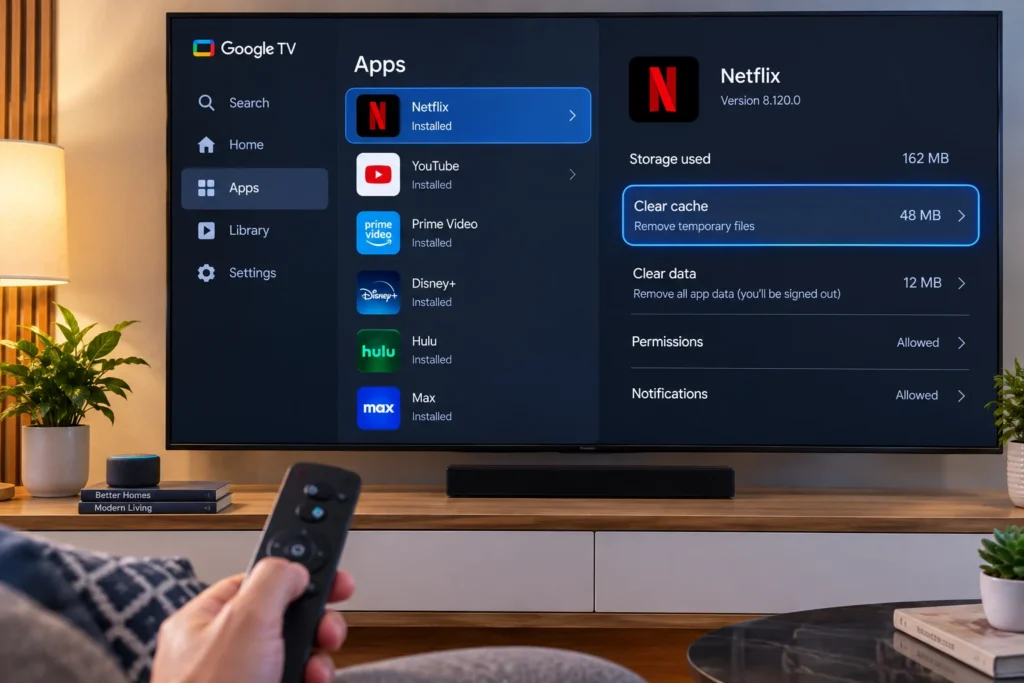
Some Smart TVs provide controls for clearing application cache or stored data.
This is particularly common on Android TV and Google TV devices.
Depending on the device, you may find options similar to:
Settings → Apps → Netflix → Storage
You might then see options such as Clear Cache or Clear Data.
Start with clearing the cache if that option is available.
Be more careful with Clear Data, because it can remove locally stored application information and may require you to sign in again.
If your television does not provide these controls, simply move on to the next troubleshooting method.
10. Sign Out of Netflix and Sign In Again
If Netflix loads partially but behaves strangely, your account session may need to be refreshed.
If you can access Netflix’s settings or help menu, choose the available sign-out option.
Then:
- Sign out of Netflix.
- Close the application.
- Reopen Netflix.
- Sign in again.
- Select a title.
Make sure you enter the correct account credentials.
If Netflix will not load far enough to reach the sign-out option, restart the application or television first.
11. Reinstall Netflix
If the application continues to freeze or fail after updating and restarting, reinstalling it may help.
On televisions that support uninstalling Netflix:
- Open the TV’s application settings.
- Select Netflix.
- Choose Uninstall or Remove, if available.
- Restart the TV.
- Open the TV’s app store.
- Install Netflix again.
- Sign in.
- Test playback.
Some Smart TVs treat Netflix as a built-in application and do not allow complete removal. In that situation, use the available update, reset, or application-repair options instead.
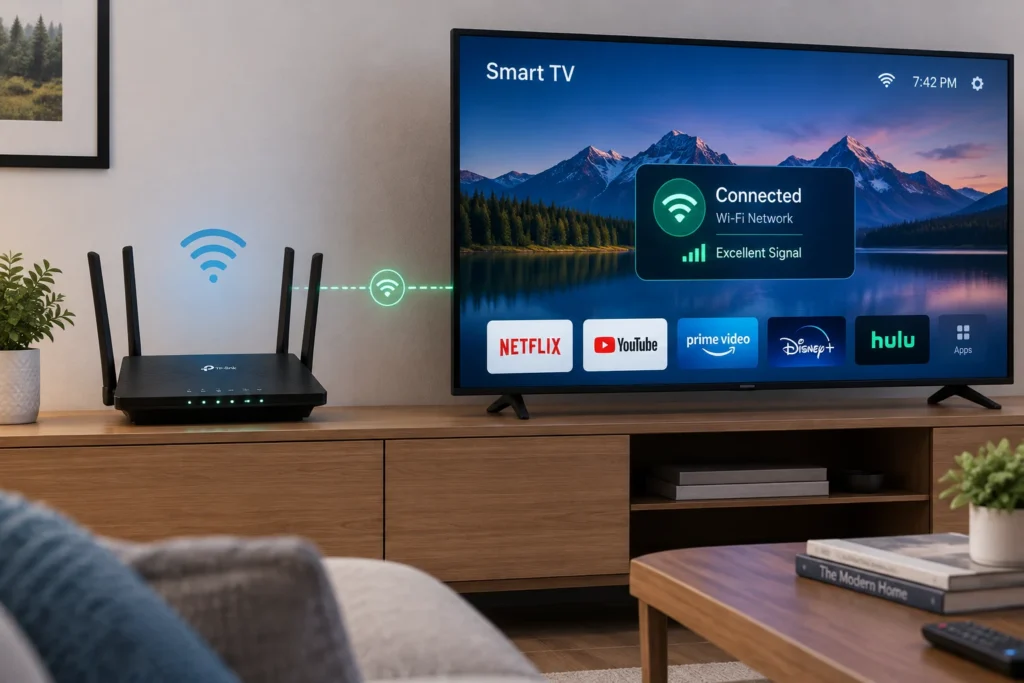
12. Check the Wi-Fi Signal Strength
Your Smart TV may show that it is connected to Wi-Fi while still having a weak or unstable signal.
This is more likely when the television is far from the router or separated by multiple walls.
If practical, move the router closer to the TV or reduce obstacles between them.
You can also test Netflix using another network. If Netflix works on a different connection, your home network may be responsible for the problem.
For a permanent solution, consider improving router placement or using a suitable wired network connection if your TV supports it.
13. Try an Ethernet Connection
If your Smart TV includes an Ethernet port, connect it directly to your router.
This provides a useful diagnostic test.
If Netflix works correctly over Ethernet but repeatedly fails over Wi-Fi, the application itself may not be the main problem. Your wireless connection may be unstable or too weak where the TV is located.
A wired connection can also provide a more consistent network path for streaming.
14. Check the Date and Time Settings
Incorrect system date or time settings can occasionally interfere with online services.
Open your Smart TV’s Date & Time settings and check whether automatic date and time synchronization is available.
If it is, enable the automatic setting.
Then restart the TV and test Netflix again.
Do not manually change the date simply as a troubleshooting experiment unless you have a specific reason to do so.
Netflix Not Loading but Other Apps Work
This situation provides an important clue.
Suppose YouTube or another streaming application works normally while Netflix refuses to load. In that case, your internet connection is probably not completely unavailable.
Focus on Netflix and the television software.
Try this order:
- Restart Netflix.
- Restart the TV.
- Update Netflix.
- Update the TV software.
- Clear Netflix cache if available.
- Sign out and sign in again.
- Reinstall Netflix if possible.
This approach is more efficient than repeatedly restarting the router when every other online application already works.
Netflix Stuck on a Black Screen
A black screen can occur when the Netflix application or the TV’s software is not responding correctly.
Start by closing Netflix and restarting the television.
If you are using the TV’s built-in Netflix app, also check for application and system updates.
If Netflix is being accessed through an external streaming box or stick, troubleshoot the external device instead.
For an external device, also check:
- HDMI connection
- Device power
- Device software updates
- Internet connection
- Television input selection
The source of the problem can be different depending on whether Netflix is built into the TV or running through another device.
Netflix Opens but Movies Won't Play
Sometimes the Netflix interface loads normally but a movie or TV show refuses to start.
This points toward a different type of problem.
First, test another title. If only one title fails while other content plays normally, the issue may be specific to that content or temporary playback conditions.
If nothing plays:
- Restart the TV.
- Restart the router.
- Check the network connection.
- Update Netflix.
- Update the TV software.
- Test another device.
This helps separate a general application problem from an individual playback issue.
Common Mistakes to Avoid
Don’t Factory-Reset Your TV First: A factory reset is a major step.
It can remove network settings, applications, preferences, and other configuration information. There is little reason to start there when simpler troubleshooting is available.
Don’t Assume Wi-Fi Is Always the Cause: If every other online application works normally, repeatedly restarting your router may not address the actual problem.
Investigate the Netflix app and TV software instead.
Don’t Ignore Updates: Both Netflix and Smart TV operating systems change over time. Keeping them updated can help avoid compatibility problems.
Don’t Change Many Settings at Once: If you simultaneously change the network, reinstall Netflix, reset the TV, and modify system settings, you may not know what actually fixed the problem.
Work through the solutions one at a time.
A Simple Troubleshooting Order
If you want the fastest practical approach, follow this sequence:
- Check whether other apps work.
- Restart Netflix.
- Restart the Smart TV.
- Restart the router.
- Check Netflix on another device.
- Check for Netflix updates.
- Check for TV software updates.
- Clear Netflix cache if available.
- Sign out and sign in again.
- Reinstall Netflix.
- Test an Ethernet connection if available.
- Contact Netflix or the TV manufacturer if the issue remains.
This method starts with low-risk fixes and only moves toward more involved solutions when necessary.
Key Takeaways
When Netflix refuses to load on a Smart TV, the problem does not automatically mean the television is defective.
The most common areas to investigate are:
- Internet connectivity
- Netflix application
- Smart TV software
- Cached application data
- Router connection
- Netflix service availability
Start with a simple TV restart and network check. Then update the Netflix app and TV software. If those steps do not help, clear the app cache, sign in again, or reinstall Netflix where supported.
Testing Netflix on another device is also valuable because it helps determine whether the problem is limited to your television.
Frequently Asked Questions
Netflix may not load because of an unstable internet connection, temporary application problem, outdated software, corrupted app data, or a temporary service issue. Restart the TV and router first, then check for Netflix and Smart TV software updates.
If Netflix works on your phone but not your television, the issue may be specific to the Smart TV, Netflix application, or TV network configuration. Restart the TV, update its software, update Netflix, and check its network connection.
Exit Netflix and return to the television’s Home screen. If your TV provides application controls, force-close Netflix and open it again. A complete TV restart can also clear temporary software problems that prevent the application from loading.
Reinstalling Netflix can help if the application has corrupted or problematic stored data. However, restart the TV, check for updates, and clear the cache first when those options are available. Reinstallation should generally be a later troubleshooting step.
Netflix may remain stuck while loading because of network instability, outdated software, temporary app problems, or stored application data. Restart the TV and router, update Netflix and the TV software, and clear the app cache if your device supports that option.
Conclusion
When Netflix is not loading on Smart TV, avoid jumping directly to a factory reset. Start with the basics: check your connection, restart the TV and router, and determine whether Netflix works on another device.
Next, update both Netflix and the television software. If the problem continues, clear the application’s cache, refresh your Netflix session, or reinstall the application where possible.
The key is to troubleshoot systematically rather than changing everything at once. If Netflix continues to fail after these steps, consult Netflix Support or the official support service for your Smart TV manufacturer. That can help determine whether the remaining problem is related to your account, television software, network, or Netflix’s service.

Written by admin