How to Fix 100% Disk Usage in Windows: A Complete Guide
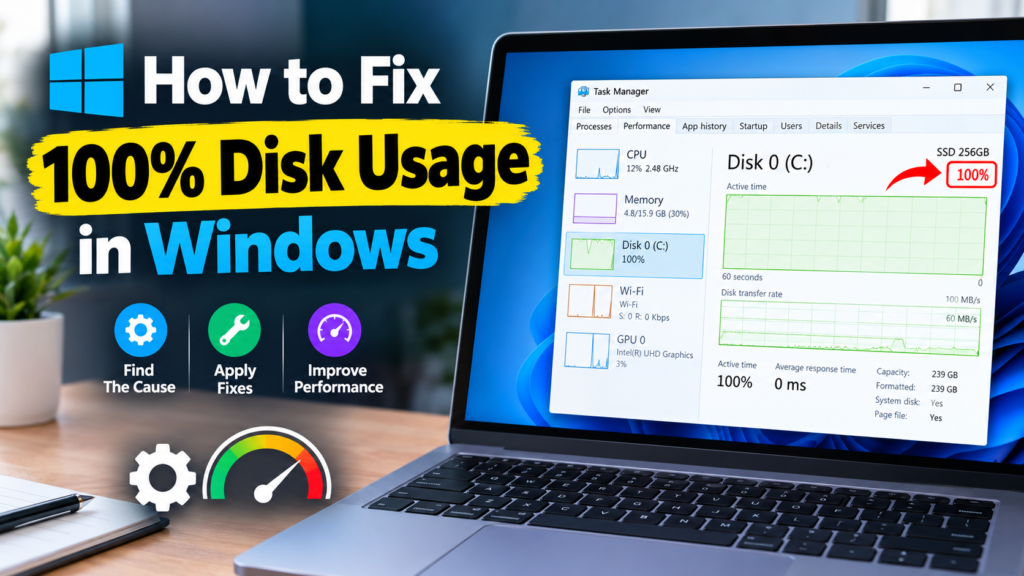
If your computer suddenly becomes slow, applications take forever to open, and Windows freezes frequently, there’s a good chance you’re dealing with the 100% disk usage problem. Many Windows users encounter this issue, especially after updates, software installations, or prolonged system use.
Understanding How to Fix 100% Disk Usage in Windows can help restore your computer’s speed and improve overall performance. In this guide, you’ll learn what causes high disk activity, how to diagnose the problem, and the most effective solutions to fix it.
Whether you’re a student, office worker, gamer, or everyday computer user, these troubleshooting steps can help resolve the Disk Usage in Windows error and make your PC run smoothly again.
What Does 100% Disk Usage Mean?
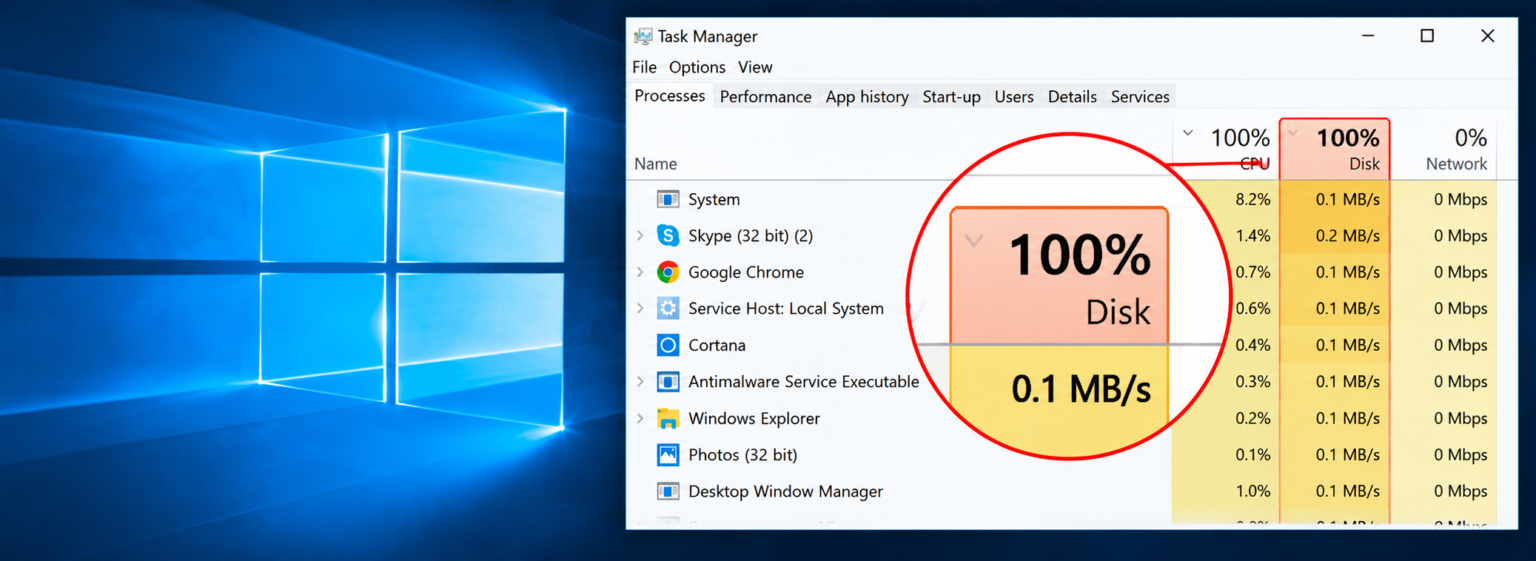
When Windows reports 100% disk usage, it means your storage drive is working at its maximum capacity. Even if your CPU and RAM usage are low, your computer may become extremely slow because the disk cannot keep up with requests from Windows and installed applications.
Common Symptoms
- Slow boot times
- Delayed application launches
- System freezing or lagging
- Unresponsive programs
- High disk activity shown in Task Manager
To check disk usage:
- Press Ctrl + Shift + Esc
- Open Task Manager
- Click the Processes tab
- Look at the Disk column
If it consistently shows 100%, troubleshooting is necessary.
Common Causes of Disk Usage in Windows Error
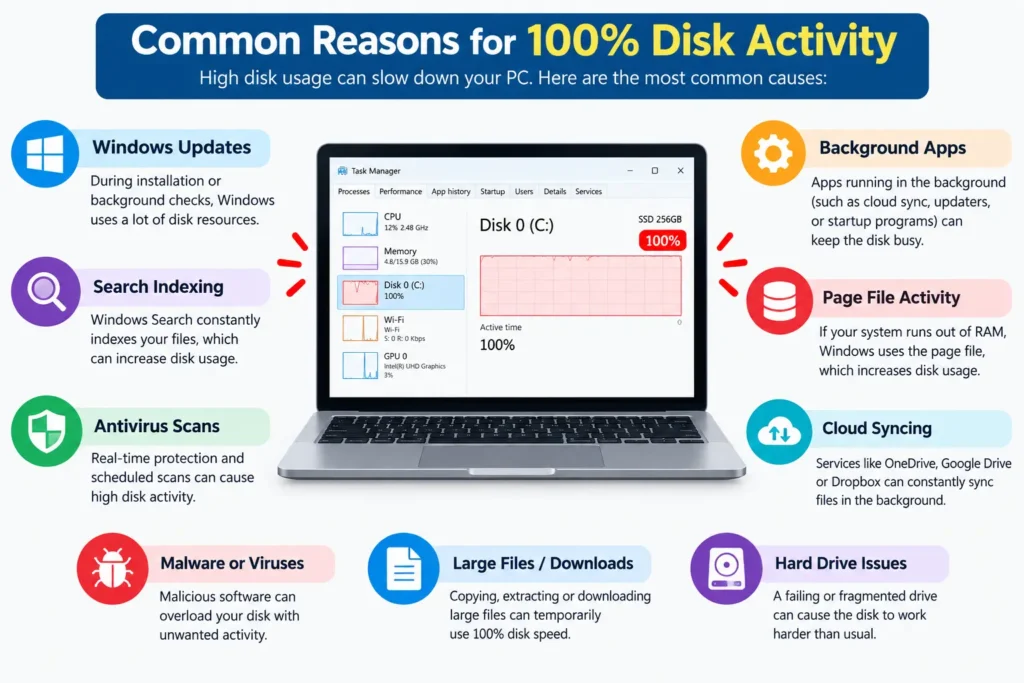
Several factors can trigger excessive disk activity.
Windows Search Indexing Issues: The Windows Search service continuously indexes files to improve search speed. Sometimes it can consume excessive disk resources.
SysMain (Superfetch) Service: SysMain attempts to predict frequently used applications and preload them into memory. On some systems, it can cause high disk usage.
Windows Updates: Background updates may temporarily increase disk activity while downloading and installing files.
Malware or Viruses: Malicious software can create unnecessary read/write operations and overload your storage drive.
Corrupted System Files: Damaged Windows files may force the operating system to repeatedly access storage resources.
Failing Hard Drive: Traditional HDDs can become slow due to age, bad sectors, or hardware issues.
Insufficient RAM: When RAM is limited, Windows relies heavily on virtual memory, increasing disk activity.
Check Which Process Is Causing High Disk Usage
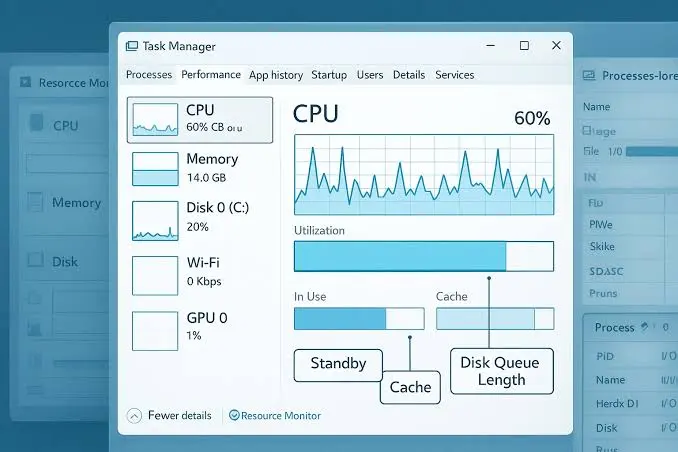
Before applying fixes, identify the source of the problem.
Using Task Manager
- Open Task Manager.
- Click Processes.
- Sort by the Disk column.
- Identify programs consuming excessive resources.
Using Resource Monitor
- Press Windows + R
- Type resmon
- Press Enter
- Open the Disk tab
Resource Monitor provides detailed information about disk activity.
Fix 1: Restart Your Computer
A simple restart often resolves temporary software conflicts and stuck background processes.
Why It Helps
- Clears temporary files
- Resets services
- Stops problematic applications
If disk usage returns to normal after restarting, the issue may have been temporary.
Fix 2: Disable Windows Search Temporarily
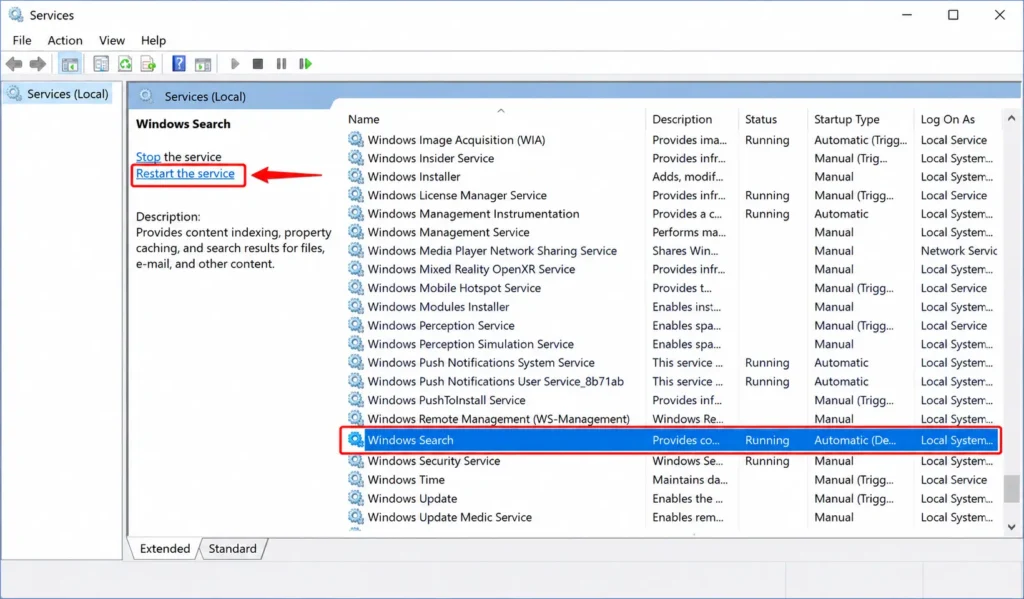
Windows Search is a common cause of excessive disk activity.
Steps
- Press Windows + X
- Select Terminal (Admin) or Command Prompt (Admin)
- Enter:
net.exe stop “Windows Search”
- Press Enter
Monitor disk usage for a few minutes.
Permanent Option
- Press Windows + R
- Type services.msc
- Locate Windows Search
- Open Properties
- Set Startup Type to Disabled
Fix 3: Disable SysMain (Superfetch)
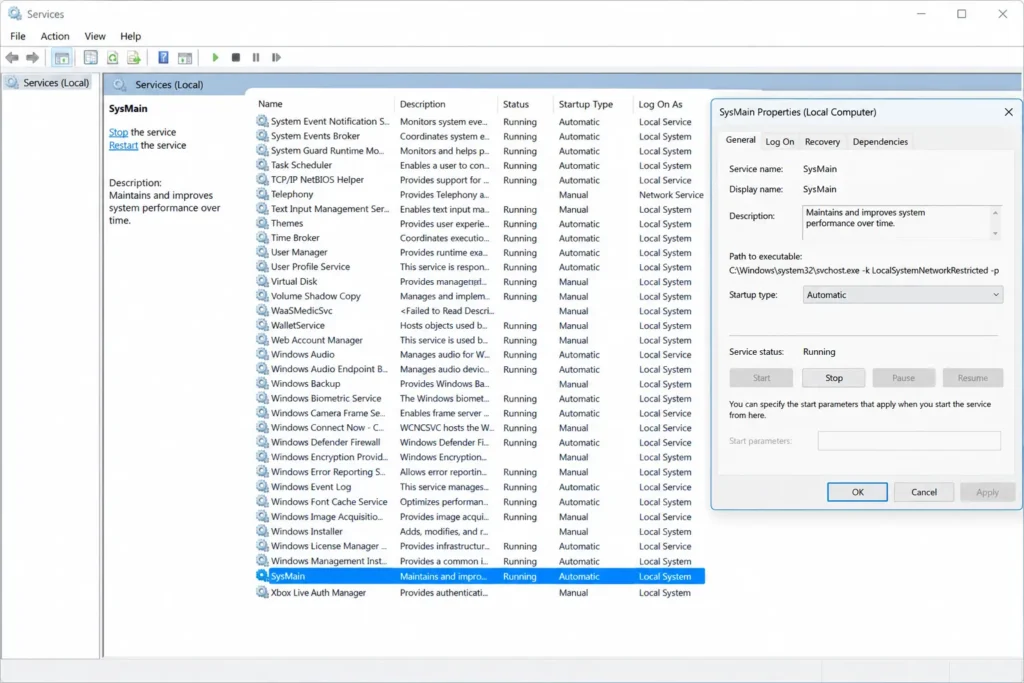
SysMain can occasionally create high disk usage issues.
Steps
- Open Command Prompt as Administrator
- Run:
net.exe stop sysmain
- Check Task Manager again
Disable Permanently
- Open Services
- Find SysMain
- Open Properties
- Set Startup Type to Disabled
- Restart your PC
Fix 4: Check for Windows Updates
Outdated system files may cause performance problems.
Steps
- Open Settings
- Navigate to Windows Update
- Click Check for Updates
- Install available updates
- Restart your computer
Keeping Windows updated can resolve many disk-related issues.
Fix 5: Run Disk Check Utility
Storage errors can trigger continuous disk activity.
Run CHKDSK
Open Command Prompt as Administrator and enter:
chkdsk C: /f /r
Windows may schedule the scan during the next restart.
Benefits
- Detects bad sectors
- Repairs file system errors
- Improves storage reliability
Fix 6: Scan for Malware
Viruses and unwanted programs often cause unusual disk usage patterns.
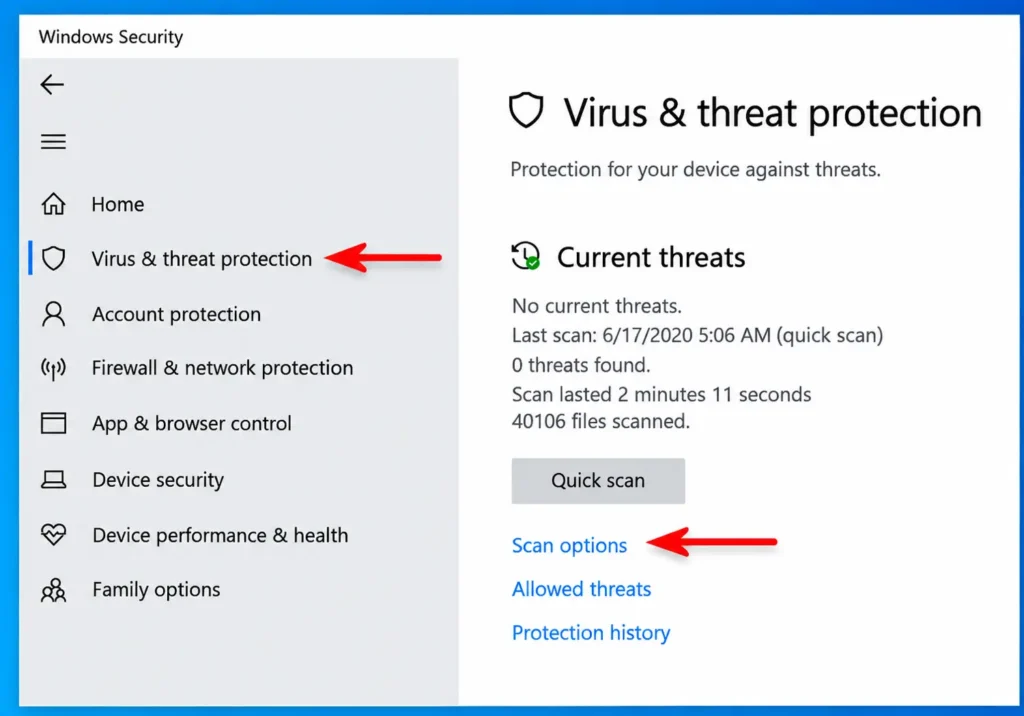
Use Windows Security
- Open Windows Security
- Select Virus & Threat Protection
- Click Scan Options
- Run a Full Scan
Remove any detected threats and restart your PC.
Fix 7: Repair Corrupted System Files
Damaged Windows files can continuously access storage resources.
Run System File Checker
Open Command Prompt as Administrator:
sfc /scannow
Wait for the scan to complete.
Use DISM Tool
If problems persist:
DISM /Online /Cleanup-Image /RestoreHealth
These tools repair important Windows components.
Fix 8: Adjust Virtual Memory Settings
Virtual memory helps when physical RAM becomes limited.
Steps
- Search Advanced System Settings
- Open Performance Settings
- Select Advanced
- Click Change under Virtual Memory
- Enable Automatically manage paging file size
Improper virtual memory settings can increase disk workload.
Fix 9: Disable Startup Programs
Too many startup applications can overload the disk during boot.
Steps
- Open Task Manager
- Click Startup Apps
- Disable unnecessary programs
Common examples include:
- Messaging apps
- Game launchers
- Auto-update tools
- Unused cloud services
Fix 10: Upgrade from HDD to SSD
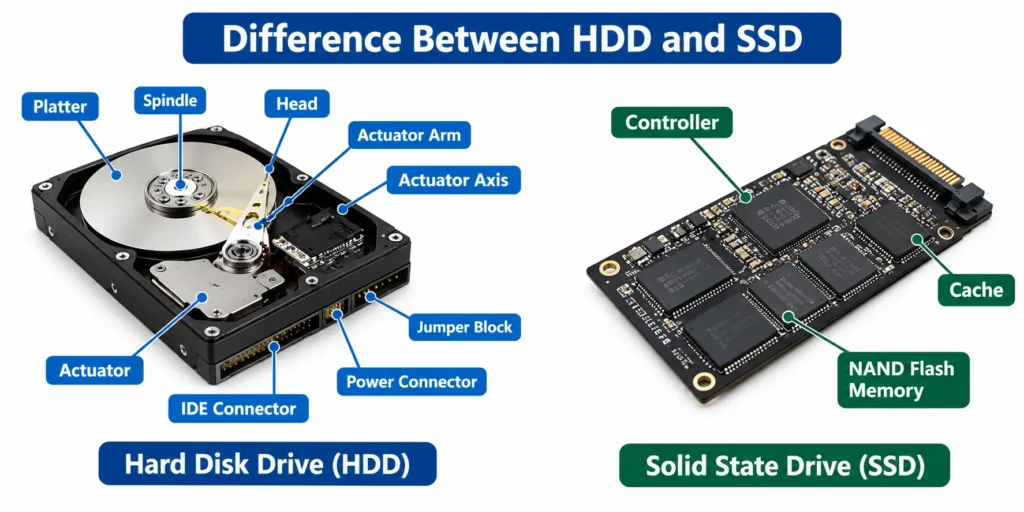
If you’re using an older hard disk drive (HDD), upgrading to a solid-state drive (SSD) can dramatically improve performance.
Benefits of SSDs
- Faster boot times
- Quicker file access
- Reduced application loading times
- Lower disk usage bottlenecks
For older systems, this is often the most effective long-term solution.
Fix 11: Check Drive Health
A failing drive can generate constant disk activity.
Using Windows Command
wmic diskdrive get status
A healthy drive should display:
OK
You can also use drive manufacturer diagnostic tools for more detailed analysis.
Common Mistakes When Fixing High Disk Usage
Many users make troubleshooting mistakes that worsen performance.
Disabling Random Services: Do not disable services unless you understand their purpose.
Ignoring Malware Scans: Many performance issues are caused by malicious software.
Skipping Drive Health Checks: Hardware failure can mimic software problems.
Installing Multiple Optimization Tools: Too many cleanup programs can create additional background activity.
Quick Summary: Best Ways to Fix 100% Disk Usage in Windows
If you’re short on time, try these solutions first:
- Restart Windows
- Disable Windows Search
- Disable SysMain
- Run SFC Scan
- Check for malware
- Update Windows
- Check drive health
- Upgrade to SSD if using HDD
These methods solve most cases of Fix 100% Disk Usage in Windows issues.
FAQ
Persistent 100% disk usage is commonly caused by Windows Search, SysMain, malware, outdated drivers, corrupted system files, or a failing hard drive. Checking Task Manager can help identify the exact source of the problem.
Yes. When physical memory becomes limited, Windows relies on virtual memory stored on the disk. This increases disk activity and may result in slower system performance.
Temporary spikes are normal, but continuous 100% disk usage can reduce performance and may indicate underlying software or hardware issues that should be addressed.
In many cases, yes. SSDs provide significantly faster read and write speeds than traditional HDDs, reducing performance bottlenecks and improving overall responsiveness.
Not necessarily. SysMain benefits some systems by improving application loading times. However, if testing shows it causes excessive disk activity, disabling it may improve performance.
Conclusion
Learning How to Fix 100% Disk Usage in Windows can significantly improve your computer’s speed and responsiveness. High disk usage is often caused by background services, corrupted system files, outdated software, malware, or aging hardware.
Start with simple fixes such as restarting your PC, checking Task Manager, disabling Windows Search, and scanning for malware. If the issue continues, perform system repairs and evaluate your storage drive’s health. For users still running traditional hard drives, upgrading to an SSD can provide a noticeable performance boost.
By following the steps in this guide, you can resolve most Disk Usage in Windows problems and keep your PC running efficiently.