 admin
admin 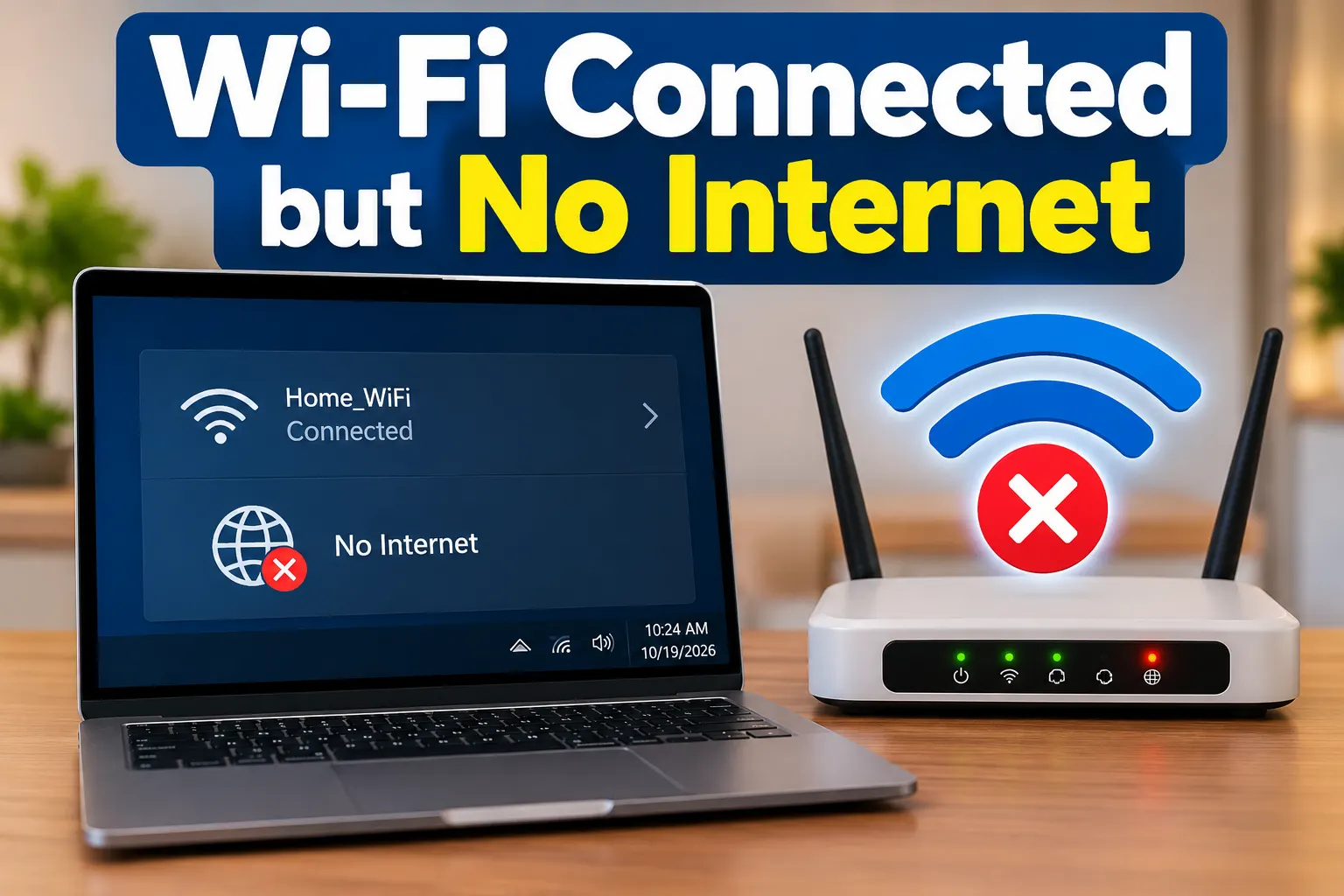
Table of Contents
- Why Is Wi-Fi Connected but There Is No Internet?
- 1. Check Whether the Internet Is Down on Other Devices
- 2. Restart Your Router and Modem
- 3. Restart Your Computer or Phone
- 4. Forget the Wi-Fi Network and Reconnect
- 5. Check Your Internet Service Provider
- 6. Disable Your VPN or Proxy Temporarily
- 7. Fix DNS Problems
- 8. Troubleshoot Wi-Fi on Windows
- 9. Reset Network Settings as a Last Resort
- 10. Check Signal Strength, Cables, and Router Settings
- Common Mistakes to Avoid
- Frequently Asked Questions
- Conclusion
You connect your laptop or phone to Wi-Fi, see the connected status, and expect everything to work. But when you open a website, launch YouTube, or check your email, nothing loads. If your Wi-Fi is connected but there is no internet, you are dealing with a common networking problem that can have several different causes.
The issue might be your router, internet service provider (ISP), device settings, DNS configuration, or a temporary software glitch. The good news is that you can resolve many of these problems without calling a technician.
In this guide, you will learn how to fix Wi-Fi connected but no internet problems on Windows PCs, Android phones, iPhones, and Macs. Follow the solutions in order, starting with the simplest checks before moving to advanced troubleshooting.
Why Is Wi-Fi Connected but There Is No Internet?
A Wi-Fi connection and an internet connection are not exactly the same thing. Wi-Fi connects your device to a wireless router or access point, while your router connects to the wider internet through your ISP.
Your device may successfully connect to the router even when the router cannot reach the internet. Similarly, your internet service might be working, but a problem with your device’s settings could prevent you from accessing websites.
Common causes include:
- A temporary router or modem malfunction.
- An internet outage or an unpaid or expired service package.
- Incorrect IP address or DNS settings.
- Outdated or malfunctioning network drivers.
- A VPN, proxy, firewall, or security application interfering with connectivity.
- Weak Wi-Fi signals or wireless interference.
- A public Wi-Fi network that requires sign-in or accepting terms.
- Incorrect date, time, or network configuration on your device.
Identifying the source of the problem first can save you time and prevent unnecessary changes to your settings.
1. Check Whether the Internet Is Down on Other Devices
Before changing anything, determine whether the problem affects one device or your entire network.
Follow these steps:
- Connect another phone, laptop, or tablet to the same Wi-Fi network.
- Open a familiar website or app.
- If possible, turn off mobile data on your phone to ensure it is using Wi-Fi.
- Check whether the second device can access the internet.
What the results mean:
- Only one device is affected: The problem is probably related to that device’s settings, software, or network adapter.
- All devices are affected: The router, modem, ISP connection, or account status may be responsible.
- Some apps work, but websites do not: DNS, browser settings, filtering software, or a partial service problem may be involved.
This simple test helps you choose the right troubleshooting method instead of trying every possible fix.
2. Restart Your Router and Modem
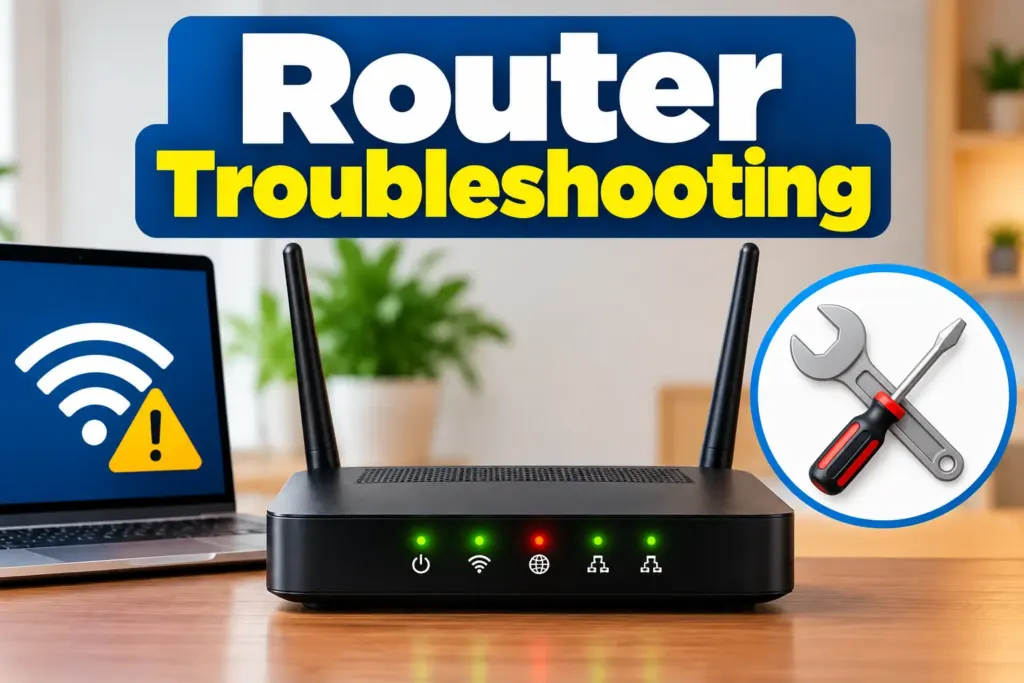
Restarting your networking equipment can resolve temporary connection failures, unresponsive services, and some IP address assignment problems.
However, use a proper restart rather than repeatedly switching the equipment on and off.
How to restart your router:
- Save your work and disconnect any unnecessary network-intensive activities.
- Turn off your router and modem, if they are separate devices.
- Unplug their power cables.
- Wait approximately 30 seconds.
- Reconnect the modem first and allow it to finish starting up.
- Turn on the router, if separate, and wait for its Wi-Fi and internet indicators to stabilize.
- Reconnect your device and test the internet.
If your ISP provides a combined modem-router, restarting that single device is usually sufficient.
Check the indicator lights and your equipment’s manual. A persistent red internet light or an abnormal LOS indicator on a fiber device may indicate a line or service issue that a restart cannot fix.
3. Restart Your Computer or Phone
If your Wi-Fi router appears to be working, restart the device that cannot access the internet.
A restart can clear temporary software glitches, refresh network services, and restore a malfunctioning wireless connection.
- Windows: Open Start, select Power, and choose Restart.
- Mac: Open the Apple menu and select Restart.
- Android: Open the power menu and select Restart.
- iPhone: Use the appropriate power-off controls for your model, turn the phone off, and turn it back on.
After restarting, reconnect to your Wi-Fi network and open a website.
If the connection works on other devices but not yours, continue with the device-specific solutions below.
4. Forget the Wi-Fi Network and Reconnect
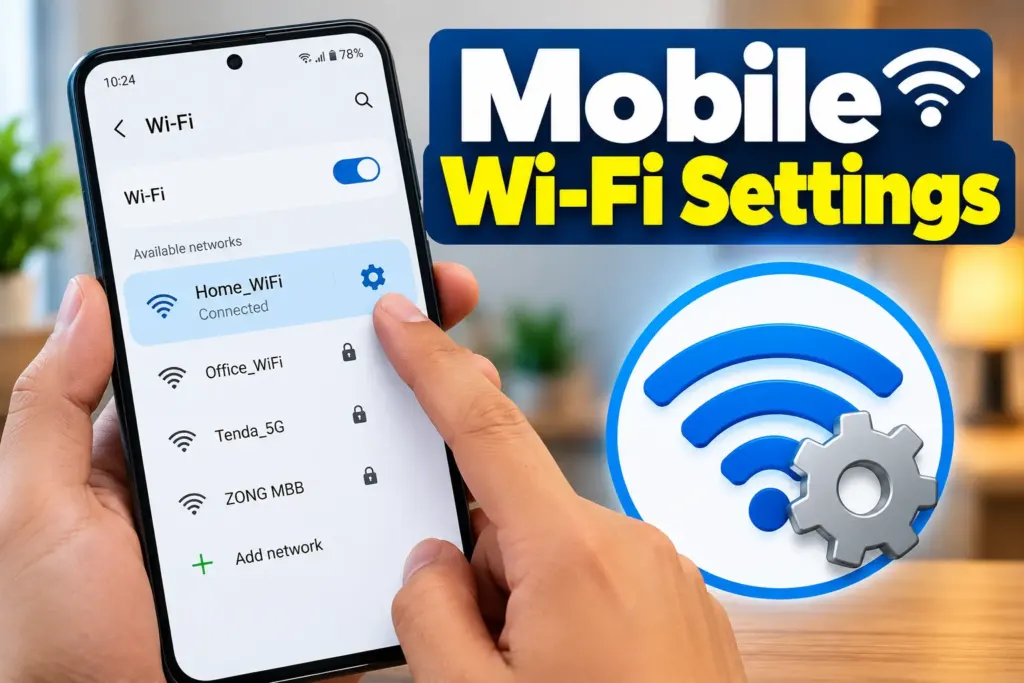
Saved Wi-Fi settings can occasionally become outdated or corrupted. Forgetting the network and reconnecting creates a fresh connection using the network details you provide.
Before proceeding, make sure you know the correct Wi-Fi password.
On Windows 11
- Open Settings.
- Select Network & internet, then Wi-Fi.
- Open Manage known networks.
- Select your Wi-Fi network and choose Forget.
- Return to the Wi-Fi list and reconnect using the password.
On Android
- Open Settings and select Wi-Fi or Network & internet.
- Tap your connected network.
- Select Forget or Forget network.
- Choose the network again and enter the password.
The exact menu names vary by manufacturer and Android version.
On iPhone
- Open Settings and select Wi-Fi.
- Tap the information icon next to the network.
- Choose Forget This Network.
- Select the network again and reconnect.
On Mac
- Open System Settings and select Wi-Fi.
- Find your network’s saved details.
- Use the option to forget or remove the network.
- Reconnect and enter the password.
If this fixes the problem, the previous saved network configuration may have been responsible.
5. Check Your Internet Service Provider
Sometimes, your equipment is working correctly, but your ISP is experiencing an outage or a service interruption.
Check your provider’s official app, website, support number, or service-status channel. If your package has expired or your account requires attention, resolve that issue as well.
You can also connect a computer directly to the router using an Ethernet cable, if available. If a wired connection also fails, the problem is more likely to involve the router’s internet connection or the ISP rather than Wi-Fi alone.
Keep in mind that a failed Ethernet test does not prove the ISP is at fault; router configuration and hardware issues can produce the same result.
If an outage is confirmed, avoid repeatedly resetting your router. Wait for the provider to restore service and test the connection again.
6. Disable Your VPN or Proxy Temporarily
A VPN or proxy can affect how your device routes internet traffic. If its server is unavailable or its configuration is incorrect, your device might remain connected to Wi-Fi while websites fail to load.
To test this possibility:
- Temporarily disconnect your VPN.
- Check whether a website loads.
- If you use a manually configured proxy, review its settings.
- Disable the proxy temporarily only if you understand how to restore the original configuration.
- Test the connection again.
If the internet works after disconnecting the VPN, check the VPN application, server selection, and settings before reconnecting.
Do not permanently disable your firewall or antivirus software just to restore internet access. If security software appears responsible, investigate its network rules or contact its support team.
7. Fix DNS Problems
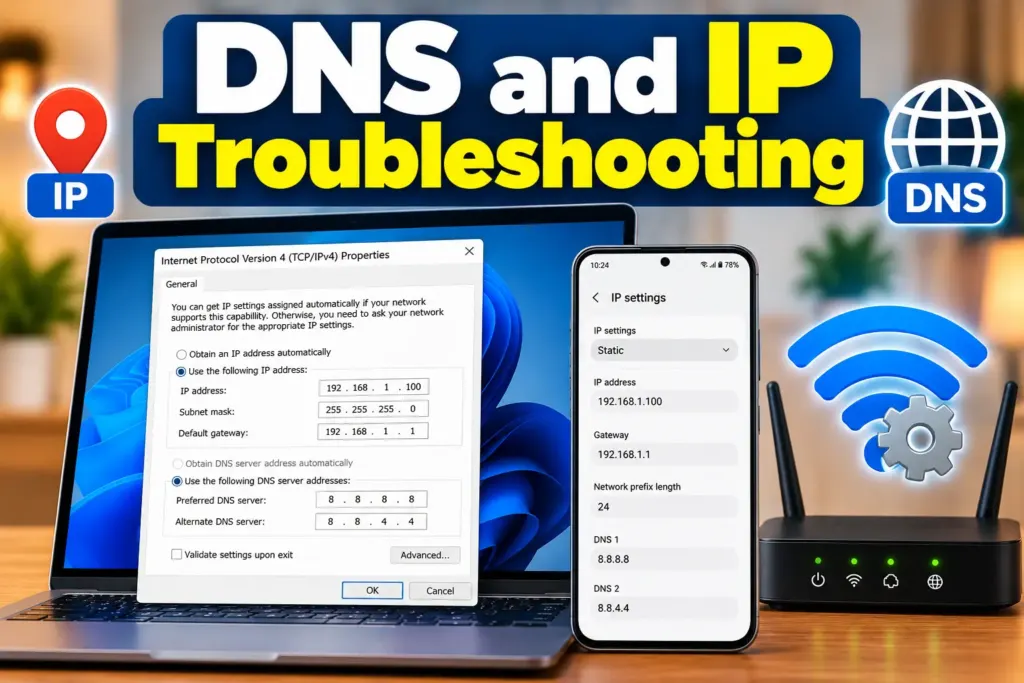
The Domain Name System (DNS) translates website names into IP addresses. If DNS resolution fails, websites may not open even though your device is connected to the network.
For example, your browser might fail to load a website by name while some other network services continue to work.
Flush DNS on Windows
- Open the Start menu.
- Search for Command Prompt.
- Select Run as administrator.
- Enter the following command:
ipconfig /flushdns
- Press Enter.
- Close Command Prompt and try opening the website again.
This clears the local DNS resolver cache. It will not fix an ISP outage or every DNS-related problem.
Try a different DNS server
If DNS issues persist, you can consider configuring a reputable public DNS service, such as Google Public DNS or Cloudflare DNS.
Change the DNS setting on either your device or router, depending on your needs. Record the original configuration first so you can restore it.
If you are using a workplace, school, or managed network, consult the network administrator before changing DNS settings. Some networks rely on internal DNS services.
8. Troubleshoot Wi-Fi on Windows
If your Windows computer shows Wi-Fi connected but no internet access, use the built-in troubleshooting options before making advanced changes.
Run the network troubleshooter
On supported Windows versions:
- Open Settings.
- Go to System and select Troubleshoot.
- Open Other troubleshooters.
- Find Network and Internet or the relevant network troubleshooter.
- Run it and follow the recommendations.
Menu names may differ depending on your Windows version.
Renew your IP address
If the computer has an IP configuration problem, renewing its address may help.
Open Command Prompt and run these commands one at a time:
ipconfig /release
ipconfig /renew
The first command releases the current IPv4 configuration, and the second requests a new one from the network’s DHCP server.
If your connection uses a static IP address or a specialized network configuration, do not change it without understanding the consequences.
Check your Wi-Fi adapter
If the problem continues, open Device Manager and expand Network adapters. Check whether your wireless adapter shows a warning symbol.
You can try disabling and re-enabling the adapter. If that does not help, check Windows Update or your computer manufacturer’s support website for an appropriate network driver.
Avoid downloading drivers from unfamiliar websites.
9. Reset Network Settings as a Last Resort
A network reset can resolve persistent configuration problems, but it should not be your first step.
Depending on your device and operating system, a reset may remove saved Wi-Fi networks, VPN configurations, virtual adapters, or other network settings.
On Windows
- Open Settings.
- Select Network & internet.
- Find Advanced network settings.
- Select Network reset, if available.
- Review the warning and follow the instructions.
- Restart the computer if prompted and reconnect to Wi-Fi.
Before resetting, make sure you have your Wi-Fi password and any required VPN or custom network settings.
On Android and iPhone, network-reset options are available in the system reset menus. Their effects differ by device and operating system, so read the confirmation screen carefully.
A network reset will not repair a damaged router, restore a failed ISP connection, or fix a physical cable problem.
10. Check Signal Strength, Cables, and Router Settings
If none of the previous methods works, inspect the physical network setup.
Start by moving closer to the router. Thick walls, metal objects, electronic interference, and long distances can weaken wireless signals.
Next, check the Ethernet cable between your modem and router, if applicable. Make sure the connectors are secure and the cable is not visibly damaged. If you have a spare compatible cable, testing it can help identify a cable fault.
You should also consider these checks:
- Confirm that the modem or fiber device is receiving service.
- Review the router’s internet or WAN status.
- Check whether parental controls or access restrictions are blocking the device.
- Verify that the router has not reached a device limit.
- Review recent configuration changes if the problem started after modifying router settings.
Do not factory-reset the router unless necessary. A factory reset can erase your Wi-Fi name, password, ISP credentials, and other custom settings.
If the router reports no internet connection despite correct cables and normal configuration, contact your ISP or equipment provider for further diagnosis.
Common Mistakes to Avoid
When troubleshooting Wi-Fi connectivity, a few common mistakes can waste time or make the situation worse.
Changing several settings at once: If you change DNS, reset the network, and modify router settings simultaneously, it becomes difficult to identify the actual cause. Test one fix at a time.
Assuming a connected status means internet access: The Wi-Fi symbol usually indicates a wireless connection, not guaranteed access to the internet.
Factory-resetting the router too early: This can erase important configuration details without fixing an ISP outage.
Disabling security tools permanently: Turning off a firewall or antivirus can expose your device to threats. Investigate the specific application or rule instead.
Ignoring captive portals: Hotels, airports, universities, and other public networks may require you to sign in or accept terms before internet access becomes available.
Installing drivers from unknown websites: Unofficial driver downloads can create compatibility and security problems. Prefer your device manufacturer’s official support resources.
Frequently Asked Questions
Your device may be connected to the router even though the router cannot reach the internet. An ISP outage, modem problem, incorrect DNS settings, or a device-specific configuration issue can cause this. Test another device on the same Wi-Fi network to determine whether the problem affects one device or the entire network.
First, restart your router and computer, then test another device. If the problem is limited to Windows 11, run the network troubleshooter, forget and reconnect to the Wi-Fi network, and consider renewing your IP address. If necessary, check the wireless adapter driver or use Network reset as a last resort.
Your phone may have a Wi-Fi connection without working internet access. Check whether other devices can browse, disable mobile data temporarily for an accurate test, and try opening a website in your browser. If only certain apps fail, check their permissions, VPN settings, and whether the services themselves are experiencing problems.
Yes. A router may broadcast Wi-Fi normally while losing its connection to the modem or ISP. It can also experience firmware glitches, incorrect WAN settings, or hardware faults. Restart the equipment, check the internet indicator and cable connections, and contact your provider if the router continues to report no internet access.
Start with a normal restart rather than a factory reset. Restarting may resolve temporary issues without erasing your configuration. A factory reset should be considered only when other troubleshooting methods fail and you know how to restore the router’s settings. If your ISP is experiencing an outage, resetting the router is unlikely to help.
Conclusion
A Wi-Fi connection without internet access can be frustrating, especially when you need to study, work, attend an online meeting, or communicate with others. Fortunately, the problem often comes down to a temporary router issue, an ISP interruption, or an incorrect device setting.
When Wi-Fi is connected but there is no internet, start by testing another device and restarting your networking equipment. Then work through the relevant device-specific fixes, DNS checks, and network troubleshooting options. Avoid drastic resets until you have ruled out simpler causes.
If the connection remains unavailable across multiple devices, contact your internet service provider and explain which troubleshooting steps you have already tried.
Your next step: Test another device on the same Wi-Fi network. That single check can help you decide whether to focus on your computer or phone, your router, or your internet provider.

Written by admin