 admin
admin 
Table of Contents
- Why Is My VPN Connected but There Is No Internet?
- 1. Check Whether Your Internet Works Without the VPN
- 2. Restart Your VPN Application
- 3. Switch to a Different VPN Server
- 4. Change Your VPN Protocol
- 5. Check the VPN Kill Switch
- 6. Fix DNS Problems
- 7. Check Your Firewall and Antivirus Settings
- 8. Fix VPN Connectivity on Windows
- 9. Troubleshoot VPN Problems on Mac, Android, and iPhone
- 10. Update or Reinstall Your VPN Application
- Common Mistakes to Avoid When Fixing VPN Internet Problems
- Key Takeaways
- Frequently Asked Questions
- Conclusion
You connect your VPN, see that it is working, and expect to browse the internet normally. Instead, websites refuse to load, apps stop responding, and your internet connection seems completely unavailable. If your VPN is connected but there is no internet, the problem could be related to your VPN server, DNS settings, network configuration, firewall, or internet service provider.
A VPN, or Virtual Private Network, encrypts your internet traffic and routes it through a VPN server. However, a successful VPN connection does not always guarantee that your device can access websites and online services.
The good news is that you can often resolve this issue with a few simple troubleshooting steps. In this guide, you will learn how to fix a VPN connected but no internet problem on Windows, Mac, Android, and iPhone without unnecessarily compromising your online security.
Why Is My VPN Connected but There Is No Internet?
Several issues can prevent internet access while your VPN appears connected. Identifying the likely cause helps you choose the right solution.
Common causes include:
- VPN server problems: The selected server may be overloaded, temporarily unavailable, or unable to route traffic correctly.
- DNS errors: Your device may be unable to translate website names into IP addresses.
- Internet connection issues: Your regular internet connection may be unstable or unavailable.
- Firewall or antivirus interference: Security software may block VPN traffic or the VPN application’s network adapter.
- Incorrect VPN settings: A misconfigured protocol, proxy, or custom DNS setting may prevent browsing.
- Kill switch activation: A VPN kill switch may intentionally block internet traffic when the VPN tunnel cannot carry it.
- Outdated software: An older VPN application or network driver may cause compatibility problems.
- Network restrictions: Your workplace, university, hotel, or ISP may restrict certain VPN protocols or connections.
The following solutions address these causes, starting with the easiest checks.
1. Check Whether Your Internet Works Without the VPN

Before changing your VPN settings, confirm that your regular internet connection is working.
Follow these steps:
- Disconnect the VPN using its application.
- Open a web browser.
- Visit a familiar website.
- Check whether other apps can access the internet.
- If nothing loads, investigate your Wi-Fi, router, or ISP connection first.
If the internet works normally without the VPN but stops working as soon as you connect, the VPN configuration or its interaction with your network is a likely cause.
Important: Disconnecting your VPN temporarily exposes your normal internet traffic to your internet service provider and network. If privacy is important, perform this test briefly and avoid sensitive activities until the VPN connection is restored.
If your VPN has a kill switch, internet access may remain blocked after disconnection until the VPN application is properly closed or the setting is adjusted. Do not assume that all VPNs behave the same way.
2. Restart Your VPN Application
A temporary application glitch can prevent a VPN from routing traffic correctly, even when the interface says it is connected.
Try restarting the application before changing advanced settings.
- Disconnect from the VPN.
- Close the VPN application completely.
- Check the system tray or menu bar to ensure it is no longer running in the background, if applicable.
- Open the application again.
- Connect to your preferred VPN server.
- Test your internet connection.
If the issue persists, restart your computer or phone as well.
This simple process can resolve temporary software problems without requiring changes to your network configuration.
3. Switch to a Different VPN Server
Your selected VPN server may be experiencing technical difficulties, congestion, or routing problems.
Connecting to another server is one of the easiest ways to determine whether the problem is server-specific.
How to switch servers:
- Open your VPN application.
- Disconnect from the current server.
- Select a different server location.
- Connect again.
- Open a website and check whether the internet works.
If you are connecting to a server in another country, try a nearby location first. A nearby server may offer a more direct route, although performance depends on the VPN provider and network conditions.
If one server works while another does not, the original server or its route may be responsible.
Avoid repeatedly switching servers without testing the connection after each change. Testing one server at a time makes it easier to identify the cause.
4. Change Your VPN Protocol
VPN protocols determine how your device establishes and maintains its encrypted connection. Some protocols may work better than others on particular networks.
For example, a network firewall may interfere with one protocol while allowing another. A VPN protocol may also encounter compatibility issues with a router or network configuration.
To test a different protocol:
- Open your VPN application’s settings.
- Look for a section called Protocol, Connection, or VPN Settings.
- Note the current protocol.
- Select another supported protocol, if available.
- Reconnect and test your internet access.
Depending on your VPN provider, available options may include WireGuard, OpenVPN, or IKEv2.
Not every VPN supports every protocol, and menu names differ between applications. Consult your provider’s documentation if you cannot find the setting.
Use protocols supported by your VPN provider rather than installing unknown networking tools. If changing the protocol restores internet access, the original protocol may have been incompatible with the network or experiencing a connection issue.
5. Check the VPN Kill Switch
A kill switch is a security feature designed to block internet traffic when the VPN connection fails or cannot protect traffic as intended.
This can create a confusing situation: the VPN application appears disconnected or partially connected, but your internet remains unavailable.
Some VPN applications also provide network-lock features that continue blocking traffic until a secure tunnel is available.
To investigate:
- Open your VPN application’s settings.
- Find Kill Switch, Network Lock, or a similarly named option.
- Check whether the feature is active or reporting a connection problem.
- Re-establish the VPN connection.
- Review your provider’s instructions if internet access remains blocked.
Do not permanently disable the kill switch simply to restore browsing. If the feature is working as intended, disabling it could allow traffic to leave your device outside the VPN tunnel.
If you need to test whether the kill switch is responsible, use the provider’s recommended troubleshooting procedure and avoid accessing sensitive services during the test.
6. Fix DNS Problems
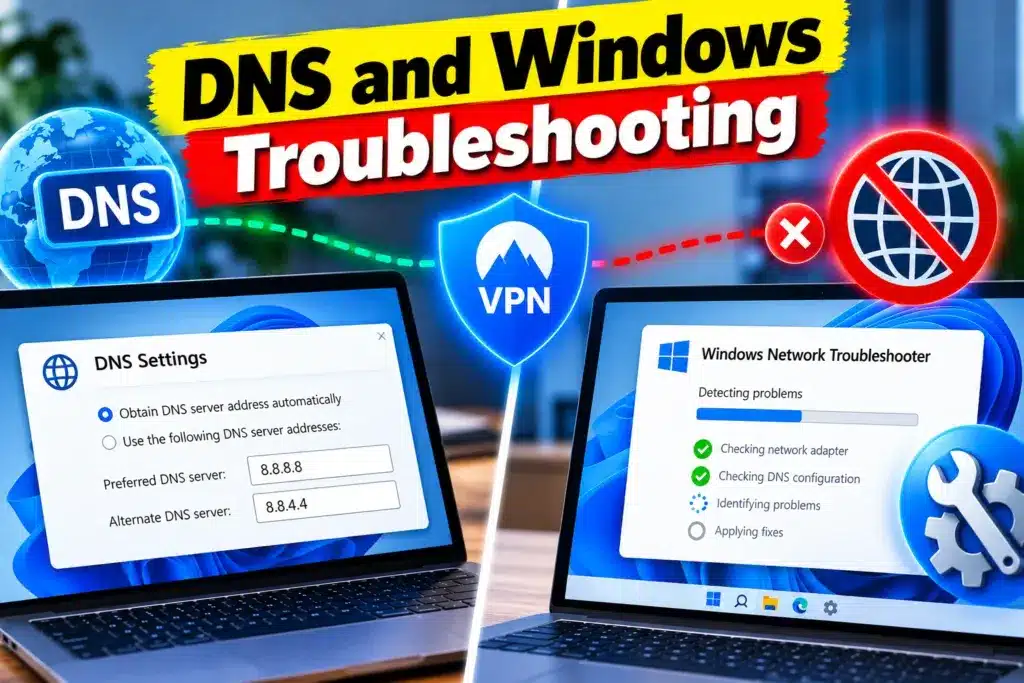
The Domain Name System (DNS) translates website addresses into IP addresses. If DNS resolution fails, your VPN may connect successfully while websites remain inaccessible.
DNS problems can result from incorrect settings, a malfunctioning DNS server, or conflicts between your VPN and the device’s network configuration.
Flush DNS on Windows
If you are using Windows, follow these steps:
- Open the Start menu.
- Search for Command Prompt.
- Select Run as administrator.
- Enter the following command:
ipconfig /flushdns
- Press Enter.
- Reconnect to your VPN and test a website.
This command clears the local DNS resolver cache. It does not repair every DNS problem or resolve a VPN server outage.
Check your VPN DNS settings
Some VPN applications automatically assign their own DNS servers to protect privacy and prevent DNS leaks.
If your VPN offers a DNS configuration option, check whether it is using the provider’s recommended settings. Avoid forcing public DNS servers onto your device without understanding how your VPN handles DNS requests.
If you use custom DNS settings, record the original configuration before making changes. On managed work or school networks, consult the administrator before modifying DNS settings.
7. Check Your Firewall and Antivirus Settings
Firewalls and security applications protect your device by controlling network traffic. Occasionally, their rules can interfere with a VPN connection.
This may happen after installing a VPN, updating security software, or changing network settings.
Try these steps:
- Open your firewall or security application’s settings.
- Check whether your VPN application has been blocked.
- Review recent security notifications.
- If necessary, create an appropriate application permission using the security software’s official instructions.
- Reconnect to the VPN and test the internet.
On Windows, you can review the allowed-app settings in Windows Security or Windows Defender Firewall.
Avoid permanently disabling your firewall or antivirus software. If you temporarily disable a security feature for diagnosis, understand the risks, restore it promptly, and do not browse sensitive websites during the test.
If your VPN works after correcting a firewall rule, the problem was likely related to traffic filtering rather than the VPN connection itself.
8. Fix VPN Connectivity on Windows
If your VPN is connected but there is no internet on Windows 10 or Windows 11, your network adapter or IP configuration may be involved.
Renew your IP address
On a standard Windows network using DHCP, you can request a fresh IPv4 address.
Open Command Prompt and run:
ipconfig /release
Then run:
ipconfig /renew
Reconnect to your VPN and test your connection.
These commands can temporarily interrupt network connectivity. Do not use them blindly on networks that rely on static IP addresses or specialized configurations.
Check your network adapter
If the issue continues:
- Open Device Manager.
- Expand Network adapters.
- Look for your wireless or Ethernet adapter and any VPN-related virtual adapters.
- Check for warning symbols or reported errors.
- Review the VPN provider’s troubleshooting guidance before changing virtual adapter settings.
You can also check Windows Update or your device manufacturer’s official website for updated network drivers.
Avoid uninstalling VPN virtual adapters unless the provider recommends it. Removing the wrong adapter or changing its settings can create additional connectivity problems.
Consider a network reset
If standard troubleshooting fails, Windows offers a Network reset option under Advanced network settings.
Use it only after trying simpler fixes, because a reset may remove network configurations and require you to reconnect to Wi-Fi or reconfigure VPN software.
9. Troubleshoot VPN Problems on Mac, Android, and iPhone
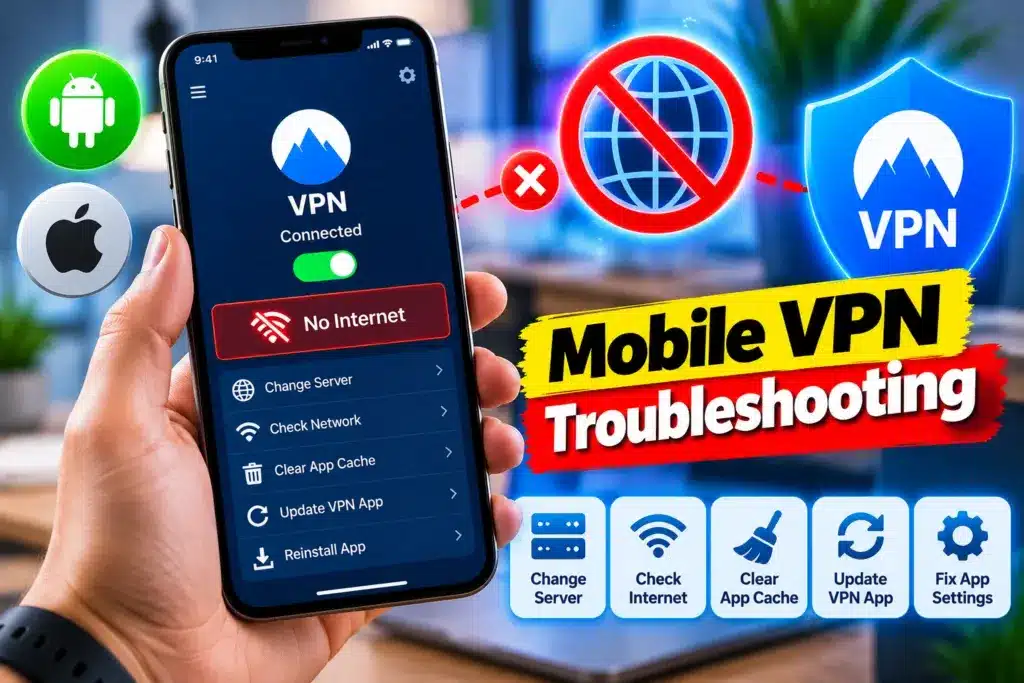
The same VPN issue can have different causes depending on the device and operating system.
On Mac
If your VPN connects but websites do not load:
- Disconnect and reconnect to the VPN.
- Restart the VPN application and your Mac.
- Check whether another VPN or network-filtering application is active.
- Review the VPN configuration in System Settings.
- Check custom DNS or proxy settings if you have changed them.
- Install compatible updates from your VPN provider.
If you use a work-managed Mac, consult your IT administrator before changing network configurations.
On Android
If your Android phone connects to a VPN but cannot access the internet:
- Confirm that Wi-Fi or mobile data works without the VPN, if safe to test.
- Restart the VPN application.
- Try another VPN server.
- Review the VPN’s kill switch or always-on settings.
- Check Android’s Private DNS setting if DNS problems are suspected.
- Update the VPN application from its official source.
Android’s Always-on VPN and the option to block connections without a VPN can intentionally prevent internet access outside the VPN tunnel. Review these settings carefully before changing them.
On iPhone
If your iPhone shows a connected VPN but apps cannot access the internet:
- Reconnect to the VPN.
- Restart the iPhone.
- Try another server or supported protocol.
- Check for VPN profiles or device-management restrictions.
- Review any custom DNS or network-filtering settings.
- Update the VPN application and iOS when appropriate.
Network settings can be managed by an employer, school, or installed configuration profile. If your device is managed, ask the administrator before removing profiles or changing restrictions.
10. Update or Reinstall Your VPN Application
If none of the earlier solutions works, your VPN application may be outdated, corrupted, or incompatible with your operating system.
Start by checking for an update through the application’s official update mechanism or the device’s official app store.
If updating does not help, consider reinstalling the application.
Before uninstalling, make sure you have your login credentials and know how to restore any custom settings. If your VPN uses manually installed profiles or certificates, confirm how to restore them before proceeding.
After reinstalling:
- Sign in to your VPN account.
- Apply the provider’s recommended default settings.
- Connect to a nearby server.
- Test whether websites and apps work normally.
Reinstalling is not guaranteed to fix the problem, particularly if the underlying cause is an ISP outage, network restriction, or VPN server failure. If the issue remains, contact the VPN provider’s support team with the device type, operating system version, server location, and any error messages.
Common Mistakes to Avoid When Fixing VPN Internet Problems

Some troubleshooting methods can introduce new problems if used without care.
Disabling security features permanently: Turning off a kill switch or firewall may restore traffic while reducing protection. Identify the actual cause and restore security settings.
Changing multiple settings simultaneously: If you change DNS, protocols, and adapter settings at the same time, you may not know which change helped.
Assuming the VPN server is always responsible: The issue could be your ISP, router, device, or network restrictions.
Using unfamiliar VPN applications: Download VPN software only from trusted official sources. Unknown applications can introduce privacy and security risks.
Factory-resetting your router too early: A reset may erase important ISP and Wi-Fi settings without resolving the VPN issue.
Ignoring managed-network restrictions: Workplace, university, and public networks may restrict VPN traffic. Do not attempt to bypass organizational security controls without authorization.
Key Takeaways
If your VPN is connected but there is no internet, use this checklist:
- Confirm that your regular internet connection works.
- Restart the VPN application and your device.
- Switch to another VPN server.
- Test a different supported VPN protocol.
- Review the kill switch and network-lock settings.
- Investigate DNS problems and Windows IP configuration.
- Check firewall and antivirus rules.
- Follow device-specific steps for Windows, Mac, Android, or iPhone.
- Update or reinstall the VPN application if necessary.
- Contact your VPN provider or ISP if the issue continues.
The most effective solution depends on whether the problem originates with your VPN, device, local network, or internet provider.
Frequently Asked Questions
Your VPN may establish an encrypted connection without successfully routing traffic to websites. Possible causes include DNS failures, server issues, incorrect protocol settings, firewall restrictions, or a kill switch blocking traffic. Check your regular internet connection first, then switch servers and review your VPN configuration.
First, restart your VPN application and computer. Try a different VPN server and protocol, then review firewall permissions and DNS settings. You can also flush the DNS cache using Command Prompt. If the issue persists, check your network adapters and consider a Windows Network reset as a last resort.
Yes. A VPN’s kill switch or network-lock feature may intentionally block internet access when a secure tunnel is unavailable. Incorrect VPN settings, DNS problems, or software conflicts can also interrupt connectivity. Review the VPN application’s settings and follow the provider’s troubleshooting guidance before disabling security features.
If your internet works without the VPN but stops working when you connect, the VPN server, protocol, DNS configuration, firewall rules, or virtual network adapter may be involved. Try another server and supported protocol first. If the problem continues, check your VPN provider’s connection diagnostics and support resources.
Changing DNS may help if website-name resolution is failing, but it will not fix every VPN problem. First, check the VPN’s recommended DNS configuration and try clearing the Windows DNS cache if applicable. Avoid overriding the provider’s DNS settings without understanding the privacy and leak-protection implications.
Conclusion
A VPN that connects successfully but cannot access the internet can disrupt work, study, streaming, and everyday browsing. Fortunately, the cause is often a configuration issue, an unavailable VPN server, a DNS problem, or interference from security software.
When your VPN is connected but there is no internet, start by confirming that your regular internet connection works. Then restart the application, switch servers, check your protocol and kill switch, and troubleshoot DNS or device settings as needed.
Avoid disabling security protections permanently or resetting your entire network before trying simpler solutions.
Your next step: Disconnect and reconnect to your VPN, then test a different server. If the internet still does not work, use the device-specific troubleshooting steps in this guide to narrow down the cause.

Written by admin