 admin
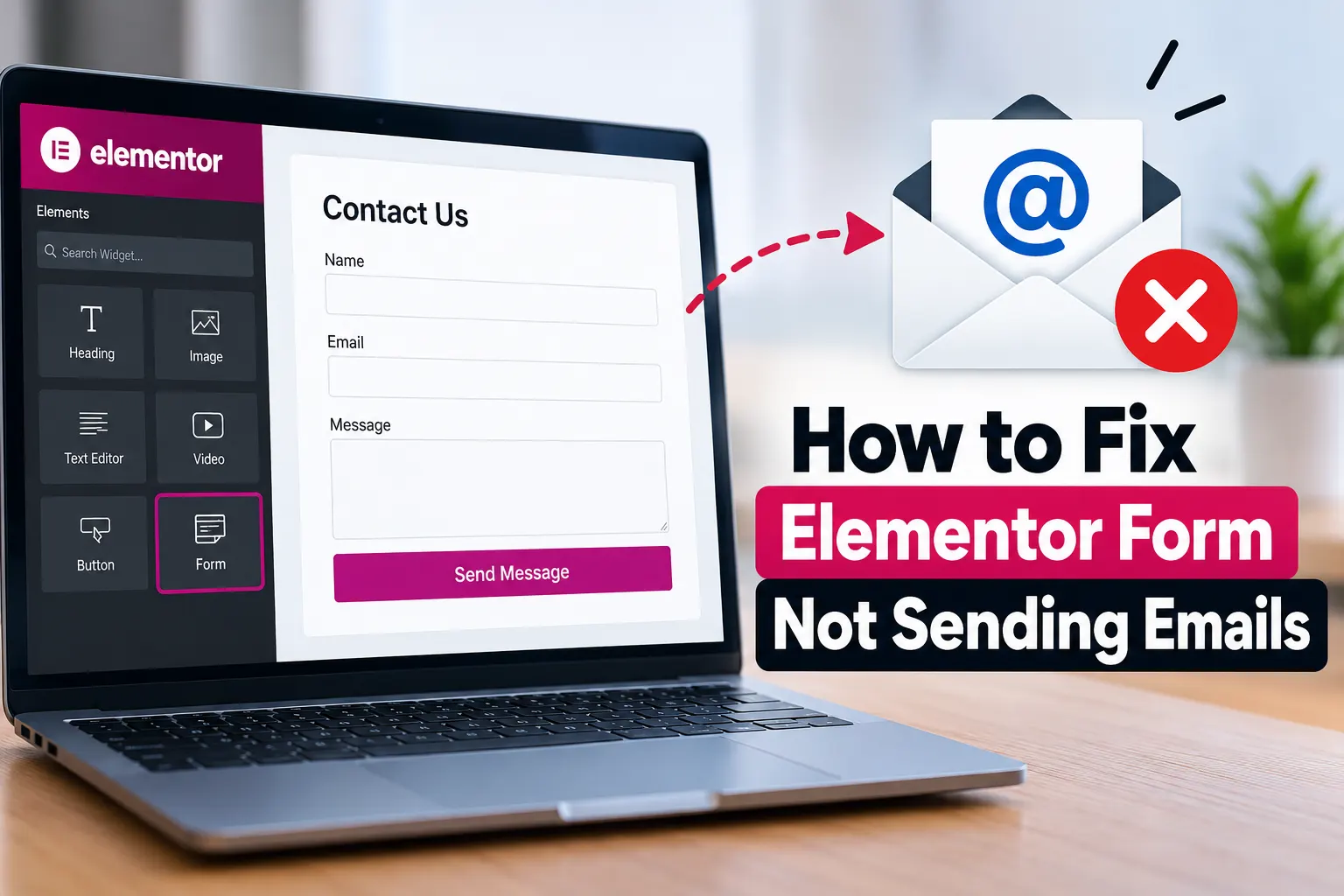
Table of Contents
- Why Is Your Elementor Form Not Sending Emails?
- 1. Check Elementor Form Email Settings
- 2. Configure the From Email and Reply-To Address
- 3. Install and Configure an SMTP Plugin
- 4. Check Your WordPress Email Delivery
- 5. Check the Spam and Junk Folders
- 6. Verify SPF, DKIM, and DMARC Records
- 7. Review Hosting Provider Email Restrictions
- 8. Check Elementor, Plugin, and Theme Conflicts
- 9. Check Form Submissions and Email Logs
- Common Mistakes to Avoid
- Quick Checklist: Fix Elementor Form Emails
- Quick Checklist: Fix Elementor Form Emails
- Frequently Asked Questions
- Conclusion
Imagine a visitor fills out the contact form on your WordPress website, clicks Submit, and sees a success message. Everything appears to work, but you never receive the email. Important customer inquiries, project requests, and business leads may be missed without you realizing it.
If you are wondering how to fix Elementor form not sending emails, the problem may involve incorrect notification settings, your hosting provider’s mail configuration, spam filtering, or a lack of proper SMTP authentication.
The good news is that you can troubleshoot most of these issues without rebuilding your website. This guide explains how to check Elementor form settings, configure reliable email delivery, test WordPress notifications, and identify the cause of missing messages.
Why Is Your Elementor Form Not Sending Emails?
Elementor forms depend on several components working together. The form must process the submission, WordPress must handle the notification, and the website’s email delivery system must send the message successfully.
A failure at any stage can prevent the email from reaching your inbox.
Common causes include:
- Incorrect recipient or sender email addresses.
- Missing or incorrectly configured Elementor email actions.
- WordPress using an unreliable default mail configuration.
- Hosting restrictions on outgoing email.
- Emails being rejected or placed in the spam folder.
- SMTP authentication or encryption errors.
- DNS authentication problems involving SPF, DKIM, or DMARC.
- Conflicts with plugins, security tools, or caching configurations.
Before changing settings, determine whether the form itself is failing or whether the form submits successfully but the notification never arrives.
1. Check Elementor Form Email Settings
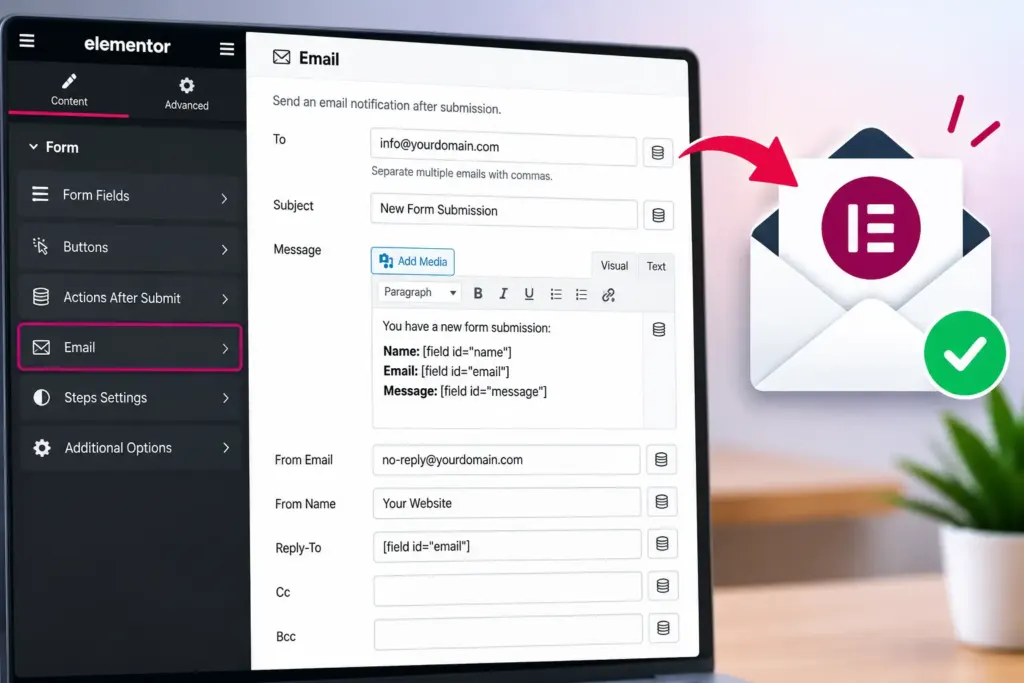
The first step is to review the form’s email notification configuration. An incorrect recipient address or missing email action can prevent notifications from reaching you.
How to check Elementor email settings
- Open your WordPress dashboard.
- Navigate to Pages and edit the page containing the form with Elementor.
- Select the form widget.
- Open the Actions After Submit section.
- Make sure the Email action is included.
- Open the Email settings.
- Review the recipient address, subject, sender address, sender name, and message content.
- Update the page if you make changes.
The exact interface may vary by Elementor version. The standard Elementor Form widget is a feature of Elementor Pro; other form plugins integrated with Elementor may use different notification settings.
Verify the recipient email address
Check the To field carefully. It should contain the inbox where you want to receive submissions.
For example, if your business inbox is contact@example.com, make sure that exact address appears in the recipient field.
Look for spelling mistakes, outdated addresses, and accidental spaces. If you use multiple recipients, confirm that the addresses are separated using the format supported by your configuration.
After saving, submit a test entry and check the recipient inbox.
2. Configure the From Email and Reply-To Address
Incorrect sender settings can cause email delivery problems or trigger spam filters.
In Elementor’s email action, the From Email field identifies the sender of the notification. Using an address associated with your website’s domain is generally preferable when your mail provider authorizes that address.
For example, if your website is example.com, you might use website@example.com as the sender, provided that address is valid and permitted by your email service.
Use the visitor’s email as Reply-To
A common mistake is putting the visitor’s email address directly into the From Email field.
This can cause authentication problems because your website is not authorized to send email as the visitor’s domain.
Instead:
- Set From Email to an authorized address belonging to your website.
- Open the Reply-To field.
- Insert the form field shortcode that represents the visitor’s email address.
- Save the form.
- Submit a test message and use Reply to confirm the visitor’s address is populated correctly.
This setup lets you reply to the person who submitted the form without pretending that your website sent the message from their email account.
3. Install and Configure an SMTP Plugin
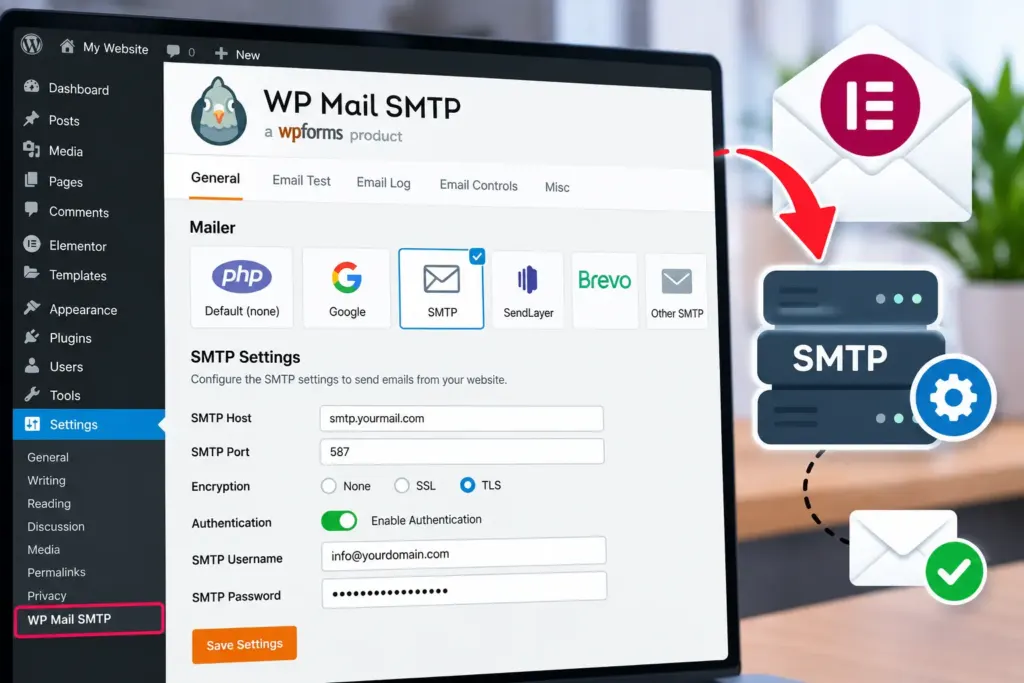
One of the most useful solutions for WordPress email delivery problems is to configure an authenticated SMTP connection or another supported transactional email service.
WordPress sites may rely on the default PHP mail mechanism. Depending on the hosting environment, this may not be configured properly or may deliver messages unreliably.
SMTP plugins can connect WordPress to an authorized email service using the required credentials and settings.
How to set up SMTP for Elementor
- Back up your website or ensure you can restore its settings.
- Open your WordPress dashboard.
- Navigate to Plugins → Add New Plugin.
- Search for a reputable SMTP plugin, such as WP Mail SMTP.
- Install and activate it.
- Select a mailer supported by your email provider.
- Follow the provider’s instructions to configure the connection.
- Save the settings and use the plugin’s email test feature, if available.
You may need an SMTP hostname, port, encryption method, username, password, or API credentials, depending on the mailer you choose.
Use the exact settings supplied by your email or hosting provider. Do not guess credentials or copy settings from an unrelated provider.
Which SMTP mailer should you choose?
Your best option depends on your existing email service and the purpose of your website.
- Hosting provider SMTP: Useful when your hosting company provides an authenticated mail service.
- Business email provider: Suitable when your organization already uses a supported business email platform.
- Transactional email service: Often appropriate for websites that need dependable automated notifications and delivery logs.
After configuration, send a test email. If the test fails, review the plugin’s error message and correct the connection before testing Elementor again.
4. Check Your WordPress Email Delivery
If the Elementor settings look correct but notifications still do not arrive, check whether WordPress can send emails independently of the form.
This separates a form-specific problem from a website-wide mail delivery problem.
Test email delivery:
- Open your SMTP plugin’s email test tool, if available.
- Enter an inbox you can access.
- Send a test message.
- Check your inbox, spam folder, and any quarantine area.
- Review the plugin’s logs or error messages if the test fails.
If the test email fails, focus on the SMTP configuration, hosting restrictions, authentication, or provider connection.
If the test email succeeds but Elementor notifications fail, review the form’s recipient, sender, Reply-To, and email action settings.
A successful test confirms that one test message was accepted through the configured mailer. It does not guarantee that every future message will reach every recipient’s inbox.
5. Check the Spam and Junk Folders
Sometimes the email has been delivered but is not visible in the main inbox.
Email providers use spam filtering to identify suspicious, bulk, or unauthenticated messages. Notifications from a newly configured website may be filtered until the sending setup earns a good reputation.
What to do:
- Search your inbox for the form’s subject line.
- Check the spam or junk folder.
- Review any email quarantine provided by your organization.
- Check whether a rule or filter automatically archives or deletes the notification.
- If the message is legitimate, mark it as not spam when appropriate.
If you use a business email account, ask your administrator to check mail-flow or quarantine logs.
Do not solve a spam problem by disabling email security. Instead, verify the sender configuration and authentication records.
6. Verify SPF, DKIM, and DMARC Records
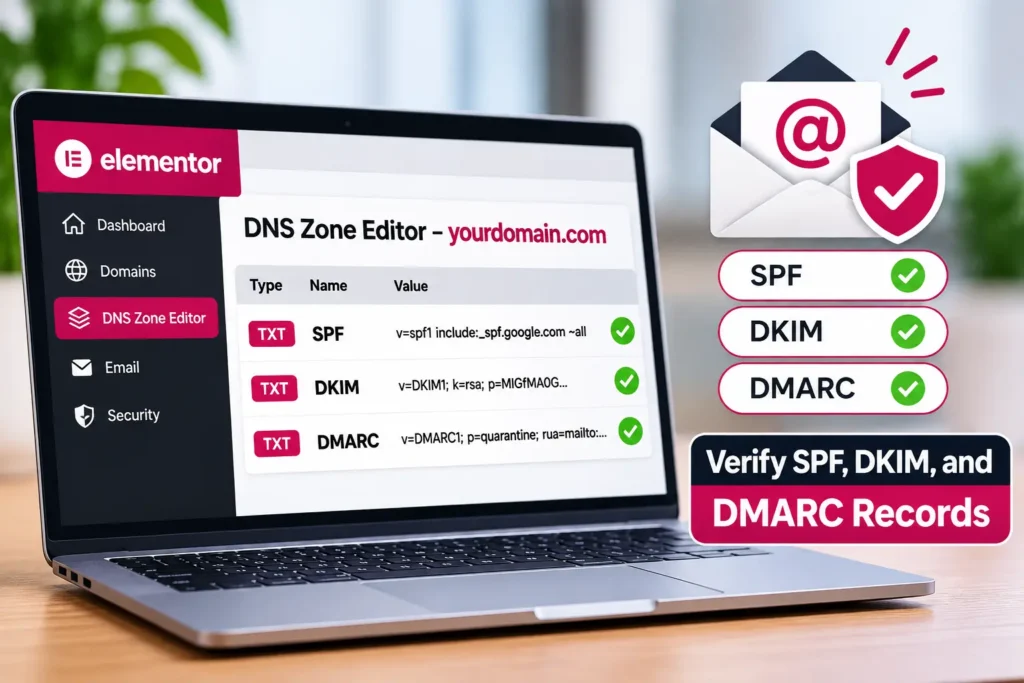
Email authentication helps receiving mail servers determine whether a message is authorized to come from a particular domain.
Three important mechanisms are SPF, DKIM, and DMARC.
- SPF: Specifies which servers are authorized to send email for a domain.
- DKIM: Uses a cryptographic signature to help receiving servers verify message authenticity and integrity.
- DMARC: Defines how receiving servers should handle messages that fail alignment and authentication checks, and can provide reporting.
Incorrect or missing DNS records can contribute to delivery or spam problems, particularly when your website sends email through a third-party service.
How to check email authentication:
- Identify the service that sends your website’s email.
- Open the provider’s official domain-authentication instructions.
- Review the required SPF and DKIM records.
- Check whether the provider recommends a DMARC policy.
- Review your domain’s existing DNS records before making changes.
- Allow time for DNS changes to propagate, then test again.
Important: Do not add multiple SPF records for the same domain. If you already have an SPF record, authorized sending services usually need to be incorporated into the existing record according to your provider’s instructions.
Incorrect DNS changes can disrupt email delivery. If you are unsure, consult your domain or email provider before editing the records.
7. Review Hosting Provider Email Restrictions
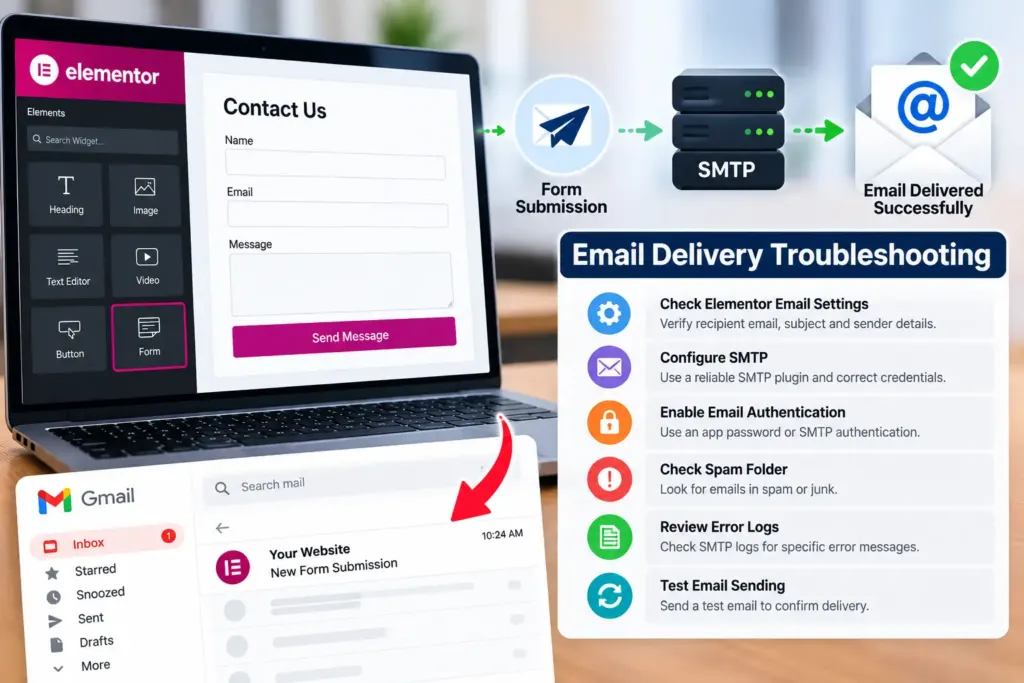
Some hosting companies restrict outgoing email to reduce spam or protect shared servers. Others require authentication or impose sending limits.
If your SMTP plugin reports a connection error, authentication failure, or rejected message, your hosting environment or mail provider may be involved.
Troubleshooting steps:
- Check your hosting provider’s documentation for outgoing email requirements.
- Confirm that your account is permitted to send email.
- Verify the SMTP hostname, port, and encryption settings.
- Check for account limits or suspended email services.
- Contact hosting support if the connection is blocked or the server rejects messages.
If you use a third-party transactional mailer, follow its recommended configuration rather than assuming the hosting server handles outgoing mail.
Avoid opening ports or changing server firewall settings without authorization from your hosting administrator.
8. Check Elementor, Plugin, and Theme Conflicts
A plugin conflict can sometimes interfere with form submission or email processing. This is more likely when the issue began after a plugin update, theme change, or new integration.
How to identify a conflict:
- Back up your website.
- Update Elementor, Elementor Pro, and related plugins to compatible, supported versions.
- Check the form’s submission records or available error messages.
- If you have a staging site, test there first.
- Temporarily disable nonessential plugins one at a time in the test environment.
- Submit a test form after each change.
- If the problem disappears, investigate the plugin or integration that caused the change.
Do not deactivate essential security, payment, or business plugins on a live website without a safe testing plan.
If the form submission succeeds but the email alone fails, investigate email delivery first rather than immediately changing your theme.
9. Check Form Submissions and Email Logs
Depending on your Elementor version, integrations, and installed extensions, you may have access to stored submissions or delivery logs.
These records can help determine whether a visitor’s message reached WordPress and whether the email system attempted to send it.
What to look for:
- Whether the form submission was recorded.
- Whether the email action was triggered.
- Whether the mailer accepted or rejected the message.
- Whether the server returned an error.
- Whether the email provider recorded a delivery, bounce, or rejection.
Elementor Pro’s Submissions feature can store form entries when configured and supported, but stored submissions and email delivery are separate functions.
If a message is recorded in submissions but missing from your inbox, you have useful evidence that the form received the entry. Next, investigate the mailer and recipient rather than asking visitors to submit the same information repeatedly.
Common Mistakes to Avoid
Using a visitor’s email address as the sender: This can create authentication and sender-spoofing problems. Use an authorized website address for From Email and the visitor’s address for Reply-To.
Installing multiple SMTP plugins: Multiple plugins that attempt to control WordPress mail delivery can create confusion or conflicting configurations. Use one clearly configured mail-delivery solution unless your setup has a specific, documented reason for something different.
Assuming a successful form message means the email was delivered: A success message usually indicates that the form submission was processed. It does not necessarily confirm delivery to the intended inbox.
Changing DNS records without checking existing values: Incorrect SPF, DKIM, or DMARC changes can affect other email services using your domain. Follow the provider’s instructions and preserve existing records where required.
Ignoring email logs: Logs and error messages often provide more useful evidence than repeatedly changing form settings. Use them to identify the failing stage.
Quick Checklist: Fix Elementor Form Emails
When troubleshooting DNS_PROBE_FINISHED_NXDOMAIN, a few mistakes can waste time or create additional problems.
Assuming every DNS error means the internet is disconnected: Your computer may have a working internet connection while one domain fails to resolve. Test other websites before concluding that your entire connection is broken.
Changing multiple settings at once: If you change DNS providers, disable extensions, reset network settings, and modify your VPN simultaneously, you may not know which action helped.
Make one change at a time and test the website after each step.
Downloading unknown DNS repair tools: You generally do not need a third-party application to flush the DNS cache or update Windows network settings. Use built-in Windows and Chrome tools whenever possible.
Ignoring domain-related problems: If a domain has expired or its DNS records are incorrectly configured, changing your computer’s settings may not solve the problem. Sometimes the website owner must fix it.
Quick Checklist: Fix Elementor Form Emails
Before finishing your troubleshooting, confirm the following:
- The Email action is enabled.
- The recipient address is correct.
- The From Email address is authorized.
- The visitor’s address is configured in Reply-To.
- The SMTP mailer is connected and authenticated.
- Test emails can be sent successfully.
- Spam and quarantine folders have been checked.
- SPF and DKIM records match the mail provider’s instructions.
- Hosting restrictions and sending limits have been reviewed.
- Form submissions and email logs have been checked.
Frequently Asked Questions
Common causes include an incorrect recipient address, a missing Email action, an unreliable WordPress mail configuration, SMTP errors, or spam filtering. Start by checking the form’s notification settings and sending a test email through your configured mailer.
An SMTP plugin is not always mandatory, but a properly configured authenticated mailer can improve reliability and troubleshooting. The best choice depends on your hosting environment and email provider. Configure a supported mailer and verify delivery using its test feature.
A successful submission does not necessarily confirm email delivery. WordPress may process the entry while the mailer fails, the recipient address is incorrect, or the message is filtered. Check submission records, email logs, spam folders, and SMTP test results.
Yes. Missing or incorrect SPF and DKIM records can affect email authentication, while DMARC policies may influence how receiving servers handle messages that fail authentication or alignment. Follow your email provider’s DNS instructions and verify existing records before making changes.
First, use your SMTP plugin’s email test tool to check the mail connection. Then submit a test entry through the Elementor form and check the recipient inbox, spam folder, and available logs. Comparing both results helps identify whether the issue is with the mailer or the form configuration.
Conclusion
When an Elementor form is not sending emails, the problem may be caused by form settings, WordPress mail delivery, SMTP authentication, spam filtering, or DNS configuration. The most effective approach is to identify which stage is failing before changing several settings.
Start by checking the recipient and sender fields. Next, send a test email through your SMTP plugin. If that test fails, troubleshoot the mailer or hosting configuration. If it succeeds, investigate Elementor’s email action, delivery logs, and spam filtering.
Your next step: Check the Elementor Email settings and send a test message. If the notification still does not arrive, configure or troubleshoot an authenticated SMTP mailer and review its error logs.

Written by admin