 admin
admin 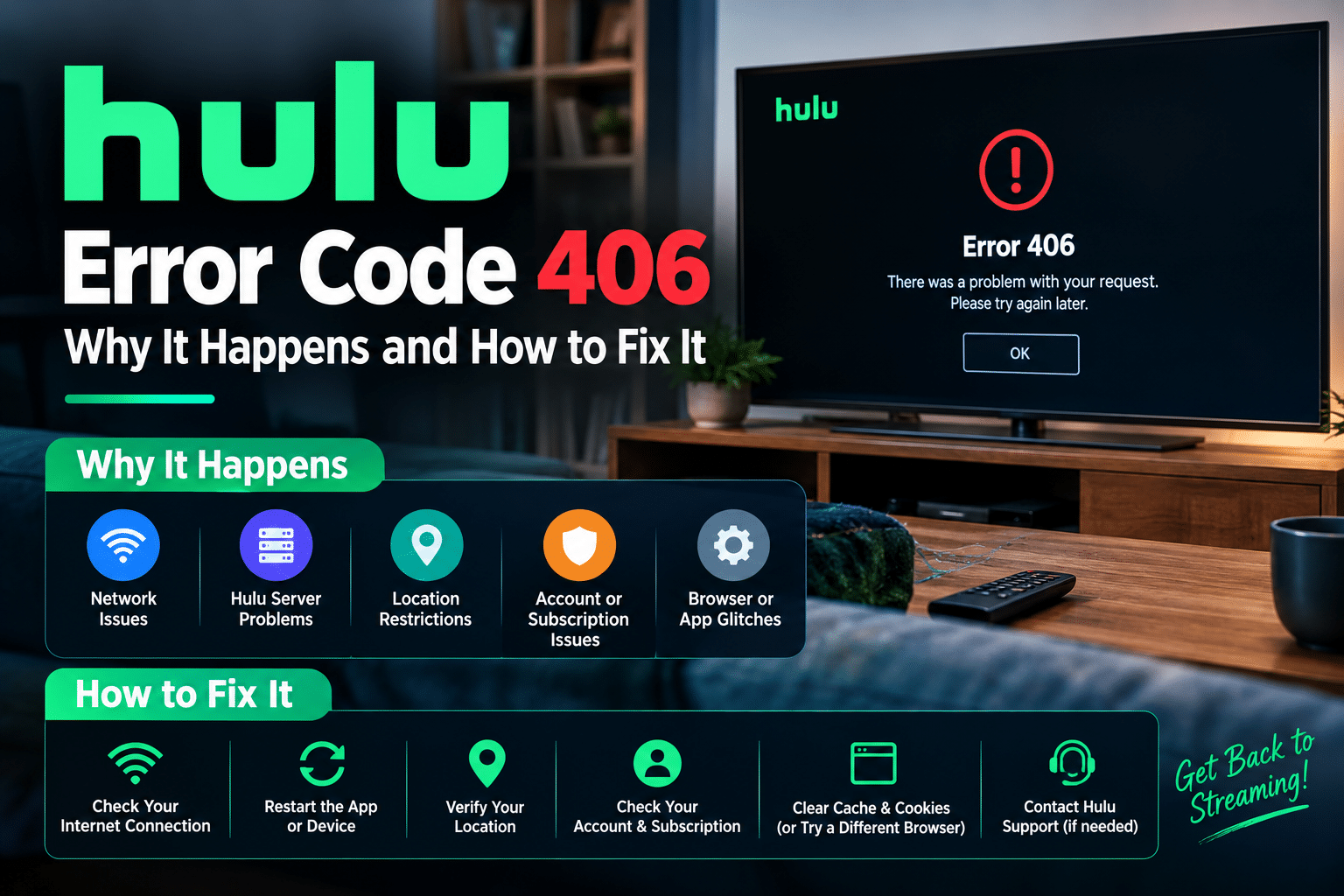
There’s nothing more frustrating than settling in to watch your favorite Hulu show only to be interrupted by an unexpected error message. One issue that some users encounter is Hulu Error Code 406, a streaming error that can prevent content from loading or cause playback interruptions across various devices.
Whether you’re using Hulu on a Smart TV, Roku, Firestick, gaming console, Android device, iPhone, or web browser, this guide will help you understand what causes Hulu Error Code 406 and how to fix it quickly. If you’re dealing with other Hulu playback issues, you may also find our guide on How to Fix Hulu Error Code P-DEV320 helpful, as many Hulu errors share similar troubleshooting methods.
What Is Hulu Error Code 406?
Hulu Error Code 406 is a playback or communication error that occurs when Hulu is unable to process a streaming request successfully. This can happen due to internet connectivity issues, app-related problems, corrupted cache files, account authentication errors, or temporary server-side issues.
When this error appears, users may notice:
- Videos failing to load
- Buffering or playback interruptions
- Black screens while streaming
- Hulu app crashes or freezes
- Error messages during content playback
- Problems accessing certain shows or movies
Since multiple factors can trigger the error, identifying the underlying cause is the first step toward resolving it.
Common Causes of Hulu Error Code 406
Understanding why Hulu Error Code 406 occurs can make troubleshooting much easier.
Poor or Unstable Internet Connection
Streaming services rely on a stable internet connection. If your network is weak, slow, or frequently disconnects, Hulu may struggle to communicate with its servers, resulting in playback errors.
Outdated Hulu Application
Running an older version of the Hulu app can create compatibility issues and prevent the service from functioning properly.
Corrupted Cache Files
Temporary files stored by the Hulu app can sometimes become corrupted, causing unexpected playback and streaming errors.
Hulu Server Problems
In some cases, the issue may not be on your device at all. Hulu’s servers can experience outages, maintenance periods, or technical disruptions that affect users.
Device Software Issues
Older operating systems and outdated device firmware may not work efficiently with the latest Hulu updates.
VPN or Proxy Interference
VPNs and proxy services can interfere with Hulu’s ability to verify your location and establish a proper streaming connection.
Account Login Problems
Expired sessions or authentication issues may occasionally trigger Hulu streaming errors.
How to Fix Hulu Error Code 406
The following troubleshooting methods can help resolve Hulu Error Code 406 on most devices.
1. Check Your Internet Connection
A stable internet connection is essential for uninterrupted streaming.
Try These Steps:
- Run an internet speed test.
- Restart your modem and router.
- Disconnect unused devices from your network.
- Move closer to your Wi-Fi router.
- Switch between Wi-Fi and mobile data if possible.
Many users find that network-related issues are the primary cause of Hulu playback errors.
2. Restart the Hulu App
Temporary glitches within the app can often be resolved by restarting it.
On Mobile Devices
- Completely close Hulu.
- Remove it from recent apps.
- Wait a few seconds.
- Reopen the app.
On Streaming Devices
- Exit Hulu.
- Return to the home screen.
- Force close the application if supported.
- Launch Hulu again.
This simple step often fixes temporary streaming issues.
3. Clear Hulu Cache and App Data
Corrupted cache files can interfere with normal app functionality.
Android Devices
- Open Settings.
- Navigate to Apps.
- Select Hulu.
- Tap Storage.
- Choose Clear Cache.
Other Devices
Many Smart TVs and streaming devices provide options to clear application data through their settings menus.
Clearing cache helps remove damaged temporary files without affecting your account information.
4. Update the Hulu App
Keeping Hulu updated ensures compatibility with the latest operating systems and security updates.
To Update Hulu:
- Open your device’s app store.
- Search for Hulu.
- Install any available updates.
- Restart your device after updating.
An outdated app is a common cause of Hulu streaming errors and playback issues.
5. Restart Your Device
A full device restart can clear temporary software conflicts.
Steps:
- Turn off the device.
- Wait approximately 30 seconds.
- Turn it back on.
- Open Hulu and test playback.
This process refreshes system resources and can eliminate minor software bugs.
6. Verify Hulu Server Status
Sometimes the problem originates from Hulu’s servers rather than your device.
Look for signs such as:
- Widespread user complaints
- Service outage reports
- Scheduled maintenance announcements
- Streaming disruptions affecting multiple regions
If Hulu is experiencing technical difficulties, waiting for the service to recover may be necessary.
7. Sign Out and Back Into Hulu
Refreshing your account session can resolve authentication-related problems.
Follow These Steps:
- Open Hulu settings.
- Sign out of your account.
- Close the application.
- Reopen Hulu.
- Log back in.
This can often resolve account verification and playback issues.
8. Disable VPN or Proxy Services
If you’re using a VPN, proxy server, or Smart DNS service, try disabling it temporarily.
VPN services can sometimes prevent Hulu from verifying your connection properly, which may trigger Error Code 406.
After disabling the VPN:
- Restart Hulu.
- Connect using your regular internet connection.
- Test playback again.
9. Reinstall the Hulu App
If the problem persists, reinstalling Hulu may help.
Steps:
- Remove Hulu from your device.
- Restart the device.
- Download Hulu again.
- Sign in to your account.
- Test streaming.
Reinstallation removes corrupted app files and installs a clean version of the application.
10. Update Your Device’s Operating System
Device software updates often include bug fixes and compatibility improvements.
Check for updates on:
- Android phones and tablets
- iPhones and iPads
- Roku devices
- Fire TV and Firestick
- Apple TV
- Smart TVs
- PlayStation and Xbox consoles
Running the latest software version helps reduce streaming issues.
Hulu Error Code 406 on Popular Devices
Hulu Error Code 406 on Roku
If Hulu isn’t working on Roku:
- Restart Roku.
- Check for system updates.
- Reinstall Hulu.
- Verify your internet connection.
Hulu Error Code 406 on Firestick
Firestick users can try:
- Clearing cache and app data.
- Restarting the device.
- Updating Fire OS.
- Reinstalling Hulu.
Hulu Error Code 406 on Smart TVs
For Smart TVs:
- Update TV firmware.
- Restart the television.
- Remove and reinstall Hulu.
- Test network connectivity.
Hulu Error Code 406 on Android and iPhone
Mobile users should:
- Update Hulu.
- Clear app cache.
- Restart the device.
- Reinstall Hulu if necessary.
If you’re encountering multiple Hulu playback issues, our guide on How to Fix Hulu Error Code P-DEV320 provides additional troubleshooting solutions that may help resolve related streaming errors.
How to Prevent Hulu Error Code 406
Although not every issue can be prevented, the following practices can reduce the likelihood of future errors.
Keep Hulu Updated
Install app updates regularly to ensure optimal performance.
Use Reliable Internet
A stable internet connection minimizes buffering and playback interruptions.
Clear Cache Periodically
Removing temporary files can prevent corruption-related issues.
Update Device Software
Running the latest operating system improves compatibility and security.
Avoid Unsupported VPN Connections
Use a direct internet connection whenever possible.
Restart Devices Regularly
Occasional reboots help keep apps and system resources functioning smoothly.
Frequently Asked Questions
It is a playback or communication error that occurs when Hulu cannot properly complete a streaming request.
Yes. Network instability is one of the most common causes of this error.
Yes. Corrupted cache files often contribute to Hulu playback issues.
Reinstalling Hulu can resolve app-related problems by replacing damaged files with a fresh installation.
Yes. VPN and proxy services may interfere with Hulu’s connection and authentication processes.
Final Thoughts
Hulu Error Code 406 is a common streaming issue that can usually be fixed with simple troubleshooting steps such as checking your internet connection, clearing cache files, updating the Hulu app, restarting your device, or reinstalling the application. In some cases, Hulu server outages may be responsible for the problem.
By following the solutions outlined above, you can quickly restore normal streaming and enjoy your favorite Hulu content without interruptions. For additional Hulu troubleshooting tips, be sure to check our complete guide on How to Fix Hulu Error Code P-DEV320, which covers another common Hulu playback error and its solutions.