 admin
admin 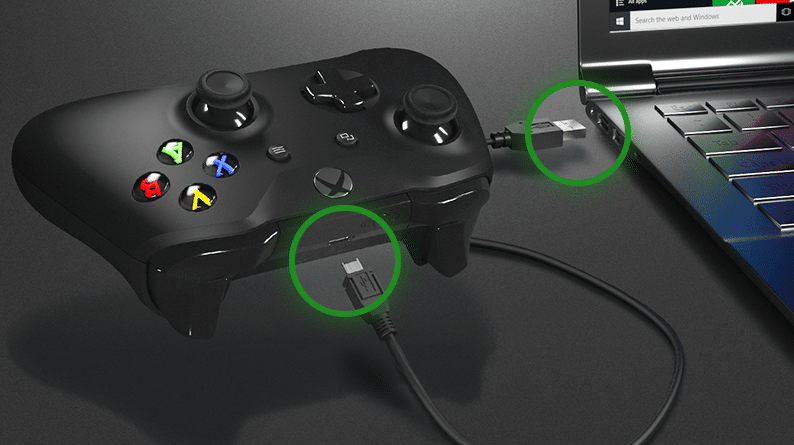
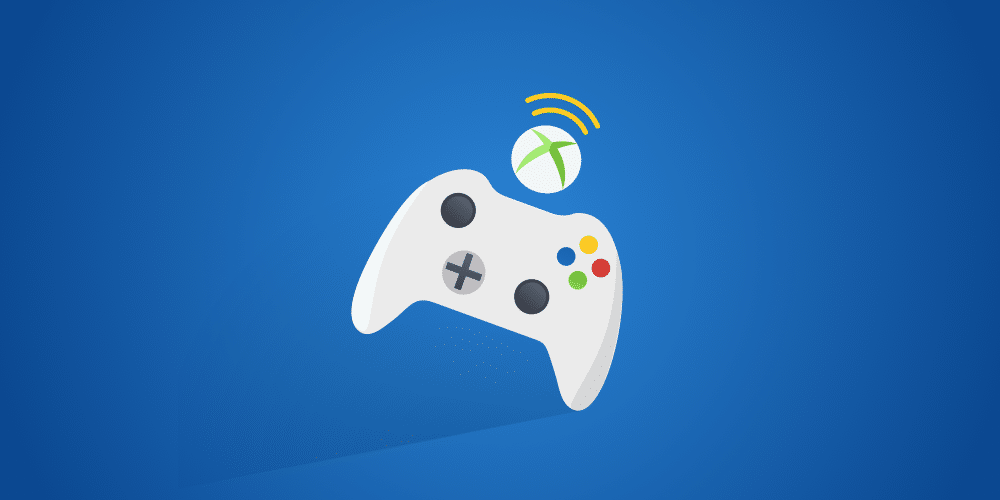
If you’re a gamer, you already know that playing on a PC with a controller can significantly improve your experience—especially for racing, sports, and action games. One of the most popular choices among gamers is the Xbox controller due to its comfort, compatibility, and ease of use.
In this complete guide, you’ll learn how to connect Xbox controller to PC using different methods, troubleshoot common issues, and optimize your setup for the best performance.
Table of Contents
ToggleWhy Use an Xbox Controller on PC?
Before diving into how to connect Xbox controller to PC, let’s understand why it’s such a popular choice.
1. Seamless Compatibility
Xbox controllers are designed by Microsoft, which also develops Windows. This means built-in compatibility with minimal setup.
2. Plug-and-Play Support
Most modern games automatically detect Xbox controllers without requiring additional configuration.
3. Comfortable Design
The ergonomic design makes long gaming sessions more comfortable.
4. Wide Game Support
From Steam games to emulators, Xbox controllers work almost everywhere.
Types of Xbox Controllers You Can Use
Understanding your controller type is the first step in learning how to connect Xbox controller to PC.
1. Xbox Series X/S Controller
- Latest version
- USB-C support
- Built-in Bluetooth
- Best performance and compatibility
2. Xbox One Controller
- Available in older and newer versions
- Newer models support Bluetooth
- Widely used
3. Xbox 360 Controller
- Older generation
- No Bluetooth support
- Requires USB cable or wireless receiver
Methods to Connect Xbox Controller to PC
There are three main ways when learning how to connect Xbox controller to PC:
- USB Cable (Wired Connection)
- Bluetooth (Wireless Connection)
- Xbox Wireless Adapter
Let’s explore each method in detail.
Method 1: How to Connect Xbox Controller to PC via USB Cable
Step-by-Step Guide
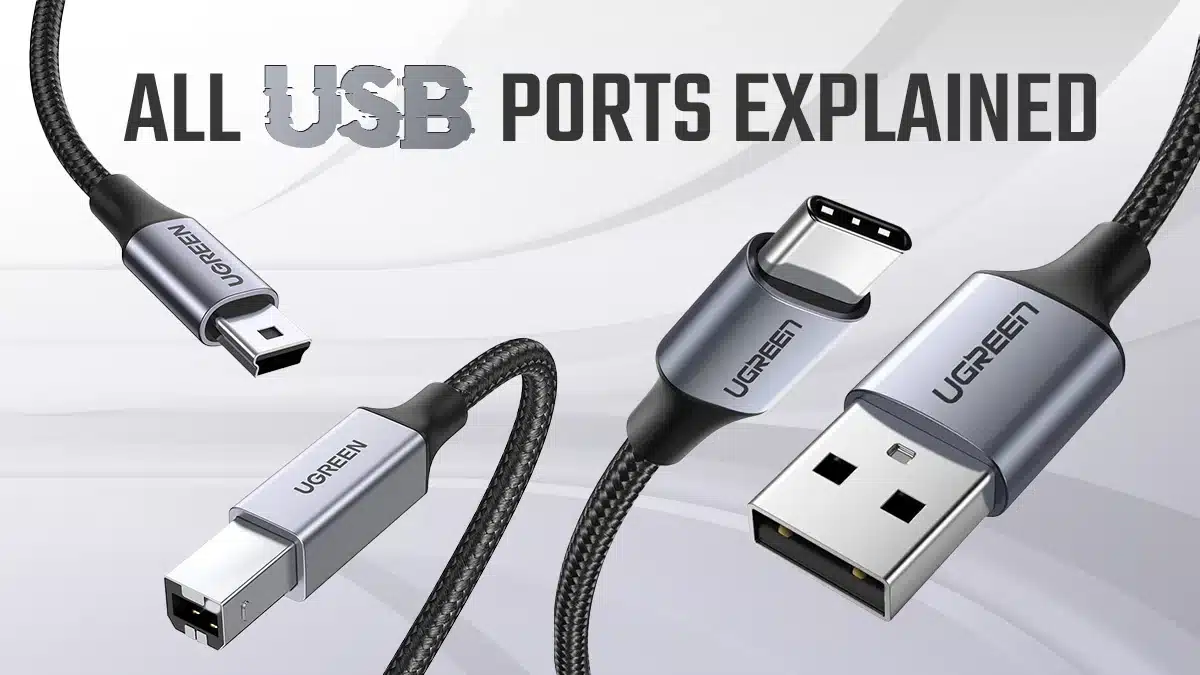
- Take a USB cable (Micro-USB or USB-C depending on your controller)
- Plug one end into your Xbox controller
- Plug the other end into your PC
- Wait for Windows to automatically install drivers
- The controller is ready to use
Advantages
- No lag
- No battery required
- Instant connection
Best For
- Beginners
- Competitive gaming
- Stable gameplay
Method 2: How to Connect Xbox Controller to PC via Bluetooth
If you prefer a wireless setup, Bluetooth is the best option.
Requirements
- Bluetooth-enabled PC
- Xbox One (new version) or Xbox Series controller
Step-by-Step Guide
Step 1: Turn On Bluetooth on PC
- Go to Settings
- Click Devices → Bluetooth & other devices
- Turn Bluetooth ON
Step 2: Turn On Your Controller
- Press the Xbox button
Step 3: Enable Pairing Mode
- Press and hold the pairing button (top of controller)
- The Xbox logo will start blinking
Step 4: Connect to PC
- Click “Add Bluetooth Device” on your PC
- Select “Bluetooth”
- Choose “Xbox Wireless Controller”
Advantages
- Wireless convenience
- Clean gaming setup
Limitations
- Slight input delay
- Requires battery
Method 3: How to Connect Xbox Controller to PC Using Wireless Adapter
This is the best wireless method for performance.
What You Need
- Xbox Wireless Adapter for Windows
Step-by-Step Guide
- Plug the adapter into your PC
- Install drivers (automatic in most cases)
- Turn on your controller
- Press the pairing button on adapter
- Press pairing button on controller
- Wait for connection
Advantages
- Lower latency than Bluetooth
- Supports multiple controllers
- Stable connection
Best For
- Professional gamers
- Multiplayer setups
How to Check if Your Controller is Connected
After learning how to connect Xbox controller to PC, you should confirm it’s working.
Method 1: Game Test
- Open any game
- Check if controller responds
Method 2: Windows Settings
- Go to Devices
- Check if “Xbox Wireless Controller” appears
Method 3: Control Panel
- Open “Devices and Printers”
- Right-click controller → Game Controller Settings
How to Update Xbox Controller Drivers
Sometimes your controller may not work properly. Updating drivers can help.
Steps:
- Connect your controller
- Open Device Manager
- Find “Xbox Controller”
- Right-click → Update driver
How to Connect Xbox Controller to PC for Steam Games
Steam offers built-in controller support.
Steps:
- Open Steam
- Go to Settings → Controller
- Enable Xbox Configuration Support
- Connect your controller
Benefits
- Custom button mapping
- Game-specific settings
Common Problems and Fixes
While learning how to connect Xbox controller to PC, you might face some issues.
1. Controller Not Connecting
Fix:
- Restart PC
- Reconnect controller
- Check battery
2. Bluetooth Not Detecting Controller
Fix:
- Ensure controller supports Bluetooth
- Update Bluetooth drivers
- Restart Bluetooth
3. Controller Keeps Disconnecting
Fix:
- Replace batteries
- Move closer to PC
- Avoid interference
4. Input Lag Issues
Fix:
- Use USB cable
- Use wireless adapter instead of Bluetooth
Tips for Better Performance
To get the best experience while learning how to connect Xbox controller to PC, follow these tips:
1. Use Wired Connection for Competitive Gaming
Wired connections reduce lag.
2. Keep Controller Updated
Firmware updates improve performance.
3. Use Rechargeable Batteries
Better than disposable batteries.
4. Sit Within Range
Stay close to your PC for stable connection.
Best Games to Play with Xbox Controller on PC
Once you know how to connect Xbox controller to PC, try these games:
- FIFA Series
- Forza Horizon
- GTA V
- Elden Ring
- Call of Duty
These games offer excellent controller support.
Advantages of Using Xbox Controller on PC
- Easy setup
- No extra software needed
- Smooth gameplay
- Universal compatibility
FAQs About Connecting Xbox Controller to PC
Q1: Can I connect multiple controllers?
Yes, especially with a wireless adapter.
Q2: Does every Xbox controller support Bluetooth?
No, older Xbox One controllers do not.
Q3: Can I use it without batteries?
Yes, with a USB cable.
Q4: Is Bluetooth or adapter better?
Adapter is better for performance.
Final Thoughts
Learning how to connect Xbox controller to PC is simple and opens the door to a much better gaming experience. Whether you prefer a wired setup for stability or a wireless setup for convenience, Xbox controllers provide flexibility for every type of gamer.
To summarize:
- Use USB for best performance
- Use Bluetooth for convenience
- Use wireless adapter for pro-level gaming
Once connected, you can enjoy smooth, responsive gameplay across thousands of PC games.