 admin
admin 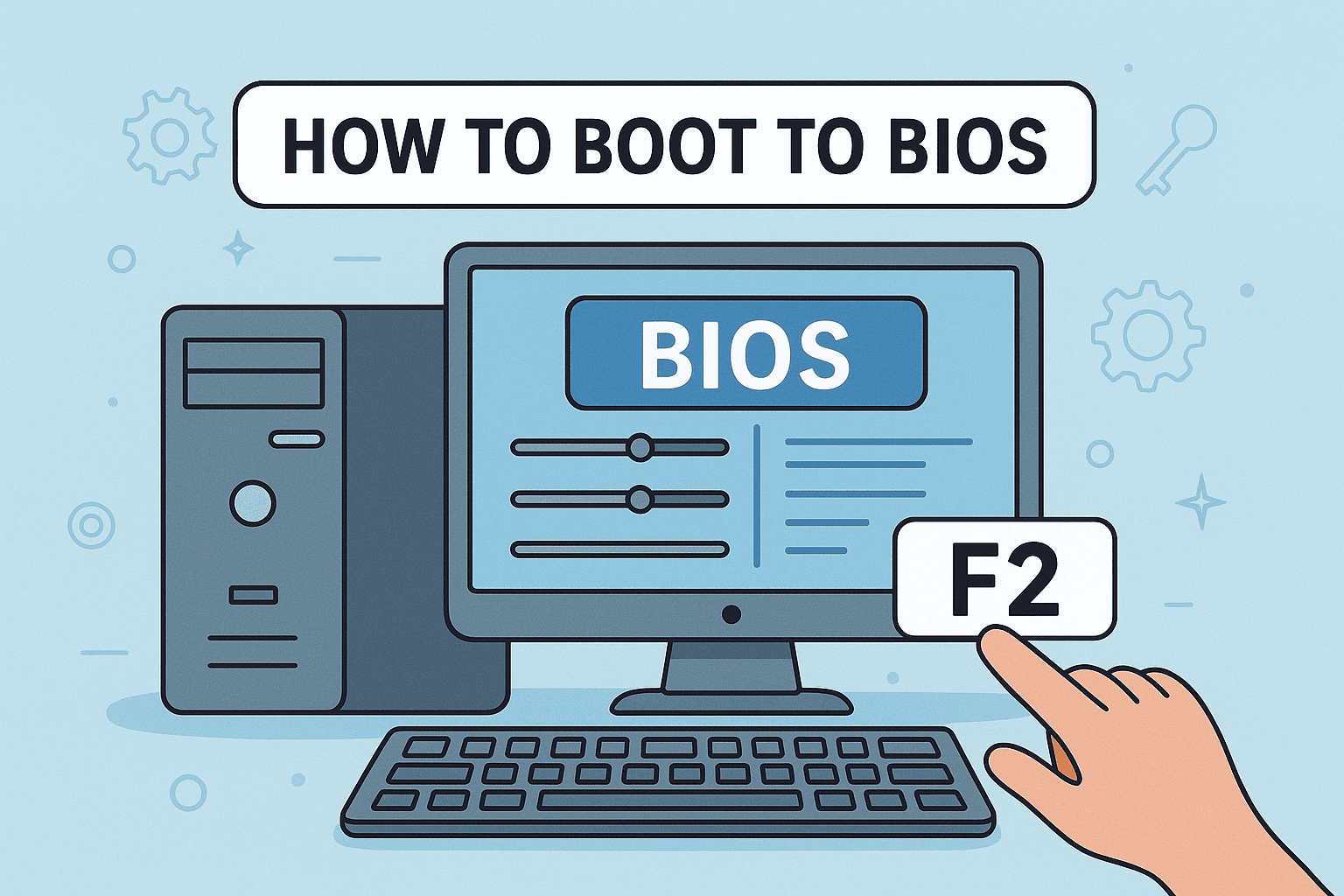
Updating your BIOS (Basic Input/Output System) is an important but sensitive task. It can improve system stability, add support for new hardware, fix bugs, and sometimes even boost performance. However, if done incorrectly, it can cause serious problems. In this detailed guide, you’ll learn everything about safely installing and upgrading BIOS on a Windows system.
Table of Contents
ToggleWhat is BIOS?
BIOS is firmware stored on your computer’s motherboard. It initializes hardware components and loads the operating system when you power on your PC. Modern systems often use UEFI (Unified Extensible Firmware Interface), which is an advanced version of BIOS.
Why Should You Update BIOS?
Updating BIOS is not something you should do regularly unless necessary. Here are some valid reasons:
1. Hardware Compatibility
- Supports new CPUs, RAM, or GPUs
- Required when upgrading components
2. System Stability
- Fixes random crashes or boot issues
- Improves system reliability
3. Security Updates
- Fixes vulnerabilities in firmware
4. Performance Improvements
- Sometimes improves system efficiency
👉 Important: If your system is working perfectly, you may not need a BIOS update.
Risks of BIOS Update
Before proceeding, understand the risks:
- Power failure during update can corrupt BIOS
- Incorrect BIOS file can damage motherboard
- System may fail to boot if update fails
👉 Solution: Always follow instructions carefully and ensure uninterrupted power.
Step 1: Check Your Current BIOS Version
Before updating, check your current BIOS version.
Method 1: Using System Information
- Press Windows + R
- Type msinfo32 and press Enter
- Look for BIOS Version/Date
Method 2: Command Prompt
wmic bios get smbiosbiosversion
Step 2: Identify Your Motherboard Model
You need your exact motherboard model to download the correct BIOS.
How to Check:
- In msinfo32, look for BaseBoard Product
- Or use tools like CPU-Z
Step 3: Download the Latest BIOS Update
- Go to your motherboard manufacturer’s official website
- ASUS, MSI, Gigabyte, Dell, HP, etc.
- Search your motherboard or laptop model
- Go to Support → Drivers & BIOS
- Download the latest BIOS file
👉 Make sure:
- File matches your exact model
- Read release notes for changes
Step 4: Prepare for BIOS Update
Important Preparations:
✔ Backup important data
✔ Fully charge laptop or use UPS for desktop
✔ Close all applications
✔ Disable antivirus temporarily (optional)
✔ Extract BIOS file (if zipped)
Step 5: Methods to Update BIOS
There are three main methods:
Method 1: Update BIOS Using Windows Utility (Easy Method)
Most manufacturers provide a Windows-based tool.
Steps:
- Download BIOS update utility (e.g., ASUS EZ Update, MSI Live Update)
- Run the tool as Administrator
- Select downloaded BIOS file
- Click Update
- System will restart automatically
👉 Best for beginners
Method 2: Update BIOS via USB Drive (Recommended Method)
This is the safest and most widely used method.
Steps:
1. Format USB Drive
- Format as FAT32
2. Copy BIOS File
- Copy extracted BIOS file to USB
3. Enter BIOS Setup
- Restart PC
- Press DEL / F2 / F10 (depends on manufacturer)
4. Open BIOS Flash Tool
- Look for options like:
- EZ Flash (ASUS)
- M-Flash (MSI)
- Q-Flash (Gigabyte)
5. Select BIOS File
- Choose file from USB
- Start update
6. Wait for Completion
- Do NOT turn off system
- System will restart automatically
Method 3: Update BIOS via Command Line (Advanced)
Used in enterprise environments.
Steps:
- Create bootable USB
- Copy BIOS files
- Run update command in DOS environment
👉 Not recommended for beginners
Step 6: After BIOS Update (Important Settings)
After updating BIOS, follow these steps:
1. Load Default Settings
- Enter BIOS
- Select Load Optimized Defaults
2. Enable XMP (RAM Speed)
- Go to memory settings
- Enable XMP profile
3. Set Boot Priority
- Ensure OS drive is first
4. Check Hardware Detection
- CPU
- RAM
- Storage
Common BIOS Update Errors & Fixes
1. System Won’t Boot
- Clear CMOS
- Remove battery for a few minutes
2. BIOS Update Failed
- Retry using USB method
3. Wrong BIOS Installed
- Use BIOS recovery feature (if available)
Tips for Safe BIOS Update
✔ Always use official website files
✔ Never interrupt update process
✔ Use UPS to avoid power failure
✔ Double-check motherboard model
✔ Read instructions carefully
BIOS vs UEFI: What’s the Difference?
Feature | BIOS | UEFI |
Interface | Basic | Modern GUI |
Speed | Slower | Faster boot |
Storage Support | Limited | Large drives supported |
Security | Basic | Advanced security |
👉 Most modern systems use UEFI instead of traditional BIOS.
When NOT to Update BIOS
Avoid updating BIOS if:
- Your system is working perfectly
- No hardware upgrade planned
- You are unsure about the process
Final Thoughts
Updating BIOS can significantly improve your system’s performance, compatibility, and security—but only when done correctly. It’s not a routine update like Windows or drivers, so it should be handled carefully.
If you are a beginner, the USB BIOS update method is the safest option. Always follow official instructions from your motherboard manufacturer and never rush the process.