 admin
Table of Contents
- Why Is My VPN Connected but There Is No Internet?
- 1. Try These Quick Fixes First
- 2. How to Fix VPN Connected but No Internet on Windows 11
- 3. How to Fix VPN Connected but No Internet on Android
- 4. How to Fix VPN Connected but No Internet on iPhone
- 5. What If the VPN Works but Only Some Websites or Apps Fail?
- 6. Common Mistakes to Avoid
- 7. Key Takeaways
- Frequently Asked Questions
- Conclusion
Your VPN says “Connected,” but websites refuse to load, apps stop working, and your internet seems completely unavailable. This problem can be frustrating because your device appears to have established a VPN connection, yet you cannot access the services you need.
If you are experiencing a VPN connected but no internet problem, the cause could be a faulty VPN server, DNS configuration, network restriction, firewall conflict, or an issue with your device’s network settings.
The good news is that you do not usually need to reinstall your operating system or reset every network setting to solve the problem.
In this guide, you will learn how to fix VPN connection problems on Windows 11, Android, and iPhone, identify common causes, and restore internet access without unnecessarily compromising your privacy.
Why Is My VPN Connected but There Is No Internet?
A VPN creates an encrypted connection between your device and a VPN server. Your internet traffic may then travel through that connection before reaching its destination.
However, establishing the VPN tunnel does not guarantee that DNS resolution, routing, or access to individual websites will work correctly.
Several issues can cause a VPN to connect without providing usable internet access.
- VPN server problems: The selected server may be experiencing technical difficulties.
- DNS errors: Your device may be unable to translate website names into IP addresses.
- Network configuration problems: Incorrect routing or IP settings can prevent traffic from reaching its destination.
- Firewall interference: Security software or network restrictions may block necessary connections.
- VPN protocol issues: The selected protocol may not work reliably on your current network.
- Incorrect VPN settings: Custom DNS, proxy settings, or other configuration options may interfere with connectivity.
- Network restrictions: Some workplace, school, hotel, or public Wi-Fi networks restrict VPN traffic.
Before making advanced changes, determine whether the problem affects your entire internet connection or only traffic passing through the VPN.
1. Try These Quick Fixes First
Start with these straightforward checks before changing your device’s configuration.
Step 1: Check Your Internet Connection
Disconnect the VPN temporarily and open a trusted website.
If the website still does not load, your regular internet connection may be the problem. Restart your router if appropriate, reconnect to Wi-Fi, or check your mobile data connection.
If the internet works without the VPN but stops working when you reconnect, focus on VPN-specific troubleshooting.
Only disconnect the VPN for this diagnostic check. Avoid transmitting sensitive information over an unprotected connection.
Step 2: Change the VPN Server
Open your VPN application and select another available server.
If the internet starts working, the original server may have been experiencing a problem. Test another server in a nearby location before changing advanced settings.
Step 3: Restart the VPN App and Your Device
Disconnect the VPN, completely close its application, and reopen it. If the problem persists, restart your computer or smartphone.
This can help resolve temporary application or network errors.
Step 4: Update the VPN Application
Check whether an update is available through your VPN provider or the appropriate app store.
An outdated application may contain compatibility problems or bugs affecting connectivity. Install updates from trusted sources and test the connection again.
If these steps do not help, follow the instructions for your device below.
2. How to Fix VPN Connected but No Internet on Windows 11
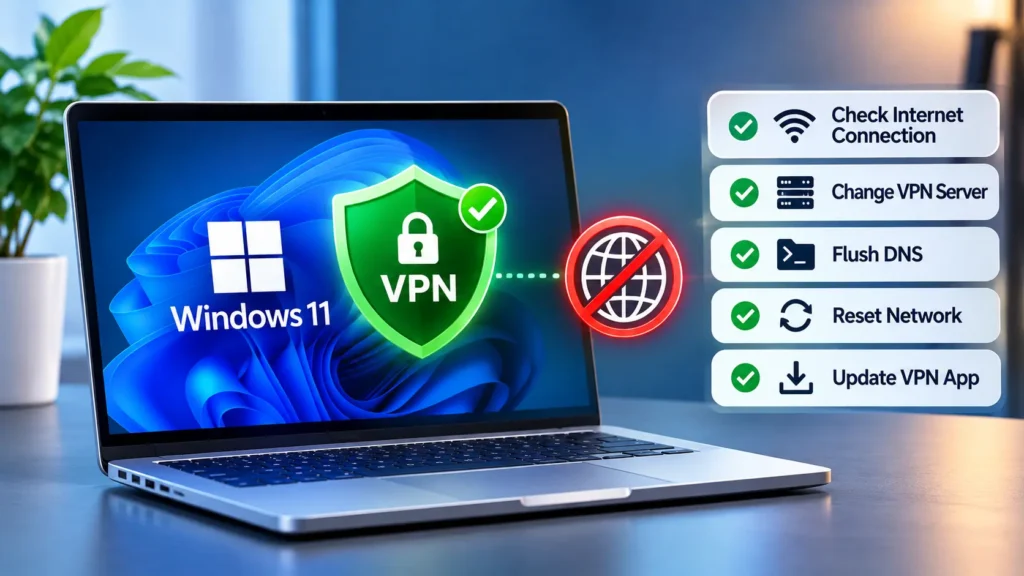
Windows 11 allows you to connect through the built-in VPN client or a third-party VPN application. The troubleshooting process depends on which one you use.
Fix 1: Change the VPN Protocol
Some VPN applications let you select a connection protocol.
Open the VPN app’s settings and check whether an alternative supported protocol is available. If the application provides an Automatic option, you can try that first.
Reconnect and test your internet connection.
Do not select protocols randomly, particularly when using a work VPN. Use the options recommended by your VPN provider or network administrator.
Fix 2: Check DNS and Proxy Settings
DNS problems can prevent websites from loading even when other aspects of your connection appear normal.
First, determine whether the problem affects every website or only particular domains. If applications connect but websites do not, DNS may be one possible cause.
On Windows 11, you can open Command Prompt and run:
ipconfig /flushdns
This clears the local DNS resolver cache. It does not repair every DNS or VPN routing problem, so test the connection afterward.
Next, open Settings > Network & internet > Proxy and inspect your proxy configuration. If you manually enabled a proxy that is no longer required, correct that setting. Do not disable a proxy required by your organization.
Fix 3: Check Windows Firewall and Security Software
A firewall, antivirus product, or third-party network filter may interfere with VPN traffic.
Review your security software’s logs and settings to see whether legitimate VPN components have been blocked. Allow the necessary application through the appropriate firewall settings when justified.
Avoid permanently disabling your firewall or antivirus protection. If you cannot determine which component is responsible, consult your VPN provider.
Fix 4: Repair Your Network Connection
If your computer also experiences problems without the VPN, use the Windows network troubleshooter.
Microsoft recommends network troubleshooting steps such as reconnecting to Wi-Fi, refreshing IP configuration, and flushing the DNS cache when appropriate. See Microsoft’s official Windows connectivity guide.
If simpler steps fail, consider a Windows network reset as a last resort. This can remove installed network adapters and restore network settings to their defaults, potentially requiring you to reinstall or reconfigure your VPN.
If you use a company-managed VPN, contact your IT team before making advanced changes.
3. How to Fix VPN Connected but No Internet on Android
On Android, a connected VPN with no internet may be related to the selected network, application settings, private DNS configuration, or a problem with the VPN server.
Fix 1: Switch Between Wi-Fi and Mobile Data
Turn off Wi-Fi and try connecting through mobile data, if available.
Alternatively, connect to a trusted Wi-Fi network and test the VPN again.
If the VPN works on one network but not another, the original network may be restricting VPN traffic or experiencing a connectivity issue.
Fix 2: Force Stop the VPN Application
A temporary application error may affect how the VPN handles network traffic.
- Open your phone’s Settings.
- Select Apps or Applications.
- Find your VPN application.
- Tap Force stop.
- Open the application and reconnect.
The exact menu names may vary by Android manufacturer and version.
Fix 3: Review Private DNS Settings
A custom Private DNS configuration can sometimes interfere with access to particular services.
Search for Private DNS in Android Settings. If you recently configured a custom provider and suspect it is causing the problem, temporarily return the setting to Automatic for testing.
Test the VPN afterward. Restore your previous configuration if the change does not help, particularly if the setting is managed by your organization.
Fix 4: Review the VPN Configuration
Open Settings > Network & internet > VPN, where available, or search for VPN in your phone’s Settings.
Inspect the saved connection and authentication details if you use a manually configured VPN.
Also check whether Always-on VPN is enabled. If an always-on connection is failing, review the relevant settings before changing them. Some devices and managed profiles enforce specific connection requirements.
Google provides additional guidance in its official Android VPN setup documentation.
Fix 5: Update or Reinstall the VPN App
Check the Google Play Store for an update.
If the problem continues, consider reinstalling the app using the provider’s instructions. Make sure you have your login credentials and any required configuration details before removing the application.
4. How to Fix VPN Connected but No Internet on iPhone
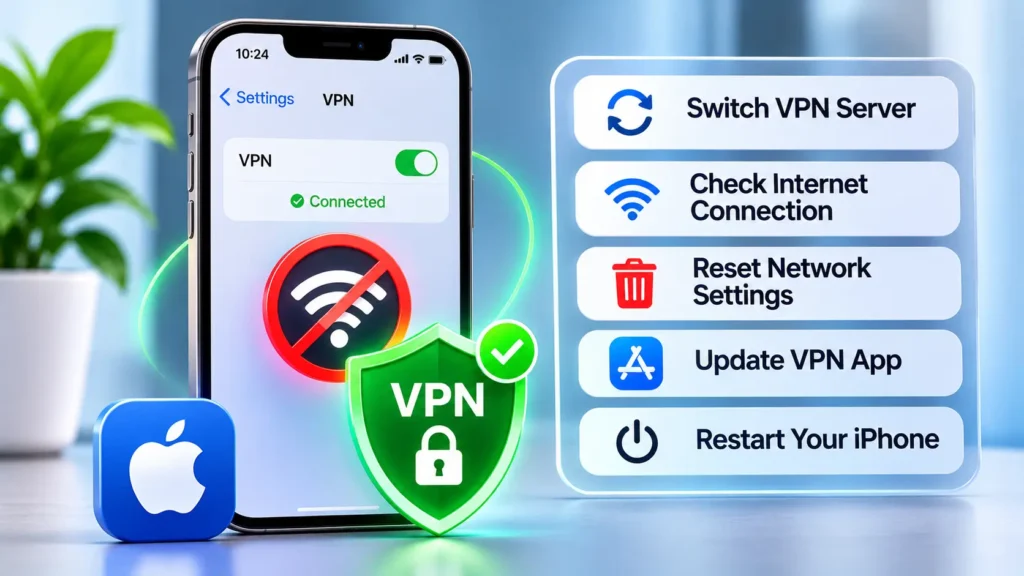
If your iPhone shows an active VPN connection but apps and websites cannot access the internet, start by checking the connection and application before resetting network settings.
Fix 1: Test Another Network
Switch from Wi-Fi to mobile data or connect to another trusted Wi-Fi network.
If the VPN works on the alternative network, investigate the original router, network restrictions, or internet service.
If the issue continues on every network, check your VPN application’s status, settings, and server availability.
Fix 2: Update iOS and Your VPN App
Open the App Store and install any available update for your VPN application.
Then check Settings > General > Software Update for an available iOS update.
Restart your iPhone after updating and test the VPN again. Apple also recommends checking software updates, restarting devices, and testing a different network when diagnosing connectivity issues.
Fix 3: Check VPN Profiles and Security Apps
Open Settings and search for VPN, or go to General > VPN & Device Management to inspect the available configurations.
Look for an unexpected or outdated VPN profile, configuration issue, or security application that may affect network access.
Do not delete profiles installed by your employer or school without permission. They may be necessary for secure access to organizational services.
Fix 4: Reset Network Settings
If all other fixes fail, a network settings reset may help.
Go to:
Settings > General > Transfer or Reset iPhone > Reset > Reset Network Settings
Review the confirmation screen before proceeding. This reset removes saved network configurations, including Wi-Fi passwords and VPN and APN settings, so you may need to configure the VPN again.
For additional guidance, refer to Apple’s official network connectivity troubleshooting guide.
5. What If the VPN Works but Only Some Websites or Apps Fail?
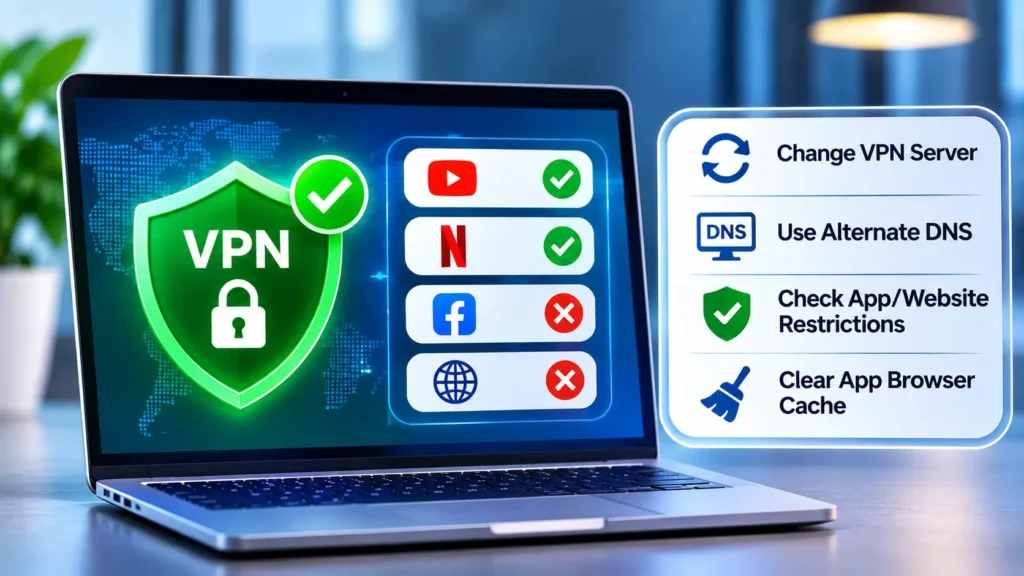
If only particular websites or applications fail, the entire VPN connection may not be broken.
Try the following checks:
- Test another website or application to see whether the problem is widespread.
- Switch to another VPN server.
- Check whether the service is temporarily unavailable.
- Review any custom DNS, filtering, or ad-blocking settings.
- Check whether the VPN application supports split tunneling and whether the affected app is configured correctly.
Some services may restrict VPN traffic or behave differently when a VPN is active. If the issue affects one website only, investigate that service before changing your entire network configuration.
A useful diagnostic example is a browser that cannot load websites while messaging apps continue working. This can point toward a DNS, browser, or service-specific issue rather than a complete loss of connectivity.
6. Common Mistakes to Avoid
When troubleshooting a VPN connected with no internet access, avoid making several changes simultaneously.
Do not repeatedly switch between random settings. Test one change at a time so you can identify what actually fixes the issue.
Do not disable security protection permanently. Investigate specific firewall or network-filtering rules instead.
Do not reset your device immediately. Network resets and app reinstalls can remove saved configurations without addressing the underlying issue.
Do not ignore your VPN subscription or server status. Account restrictions or service outages can also interrupt connectivity.
Do not delete managed VPN profiles. Contact your administrator if your device or configuration is managed by an organization.
7. Key Takeaways
If your VPN is connected but you cannot access the internet, first confirm that your regular internet connection works. Then restart the VPN, try another server, and update the application.
Windows 11 users should check DNS, proxy, and firewall settings. Android users can test another network and review Private DNS. iPhone users should inspect VPN profiles and install software updates.
Only reset network settings after simpler solutions fail, and seek help from your VPN provider or IT administrator when necessary.
Frequently Asked Questions
The VPN tunnel may be established while DNS resolution, routing, or access to a particular service is failing. Try another server and test a different website. If your internet works without the VPN, investigate the VPN configuration or network restrictions.
Restart your VPN application, try another server, and inspect DNS, proxy, and firewall settings. You can also use Windows network troubleshooting tools if your regular connection has problems. Avoid a network reset until simpler fixes have failed.
Possible causes include network restrictions, custom Private DNS settings, VPN app errors, or server problems. Switch between Wi-Fi and mobile data, restart the app, and review relevant VPN settings. If the problem persists, update the app or consult your VPN provider.
You can disconnect the VPN briefly to diagnose whether it is causing the connectivity problem. However, doing so removes the protection supplied by that VPN connection. Avoid sensitive activity during the test, and reconnect the VPN as soon as possible.
Test a different network, restart the VPN app, and update iOS and the application. Check VPN profiles and security apps if the problem continues. Consider resetting network settings only after other steps fail, because this removes saved network configurations.
Conclusion
A VPN connected but no internet problem does not always mean that your VPN has stopped working completely. The cause may be a server problem, DNS error, network restriction, or incorrect configuration.
Start with the simplest checks: test your internet connection without the VPN, change servers, restart the application, and update your software. Then follow the device-specific troubleshooting steps for Windows 11, Android, or iPhone.
If the problem persists across several networks, consult your VPN provider for connection logs and configuration support instead of repeatedly changing advanced settings.

Written by admin