 admin
admin 
Live streaming has become one of the most popular ways for gamers to share gameplay, build communities, and even earn money online. Whether you stream on Twitch, YouTube, Facebook Gaming, or Kick, having a properly optimized gaming PC for streaming is essential for delivering a smooth experience to viewers.
Many streamers invest in powerful hardware but still experience lag, frame drops, audio issues, and poor stream quality because their systems are not optimized correctly. Learning how to optimize gaming PC for streaming can significantly improve stream performance, video quality, and viewer engagement.
This guide covers everything you need to know about gaming PC streaming optimization, including hardware upgrades, software settings, internet optimization, graphics settings, OBS configuration, and advanced performance tweaks.
Table of Contents
ToggleWhy Gaming PC Optimization Matters for Streaming
Streaming is more demanding than gaming alone. Your computer must simultaneously:
- Run the game
- Capture gameplay
- Encode video
- Process audio
- Upload data to streaming servers
Without proper optimization, you may experience:
- FPS drops
- Stream stuttering
- Audio desynchronization
- High CPU usage
- Overheating
- Viewer buffering
A well-optimized gaming PC ensures smooth gameplay and professional-quality streams.
Understanding Streaming Requirements
Before optimizing your gaming PC for streaming, it’s important to understand what resources streaming consumes.
CPU Usage
The processor handles:
- Game calculations
- Stream encoding
- Background applications
Modern streaming benefits from:
- Intel Core i7 or i9 processors
- AMD Ryzen 7 or Ryzen 9 processors
GPU Usage
Graphics cards render your game and can also encode streams.
Popular streaming GPUs include:
- NVIDIA RTX 4060
- NVIDIA RTX 4070
- NVIDIA RTX 4080
- AMD RX 7800 XT
- AMD RX 7900 XT
RAM Requirements
For smooth gaming and streaming:
- 16GB RAM minimum
- 32GB RAM recommended
Additional RAM helps when running:
- OBS Studio
- Discord
- Browser tabs
- Chat bots
- Music applications
Best Hardware Upgrades for Gaming PC Streaming
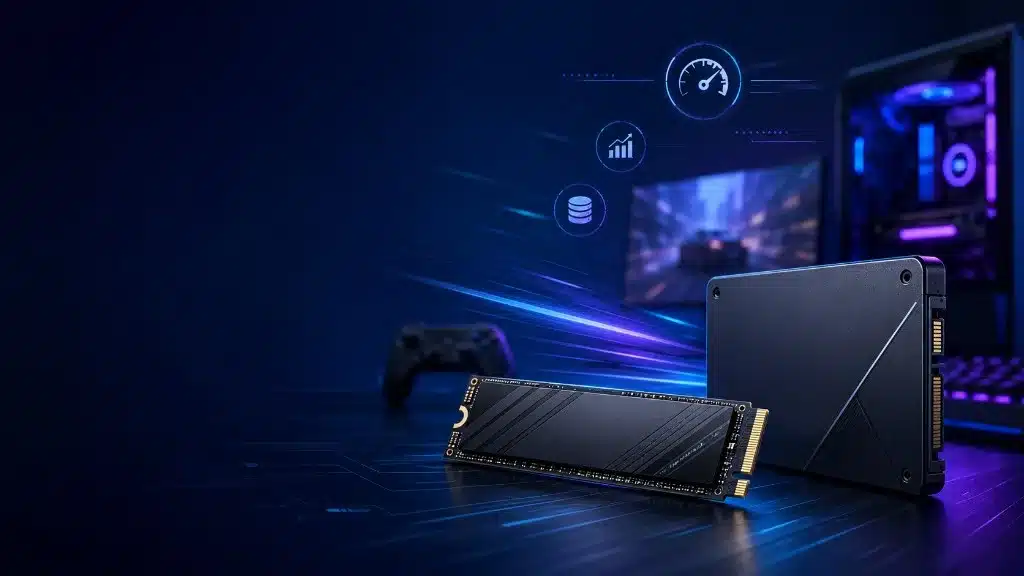
Upgrade to an SSD
If you still use a traditional hard drive, upgrading to an SSD can improve:
- System responsiveness
- Game loading times
- Recording performance
NVMe SSDs provide the fastest speeds.
Improve Cooling
Streaming sessions often last several hours.
Better cooling helps:
- Reduce thermal throttling
- Maintain stable performance
- Extend component lifespan
Consider:
- High-performance air coolers
- AIO liquid coolers
- Additional case fans
Add More RAM
RAM shortages can cause:
- Stream crashes
- Game stuttering
- Encoding issues
For professional streaming setups, 32GB RAM is ideal.
How to Optimize Gaming PC for Streaming Using Windows Settings
Windows settings can greatly impact streaming performance.
Enable Game Mode
Game Mode prioritizes gaming resources.
Steps:
- Open Settings
- Click Gaming
- Select Game Mode
- Turn it On
Benefits include:
- Better FPS
- Reduced background interference
- Improved stream stability
Disable Startup Programs
Too many startup applications consume resources.
Press:
Ctrl + Shift + Esc
Open Startup Apps and disable unnecessary programs.
Examples:
- Unused launchers
- Background updaters
- Unnecessary utilities
Optimize OBS Studio for Streaming
OBS Studio is the most popular streaming software.
Choose the Right Encoder
NVENC Encoder
Recommended for NVIDIA RTX users.
Advantages:
- Lower CPU usage
- High-quality streams
- Better gaming performance
x264 Encoder
Uses CPU resources.
Best for:
- Powerful multi-core processors
- Dedicated streaming PCs
Recommended OBS Settings
Video Settings
Base Resolution:
1920×1080
Output Resolution:
1920×1080
FPS:
60 FPS
Encoder Settings
Rate Control:
CBR
Bitrate:
6000 Kbps
Keyframe Interval:
2
Preset:
Quality
Profile:
High
These settings provide excellent stream quality while maintaining stability.
Internet Optimization for Streaming
A strong internet connection is essential.
Recommended Upload Speeds
720p Streaming:
5 Mbps Upload
1080p Streaming:
10 Mbps Upload
1440p Streaming:
20 Mbps Upload
4K Streaming:
35 Mbps Upload or higher
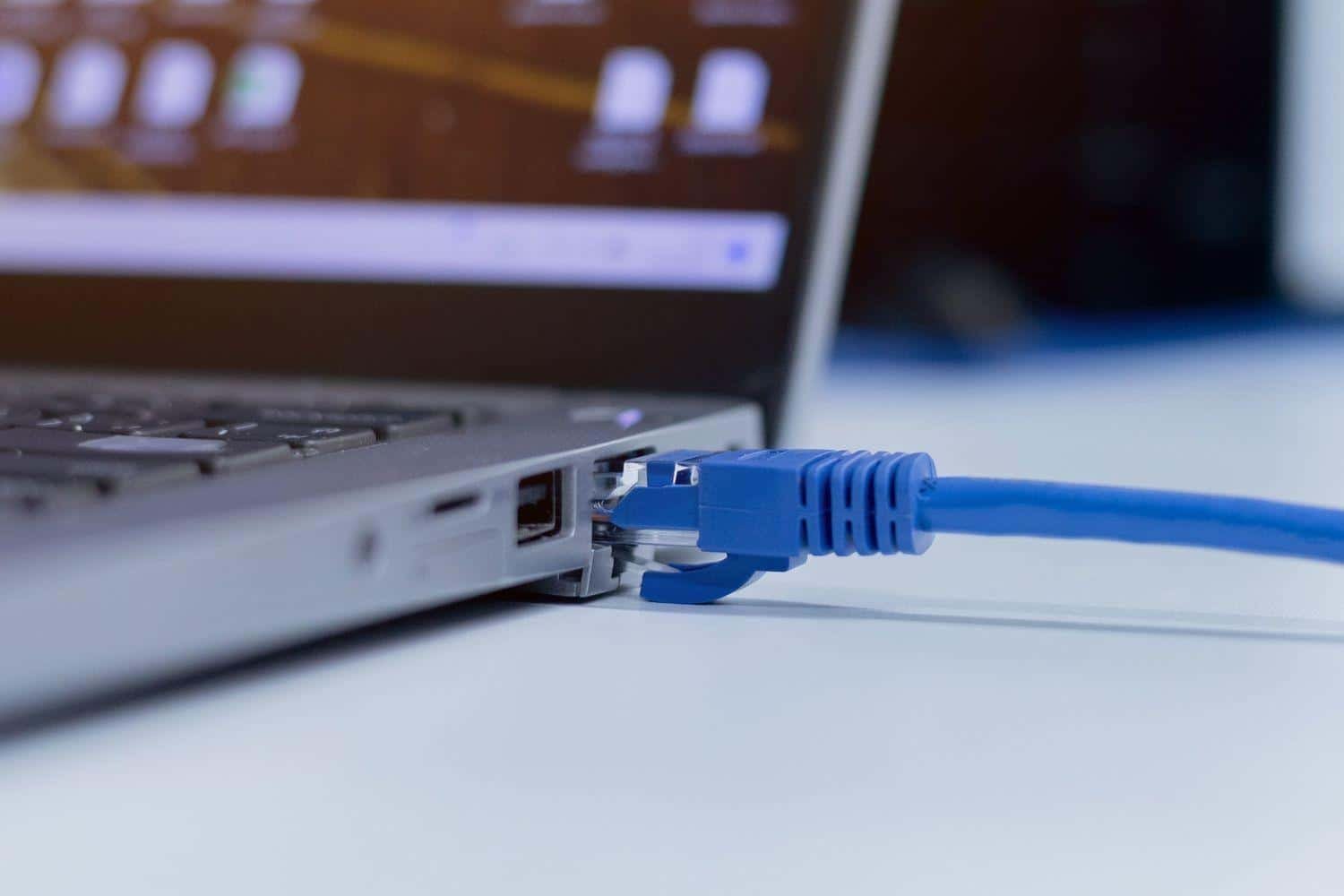
Use Ethernet Instead of Wi-Fi
Wired connections provide:
- Lower latency
- Greater stability
- Reduced packet loss
Professional streamers almost always use Ethernet.
Optimize In-Game Settings for Streaming
Many gamers use ultra graphics settings that negatively affect stream performance.
Lower GPU-Intensive Settings
Reduce:
- Shadows
- Ray Tracing
- Reflections
- Ambient Occlusion
These settings consume significant GPU resources.
Limit Frame Rate
If your monitor runs at 144Hz or 240Hz, consider capping FPS.
Examples:
- 120 FPS
- 144 FPS
This leaves resources available for encoding.
Reduce CPU Usage While Streaming
High CPU usage causes lag and dropped frames.
Close Background Applications
Close:
- Extra browsers
- File sync software
- Unused launchers
- Unnecessary overlays
This frees valuable resources.
Disable Resource-Hungry Overlays
Examples:
- Xbox Game Bar
- Discord overlays
- Third-party FPS counters
Disabling them can improve stream performance.
GPU Optimization for Streamers
Update Graphics Drivers
Driver updates often include:
- Performance improvements
- Stability fixes
- Better encoding support
Regularly update:
- NVIDIA drivers
- AMD drivers
Enable Hardware Accelerated GPU Scheduling
Windows provides this feature for improved GPU performance.
Benefits include:
- Lower latency
- Better responsiveness
- Improved streaming performance
Audio Optimization for Professional Streams
Audio quality is often more important than video quality.
Use Noise Suppression
OBS offers:
- RNNoise
- NVIDIA Broadcast
These reduce:
- Keyboard sounds
- Fan noise
- Background distractions
Proper Audio Levels
Recommended levels:
Microphone:
-10 dB to -5 dB
Game Audio:
-20 dB to -15 dB
Balanced audio improves viewer experience.
Monitor System Performance
Streaming requires continuous monitoring.
Tools include:
- MSI Afterburner
- HWMonitor
- Task Manager
Track:
- CPU temperature
- GPU temperature
- RAM usage
- Frame rates
Ideal temperatures:
CPU:
Below 85°C
GPU:
Below 80°C
Advanced Streaming Optimization Tips
Use a Dual Monitor Setup
Benefits include:
- Easy chat monitoring
- Better multitasking
- Stream management
A second monitor significantly improves workflow.
Use Stream Deck Software
Stream control becomes easier through:
- Scene switching
- Audio adjustments
- Quick actions
This improves production quality.
Create Separate Streaming Profiles
Different games require different settings.
Profiles help optimize:
- Competitive shooters
- RPG games
- Racing games
- Strategy games
Common Streaming Problems and Solutions
Dropped Frames
Causes:
- Slow internet
- High bitrate
- Network congestion
Solution:
- Lower bitrate
- Use Ethernet
Stream Lag
Causes:
- High CPU usage
- Background tasks
Solution:
- Use NVENC
- Close unnecessary apps
Audio Delay
Causes:
- Incorrect sync settings
Solution:
- Adjust audio sync offset in OBS
Overheating
Causes:
- Poor airflow
- Dust buildup
Solution:
- Clean PC regularly
- Improve cooling
Best Streaming Setup Checklist
Before going live:
✓ Update drivers
✓ Close unnecessary applications
✓ Check internet speed
✓ Verify microphone quality
✓ Test stream settings
✓ Monitor temperatures
✓ Confirm OBS configuration
✓ Run a short test stream
Following this checklist helps avoid technical issues during live broadcasts.
Conclusion
Learning how to optimize gaming PC for streaming is essential for creating professional-quality content and delivering a smooth viewing experience. From upgrading hardware and optimizing Windows settings to configuring OBS and improving internet stability, every adjustment contributes to better stream quality.
The most effective streaming optimization strategies include using NVENC encoding, upgrading to an SSD, increasing RAM, maintaining proper cooling, reducing unnecessary background processes, and ensuring a stable Ethernet connection. By implementing these techniques, you can achieve smoother gameplay, fewer dropped frames, higher stream quality, and a more enjoyable experience for your audience.
Whether you are a beginner streamer or an experienced content creator, continuously optimizing your gaming PC for streaming will help you stay competitive and provide viewers with the high-quality content they expect.