 admin
admin 
4K gaming has become the gold standard for gamers who want stunning visuals, sharper textures, and a more immersive gaming experience. With a resolution of 3840 × 2160 pixels, 4K gaming delivers four times more detail than Full HD, making every scene look incredibly realistic. However, achieving smooth gameplay at 4K resolution on a gaming laptop can be challenging because it requires significant processing power from both the GPU and CPU.
Many gamers purchase high-end gaming laptops expecting flawless 4K performance, only to encounter frame drops, overheating, stuttering, and performance bottlenecks. The good news is that proper optimization can dramatically improve your gaming experience without requiring expensive hardware upgrades.
In this comprehensive guide, you’ll learn how to optimize your gaming laptop for 4K gaming, maximize frame rates, reduce lag, improve cooling efficiency, and enjoy the best possible visual experience.
Table of Contents
ToggleUnderstanding the Requirements of 4K Gaming
Before optimizing your laptop, it’s important to understand why 4K gaming is demanding.
At 4K resolution, your graphics card must render over 8 million pixels per frame. This requires:
- A powerful GPU
- A capable CPU
- Sufficient RAM
- Fast storage
- Efficient cooling
Modern games such as Cyberpunk 2077, Starfield, Red Dead Redemption 2, and Call of Duty require significant resources to run smoothly at 4K.
Ensure Your Hardware Meets 4K Gaming Standards
Graphics Card (GPU)
The graphics card is the most critical component for 4K gaming.
Recommended GPUs include:
- NVIDIA GeForce RTX 4070 Laptop GPU
- NVIDIA GeForce RTX 4080 Laptop GPU
- NVIDIA GeForce RTX 4090 Laptop GPU
- AMD Radeon RX 7900M
If your laptop uses older GPUs such as RTX 2060 or GTX 1660 Ti, achieving stable 4K performance may require lowering graphics settings.
Processor (CPU)
Your CPU must keep up with modern gaming workloads.
Recommended CPUs:
- Intel Core i7 14700HX
- Intel Core i9 14900HX
- AMD Ryzen 9 7945HX
- AMD Ryzen 9 8945HX
A powerful CPU prevents bottlenecks and improves overall system responsiveness.
RAM
For modern 4K gaming:
- Minimum: 16GB RAM
- Recommended: 32GB RAM
More RAM helps with multitasking, game streaming, and handling large game environments.
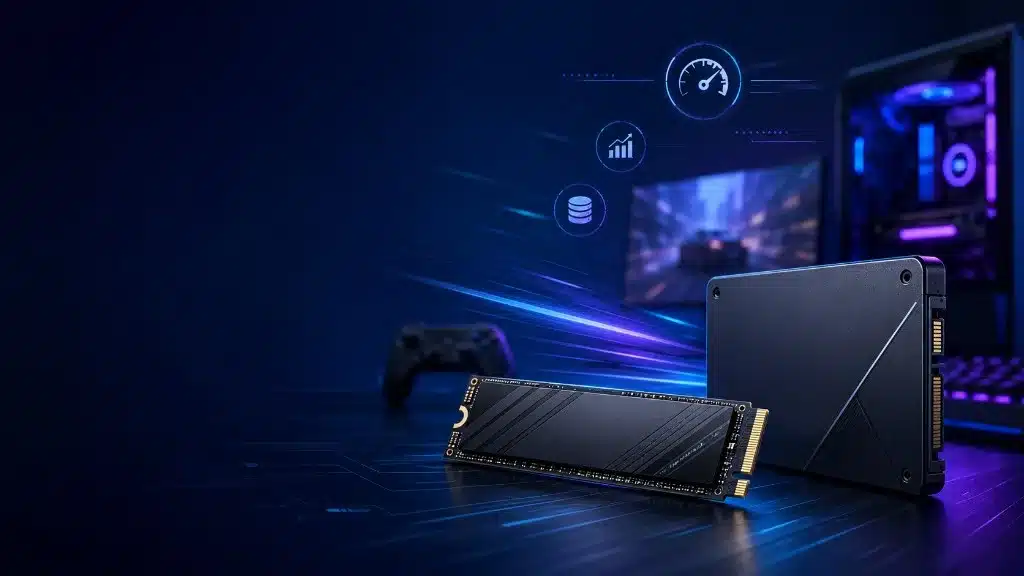
SSD Storage
Installing games on an SSD significantly reduces loading times.
Best options:
- NVMe Gen 4 SSD
- NVMe Gen 5 SSD
Fast storage improves texture streaming and overall game responsiveness.
Update Your Graphics Drivers
Outdated drivers often reduce gaming performance.
Regularly update:
- NVIDIA Game Ready Drivers
- AMD Adrenalin Drivers
- Intel Graphics Drivers
Benefits include:
- Better FPS
- Bug fixes
- Improved stability
- Enhanced game compatibility
Driver updates are one of the easiest ways to gain free performance improvements.
Enable Performance Mode
Most gaming laptops include multiple power profiles.
Switch to:
- Performance Mode
- Turbo Mode
- Ultimate Performance Mode
These modes allow:
- Higher GPU power limits
- Faster CPU clock speeds
- Better cooling performance
Avoid using battery-saving modes while gaming.
Keep Your Laptop Plugged In
Many gaming laptops reduce performance when running on battery power.
For maximum 4K performance:
- Always connect the original charger
- Enable maximum performance settings
- Disable battery-saving features
This ensures the CPU and GPU receive adequate power.
Optimize Windows for Gaming
Windows includes several features that can improve gaming performance.
Enable Game Mode
Steps:
- Open Settings
- Gaming
- Game Mode
- Turn On
Benefits:
- Prioritizes game processes
- Reduces background activity
- Improves system resource allocation
Disable Startup Programs
Too many startup applications consume valuable resources.
Disable:
- Unnecessary launchers
- Background utilities
- Auto-starting software
This frees memory and CPU resources.
Close Background Applications
Before launching a game:
Close:
- Browsers
- Video editors
- Streaming software
- File synchronization apps
This ensures maximum resources are available for gaming.
Optimize In-Game Graphics Settings
Even powerful gaming laptops benefit from proper graphics optimization.
Use DLSS or FSR
Modern upscaling technologies significantly improve performance.
NVIDIA DLSS
Deep Learning Super Sampling renders the game at a lower resolution and intelligently upscales it.
Benefits:
- Higher FPS
- Excellent image quality
- Lower GPU workload
AMD FSR
FidelityFX Super Resolution offers similar benefits.
Advantages:
- Increased frame rates
- Reduced GPU stress
- Broad compatibility
Adjust Ray Tracing Settings
Ray tracing dramatically impacts performance.
For better 4K gaming:
- Use Medium Ray Tracing
- Disable unnecessary ray-traced effects
- Enable DLSS alongside ray tracing
This balances visuals and performance.
Lower Demanding Graphics Options
Some settings have a major FPS impact with minimal visual difference.
Reduce:
- Shadows
- Volumetric lighting
- Ambient occlusion
- Reflection quality
- Motion blur
Maintain:
- Texture quality
- Anisotropic filtering
These adjustments often provide significant FPS gains.
Monitor Temperatures
Overheating causes thermal throttling, reducing gaming performance.
Ideal temperatures:
CPU
- 70°C–90°C
GPU
- 65°C–85°C
Use monitoring software such as:
- MSI Afterburner
- HWMonitor
- HWiNFO
Regular monitoring helps identify performance issues.
Improve Cooling Performance
Clean Cooling Vents
Dust accumulation restricts airflow.
Clean:
- Air vents
- Fans
- Exhaust ports
Every few months for optimal cooling efficiency.
Use a Cooling Pad
A quality cooling pad provides:
- Better airflow
- Lower temperatures
- Reduced throttling
This can improve sustained gaming performance.
Elevate the Laptop
Even a slight elevation improves airflow underneath the device.
Benefits include:
- Cooler temperatures
- Better fan efficiency
- Improved comfort
Optimize NVIDIA Control Panel Settings
For NVIDIA users:
Adjust:
- Power Management Mode → Prefer Maximum Performance
- Low Latency Mode → Ultra
- Texture Filtering → High Performance
- Vertical Sync → Off
These settings can improve responsiveness and frame rates.
Overclock Your GPU Safely
Advanced users can increase GPU performance through overclocking.
Use:
- MSI Afterburner
Increase:
- Core clock gradually
- Memory clock gradually
Always test stability after changes.
Note: Overclocking should be done carefully to avoid instability.
Enable Resizable BAR
Resizable BAR allows the CPU to access the entire GPU memory buffer.
Benefits:
- Better frame rates
- Improved asset streaming
- Reduced stuttering
Many modern gaming laptops support this feature through BIOS updates.
Upgrade RAM If Possible
If your laptop supports upgrades:
Moving from:
- 16GB to 32GB RAM
Can improve:
Multitasking
Modern game performance
Streaming while gaming
Use an External 4K Monitor Properly
Many gamers connect external 4K displays.
For best performance:
- Use DisplayPort or HDMI 2.1
- Set refresh rate correctly
- Enable G-Sync or FreeSync
This ensures smooth gameplay and reduced screen tearing.
Optimize Storage Performance
Maintain SSD efficiency by:
- Keeping 15–20% free space
- Removing unnecessary files
- Uninstalling unused games
A healthy SSD improves loading speeds and system responsiveness.
Manage Game Updates and Shader Caches
Modern games regularly optimize performance through updates.
Always:
- Install patches
- Update shader caches
- Verify game files
Developers frequently improve performance with each release.
Reduce Input Lag
For competitive gaming at 4K:
Enable:
- NVIDIA Reflex
- AMD Anti-Lag
Disable:
- Motion blur
- Excessive post-processing effects
These changes improve responsiveness.
Consider External GPU Solutions
Some premium gaming laptops support external GPUs (eGPUs).
Advantages:
- Significant graphics boost
- Better future upgrade options
- Improved 4K performance
Although expensive, eGPUs can extend the lifespan of your laptop.
Best Settings for Balanced 4K Gaming
Recommended configuration:
- Resolution: 3840×2160
- DLSS/FSR: Quality Mode
- Texture Quality: High
- Shadows: Medium
- Reflections: Medium
- Ray Tracing: Medium or Off
- Motion Blur: Off
- NVIDIA Reflex: On
This setup typically delivers excellent visuals while maintaining smooth frame rates.
Common Mistakes That Hurt 4K Gaming Performance
Avoid these errors:
- Gaming on battery power
- Ignoring driver updates
- Allowing excessive heat buildup
- Running multiple background applications
- Using outdated Windows versions
- Maxing every graphics setting unnecessarily
Fixing these issues can significantly improve performance.
Future of 4K Gaming on Laptops
Gaming laptop technology continues to evolve rapidly.
Emerging innovations include:
- AI-powered frame generation
- Advanced upscaling technologies
- More efficient GPUs
- Better cooling systems
- Faster SSDs and memory
As hardware advances, 4K gaming on laptops will become even more accessible and smoother than ever before.
Conclusion
Optimizing a gaming laptop for 4K gaming requires more than simply owning powerful hardware. By updating drivers, enabling performance modes, improving cooling, optimizing Windows settings, using DLSS or FSR, and fine-tuning in-game graphics settings, you can dramatically increase frame rates and overall gaming performance.
Whether you’re exploring open-world adventures, competing in esports, or enjoying the latest AAA titles, these optimization techniques will help you unlock the full potential of your gaming laptop. With the right combination of hardware, software, and settings, smooth and visually stunning 4K gaming is well within reach.