 admin
admin 
If you’re experiencing lag, slow downloads, high ping, or frequent disconnections on your Xbox Series X, you’re not alone. Many gamers search for ways to learn how to fix slow WiFi on Xbox Series X because a poor wireless connection can ruin online gaming, streaming, and game downloads.
The Xbox Series X is designed for high-speed gaming, but several factors can affect your WiFi performance, including router settings, network congestion, distance from the router, and ISP limitations. In this comprehensive guide, you’ll learn proven methods to improve your Xbox Series X internet speed and enjoy a smoother gaming experience.
Table of Contents
ToggleWhy Is Your Xbox Series X WiFi Slow?
Before learning how to fix slow WiFi on Xbox Series X, it’s important to understand what causes slow wireless performance.
Common reasons include:
- Weak WiFi signal
- Network interference
- Outdated router firmware
- Slow internet package
- Too many connected devices
- Xbox network settings issues
- Background downloads
- ISP throttling
- Incorrect DNS settings
- Router placement problems
Identifying the root cause makes troubleshooting much easier.
Check Your Current Xbox Network Speed
The first step in learning how to fix slow WiFi on Xbox Series X is checking your network statistics.
Steps:
- Press the Xbox button.
- Open Profile & System.
- Go to Settings.
- Select General.
- Click Network Settings.
- Choose Test Network Speed & Statistics.
Pay attention to:
- Download speed
- Upload speed
- Latency (Ping)
- Packet loss
Ideal Gaming Values
Metric | Recommended |
Download Speed | 50 Mbps+ |
Upload Speed | 10 Mbps+ |
Latency | Below 50 ms |
Packet Loss | 0% |
If your results are significantly lower, continue with the solutions below.
Move Your Xbox Closer to the Router
One of the simplest answers to how to fix slow WiFi on Xbox Series X is reducing the distance between your console and router.
WiFi signals weaken when they pass through:
- Walls
- Floors
- Furniture
- Metal objects
- Appliances
Best Practices
- Place Xbox in the same room as the router.
- Keep the console elevated.
- Avoid placing the Xbox inside cabinets.
- Minimize physical obstructions.
Even moving your console a few feet can noticeably improve speed.
Switch to the 5GHz WiFi Band
Modern routers offer two frequency bands:
2.4GHz
Pros:
- Longer range
Cons:
- Slower speeds
- More interference
5GHz
Pros:
- Faster speeds
- Lower latency
- Better gaming performance
Cons:
- Shorter range
If you’re researching how to fix slow WiFi on Xbox Series X, switching to 5GHz is one of the most effective solutions.
How to Connect
- Open Xbox Settings.
- Go to Network Settings.
- Set up a wireless network.
- Choose your router’s 5GHz network.
Many routers label it as:
- HomeWiFi-5G
- HomeWiFi_5GHz
- WiFi5
Restart Your Network Equipment
Temporary network issues often cause poor WiFi performance.
Restart Procedure
- Turn off Xbox Series X.
- Unplug modem.
- Unplug router.
- Wait 60 seconds.
- Plug modem back in.
- Wait until fully connected.
- Plug router back in.
- Turn Xbox back on.
This clears network cache and refreshes connections.
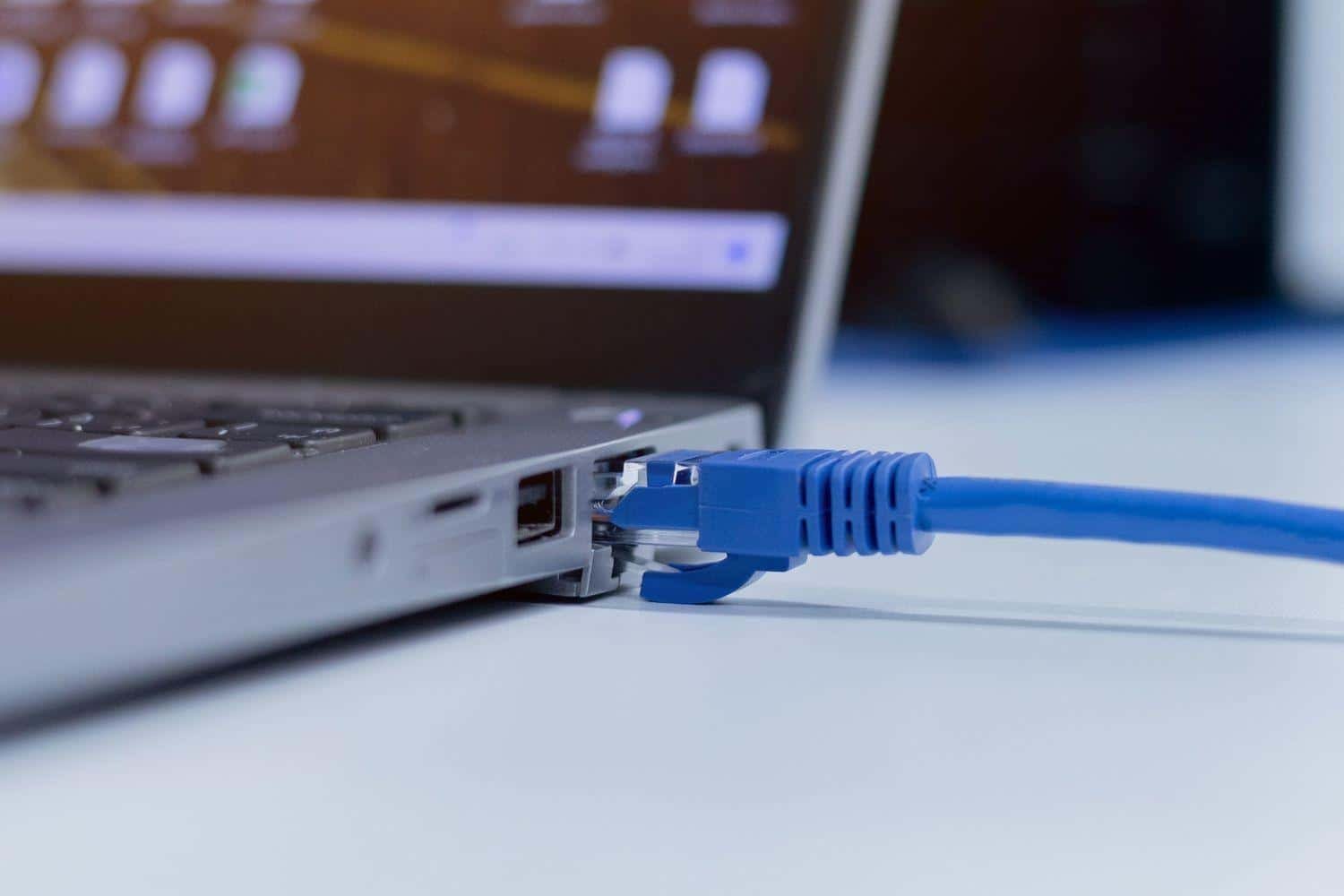
Use a Wired Ethernet Connection
Although this guide focuses on how to fix slow WiFi on Xbox Series X, the fastest solution is often avoiding WiFi altogether.
Benefits of Ethernet:
- Lower latency
- Faster downloads
- Stable connection
- Reduced packet loss
- Better competitive gaming performance
If possible, connect your Xbox directly to your router using a Cat6 Ethernet cable.
Update Your Router Firmware
Outdated firmware can significantly affect wireless performance.
Why Firmware Matters
Router updates often include:
- Security improvements
- Speed optimizations
- Bug fixes
- Better Xbox compatibility
How to Update
- Log into your router admin panel.
- Find Firmware Update.
- Check for updates.
- Install the latest version.
- Restart the router.
Many users discover that updating firmware helps fix slow WiFi issues immediately.
Reduce Network Congestion
Another important step in how to fix slow WiFi on Xbox Series X is reducing the number of devices using your network.
Common bandwidth hogs include:
- Smart TVs
- Smartphones
- Tablets
- Security cameras
- Streaming services
- Cloud backups
Solutions
- Pause Netflix streaming.
- Stop large downloads.
- Disconnect unused devices.
- Schedule updates during off-hours.
Less congestion means more bandwidth for gaming.
Change DNS Settings
DNS servers help your Xbox locate online services.
Sometimes ISP DNS servers are slow.
Recommended DNS Options
Google DNS
- Primary: 8.8.8.8
- Secondary: 8.8.4.4
Cloudflare DNS
- Primary: 1.1.1.1
- Secondary: 1.0.0.1
How to Change DNS
- Open Settings.
- Go to Network.
- Select Advanced Settings.
- Choose DNS Settings.
- Select Manual.
- Enter preferred DNS values.
Many gamers report lower latency after switching DNS providers.
Change WiFi Channel
WiFi interference can drastically reduce speeds.
Common Interference Sources
- Neighboring WiFi networks
- Bluetooth devices
- Microwaves
- Wireless speakers
Changing your router’s channel can help.
Recommended Channels
For 2.4GHz:
- Channel 1
- Channel 6
- Channel 11
For 5GHz:
Most modern routers automatically choose the best channel.
Enable Quality of Service (QoS)
QoS prioritizes gaming traffic over other internet activities.
If you’re serious about learning how to fix slow WiFi on Xbox Series X, QoS can make a huge difference.
Benefits
- Reduced lag
- Lower ping
- Smoother gameplay
- Better voice chat quality
Setup
- Log into router settings.
- Find QoS options.
- Add Xbox Series X as a priority device.
- Save settings.
Check for Xbox System Updates
Microsoft frequently releases updates that improve networking performance.
Update Process
- Open Settings.
- Go to System.
- Select Updates.
- Install available updates.
Running the latest software ensures optimal network compatibility.
Clear Alternate MAC Address
Network configuration issues can sometimes cause slow speeds.
Steps
- Settings
- General
- Network Settings
- Advanced Settings
- Alternate MAC Address
- Clear
- Restart Console
This refreshes network communication and may solve connectivity problems.
Pause Background Downloads
Game updates can consume significant bandwidth.
Check Active Downloads
- Open My Games & Apps.
- Select Manage.
- View Queue.
Pause:
- Game installations
- Updates
- DLC downloads
Your gaming performance should improve immediately.
Improve Router Placement
Proper router placement is often overlooked when researching how to fix slow WiFi on Xbox Series X.
Best Placement Tips
- Place router centrally.
- Keep it elevated.
- Avoid thick walls.
- Avoid metal surfaces.
- Keep away from microwaves.
A strategically placed router can dramatically improve wireless coverage.
Upgrade Your Router
Older routers struggle with modern gaming demands.
Consider upgrading if your router:
- Is more than five years old
- Doesn’t support WiFi 5 or WiFi 6
- Frequently disconnects
- Has poor range
Features to Look For
- WiFi 6 support
- Dual-band or tri-band technology
- Gaming QoS
- MU-MIMO
- Beamforming
A modern router can significantly improve Xbox performance.
Check NAT Type
NAT affects multiplayer connectivity.
How to Check
- Settings
- Network
- Network Settings
Ideal NAT Type
Open NAT
Avoid:
- Moderate NAT
- Strict NAT
Fixing NAT Issues
- Enable UPnP
- Forward Xbox ports
- Restart router
An Open NAT provides the best online gaming experience.
Contact Your Internet Provider
Sometimes the issue isn’t your Xbox.
Contact your ISP if you experience:
- Frequent packet loss
- Random disconnections
- Slow speeds across all devices
- High latency
Ask them to:
- Check signal quality
- Reset your connection
- Verify service issues
- Test your modem
Consider a Mesh WiFi System
Large homes often have weak signal areas.
Mesh WiFi systems provide:
- Better coverage
- Faster roaming
- Stable connections
- Reduced dead zones
If your Xbox is far from the router, a mesh system may solve the problem permanently.
Advanced Gaming Optimization Tips
To further improve performance:
Use Gaming Mode
Some routers offer dedicated gaming modes.
Schedule Updates
Avoid updates during gaming sessions.
Disconnect VPNs
VPNs can increase latency.
Limit Streaming
Streaming 4K videos while gaming can cause lag.
Reboot Weekly
Restarting network equipment regularly maintains peak performance.
Signs Your WiFi Problem Is Fixed
You’ll notice:
- Faster downloads
- Lower ping
- Stable multiplayer sessions
- Fewer disconnects
- Improved voice chat
- Better cloud gaming performance
These are strong indicators that your efforts to fix slow WiFi on Xbox Series X have been successful.
Final Thoughts
Understanding how to fix slow WiFi on Xbox Series X can dramatically improve your gaming experience. Start with the simple fixes such as moving closer to the router, switching to 5GHz WiFi, restarting your equipment, and updating firmware. Then move on to advanced optimizations like QoS, DNS changes, NAT configuration, and router upgrades.
For the best possible performance, a wired Ethernet connection remains the gold standard. However, by following the strategies in this guide, you can significantly improve WiFi speed, reduce lag, lower ping, and enjoy smoother gaming on your Xbox Series X.
Whether you’re downloading massive game updates, competing online, or streaming content, these proven solutions will help you get the most from your Xbox Series X and internet connection.