 admin
admin 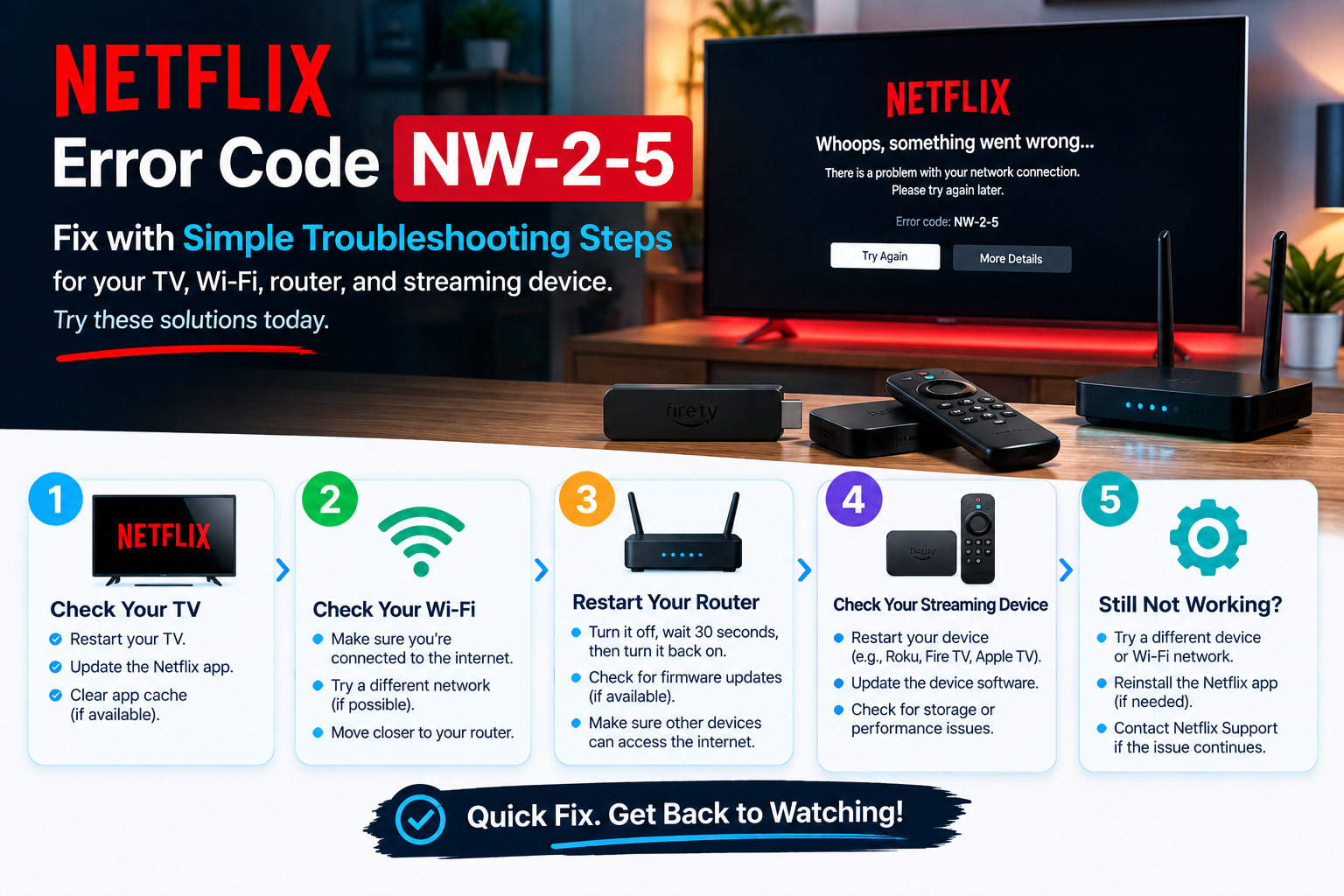
Netflix is one of the easiest ways to watch movies and TV shows, but a network-related error can stop streaming before a video even starts. One of the more common connectivity messages users encounter is Netflix Error Code NW-2-5. Instead of loading your selected title, Netflix may display the error and ask you to try again.
The important thing to understand is that NW-2-5 does not automatically mean your Netflix account is broken or that the Netflix app needs to be reinstalled. In many cases, the problem is somewhere between your streaming device and the internet. Your Wi-Fi connection, router, device network settings, or network restrictions can all play a role.
This guide explains what Netflix Error Code NW-2-5 means, what commonly causes it, and how to troubleshoot the problem systematically. The goal is not simply to restart everything repeatedly, but to identify where the connection is failing so you can choose the right fix.
What Is Netflix Error Code NW-2-5?
Netflix Error Code NW-2-5 is generally associated with a network connectivity problem. Your compatible device is having difficulty communicating with Netflix through its current internet connection.
The error can appear on different types of Netflix-enabled devices, including:
- Smart TVs
- Android TV and Google TV devices
- Streaming media players
- Blu-ray players
- Set-top boxes
- Game consoles
- Other supported streaming devices
The exact reason can vary from one device to another. For example, a Smart TV might have a weak Wi-Fi connection, while a game console could have a broader network configuration problem.
Because of this, the best approach is to start with basic connection checks and gradually move toward device-specific troubleshooting.
Why Does Netflix Error Code NW-2-5 Happen?
NW-2-5 is primarily a connectivity-related error, but several different conditions can produce the same result.
Some common possibilities include:
- An unstable internet connection
- Weak or inconsistent Wi-Fi
- A router or modem that needs to reconnect
- Temporary network congestion
- Incorrect network configuration
- Problems with the streaming device’s internet connection
- Restrictions on a public, school, workplace, or managed network
- Temporary problems affecting Netflix connectivity
Another useful clue is whether other applications work normally.
If YouTube, another streaming service, or an internet-based application also fails on the same device, the problem may be broader than Netflix. If everything else works but Netflix alone cannot connect, the issue may be more specific to Netflix or the Netflix app.
How to Fix Netflix Error Code NW-2-5
You do not necessarily need to change advanced network settings to resolve this error. Work through the following solutions in order, testing Netflix after each major step.
1. Check Whether Your Internet Is Working
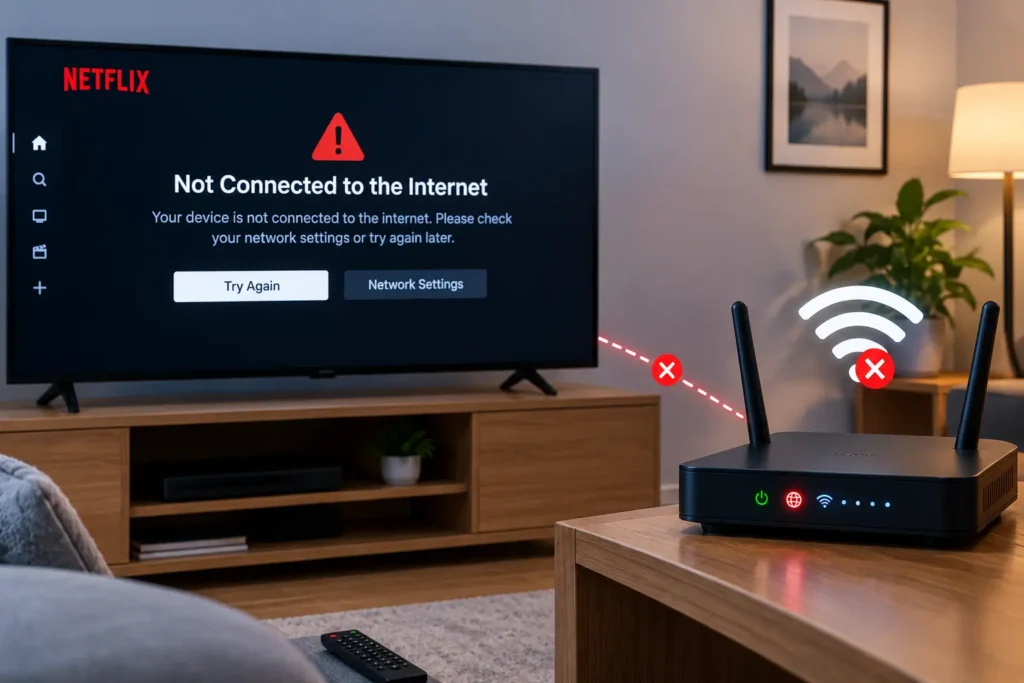
Before changing anything on your TV or streaming device, confirm that the internet connection actually works.
Open another internet-connected application on the same device. If the app loads normally, your device probably has at least some network connectivity.
If multiple applications cannot connect, focus on the internet connection first.
You can also check another phone, computer, or tablet connected to the same Wi-Fi network. If those devices are also having trouble getting online, your router or internet service may be the more likely source of the problem.
2. Restart Your Streaming Device
Temporary software or network communication problems can sometimes disappear after a complete restart.
Turn off your Smart TV, streaming player, or game console. If your device has a normal power option, use it first rather than immediately disconnecting cables.
After the device shuts down, start it again and allow it to reconnect to the network.
Then open Netflix and try playing a title.
A restart is a simple step, but it is useful because it forces the device to establish a fresh network connection rather than continuing with a potentially stalled connection.
3. Restart Your Modem and Router
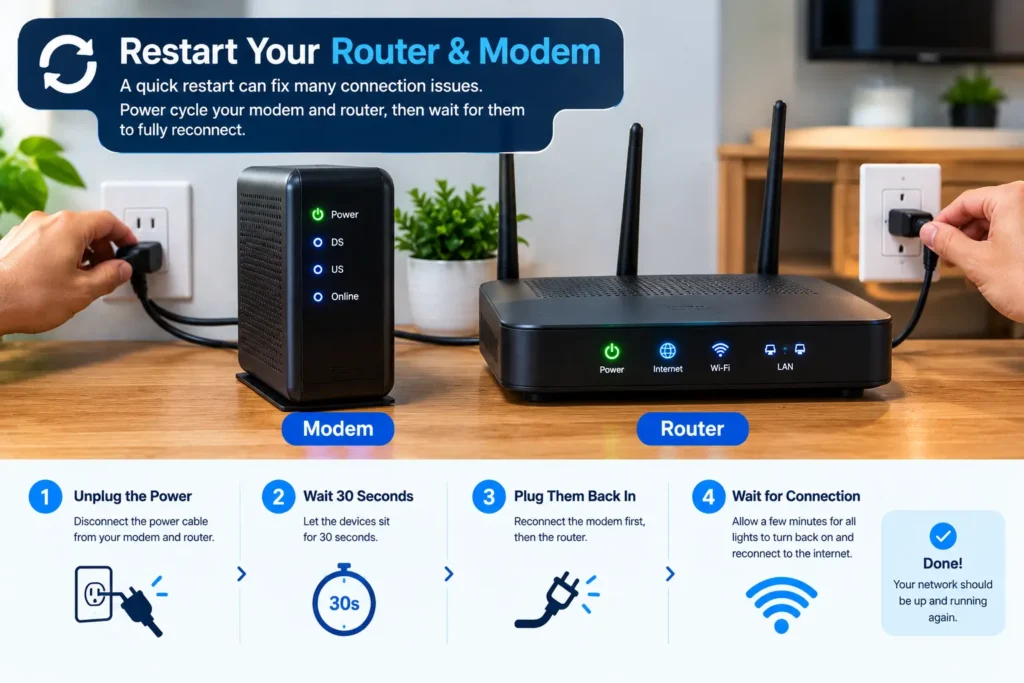
If restarting the streaming device did not help, refresh the network itself.
A typical restart process is:
- Turn off your streaming device.
- Turn off your modem and router.
- Disconnect the networking equipment from power.
- Wait briefly.
- Reconnect the modem and allow it to reconnect to your internet service.
- Reconnect your router if it is a separate device.
- Wait until the network is available.
- Turn your streaming device back on.
- Open Netflix and test playback.
This can resolve temporary communication problems between your home network and the internet.
If your modem and router are combined into one unit, you only need to restart that device
4. Check Your Wi-Fi Signal
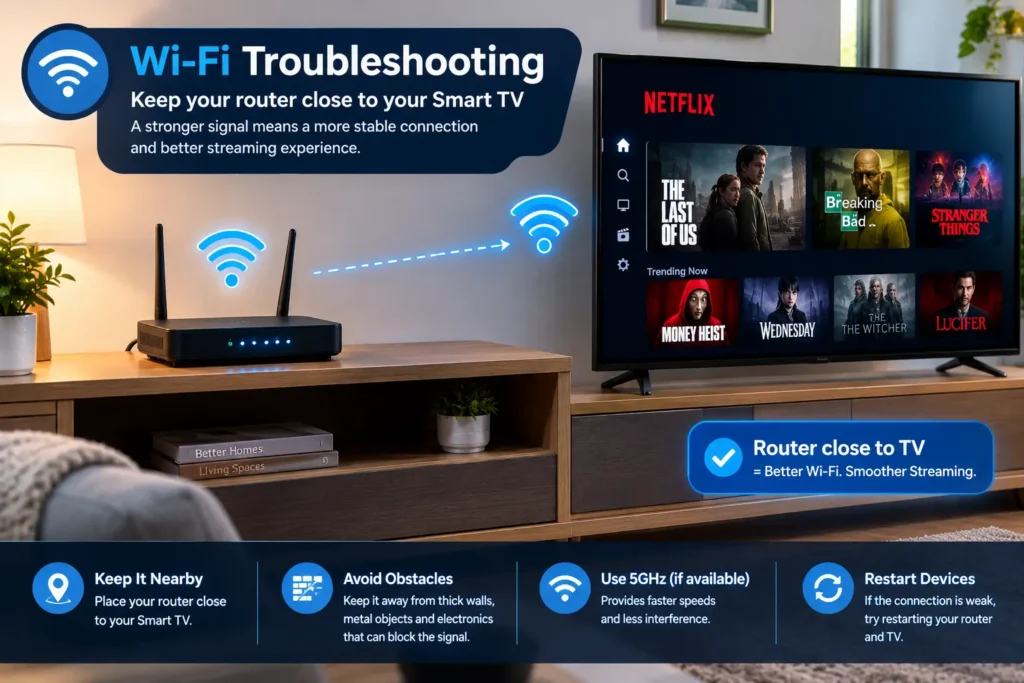
A device can show that it is connected to Wi-Fi while still having an unreliable connection.
This is particularly common when a Smart TV is located far from the router or when walls and other obstacles interfere with the wireless signal.
If possible, move the router closer to the streaming device or reposition it in a more open location.
Also avoid placing the router inside a cabinet or behind large objects.
If your device supports Ethernet, testing it with a wired connection can be particularly useful. A successful Ethernet test can help determine whether the problem is specifically related to Wi-Fi.
5. Check Your Device's Network Settings
Open the network settings on your TV, streaming device, or console and verify the connection.
Check that:
- Wi-Fi is enabled when using a wireless connection.
- The correct network is selected.
- The device reports an active internet connection.
- You have entered the correct Wi-Fi password if reconnecting.
- Any required network sign-in has been completed.
If the device says that it is connected to the router but has no internet access, Netflix may not be able to communicate with its service.
In that situation, fixing the device’s internet connection should come before troubleshooting the Netflix application itself
6. Test Netflix on Another Device
This is one of the most useful diagnostic steps because it helps separate a device problem from a network problem.
Connect another device to the same network and open Netflix.
For example, you can test Netflix on a phone, tablet, or computer.
If Netflix works on the second device but not your TV, the problem may be isolated to the TV or streaming device.
If Netflix fails on several devices using the same network, investigate the network connection or possible service issues instead.
This simple comparison can prevent you from making unnecessary changes to a device that is actually working correctly.
7. Try an Ethernet Connection
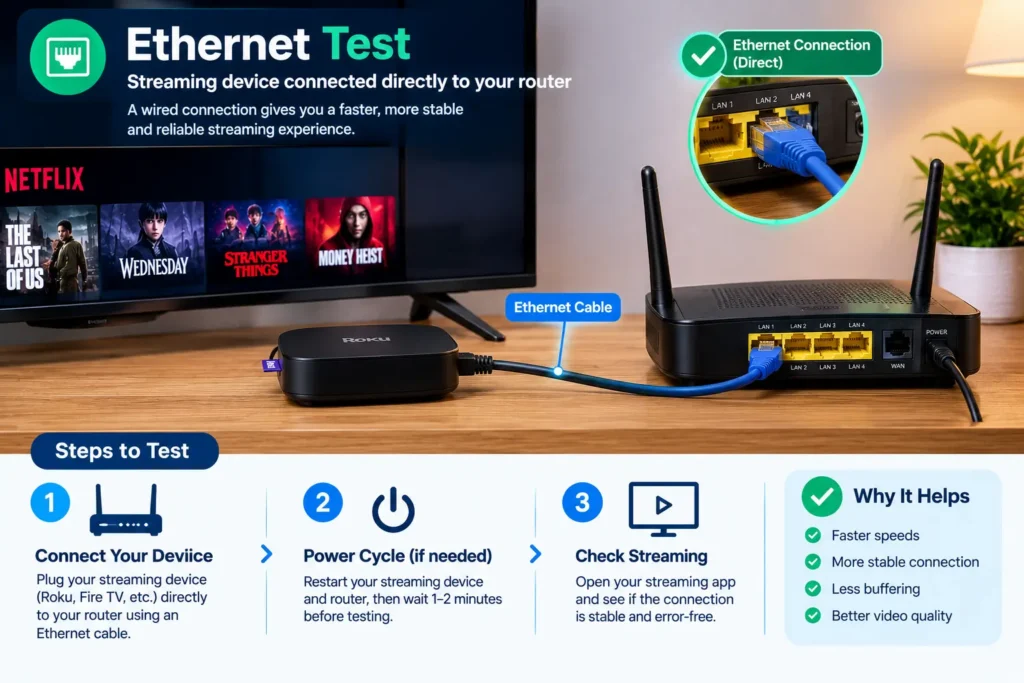
If your Smart TV, streaming player, or game console has an Ethernet port, connect it directly to your router for testing.
Ethernet removes the wireless connection from the equation.
If Netflix works correctly over Ethernet but produces NW-2-5 when using Wi-Fi, you have a strong indication that the wireless connection needs attention.
The cause could be signal strength, interference, router placement, or another Wi-Fi-related issue.
You do not necessarily need to permanently switch to Ethernet. The test itself can help identify which part of the connection needs troubleshooting.
8. Check Whether Netflix Is Experiencing a Service Problem
Not every connection error is caused by your equipment.
Netflix can occasionally experience temporary service or connectivity problems. Before making significant changes to your router or device, check Netflix’s official help and service information.
If a broader service issue is confirmed, changing your device’s advanced network settings is unlikely to solve the underlying problem.
In that situation, waiting for the service issue to be resolved and testing again later may be the most appropriate approach.
9. Sign Out of Netflix and Sign In Again
If your internet connection is working normally but Netflix continues showing NW-2-5, try signing out of the Netflix application and then signing back in.
The exact location of the sign-out option varies by device.
After signing out, close or restart Netflix if the device allows it, then sign back into your account.
This can refresh the application’s account session and establish a new connection.
Do not assume that signing out is required in every case. Try the basic network troubleshooting steps first, especially if other applications are also offline.
10. Update Your TV or Streaming Device
Older device software can sometimes cause compatibility or networking problems.
Open your device’s system settings and look for a software or firmware update.
If an update is available, install it according to the manufacturer’s instructions. Keep the device connected to reliable power and internet access during the update.
After the update completes, restart the device and test Netflix again.
It is also worth keeping the Netflix application updated when your device provides app-update options.
11. Check for Network Restrictions
Some internet networks are configured differently from a normal home connection.
For example, restrictions can exist on:
- School networks
- Workplace networks
- Hotel Wi-Fi
- Public Wi-Fi
- Managed networks
- Certain restricted home networks
If Netflix works normally when the device uses another network but fails on the current one, the network configuration may be responsible.
For a home connection, your internet provider or router manufacturer may be able to help identify network-level restrictions or configuration problems.
Avoid randomly changing advanced router settings if you are unsure what they control.
Netflix Error NW-2-5 on Smart TVs
Smart TVs are among the devices where users may encounter this type of network error.
If NW-2-5 appears on your television, begin with the TV’s built-in network test.
Then try the following:
- Confirm that the TV has internet access.
- Restart the television.
- Restart the modem and router.
- Reconnect the TV to Wi-Fi.
- Test another streaming application.
- Try an Ethernet connection if supported.
- Check for available TV software updates.
If other streaming apps also fail, focus on the TV’s internet connection instead of repeatedly reinstalling Netflix.
Netflix NW-2-5 on Gaming Consoles
If you’re seeing NW-2-5 on a PlayStation, Xbox, or another supported gaming device, first confirm that the console is connected to the internet.
Try another online service or application. If the console itself cannot connect properly, the network problem should be addressed first.
Restarting the console and router can also refresh the connection.
If other online features work normally but Netflix does not, continue with the Netflix-specific troubleshooting steps rather than changing unrelated console settings.
Common Mistakes When Fixing Netflix NW-2-5
Changing Advanced Network Settings Immediately
One common mistake is changing DNS, IP, or router settings before confirming that the basic connection works.
Start with simple checks. Advanced configuration should only be changed when there is a specific reason to do so.
Assuming Netflix Is Always Down
An NW-2-5 message does not automatically mean Netflix is experiencing an outage.
Your router, Wi-Fi connection, device, or internet provider may be responsible.
Ignoring Other Applications
Testing another application can provide valuable information.
If several apps fail, investigate the network. If everything except Netflix works, focus your troubleshooting more specifically on Netflix and the affected device.
Repeating the Same Restart
Restarting your router once can be useful. Repeating the same restart without testing anything else usually does not provide additional information.
Use each troubleshooting step as a way to narrow down the cause.
Quick Fix Checklist
Before contacting support, work through this checklist:
- Confirm the device is connected to the internet.
- Test another internet-connected app.
- Restart the streaming device.
- Restart the modem and router.
- Check Wi-Fi signal strength.
- Test Netflix on another device.
- Try an Ethernet connection if available.
- Check Netflix’s official service information.
- Sign out and back into Netflix.
- Install available device updates.
- Contact your internet provider if the network remains unstable.
.
Key Takeaways
Netflix Error Code NW-2-5 is generally related to communication between a Netflix-enabled device and the Netflix service.
The most useful troubleshooting approach is to identify where the connection is failing rather than immediately changing advanced settings.
Remember these core steps:
- Verify that the internet works.
- Restart the streaming device.
- Restart the modem and router.
- Check the Wi-Fi signal.
- Test Netflix on another device.
- Try Ethernet when available.
- Check for service problems.
- Update your device software.
- Investigate network restrictions if the problem occurs only on one network.
This approach makes troubleshooting more systematic and reduces the chance of changing settings that are unrelated to the actual problem.
Frequently Asked Questions
Netflix Error Code NW-2-5 generally means that a supported device is having difficulty communicating with Netflix through its network connection. The cause can be an unstable internet connection, Wi-Fi problem, router issue, device configuration, network restriction, or another connectivity-related condition.
Start by checking whether your internet works on the affected device. Restart the device, modem, and router, then test Netflix again. You can also check the Wi-Fi signal, test Netflix on another device, try Ethernet, update the device, and investigate network restrictions if the problem continues.
Restarting the router can resolve NW-2-5 when the underlying problem is a temporary network connection issue. Restarting refreshes the connection between your home network and the internet. If the error remains after the restart, continue with device, Wi-Fi, service-status, and network troubleshooting.
If Netflix works on your phone but not your TV while both are using the same network, the problem may be specific to the TV. Check the TV’s internet connection, restart it, reconnect it to Wi-Fi, test another streaming app, and look for available TV software updates.
A weak or unstable Wi-Fi connection can prevent a streaming device from maintaining reliable communication with online services. If the TV or streaming player is far from the router, improve the router’s position or test the device with an Ethernet connection to determine whether Wi-Fi is contributing to the problem.
Conclusion
Netflix Error Code NW-2-5 is usually a connectivity problem rather than an indication that your Netflix account is permanently damaged. The most effective way to troubleshoot it is to work from the simplest possibilities toward more specific ones.
Start by checking your internet connection, then restart your streaming device and network equipment. If that does not help, compare Netflix on another device, test the Wi-Fi connection, try Ethernet when possible, and check for service or network restrictions.
If the error continues after these steps, the next move is to identify whether the issue is specific to your device, home network, or internet provider. That information will make it much easier to get the right support instead of repeatedly trying unrelated fixes.