 admin
admin 
Connecting your Xbox console to the internet is essential for online gaming, downloading updates, streaming content, and accessing Xbox services. In most cases, your Xbox automatically detects nearby Wi-Fi networks, allowing you to select your network and enter the password. However, there are situations where you may need to manually specify an SSID on your Xbox.
If your Wi-Fi network is hidden or not appearing in the list of available networks, manually entering the SSID can help establish a connection. Many gamers encounter this issue when using custom router settings, business networks, or security-focused home Wi-Fi setups.
This comprehensive guide explains everything you need to know about specifying an SSID on Xbox, including what an SSID is, why you might need to enter it manually, step-by-step setup instructions, troubleshooting tips, and best practices for maintaining a stable gaming connection.
Table of Contents
ToggleWhat Is an SSID?
SSID stands for Service Set Identifier. Simply put, it is the name of your Wi-Fi network.
Examples of SSIDs include:
- Home_WiFi
- Gaming_Network
- Office_Internet
- MyRouter_5G
When you view available wireless networks on your smartphone, laptop, or Xbox, the names you see are SSIDs.
Every Wi-Fi router broadcasts an SSID so devices can discover and connect to it. Some users choose to hide their SSID for additional privacy and security, requiring devices to manually enter the network name before connecting.
Why Would You Need to Specify an SSID on Xbox?
There are several reasons why manually entering an SSID may be necessary:
1. Hidden Wi-Fi Network
Some routers are configured not to broadcast their network names publicly. In this case, the network will not appear in the Xbox Wi-Fi list.
2. Network Not Showing Up
Occasionally, wireless interference or router settings can prevent the network from appearing.
3. Business or School Networks
Certain managed networks require manual network configuration.
4. Multiple Similar Networks
If multiple nearby networks have similar names, manually specifying the SSID ensures you connect to the correct one.
5. Router Configuration Changes
After changing router settings, the Xbox may require a fresh network setup.
Finding Your Wi-Fi SSID
Before configuring your Xbox, you need to know your network name.
Method 1: Check Your Router
Many routers display the SSID on a sticker located on:
- Bottom of the router
- Side panel
- Back label
Method 2: Check a Connected Device
On a smartphone or laptop:
- Open Wi-Fi settings.
- View the currently connected network.
- Note the exact network name.
Method 3: Router Administration Page
Access your router’s management interface and locate the wireless settings section.
How to Specify an SSID on Xbox Series X and Series S
Follow these steps carefully:
Step 1: Turn On Your Xbox
Power on your Xbox Series X or Series S and wait for the dashboard to load.
Step 2: Open Settings
Navigate to:
Profile & System → Settings
Step 3: Go to Network Settings
Select:
General → Network Settings
Step 4: Choose Set Up Wireless Network
Select:
Set Up Wireless Network
Your Xbox will scan for available Wi-Fi networks.
Step 5: Select Add Network
If your SSID does not appear in the list:
- Scroll to the bottom.
- Choose Add Network.
- Select Add Wireless Network if prompted.
Step 6: Enter the SSID
Type your exact Wi-Fi network name.
Important:
- Capital letters matter.
- Spaces matter.
- Special characters must be entered correctly.
Example:
If your network is named:
Gaming Room WiFi
You must enter:
Gaming Room WiFi
Not:
gamingroomwifi
Step 7: Enter the Password
Input your wireless security key.
Double-check:
- Uppercase letters
- Lowercase letters
- Numbers
- Symbols
Step 8: Complete Setup
Select Connect.
If the information is correct, your Xbox should successfully join the network.
How to Specify an SSID on Xbox One
Follow these simple steps to manually connect your Xbox One to a Wi-Fi network using its SSID:
- Press the Xbox button on your controller to open the guide.
- Navigate to Profile & System and select Settings.
- Go to Network and then choose Network Settings.
- Select Set Up Wireless Network.
- If your network is not listed, choose Add Network.
- Enter your SSID (Wi-Fi network name) exactly as it appears on your router.
- Type in your Wi-Fi password carefully, making sure all letters, numbers, and special characters are correct.
- Select Connect or Confirm to complete the setup.
- Wait for Xbox One to verify the connection and connect to the network.
- Once connected successfully, you can start downloading games, streaming content, and playing online.
Connecting to a Hidden Wi-Fi Network
Hidden networks require manual configuration.
When entering a hidden SSID:
- Enter the network name exactly.
- Choose the correct security type.
- Enter the password carefully.
- Save the settings.
A single typing mistake can prevent the connection.
Common Connection Problems
Incorrect SSID
Even a small typo can stop the connection.
Verify:
- Capitalization
- Spaces
- Special characters
Wrong Password
Ensure the password matches your router configuration.
Router Compatibility Issues
Older routers may have compatibility problems with newer Xbox consoles.
Updating firmware can often resolve these issues.
Signal Interference
Nearby devices can interfere with wireless signals.
Common sources include:
- Microwave ovens
- Wireless speakers
- Bluetooth devices
- Cordless phones
Distance from Router
Weak signals can cause connection failures.
Move closer to the router and test again.
How to Test Your Xbox Network Connection
After entering your SSID:
- Open Settings.
- Select Network Settings.
- Choose Test Network Connection.
Xbox will verify:
- Router communication
- Internet access
- Xbox Network connectivity
If issues are detected, Xbox provides troubleshooting recommendations.
Benefits of Using a Hidden SSID
Some users prefer hidden networks because they:
Improve Privacy
Casual users cannot immediately see the network name.
Reduce Unwanted Connection Attempts
Fewer people will attempt to connect.
Add an Extra Layer of Security
Although not a replacement for strong encryption, hiding the SSID provides another obstacle.
Limitations of Hidden SSIDs
Hidden networks are not completely secure.
Experienced users can still detect them using network analysis tools.
For maximum security, use:
- WPA2 encryption
- WPA3 encryption
- Strong passwords
- Updated router firmware
Optimizing Xbox Wi-Fi Performance
Use 5GHz Wi-Fi
Benefits include:
- Faster speeds
- Lower latency
- Less interference
Position Your Router Properly
Place the router:
- In a central location
- Off the floor
- Away from walls
Reduce Network Congestion
Disconnect unused devices.
Restart Equipment Regularly
Restart:
- Xbox
- Router
- Modem
Update Xbox Software
Install the latest system updates for optimal performance.
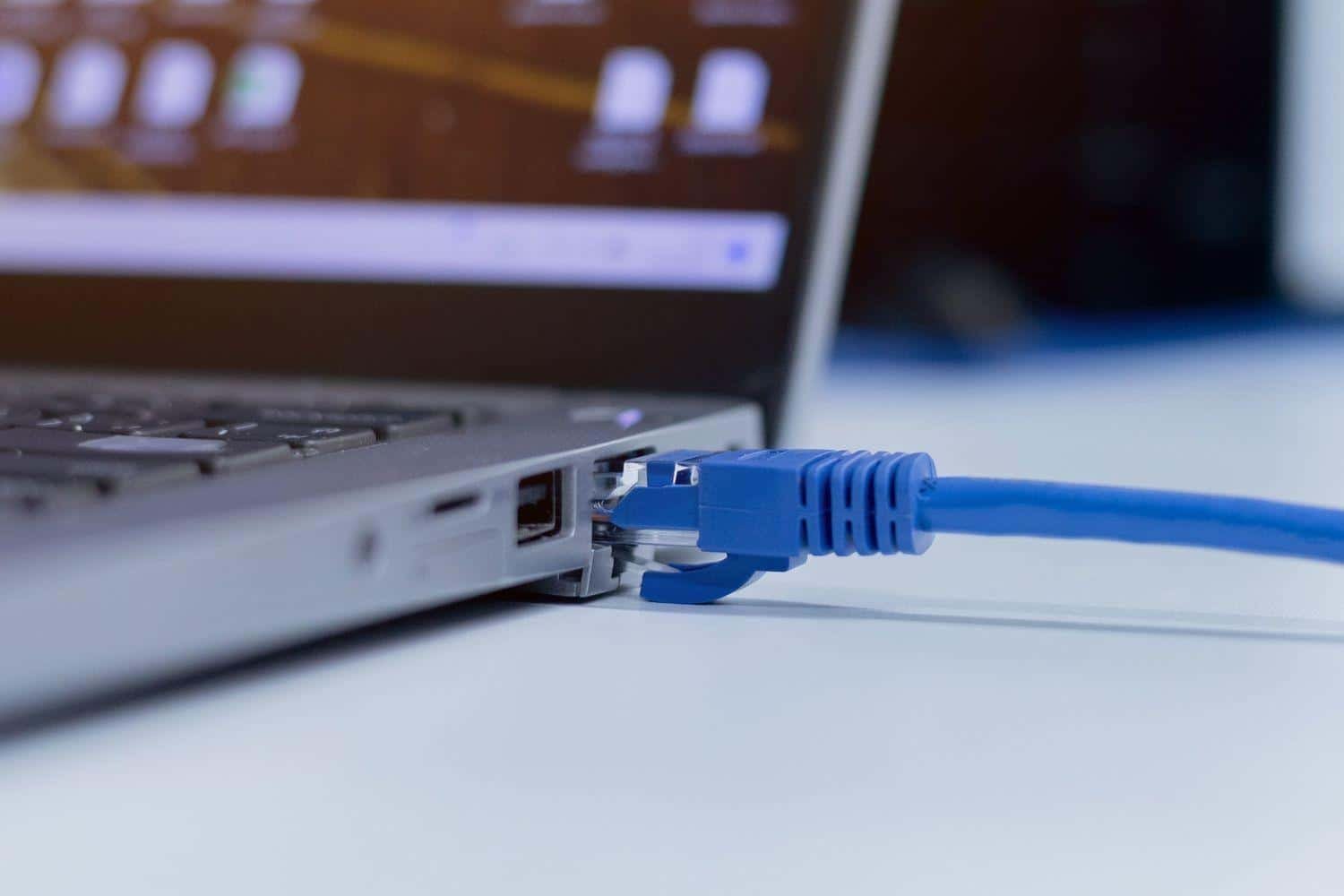
Should Gamers Use Ethernet Instead?
While Wi-Fi is convenient, Ethernet offers:
Lower Latency
Better responsiveness in online games.
More Stable Connection
Reduced packet loss.
Faster Downloads
Improved update and game installation speeds.
Better Competitive Gaming Performance
Ideal for multiplayer games such as:
- Call of Duty
- Fortnite
- Apex Legends
- EA Sports FC
- Halo Infinite
If possible, use a wired connection for the best gaming experience.
Advanced Troubleshooting
Restart Network Hardware
- Turn off Xbox.
- Unplug router.
- Wait 60 seconds.
- Restart router.
- Turn Xbox back on.
Forget and Reconnect
Remove the saved network and reconnect using the SSID.
Check Router Settings
Ensure:
- Wireless broadcasting is enabled.
- Security settings are supported.
- MAC filtering is not blocking the Xbox.
Update Router Firmware
Manufacturers regularly release stability and security updates.
Reset Network Settings
If all else fails, reset the network configuration and set up the connection again.
Frequently Asked Questions
Can I connect my Xbox to a hidden Wi-Fi network?
Yes. Use the Add Network option and manually enter the SSID and password.
Why doesn’t my Xbox show my Wi-Fi network?
The network may be hidden, out of range, or experiencing interference.
Does SSID capitalization matter?
Yes. Enter the network name exactly as configured on your router.
Is hiding an SSID secure?
It provides minor privacy benefits but should be combined with WPA2 or WPA3 encryption.
Can Xbox automatically reconnect later?
Yes. Once configured successfully, Xbox usually reconnects automatically whenever the network is available.
Conclusion
Knowing how to specify an SSID on Xbox is an important skill when connecting to hidden or unavailable Wi-Fi networks. Whether you’re using an Xbox Series X, Xbox Series S, or Xbox One, manually entering your network name is a straightforward process that can quickly restore internet access.
By carefully entering the correct SSID, verifying your password, and following the troubleshooting steps outlined in this guide, you can enjoy uninterrupted gaming, streaming, and online services. For the best gaming experience, consider optimizing your Wi-Fi setup or using a wired Ethernet connection whenever possible.
A properly configured network ensures smoother gameplay, faster downloads, and a more reliable Xbox experience overall.