
 admin
admin 
If your iPhone suddenly shows a green screen, it can be worrying — especially if you haven’t backed up your important files. Many users search for how to back up iPhone with green screen because they want to secure their data before fixing the device. A green screen may result from software glitches, display errors, or even hardware issues. The good news? You can still back up your iPhone using different methods, even if the display isn’t working properly.
In this detailed guide, we’ll explain why the green screen happens, professional ways to back up your iPhone, and step-by-step instructions to keep your photos, contacts, and data safe.
Table of Contents
ToggleWhy Does the iPhone Green Screen Happen?
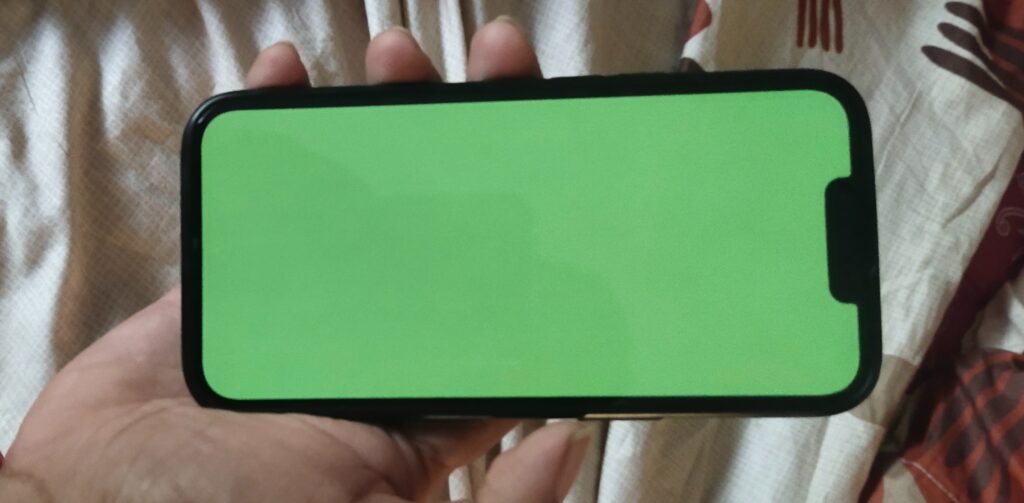
Before learning how to back up iPhone with green screen, it’s helpful to know what causes it:
- iOS bugs or crashes: A failed update or corrupted system files.
- Hardware issues: Damage to the display, screen connector, or GPU.
- Third-party apps: Rarely, incompatible apps may trigger screen glitches.
- Battery or overheating: Extreme heat can cause temporary display errors.
Regardless of the cause, your main priority should be securing your data.
Can You Back Up an iPhone With a Green Screen?
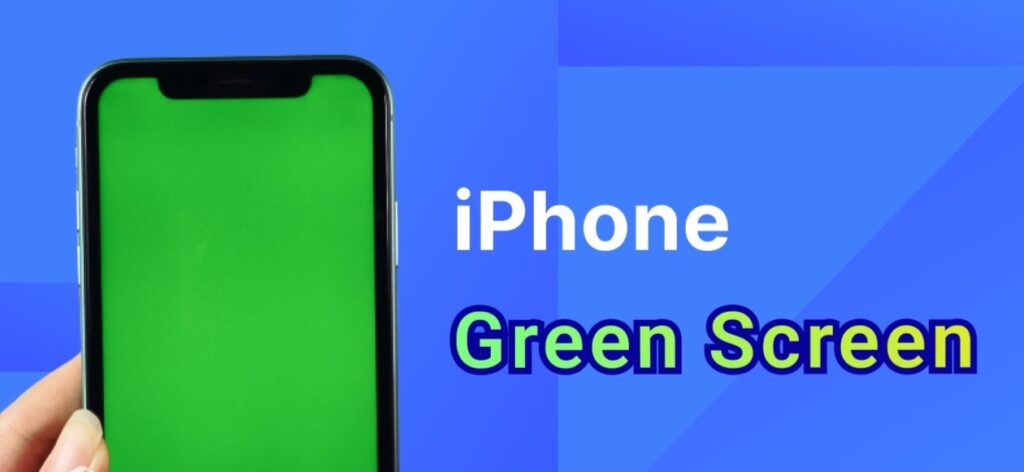
Yes — even if your iPhone screen turns green, the internal storage may still function normally. This means you can connect it to a computer or use iCloud to back up. The screen issue doesn’t always affect the backup process.
Methods: How to Back Up iPhone With Green Screen
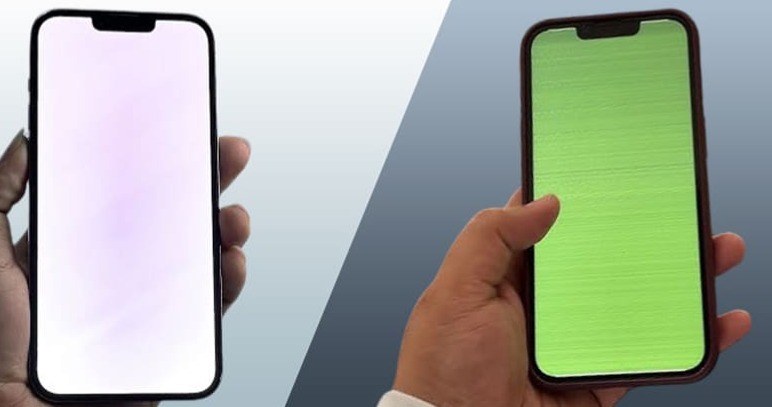
1. Back Up Using iCloud
If the touch still works but the screen is green, you may be able to back up blindly using gestures.
Steps:
- Connect your iPhone to Wi-Fi.
- Swipe to Settings > [Your Name] > iCloud > iCloud Backup.
- Tap Back Up Now.
Pro Tip: If you can’t see, try mirroring your iPhone to a Mac or use VoiceOver to navigate.
2. Back Up Using iTunes (Finder on macOS Catalina and later)
This method works even if the display is fully unusable.
Steps:
- Connect your iPhone to a computer with a USB cable.
- Open Finder (Mac) or iTunes (Windows).
- Select your iPhone when it appears.
- Click Back Up Now under “Manually Back Up and Restore.”
- Wait until the process completes.
This ensures all your photos, messages, and settings are safe.
3. Use Third-Party Backup Tools
If iTunes or iCloud doesn’t work, consider reliable third-party apps like:
- iMazing
- Dr.Fone
- AnyTrans
These tools often allow backups even when the iPhone screen is unresponsive.
4. Enable Automatic iCloud Backup (For Future Safety)
Once your device is repaired, make sure automatic backup is turned on:
- Go to Settings > iCloud > iCloud Backup.
- Turn on Back Up This iPhone.
Your device will back up daily when charging and connected to Wi-Fi.
Fixing the Green Screen After Backup
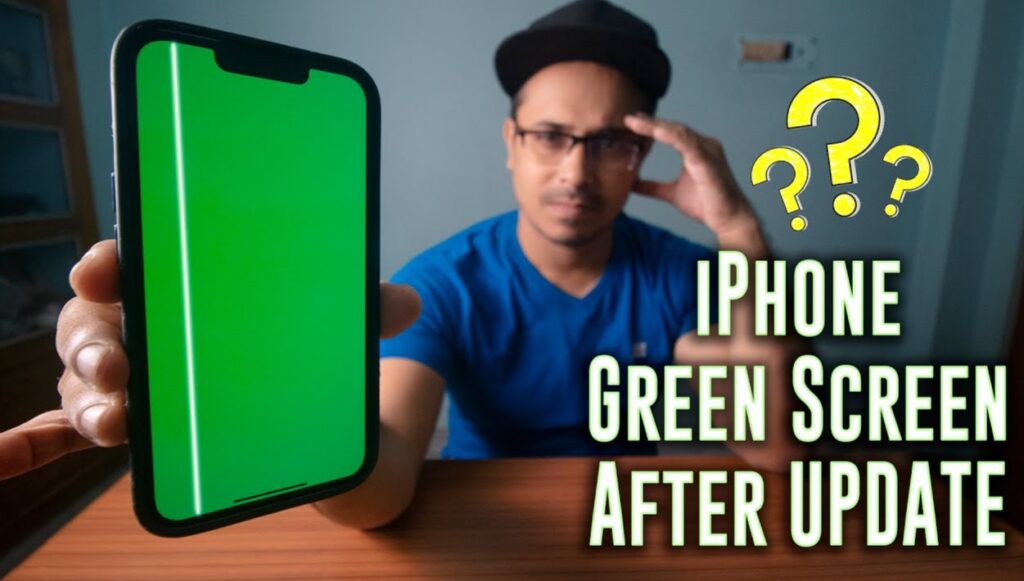
After completing your backup, you can focus on repairing the iPhone.
1. Force Restart Your iPhone
For iPhone 8 and later: Quickly press Volume Up, then Volume Down, then hold the Side button until the Apple logo appears.
2. Update or Restore via iTunes/Finder
Connect your iPhone to a computer.
Choose Update (keeps data) or Restore (erases data, so make sure backup is done).
3. Seek Apple Support
If it’s a hardware issue, visiting an Apple Store or authorized repair center is the safest option.
Preventing Future Green Screen Issues
Keep iOS updated: Always install the latest stable updates.
Avoid overheating: Don’t use your iPhone while charging in hot conditions.
Use original accessories: Cheap cables may cause power surges.
Regular backups: Don’t wait for problems — back up weekly or enable auto backups.
Common Questions (FAQ)
Q: Will backing up with a green screen save my photos and contacts?
Yes, as long as the internal storage works, your backup will include photos, contacts, messages, and app data.
Q: Can I back up if the iPhone screen is completely black, not green?
Yes, the process is the same — connect to iTunes/Finder or iCloud.
Q: Does a green screen mean my iPhone is permanently damaged?
Not always. Sometimes it’s just a software glitch. Backup first, then try software fixes.
Conclusion
Dealing with an iPhone green screen can feel stressful, but your data doesn’t have to be at risk. By following the steps in this guide, you now know how to back up iPhone with green screen using iCloud, iTunes, or third-party tools. Once your information is safe, you can confidently work on fixing the screen issue.
In 2025, the smartest approach is prevention: always keep iCloud backup enabled, update iOS regularly, and handle your device carefully. That way, even if the green screen reappears, your data will always stay protected.