 admin
Table of Contents
- What Is Windows Update Error 0x80070005?
- Common causes of error 0x80070005
- 1. Restart Your Computer and Try Again
- 2. Run the Windows Update Troubleshooter
- 3. Check Whether Your Account Has Administrator Access
- 4. Temporarily Check Third-Party Security Software
- 5. Repair Windows System Files With DISM and SFC
- 6. Clear Temporary Windows Update Files
- 7. Check Windows Update Services
- 8. Check Storage Space, Internet Access, and Pending Restarts
- 9. Try Windows Recovery Options if the Error Persists
- Common Mistakes to Avoid When Fixing Error 0x80070005
- Key Takeaways
- Frequently Asked Questions
- Conclusion
Windows updates help keep your computer secure, compatible, and reliable. However, an update can sometimes fail with error code 0x80070005, preventing Windows from downloading or installing important files. The message may appear during a regular update, a feature update, or another Windows installation process.
If you are searching for how to fix Windows Update error 0x80070005, the first thing to understand is that this code generally indicates an Access Denied or permissions-related problem. Windows may be unable to access a required file, service, or system resource. Security software, account permissions, or damaged update components can also contribute to the issue.
The good news is that you can try several troubleshooting methods without immediately reinstalling Windows. This guide explains the possible causes and walks you through practical fixes, starting with the simplest options.
What Is Windows Update Error 0x80070005?
Windows Update error 0x80070005 is an access-denied error. It indicates that a process does not have the permissions or access it needs to complete an operation.
During an update, Windows may need to download files, write data to protected folders, verify system components, and install changes. If one of these operations is blocked, the update may fail.
The error can occur on Windows 10 and Windows 11, although the exact cause depends on the device and the update being installed.
Common causes of error 0x80070005
Several issues may trigger this error:
- Insufficient permissions: Your account may not have the administrator rights required for a particular operation.
- Security software interference: Antivirus software or security policies may block an update-related action.
- Damaged update files: Incomplete downloads or corrupted temporary files may interfere with installation.
- Windows system file problems: Damaged system components can prevent the update process from completing.
- Update service issues: A Windows service or related component may not be working correctly.
- Restricted device settings: On a work or school computer, administrator-managed policies may control which updates can be installed.
Identifying the likely cause helps you avoid unnecessary changes to your system.
1. Restart Your Computer and Try Again
Before using advanced troubleshooting tools, restart your computer. A restart can close a process that is interfering with the update and allow Windows services to start again cleanly.
Follow these steps:
- Save your open documents and close running applications.
- Open the Start menu.
- Select Power, then Restart.
- Wait for Windows to load completely.
- Open Settings and navigate to Windows Update.
- Select Check for updates and try installing the update again.
If the update installs successfully, no additional troubleshooting is necessary.
If error 0x80070005 returns, continue to the next method.
2. Run the Windows Update Troubleshooter
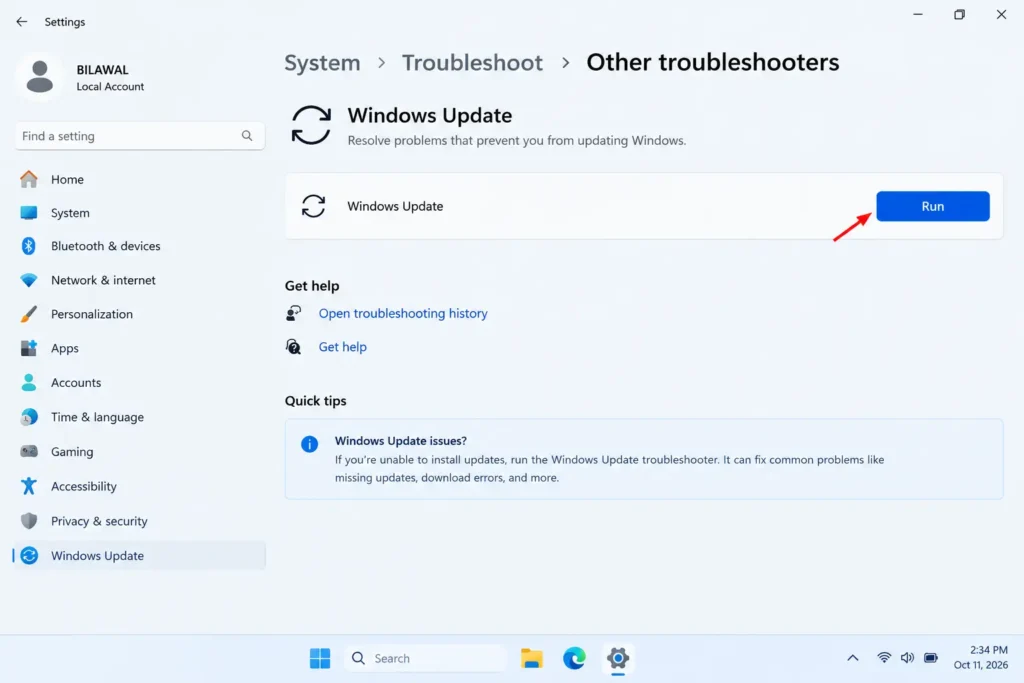
Windows includes a troubleshooter that can identify common update problems and attempt to resolve them. This is a good next step because it does not require you to modify system files manually.
On Windows 11:
- Open Settings.
- Select System.
- Choose Troubleshoot.
- Select Other troubleshooters.
- Find Windows Update and select Run.
- Follow the instructions provided by the troubleshooter.
- Restart your computer if prompted, then check for updates again.
You can also search for the Windows Update troubleshooter in the Get Help app and follow its diagnostic instructions.
On Windows 10:
- Open Settings.
- Select Update & Security.
- Choose Troubleshoot.
- Open Additional troubleshooters.
- Select Windows Update.
- Choose Run the troubleshooter and follow the instructions.
Menu labels may differ slightly depending on your Windows version.
For Microsoft’s official instructions, see the Windows Update Troubleshooter guide.
3. Check Whether Your Account Has Administrator Access
Some Windows installation operations require elevated permissions. If you are using a standard account, you may need an administrator to approve the update.
How to check your account:
- Open Settings.
- Select Accounts.
- Open Your info.
- Check whether your account is identified as an Administrator.
The wording and location can vary across Windows versions and account configurations.
If your account is a standard user, sign in with an authorized administrator account or ask the device owner or administrator to help.
Important: Do not change ownership of protected Windows folders or grant broad permissions to system files just to bypass this error. Incorrect permission changes can cause additional Windows problems.
If you already have administrator access, continue with the next fix.
4. Temporarily Check Third-Party Security Software
Antivirus products and other security tools can sometimes interfere with legitimate update operations. Microsoft lists security software interference among the potential causes of error 0x80070005.
Start by checking whether your security software has reported a blocked or quarantined Windows Update file.
What you should do:
- Open your security application.
- Review its recent alerts, quarantine records, or protection history.
- Check whether a legitimate Windows Update component was blocked.
- Install any available updates for your security application.
- Retry Windows Update.
If the security application appears to be responsible, consult its official support instructions for resolving the conflict.
Avoid leaving antivirus protection or your firewall disabled. If a brief diagnostic test is necessary, do so only with appropriate guidance, restore protection immediately afterward, and do not browse unrelated websites or download files while protection is disabled.
On a work or school device, contact the administrator rather than changing managed security settings.
5. Repair Windows System Files With DISM and SFC
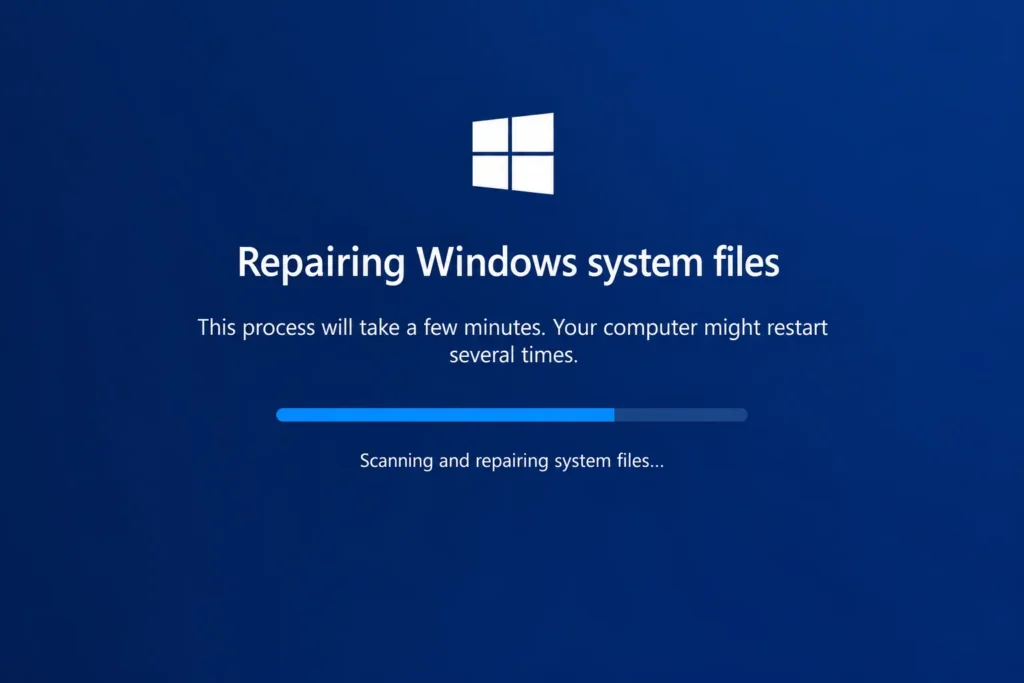
Damaged Windows system files can interfere with updates and other operating system functions. Windows provides two built-in tools to help diagnose and repair these problems:
- DISM: Repairs the Windows image used to maintain system components.
- System File Checker (SFC): Scans protected system files and attempts to repair corrupted files.
Microsoft recommends running DISM before SFC when repairing system files.
Step 1: Open Command Prompt as administrator:
- Open the Start menu.
- Type Command Prompt in the search box.
- Right-click Command Prompt.
- Select Run as administrator.
- Approve the permission prompt if requested.
Step 2: Run the DISM command:
Enter the following command and press Enter:
DISM.exe /Online /Cleanup-Image /RestoreHealth
Wait for the operation to complete. It may take several minutes or longer, depending on your computer.
Keep your computer connected to the internet if possible because DISM may need Windows Update to obtain repair files.
Step 3: Run System File Checker:
After DISM finishes, enter:
sfc /scannow
Press Enter and allow the scan to reach completion. Do not close the Command Prompt window while the scan is running.
Step 4: Restart and test Windows Update:
Restart your computer, open Settings, and select Check for updates.
If either tool reports that it could not repair the files, record the message before trying more advanced repairs.
For more information, consult Microsoft’s official guide to repairing missing or corrupted system files.
6. Clear Temporary Windows Update Files
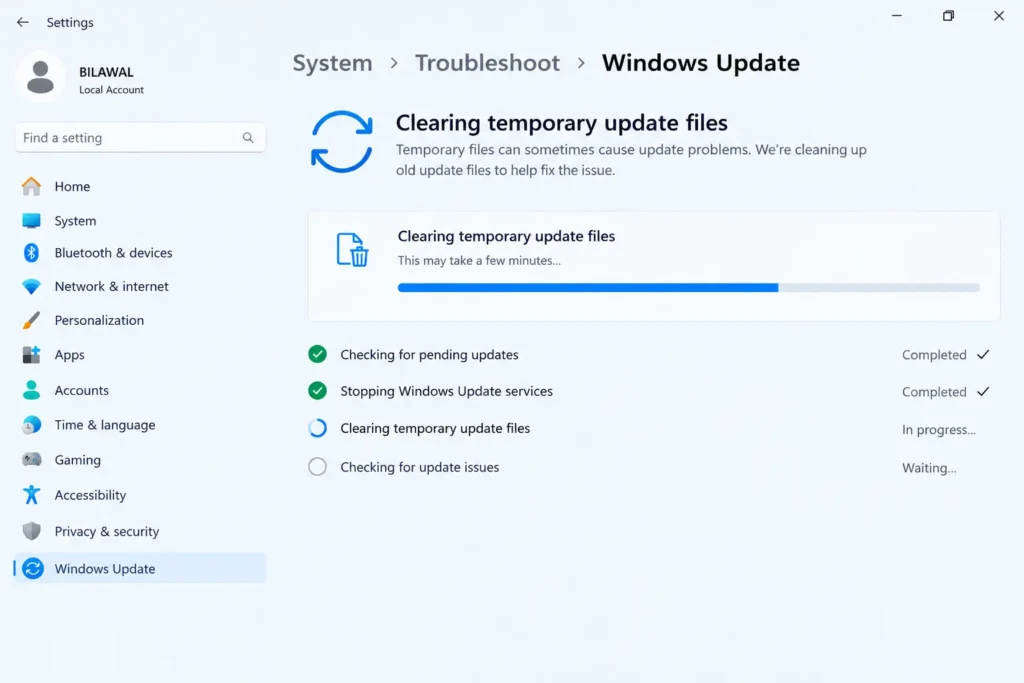
Sometimes the files downloaded for an update are incomplete or damaged. Clearing the temporary update download cache can help Windows download a fresh copy.
This method is different from deleting personal files. Nevertheless, follow the steps carefully and do not remove files from unrelated system folders.
Step 1: Stop the Windows Update service:
- Press Windows + R.
- Type services.msc.
- Press Enter.
- Find Windows Update in the Services window.
- Right-click it and select Stop, if available.
If the service cannot be stopped, restart your computer and try again before proceeding.
Step 2: Open the update download folder:
- Open File Explorer.
- Navigate to:
C:\Windows\SoftwareDistribution\Download - Review the folder location carefully.
- Delete the contents of the Download folder, not the entire Windows folder.
These are temporary update download files. Windows can download required files again when you check for updates.
If access is denied, do not force permission changes. Confirm that you have administrator access and that the Windows Update service has stopped.
Step 3: Restart the service:
Return to Services, right-click Windows Update, and select Start if the service is stopped.
Restart your computer, open Windows Update, and check for updates again.
If the cache is not the cause, move to the next method rather than repeatedly clearing the same folder.
7. Check Windows Update Services
Windows relies on background services to download and install updates. If a required service is stopped, disabled, or unable to run correctly, updates may fail.
How to check the service:
- Press Windows + R.
- Enter services.msc and press Enter.
- Locate Windows Update.
- Open its Properties.
- Review its current status and startup configuration.
Windows may start or stop update services automatically when required, so a service being stopped at a particular moment does not automatically mean it is faulty.
If the service is disabled, investigate why before changing its settings. On a personal computer, you can use Microsoft’s troubleshooting guidance to restore the appropriate configuration. On a managed computer, contact the administrator.
You can also look for relevant service errors in Windows logs if the problem persists.
Once any identified service issue is resolved, restart the computer and try Windows Update again.
8. Check Storage Space, Internet Access, and Pending Restarts
Error 0x80070005 usually indicates an access problem, but other update issues can occur at the same time. Checking basic system conditions can help eliminate additional obstacles.
Check available storage: Open Settings and navigate to System, then Storage. Remove unnecessary temporary files using Windows’ built-in storage tools, while keeping personal documents and downloads you still need.
The required free space depends on the particular update.
Check your internet connection: Confirm that your connection is stable and that your device can access Microsoft’s update services. If you use a VPN or a managed network, network policies may affect connectivity.
Do not change network security settings unnecessarily.
Complete pending restarts: If Windows is waiting for a previous update or installation to finish, restart your computer before attempting another update.
After checking these items, open Windows Update and retry the installation.
9. Try Windows Recovery Options if the Error Persists
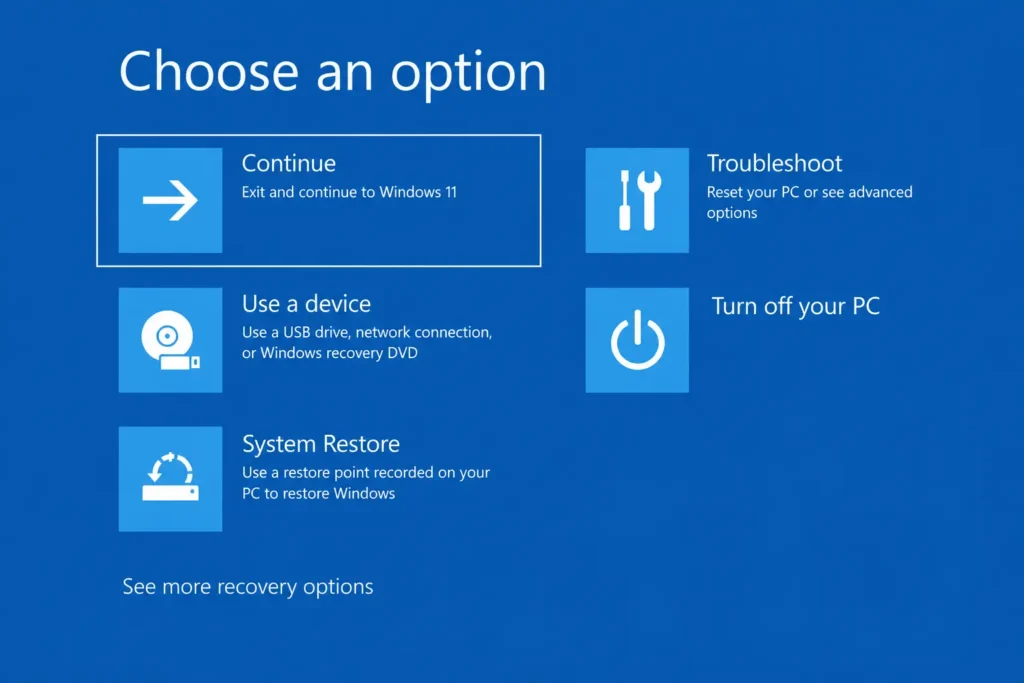
If the earlier steps do not solve the issue, consider Windows’ built-in recovery options before attempting a complete reinstall.
On supported Windows 11 devices, the Fix problems using Windows Update recovery option can reinstall the current Windows version while preserving apps, files, and settings.
To check whether it is available:
- Open Settings.
- Select System.
- Choose Recovery.
- Look for Fix problems using Windows Update.
- If available, select Reinstall now and carefully review the on-screen information.
This option may not appear on every device or Windows configuration. Keep the computer connected to power and the internet if you use it.
Back up important files before starting any recovery or repair operation. If the option is unavailable or the issue continues, consult Microsoft’s troubleshooting guidance or a qualified technician.
Avoid jumping straight to a clean installation. A clean installation can remove applications and personal files if performed incorrectly.
Common Mistakes to Avoid When Fixing Error 0x80070005
Before trying more solutions, keep these mistakes in mind:
- Changing permissions across the Windows folder: Broad permission changes can damage system security and functionality.
- Downloading unofficial repair tools: Unknown utilities may introduce unwanted software or make harmful system changes.
- Disabling security protection indefinitely: This creates unnecessary risk and is not a permanent solution.
- Running every command found online: Use commands from reliable documentation and understand their purpose.
- Skipping backups: Always protect important files before major repairs.
- Repeating the same unsuccessful fix: If a method does not help, record the result and move to a different diagnostic step.
A careful troubleshooting process is safer and usually more informative than making many system changes at once.
Key Takeaways
- Windows Update error 0x80070005 generally means access was denied or required permissions were unavailable.
- Restart your PC and run the Windows Update troubleshooter first.
- Verify administrator access and investigate possible security software interference.
- Use DISM and SFC to check and repair Windows system files.
- Clear temporary update downloads only when needed and follow the correct folder path.
- Check Windows Update services, available storage, and pending restarts.
- Back up your files before attempting recovery or reinstalling Windows.
Frequently Asked Questions
Windows Update error 0x80070005 generally indicates an access-denied or permissions problem. Windows may be unable to access a file, folder, or resource required to install an update. Administrator permissions, security software, or damaged system components may contribute to the problem. The exact cause depends on your system.
Start by restarting your PC and running the Windows Update troubleshooter through Settings or the Get Help app. Check administrator access and security software alerts next. If the error continues, run DISM followed by SFC from an administrator Command Prompt.
Yes, security software can sometimes block an update-related operation. Check your antivirus protection history for relevant alerts and install available security software updates. If you suspect interference, follow the vendor’s troubleshooting guidance. Avoid leaving your computer unprotected or making broad changes to security settings.
Clearing the contents of the Windows Update download cache is intended to remove temporary update files, not personal documents, photos, or videos. However, you must use the correct folder path and avoid deleting unrelated files. Windows can download required update files again when you check for updates.
Record the Windows version, the update’s name or KB number, and any additional error messages. Review Microsoft’s troubleshooting documentation or seek qualified technical assistance. On supported Windows 11 devices, the recovery option for reinstalling the current version through Windows Update may also help repair system components.
Conclusion
Learning how to fix Windows Update error 0x80070005 starts with understanding why Windows cannot complete the requested operation. The cause may involve permissions, security software, damaged system files, or temporary update problems.
Start with a restart and the Windows Update troubleshooter. If the error remains, work through the administrator access checks, system file repairs, and update cache steps in order. More advanced recovery options should be considered only after simpler solutions have been tried.
If you are still unable to install updates, record the exact update name, your Windows version, and any additional error messages. These details can help narrow down the cause.

Written by admin