 admin
admin 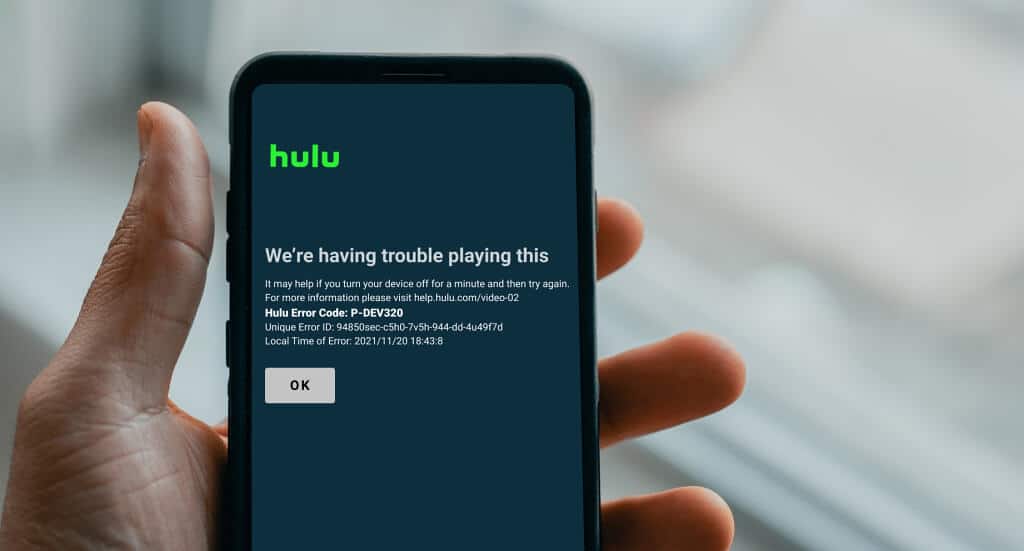
Table of Contents
- What Is Hulu Error Code P-DEV320?
- How to Fix Hulu Error Code P-DEV320
- 1. Check Whether Hulu Is Experiencing a Service Problem
- 2. Check Your Internet Connection
- 3. Update the Hulu App
- Roku, Fire TV, Smart TVs, Xbox, and PlayStation
- 4. Update Your Device Software
- 5. Restart the Hulu App and Your Device
- 6. Clear Hulu's Cache or App Data
- 7. Sign Out of Hulu and Sign In Again
- 8. Try Hulu on Another Supported Device
- 9. Reinstall the Hulu App
- 10. Check Your VPN or Proxy Connection
- Hulu Internet Speed Requirements
- What If Hulu Works on One Device but Not Another?
- Does Hulu Error P-DEV320 Mean Hulu Is Down?
- When Should You Contact Hulu Support?
- Frequently Asked Questions
- Final Thoughts
Hulu is one of the most popular streaming services for watching movies, TV shows, and Live TV. However, like any streaming platform, Hulu can occasionally experience playback and connection problems.
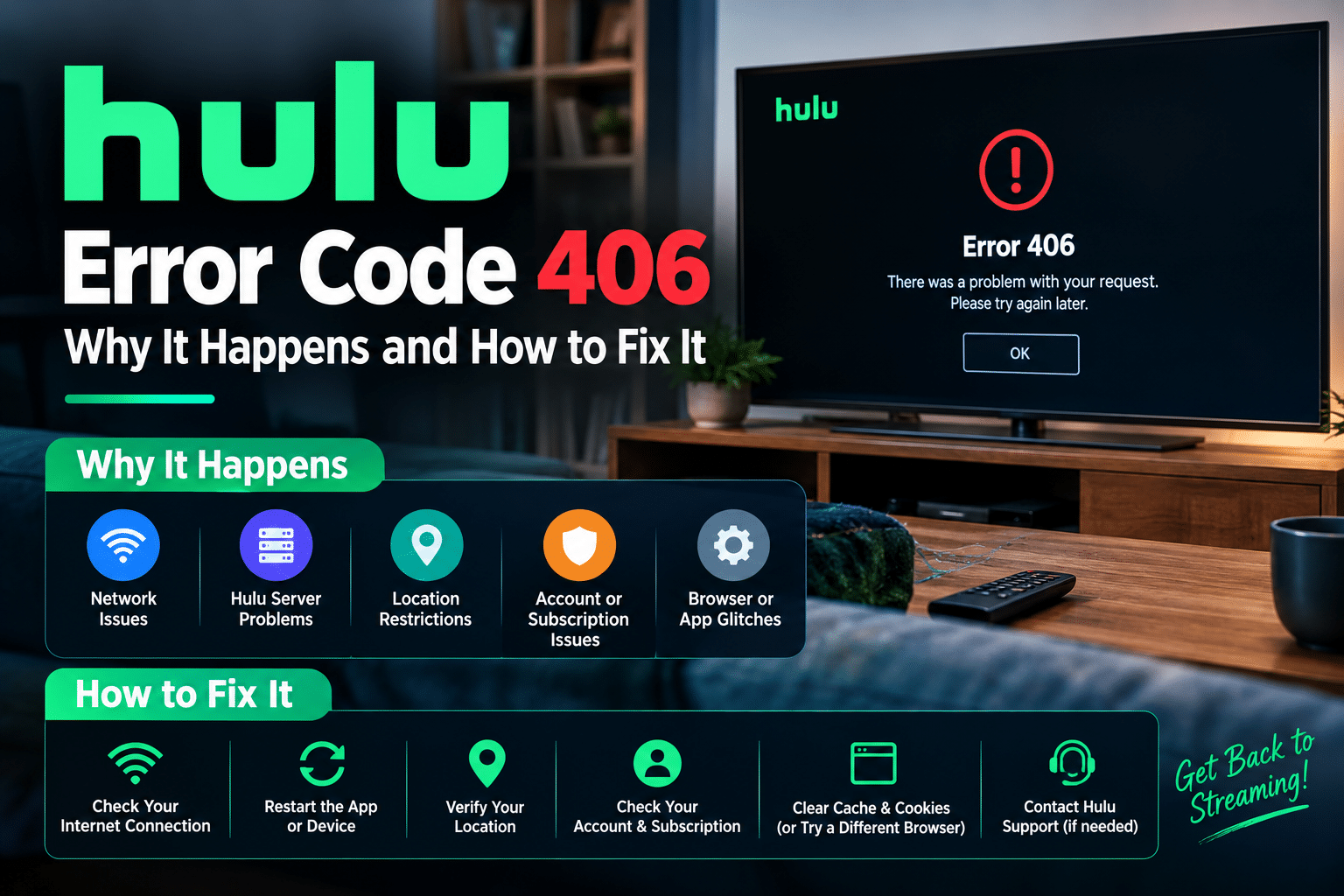
One of the more common errors users may encounter is Hulu Error Code P-DEV320. This error generally appears when the Hulu app has trouble communicating with Hulu’s servers or when a problem with the device, application, or internet connection interrupts playback.
If you’re seeing Hulu error code P-DEV320, don’t worry. In most cases, you can resolve the problem by working through a few basic troubleshooting steps.
This guide explains what P-DEV320 means, why it happens, and how to fix it on devices such as Roku, Fire TV, Android, iPhone, Xbox, PlayStation, Smart TVs, and web browsers.
What Is Hulu Error Code P-DEV320?
Hulu Error Code P-DEV320 is a playback-related error that can occur when the Hulu application cannot properly communicate with Hulu’s service.
The problem can be caused by several factors, including:
- An unstable or slow internet connection
- A temporary Hulu service problem
- An outdated Hulu app
- Outdated device software
- Corrupted app data or cache
- A temporary problem with your device
- Network configuration problems
- Compatibility issues with an older or unsupported device
The exact cause can vary depending on the device you’re using.
Hulu currently supports a wide range of devices, including web browsers, iPhone and iPad, Android devices, Roku, Fire TV, Apple TV, PlayStation, Xbox, Samsung Smart TVs, LG Smart TVs, Vizio TVs, and other supported platforms.
How to Fix Hulu Error Code P-DEV320
Try the following solutions in order. You don’t necessarily need to complete every step—once Hulu starts working normally, you can stop.
1. Check Whether Hulu Is Experiencing a Service Problem
Before changing anything on your device, determine whether the problem is actually on Hulu’s side.
If Hulu is experiencing a temporary service interruption, changing your device settings won’t necessarily fix the problem.
Check Hulu’s official Help Center for current streaming issues or contact Hulu Support if the problem continues.
If other Hulu users are reporting the same problem at the same time, wait for Hulu to resolve the issue and try again later.
2. Check Your Internet Connection
A weak or unstable internet connection is one of the first things you should investigate when Hulu playback fails.
Hulu currently recommends running an internet speed test if you’re experiencing streaming problems. Depending on your device, you can test your connection through the device’s built-in network tools or through a browser-based speed test.
Try these steps:
- Run an internet speed test.
- Restart your modem and router.
- Move your streaming device closer to the Wi-Fi router.
- Disconnect devices that are heavily using your network.
- Try switching between Wi-Fi and another available connection.
- If possible, test Hulu using a wired Ethernet connection.
If other websites and streaming services are also loading slowly, the problem may be with your internet connection rather than Hulu.
3. Update the Hulu App
An outdated Hulu app can cause compatibility and playback problems.
Hulu recommends regularly checking for app updates because newer versions can include bug fixes, performance improvements, and compatibility updates.
Android
- Open the Google Play Store.
- Search for Hulu.
- Open the Hulu app page.
- Tap Update if an update is available.
iPhone or iPad
- Open the App Store.
- Tap your profile icon.
- Look for available updates.
- Update Hulu if a newer version is available.
Roku, Fire TV, Smart TVs, Xbox, and PlayStation
Open your device’s app-management or system-update section and make sure Hulu is running the latest available version.
Hulu provides device-specific instructions for checking both app and system updates.
4. Update Your Device Software
Updating Hulu isn’t always enough. Your streaming device itself may also require a software or firmware update.
Check for available system updates on your:
- Roku device
- Fire TV or Fire TV Stick
- Apple TV
- Android TV
- Samsung Smart TV
- LG Smart TV
- Xbox
- PlayStation
- Smartphone or tablet
Hulu’s current support documentation recommends keeping both the Hulu application and your device software updated.
Tip: If you’re using an older streaming device, check whether it is still officially supported. For example, Hulu’s current supported-device list notes that the first-generation Fire TV Stick is no longer supported.
5. Restart the Hulu App and Your Device
A simple restart can clear temporary software and playback problems.
First:
- Close Hulu completely.
- Reopen the app.
- Try playing the same movie or episode.
If that doesn’t work, restart your device.
For the best results, perform a complete restart rather than simply turning the screen off and immediately back on.
After restarting, open Hulu and try streaming again.
6. Clear Hulu's Cache or App Data
Temporary or corrupted application data can sometimes interfere with playback.
On devices that provide a cache-clearing option, clear Hulu’s cached data and then restart the app.
Android
Depending on your Android version:
Settings → Apps → Hulu → Storage → Clear Cache
If the problem continues, you may also see an option to clear the app’s storage/data. Keep in mind that clearing app data can sign you out, so you’ll need to log in again.
Fire TV
You can generally manage Hulu’s application data through:
Settings → Applications → Manage Installed Applications → Hulu
From there, use the available options to clear the cache or reset the application.
iPhone and iPad
iOS does not generally provide a universal “Clear Cache” button for individual apps. If Hulu continues to malfunction, uninstalling and reinstalling the app is the practical way to refresh its local application data.
7. Sign Out of Hulu and Sign In Again
A temporary account or session problem can sometimes affect playback.
Try signing out of Hulu and then signing back in.
- Open Hulu.
- Go to your account/profile settings.
- Sign out.
- Completely close the Hulu app.
- Reopen Hulu.
- Sign back in.
- Try playing the content again.
If the problem only occurs on one device, this step can be particularly useful.
8. Try Hulu on Another Supported Device
If P-DEV320 continues to appear, test Hulu on another supported device.
For example:
- If Hulu doesn’t work on your Smart TV, try your phone.
- If it doesn’t work on your computer, try a supported streaming device.
- If it works on another device using the same network, the original device may be the source of the problem.
This is a useful way to determine whether the problem is related to your Hulu account, your network, or a specific device.
Hulu currently supports browsers, mobile devices, streaming devices, gaming consoles, and several Smart TV platforms.
9. Reinstall the Hulu App
If updating, restarting, and clearing the cache haven’t fixed the problem, reinstall Hulu.
Follow these steps:
- Uninstall Hulu from your device.
- Restart the device.
- Open the official app store.
- Download and install Hulu again.
- Sign in to your account.
- Try streaming the same content.
Reinstalling can replace damaged or corrupted application files that may be preventing Hulu from working correctly.
10. Check Your VPN or Proxy Connection
If you’re using a VPN or proxy, temporarily disconnect it and try Hulu again.
Streaming services can have geographic licensing and availability restrictions, and VPN or proxy connections can interfere with normal service access.
If Hulu works after disconnecting the VPN, the VPN or network configuration may be contributing to the problem.
If you use a VPN at the router level, make sure the connection isn’t affecting your streaming device.
Hulu Internet Speed Requirements
Your internet connection can have a significant impact on Hulu playback.
If you’re experiencing buffering, low video quality, or playback errors, run a speed test and compare the results with Hulu’s recommendations.
Hulu’s current Help Center specifically recommends testing your connection when you’re experiencing streaming problems.
Also remember that your available bandwidth can be affected by:
- Multiple people streaming simultaneously
- Large downloads
- Gaming
- Video calls
- Cloud backups
- Weak Wi-Fi signals
- Network congestion
If your connection is unstable, improving the network can be more effective than repeatedly reinstalling the Hulu app.
What If Hulu Works on One Device but Not Another?
If Hulu works normally on your smartphone but displays P-DEV320 on your Smart TV, Roku, Xbox, or another device, the issue is more likely related to that specific device.
Try:
- Updating the device software.
- Updating Hulu.
- Restarting the device.
- Clearing Hulu’s cache, if available.
- Reinstalling Hulu.
- Checking whether the device is still supported.
Hulu’s supported-device list is updated periodically, so older hardware may eventually lose support.
Does Hulu Error P-DEV320 Mean Hulu Is Down?
Not necessarily.
P-DEV320 can be caused by a problem communicating with Hulu’s service, but it can also result from your internet connection, device, application, or local data.
Before performing extensive troubleshooting, check whether Hulu is experiencing a broader service issue.
If Hulu is having a temporary outage, the best solution may simply be to wait until the service is restored.
When Should You Contact Hulu Support?
If you’ve tried the troubleshooting steps above and P-DEV320 continues to appear, contacting Hulu Support is the next step.
Hulu currently provides support through its Help Center, including a virtual assistant and live support options.
When contacting support, provide:
- The exact error code: P-DEV320
- The device you’re using
- Your operating system or device model
- Whether Hulu works on another device
- Whether other streaming services work
- The troubleshooting steps you’ve already tried
This information can help support identify the problem more quickly.
Frequently Asked Questions
Hulu Error Code P-DEV320 is generally associated with a playback or communication problem between the Hulu application and Hulu’s service. It can also be related to your internet connection, device, app version, or local application data.
Start by checking your internet connection and Hulu’s service status. Then update Hulu and your device, restart the app and device, clear the app cache where available, sign out and back in, and reinstall Hulu if necessary.
The error may continue if your network connection is unstable, the Hulu app or device software is outdated, local app data is corrupted, or Hulu is experiencing a temporary service problem.
A VPN or proxy can interfere with Hulu access. If you’re using one, disconnect it temporarily and check whether Hulu starts working normally.
Reinstalling Hulu can help if the app installation or local files have become corrupted. Before reinstalling, it’s usually worth trying an app update, device restart, and cache clearing where available.
If Hulu works on another device using the same account and network, the problem may be specific to your TV or streaming device. Check for system and Hulu app updates, restart the device, clear the app data if supported, and reinstall Hulu if necessary.
Hulu’s supported-device list changes over time. As of September 2026, Hulu supports many modern Smart TVs, streaming devices, gaming consoles, mobile devices, and browsers, while some older hardware is no longer supported. For example, Hulu states that the first-generation Fire TV Stick is no longer supported.
Final Thoughts
Hulu Error Code P-DEV320 can be frustrating, but it doesn’t necessarily mean there’s a serious problem with your account.
In most cases, start with the simplest solutions:
- Check Hulu’s service status.
- Test your internet connection.
- Restart your router and device.
- Update Hulu.
- Update your device software.
- Clear Hulu’s cache where available.
- Sign out and sign back in.
- Try Hulu on another supported device.
- Reinstall the Hulu app.
- Contact Hulu Support if the problem persists.
Keeping Hulu and your streaming device updated and maintaining a stable internet connection can also reduce the likelihood of recurring playback problems. Hulu’s current support documentation specifically recommends keeping apps and devices updated and testing your internet connection when streaming problems occur.
Note: Hulu’s device support, troubleshooting procedures, and service features can change over time, so always verify device-specific instructions with the latest Hulu Help Center documentation.

Written by admin