 admin
admin 
If you’ve been wondering how to show battery percentage on MacBook, you’re not alone. By default, macOS displays only a battery icon in the menu bar, which can be confusing if you want a precise idea of your remaining power. Whether you’re working on important projects, traveling, or managing multiple devices, seeing the exact percentage helps you avoid unexpected shutdowns.
In this detailed guide, we’ll explain all the ways you can show the battery percentage on your MacBook, why it sometimes disappears, how it differs across macOS versions, and troubleshooting tips if the option isn’t showing up.
Table of Contents
ToggleWhy Show Battery Percentage on a MacBook?
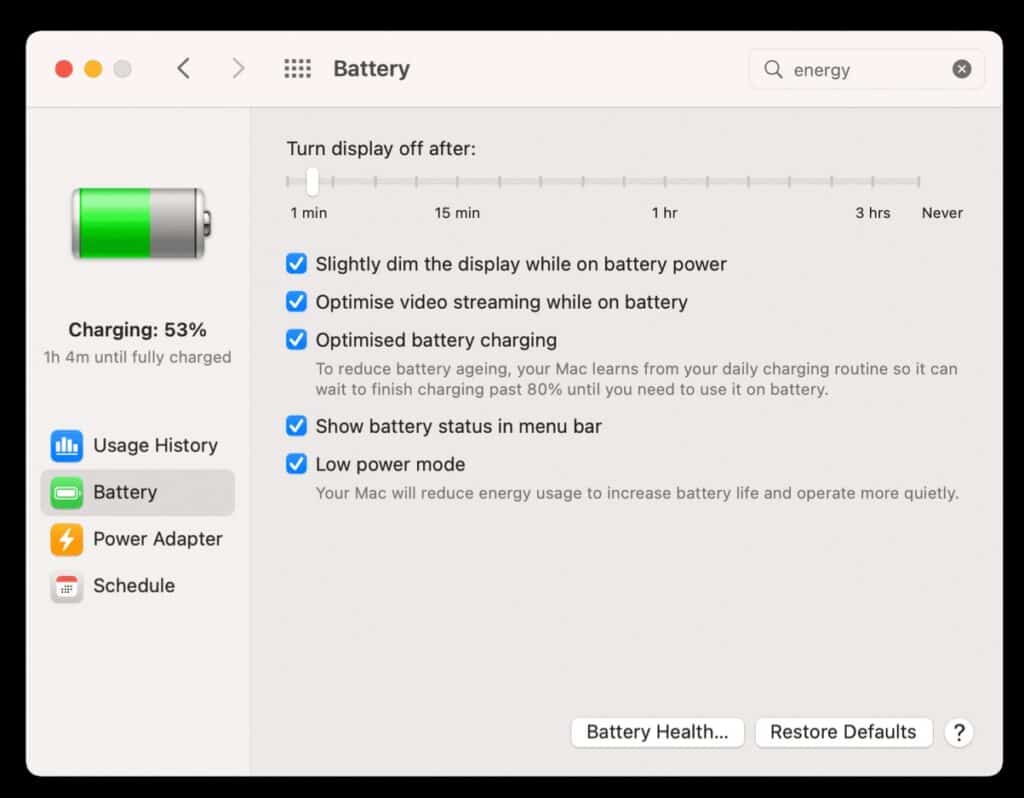
Before diving into how to show battery percentage on a MacBook, it’s important to understand why this feature matters and how it can improve your overall user experience. Many users rely solely on the battery icon in the menu bar, which provides only a general visual indicator of remaining power. However, without knowing the exact percentage, it can be difficult to gauge how much time you truly have left before needing to plug in. A visible battery percentage offers clarity, allowing you to make more informed decisions about your device’s usage and charging habits. Whether you’re working, studying, or traveling, having this small but essential piece of information can help you stay productive and avoid unexpected shutdowns.
- Accuracy: The battery icon alone doesn’t give you an exact idea of how much charge remains. A percentage is more precise.
- Planning: When traveling or working remotely, knowing your exact battery level helps you plan when to charge.
- Battery Health: Monitoring battery percentage regularly can alert you if your battery is draining unusually fast.
- Professional Use: Designers, developers, and professionals often work on resource-heavy tasks that can drain power quickly. Exact numbers make it easier to manage.
How to Show Battery Percentage on MacBook in macOS Ventura and macOS Sonoma
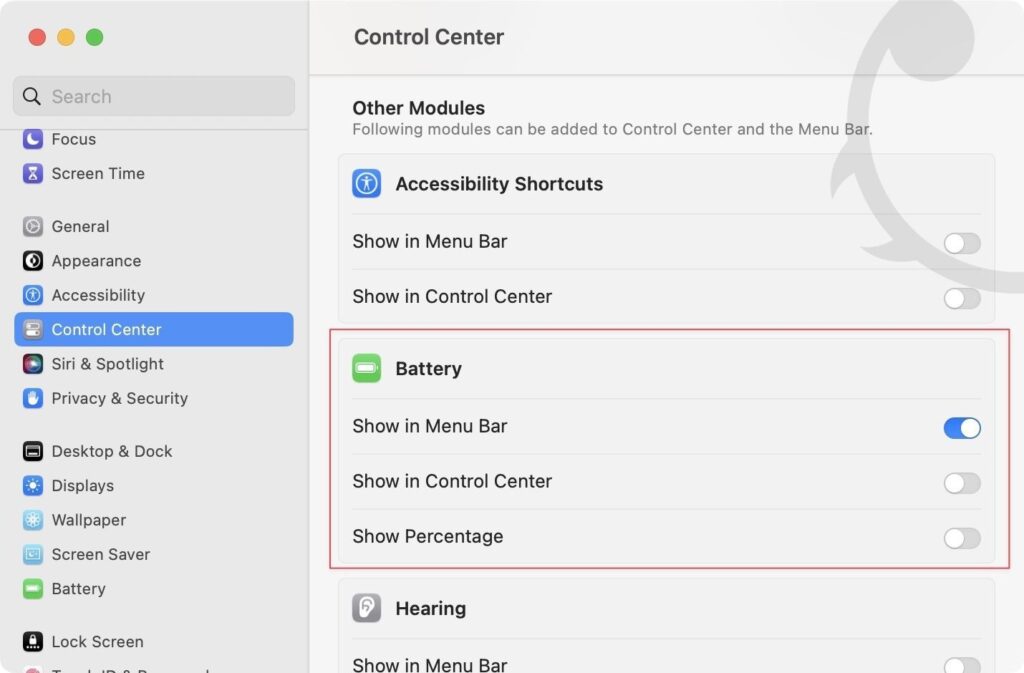
Apple introduced a major redesign of System Preferences, transforming it into System Settings starting with macOS Ventura and continuing in macOS Sonoma. This update brought a more streamlined, iPhone-like interface, making it easier to navigate and customize your Mac’s features. However, it also changed the way users access certain settings — including how to display the battery percentage in the menu bar. Understanding these updated steps ensures you can quickly monitor your MacBook’s power level with precision and convenience. Showing the exact percentage helps you stay informed about your device’s remaining charge, manage your workflow efficiently, and avoid unexpected shutdowns — whether you’re working remotely, editing videos, or traveling.
Step 1: Open System Settings
- Click the Apple logo () in the top-left corner of your screen.
- From the dropdown menu, select System Settings.
Step 2: Go to Control Center
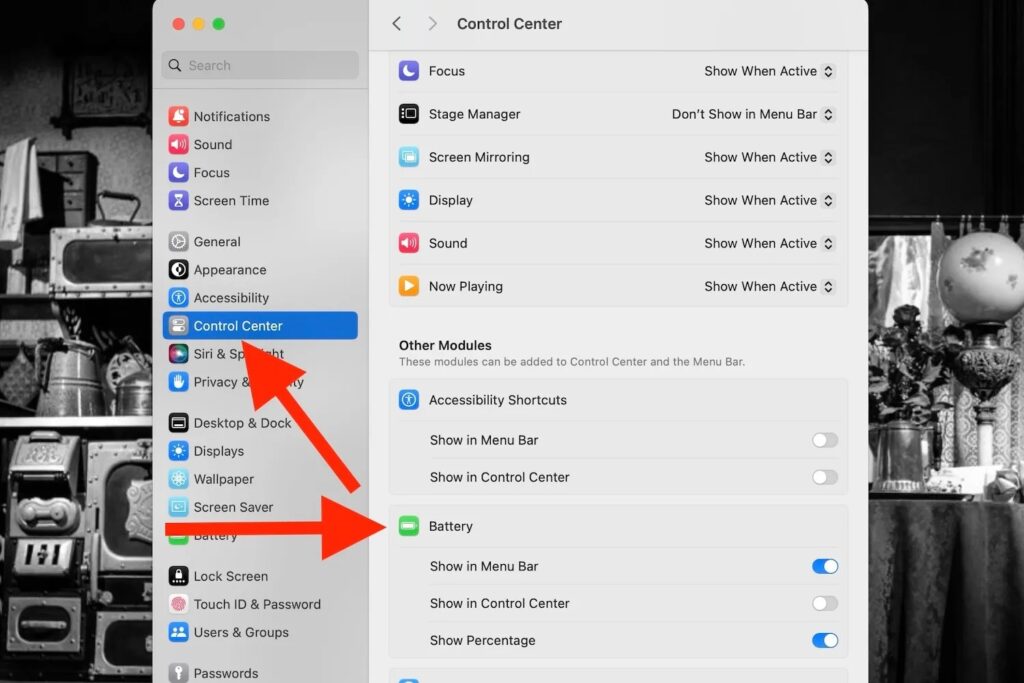
- In the sidebar, scroll and choose Control Center.
Step 3: Enable Battery Percentage
- Scroll down to find the Battery section.
- Toggle Show Percentage to ON.
You’ll now see the exact battery percentage displayed next to the icon in your MacBook’s menu bar. This setting takes effect immediately, and you can switch it off anytime if you prefer a minimalist or cleaner menu bar appearance.
How to Show Battery Percentage on MacBook in Older macOS Versions
If you’re still using an older version of macOS such as Monterey, Big Sur, Catalina, or Mojave, the method for showing your battery percentage differs slightly from the newer macOS Ventura and Sonoma. These earlier systems still rely on the classic System Preferences layout, which organizes settings into individual panels rather than the unified interface seen in the latest versions. While the visual design may be different, enabling the battery percentage remains straightforward and just as useful. Displaying the exact charge level helps you stay informed about your MacBook’s power usage, plan charging times more effectively, and maintain better control over battery health — especially if you’re using a slightly older device that may not hold charge as efficiently as before.
Step 1: Open System Preferences
- Click the Apple logo ().
- Choose System Preferences.
Step 2: Select Dock & Menu Bar (Big Sur and Monterey)
- Click Dock & Menu Bar.
- Scroll to Battery under the sidebar.
- Check the box for Show Percentage.
Step 3: For Catalina and Mojave
- Open System Preferences.
- Select Energy Saver.
- Check Show battery status in menu bar, then enable Show Percentage.
Quick Way: Show Battery Percentage from Control Center
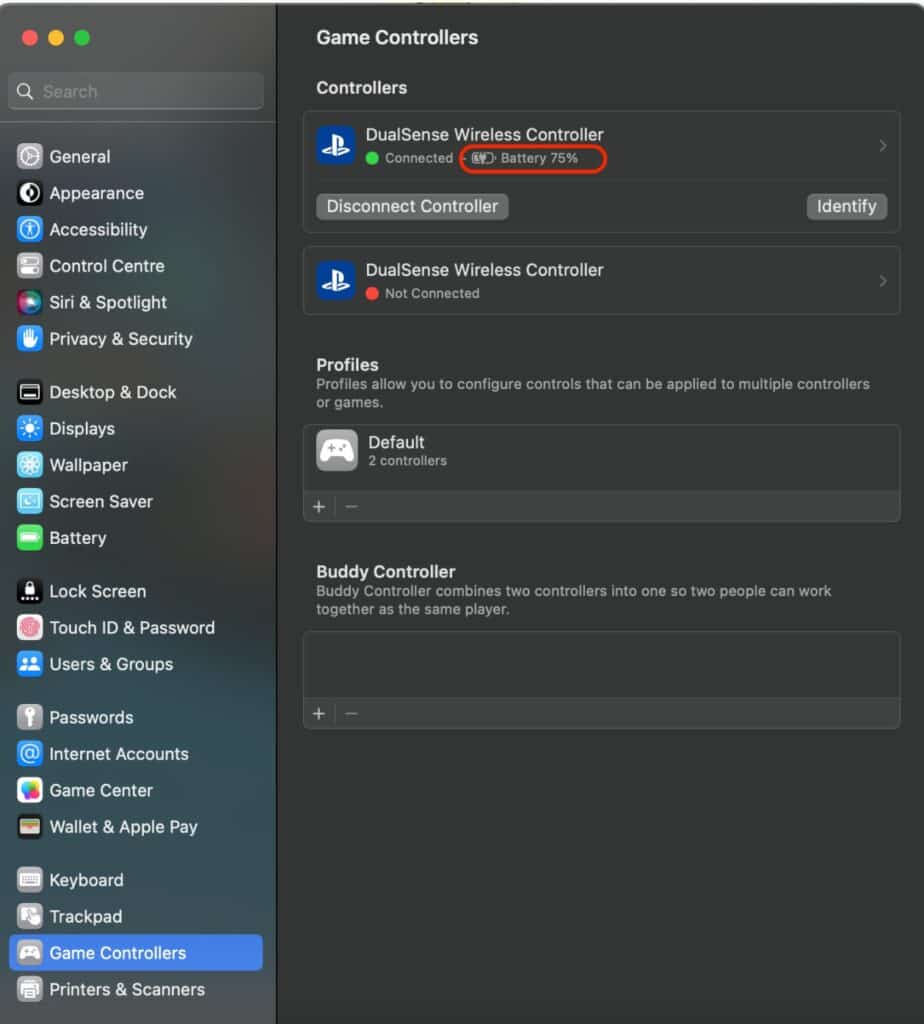
If you’d rather keep your Mac’s menu bar clean and uncluttered, you can choose not to display the battery percentage at all times. Instead, you can view it quickly whenever you need through the Control Center. This approach lets you maintain a minimalist desktop appearance while still keeping battery information just a click away.
- Click the Control Center icon (two stacked toggles) on the menu bar.
- Look for the Battery section, where the percentage will be displayed.
This method is perfect if you prefer a minimalist menu bar but still want easy access to battery details.
How to Show Battery Percentage on MacBook with Widgets
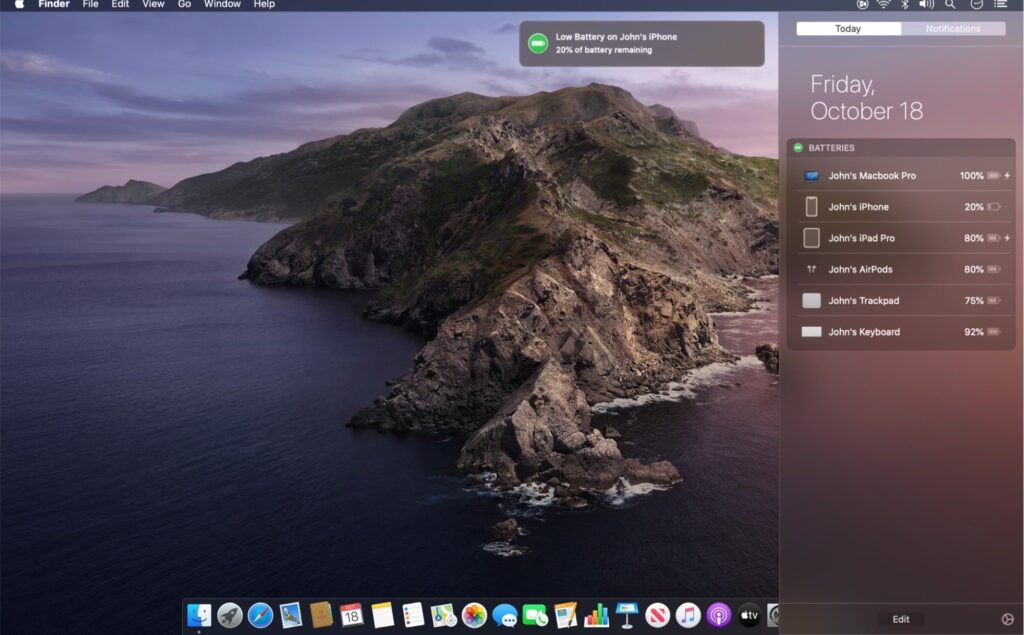
With macOS Sonoma, Apple has taken desktop customization to the next level by introducing interactive widgets that can be placed directly on your desktop. Among these is the Battery widget, which offers a convenient way to stay informed about your device’s power levels without needing to open additional menus or click through the Control Center. You can easily keep an eye on your battery status at a glance, making it perfect for those who value quick access to essential system information while maintaining a clean, personalized workspace.
Add the Battery widget to your desktop or Notification Center.
It shows the percentage not only for your MacBook but also for connected devices like AirPods, iPhone, or Magic Mouse.
This is especially useful if you like to monitor multiple Apple devices at once.
Troubleshooting: Battery Percentage Option Not Showing
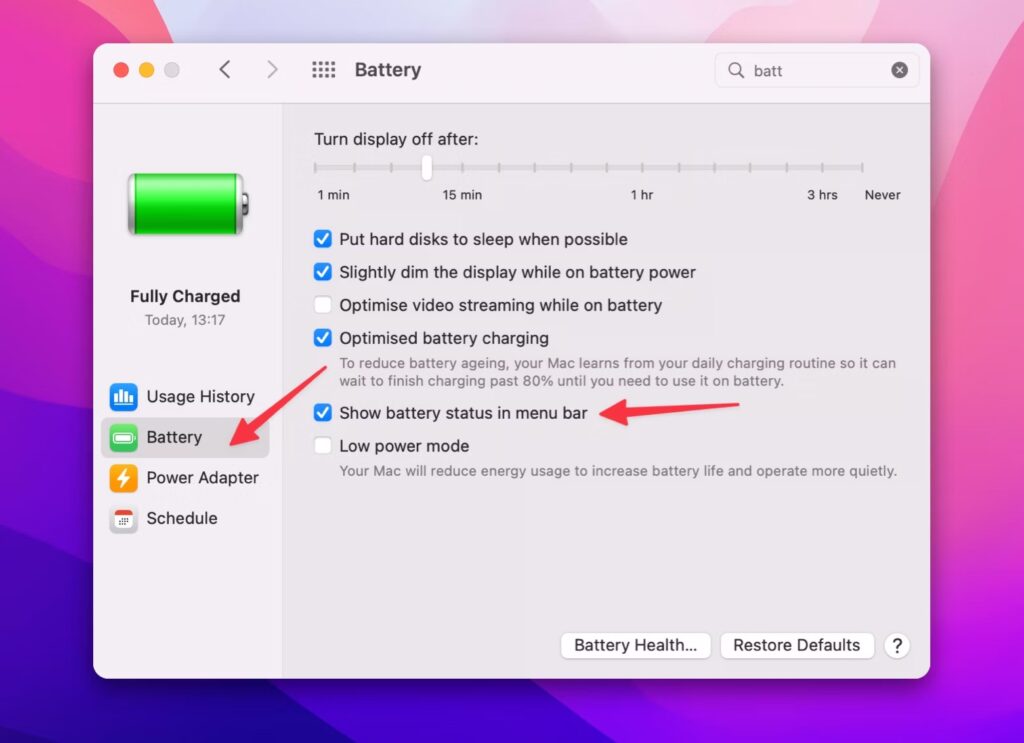
Sometimes, MacBook users might notice that the “Show Percentage” option for the battery indicator is missing or difficult to find. This can be confusing—especially if you were used to seeing it in earlier macOS versions. The disappearance doesn’t necessarily mean something is wrong with your Mac; it often comes down to system updates, interface changes, or simple settings adjustments. Below are the most common reasons this option might not appear and how you can easily bring it back.
1. Outdated macOS
Older versions of macOS may not support this feature in the same way. Updating to the latest macOS can restore missing options.
2. Hidden in Control Center
In newer versions, Apple moved the option from Energy Saver to Control Center > Battery. Many users miss this change.
3. Corrupted Preferences
If the option is missing, try resetting System Settings preferences by restarting your Mac or using safe mode.
4. Battery Health Issues
In rare cases, if your MacBook battery is degraded or not recognized properly, the percentage may not display. Check battery health in System Settings > Battery > Battery Health.
How to Monitor Battery Percentage in More Detail
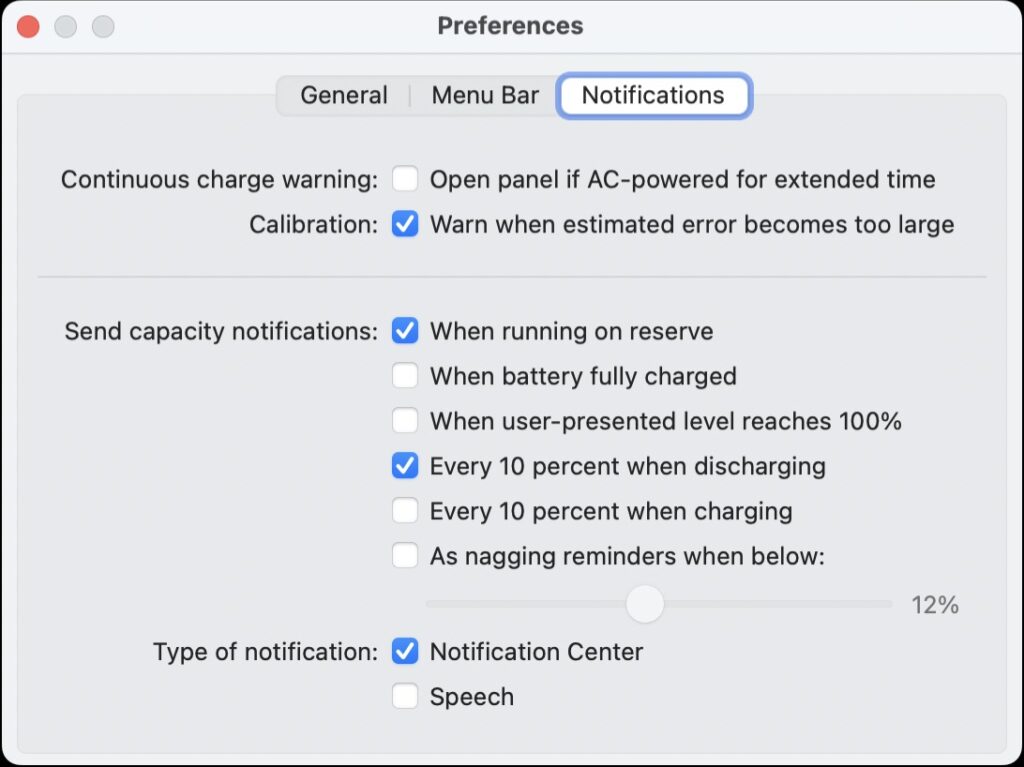
Sometimes, simply viewing the battery percentage in your Mac’s menu bar isn’t enough—especially if you want to understand how your MacBook’s battery is performing over time. Whether you’re troubleshooting battery drain, checking long-term health, or optimizing power usage, accessing more advanced battery statistics can provide valuable insights. macOS offers a few built-in tools for this, and there are also powerful third-party apps that deliver even deeper analytics and historical data. Here are several ways to get a more detailed look at your Mac’s battery performance:
Check Battery Health
- Go to System Settings > Battery > Battery Health.
- You’ll see your battery’s maximum capacity and whether it needs servicing.
Use Activity Monitor
- Open Activity Monitor from Applications > Utilities.
- Click on the Energy tab to see which apps are draining the most power.
Third-Party Apps
- iStat Menus – Advanced monitoring for CPU, GPU, and battery percentage with detailed history.
- CoconutBattery – Popular app for tracking battery cycles, health, and charge percentage.
Should You Always Show Battery Percentage?
While most users like having the percentage displayed, some prefer a cleaner, distraction-free menu bar. Here are pros and cons:
Pros:
- Always know exact battery life.
- Helps with planning charging cycles.
- Useful for heavy workloads.
Cons:
- Can cause “battery anxiety” by making you obsess over small drops in percentage.
- Slightly clutters the menu bar.
If you fall into the second category, using the Control Center or widgets might be the perfect balance.
Battery-Saving Tips for MacBook Users
Since you’re learning how to show battery percentage on MacBook, you may also want to extend your battery life. Here are some quick tips:
- Enable Low Power Mode – Found in System Settings > Battery.
- Dim Display Brightness – Bright screens are a huge battery drain.
- Close Unused Apps and Tabs – Especially Chrome, which uses a lot of background energy.
- Disable Unnecessary Background Processes – Check in Activity Monitor.
- Keep macOS Updated – Apple often improves power management in updates.
Final Thoughts
Knowing how to show battery percentage on MacBook is a small but powerful tweak that can make your workflow smoother. Whether you enable it in the menu bar, access it through Control Center, or use widgets and third-party apps, keeping an eye on your exact charge level helps you stay productive and avoid sudden shutdowns.
With macOS becoming more customizable in 2025, you now have multiple ways to track your battery—so choose the one that fits your workflow best.
FAQ: How to Show Battery Percentage on MacBook
Ans: Go to System Settings > Control Center > Battery, then toggle on Show Percentage. You’ll see the battery percentage appear in the menu bar next to the battery icon.
Ans: If you don’t see the option, it may be because:
- You’re running an outdated version of macOS. Updating to the latest version can restore missing features.
- Apple moved the setting from Energy Saver to Control Center in newer macOS versions.
Your system preferences are corrupted—try restarting your Mac or entering Safe Mode.
Ans: Yes! Click the Control Center icon (two stacked toggles) on the menu bar. In the Battery section, your percentage will be displayed without permanently cluttering the menu bar.
Ans: Navigate to System Settings > Battery > Battery Health. Here, you can check your battery’s maximum capacity, cycle count, and whether it needs service.
Ans: Yes. With macOS Sonoma, you can add the Battery widget directly to your desktop or Notification Center. It shows the charge level of your MacBook and connected Apple devices like AirPods, iPhone, or Magic Mouse.
Ans: Absolutely! Try:
- iStat Menus – Offers detailed system and battery analytics.
- CoconutBattery – Displays battery cycles, health, and charge history.
Ans: If you’ve updated macOS and checked your settings but the percentage still doesn’t appear, it might indicate a battery health or hardware issue. Go to Battery Health in System Settings to check for warnings or contact Apple Support for further assistance.