 admin
admin 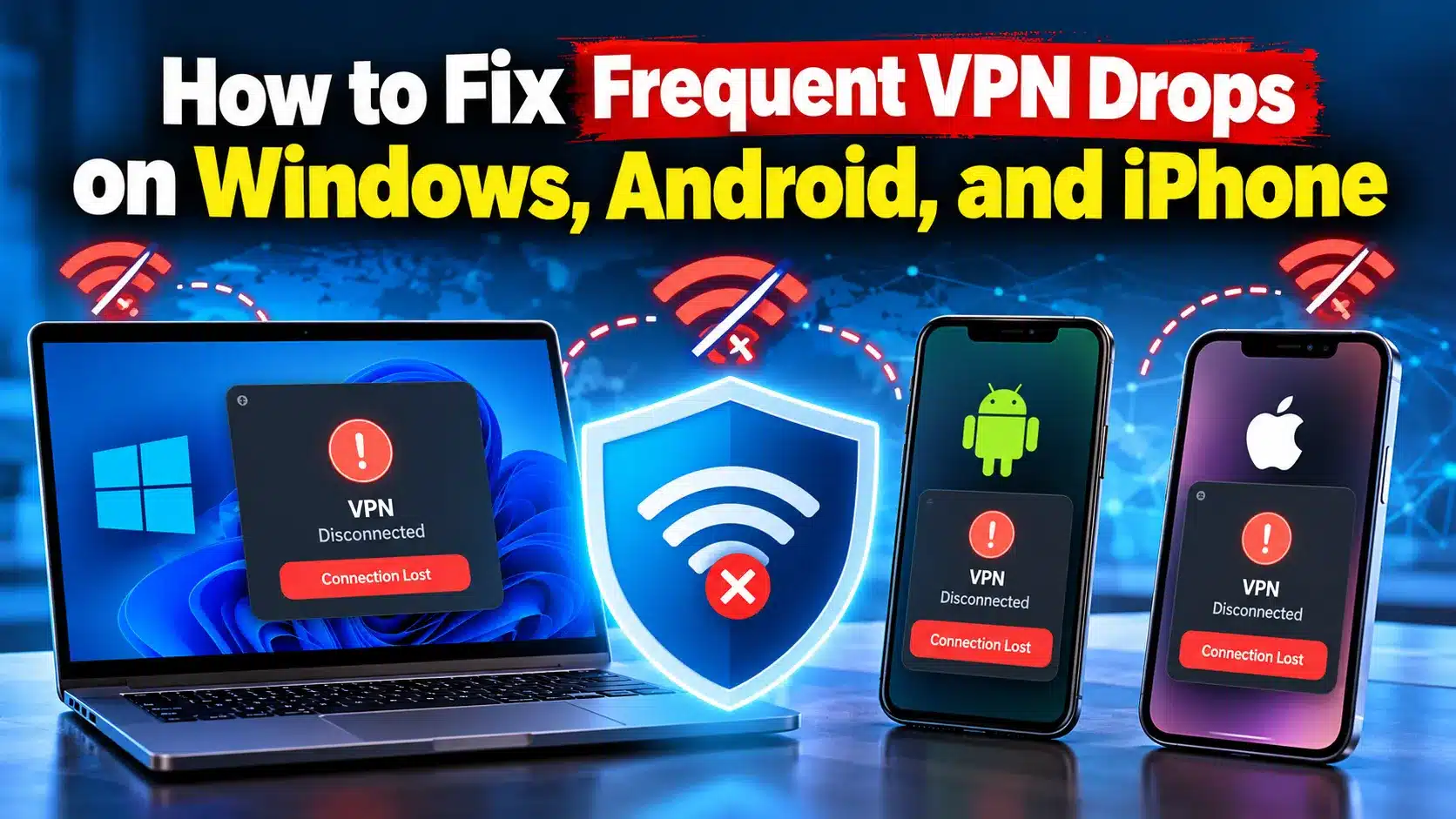
Table of Contents
- Why Does Your VPN Keep Disconnecting?
- Quick Checks to Fix Frequent VPN Drops
- How to Fix Frequent VPN Drops on Windows
- How to Stop VPN Disconnections on Android
- How to Fix VPN Drops on iPhone
- Advanced Fixes for Persistent VPN Problems
- Common VPN Troubleshooting Mistakes to Avoid
- Key Takeaways
- Frequently Asked Questions
- Conclusion
Does your VPN disconnect in the middle of a video call, interrupt a download, or stop working when your phone screen turns off? Frequent disconnections can be frustrating, especially when you rely on a virtual private network for privacy, remote work, or secure browsing.
The good news is that you can often resolve the problem without reinstalling everything. Learning how to fix frequent VPN drops starts with identifying whether the problem comes from your internet connection, VPN server, device settings, or VPN application.
This guide explains practical solutions for Windows PCs, Android phones, and iPhones. You will also learn how to recognize common causes, avoid troubleshooting mistakes, and maintain a more stable VPN connection.
Why Does Your VPN Keep Disconnecting?

Before changing your settings, identify what triggers the disconnections. A VPN creates an encrypted connection between your device and a VPN server, so interruptions anywhere along that connection can affect your session.
Common causes include:
- Unstable internet: Weak Wi-Fi signals, mobile data fluctuations, or router problems can interrupt the connection.
- Overloaded VPN servers: A busy or unreliable server may struggle to maintain a stable session.
- Battery restrictions: Some Android devices restrict background activity to conserve power.
- Outdated software: An older VPN app, operating system, or network driver may cause compatibility problems.
- Network switching: Moving between Wi-Fi and mobile data can interrupt an active VPN tunnel.
- Firewall interference: Security software or network policies may block VPN traffic.
- Incorrect VPN settings: An incompatible protocol or expired configuration can prevent a stable connection.
The key is to determine whether your VPN disconnects on one device, one network, or everywhere. That simple check can help narrow down the cause before you make unnecessary changes.
Quick Checks to Fix Frequent VPN Drops
Start with these basic troubleshooting steps before moving to device-specific solutions.
1. Check Your Internet Connection: Disconnect the VPN temporarily and open a few websites. If your internet connection is still unstable, the VPN may not be the real problem.
Try loading websites over a different Wi-Fi network or switching between Wi-Fi and mobile data. If the connection becomes stable on another network, investigate your router, signal strength, or internet service provider.
2. Restart Your VPN App and Device: Completely close the VPN application, reopen it, and reconnect. If the problem continues, restart your computer or phone.
A restart can clear temporary software problems and refresh network connections. It is a simple first step before changing advanced settings.
3. Connect to Another VPN Server: Your selected server may be temporarily unavailable or experiencing heavy traffic. Choose another server in the same general region and test the connection.
If the new server remains connected longer, the original server may have been the problem. However, changing locations can affect speed, latency, and the location websites see.
4. Update Your VPN Application: Open the official app store or your VPN provider’s website and check for updates. Install any available update and restart the application.
Avoid unofficial VPN downloads because modified or outdated installers can introduce security risks as well as connectivity problems.
How to Fix Frequent VPN Drops on Windows

Windows users may experience repeated disconnections because of network adapter issues, firewall restrictions, unstable Wi-Fi, or incorrect VPN configurations.
Follow these steps to troubleshoot the problem.
1. Run the Windows Network Troubleshooter
If your VPN disconnects repeatedly, first determine whether Windows is experiencing a broader network problem.
On Windows 11:
- Open Settings.
- Select System > Troubleshoot > Other troubleshooters.
- Find the network or internet troubleshooter available on your system and run it.
- Follow the recommended instructions.
- Reconnect to your VPN and test the connection.
You can also open Settings > Network & internet to review your connection status. Menu names can vary between Windows versions.
Microsoft’s network troubleshooting guidance recommends using Windows diagnostic tools to investigate connectivity issues.
2. Update Your Network Adapter Driver
An outdated Wi-Fi or Ethernet driver can contribute to network instability.
- Right-click the Start button and open Device Manager.
- Expand Network adapters.
- Right-click your Wi-Fi or Ethernet adapter.
- Select Update driver and follow the available instructions.
- Restart your computer if necessary.
For the most reliable driver, check Windows Update or your computer manufacturer’s official support website. Avoid downloading drivers from unknown websites.
3. Check Firewall and Antivirus Settings
Security software can sometimes interfere with VPN traffic. If the disconnections began after installing antivirus software, a firewall update, or another network utility, investigate that recent change.
Check whether your VPN application is permitted through the relevant firewall. Do not permanently disable your firewall or antivirus simply to make the VPN connect.
If you use a work-managed computer, contact your IT administrator before changing security policies.
4. Change the VPN Protocol
Many VPN applications offer different connection protocols. Depending on the service, available options might include WireGuard, OpenVPN, or IKEv2.
Open your VPN application’s settings and look for its connection or protocol options. Try another provider-supported protocol, reconnect, and test the connection over the same network.
Not every protocol is supported by every provider, and network restrictions can affect them differently. Change one setting at a time so you can identify which option works best.
How to Stop VPN Disconnections on Android

Android VPN disconnections can be caused by unstable mobile data, Wi-Fi interruptions, background restrictions, or problems with the VPN application.
Because Android manufacturers customize their settings, the exact menu names may differ between Samsung, Google Pixel, Xiaomi, and other phones.
1. Allow the VPN App to Run in the Background
Some Android devices manage background applications aggressively to conserve battery power. Depending on the device and VPN app, this can interfere with maintaining a connection while the app is not actively open.
To investigate:
- Open Settings > Apps.
- Select your VPN application.
- Find Battery or the battery-usage settings.
- Review the available background activity options.
- If your device restricts the VPN app, allow background activity or select an appropriate unrestricted setting where available.
Use this setting only when needed, because allowing more background activity may increase battery consumption. Google explains that battery optimization can limit how much selected apps run when they are not in use.
2. Review Always-On VPN Settings
Android offers VPN management options on supported devices. Some phones allow you to keep a VPN active automatically or block network connections when the VPN is unavailable.
Open Settings > Network & internet > VPN, select your VPN configuration, and review the available options. Some manufacturers place these settings elsewhere.
Always-On VPN can help maintain protection, but it does not repair a failing VPN server or unstable internet connection. If you enable a setting that blocks connections without a VPN, you may temporarily lose internet access whenever the VPN fails.
3. Switch Between Wi-Fi and Mobile Data
Test your VPN on both Wi-Fi and cellular data.
If it disconnects only on Wi-Fi, restart your router and test another network. If it disconnects only on mobile data, check your signal strength, data availability, and carrier connection.
Also check whether the VPN app has a setting for automatically reconnecting when the network changes. Use that feature if supported.
4. Clear the App Cache or Reinstall the VPN
If the problem persists, go to Settings > Apps > [VPN app] > Storage and select Clear cache, if available.
Avoid selecting Clear data until you understand the consequences, because it may remove local settings or sign you out.
If clearing the cache does not help, reinstall the official VPN app. Before doing so, make sure you have the login details and configuration information required to reconnect.
How to Fix VPN Drops on iPhone

On an iPhone, repeated VPN disconnections may result from unstable Wi-Fi, mobile connectivity issues, conflicting network settings, or a problem with the VPN application.
Work through the following solutions in order.
1. Update iOS and the VPN App
Open Settings > General > Software Update to check for available iOS updates.
Next, open the App Store, find your VPN application, and install any available update. Restart the iPhone if needed, then reconnect to the VPN.
Keeping your device and VPN application current helps address known software problems and compatibility issues.
2. Check VPN Profiles and Security Apps
Your iPhone may have VPN configurations installed by an app, workplace, school, or mobile device management system.
Open Settings > General > VPN & Device Management and review the configurations listed there. Depending on your iOS version, VPN settings may also appear directly under Settings.
If you find an unfamiliar configuration, identify which app or organization manages it before making changes. Removing a work or school profile can affect managed settings, applications, and access.
Apple also recommends investigating VPN and other third-party security software when network connectivity problems occur.
3. Reset Network Settings as a Last Resort
If other troubleshooting methods fail, resetting your iPhone’s network settings may help resolve persistent configuration problems.
To do this:
- Open Settings.
- Select General.
- Tap Transfer or Reset iPhone.
- Select Reset.
- Tap Reset Network Settings and confirm.
This removes saved Wi-Fi networks and passwords and resets relevant cellular, VPN, and APN settings. You may need to reconnect to Wi-Fi and configure your VPN again.
Do not confuse this option with erasing all content and settings. If your phone is managed by an organization, consult the administrator before resetting network settings.
Advanced Fixes for Persistent VPN Problems

If the VPN still disconnects after the device-specific steps, investigate the connection more systematically.
Try a Different Connection Protocol: If your VPN provider offers multiple protocols, test an alternative supported option. One protocol may work more reliably than another on a particular network.
Reconnect after changing the setting and observe whether the problem continues. Restore the original configuration if the alternative makes the connection worse.
Check Your Router and Internet Provider: Restart your router and modem, if separate, and test the VPN again. Check whether the problem affects other devices on the same network.
If multiple devices lose internet connectivity, the issue may be with your router or internet provider rather than the VPN software.
Some public, workplace, or school networks restrict certain VPN connections. Ask the network administrator about permitted services instead of attempting to bypass managed security restrictions.
Contact Your VPN Provider: Contact your provider if the VPN disconnects across several reliable networks, especially after you have updated the app and tested different servers.
Share useful information, including your device model, operating system version, VPN protocol, error messages, and approximate disconnection times. Do not send passwords, private keys, or other sensitive account information.
Common VPN Troubleshooting Mistakes to Avoid
Some fixes create unnecessary work or reduce your security without addressing the real problem.
- Changing several settings simultaneously: You may not discover which change actually solved the issue.
- Using a random free VPN: An unknown provider may introduce privacy and security risks.
- Disabling security software permanently: This can expose your device without fixing the VPN.
- Resetting network settings too early: This can remove saved networks and VPN configurations.
- Ignoring network switching: A transition between Wi-Fi and mobile data may explain when the connection drops.
- Assuming every disconnect is a VPN failure: An unstable internet connection can produce similar symptoms.
The best troubleshooting approach is to make one change at a time, reconnect, and test the VPN under the same conditions.
Key Takeaways
Here is a quick summary of the most useful fixes:
- Test your internet connection before troubleshooting the VPN.
- Restart the device and VPN app, then try another server.
- On Windows, check network drivers, firewall permissions, and VPN protocols.
- On Android, investigate background activity restrictions and automatic reconnection settings.
- On iPhone, review updates and VPN profiles before considering a network reset.
- Contact your VPN provider if the problem persists across different networks.
Frequently Asked Questions
Your VPN may disconnect because of an unstable internet connection, an unreliable server, background restrictions, or incompatible network settings. Test the VPN on another network and server first. If it disconnects in the same way everywhere, update the app and review its protocol and reconnection settings.
Check your Wi-Fi or mobile data connection, update the VPN app, and review its background battery settings. Some Android devices restrict background activity to save power. Allow the VPN app to run appropriately in the background if your device supports that option, and check whether automatic reconnection is available.
The cause may involve the VPN app, its configuration, an unstable network, or a problem with the device’s connectivity settings. Update iOS and the VPN application, review the installed VPN configuration, and test another network. If the problem continues, contact your VPN provider before resetting network settings.
Yes. A weak or unstable Wi-Fi connection can interrupt the network traffic required by a VPN tunnel. Move closer to your router, restart the router, or test a different network. If the VPN becomes stable on another connection, investigate your original Wi-Fi signal, router, and internet service.
A VPN connection may briefly drop when a device switches between Wi-Fi and mobile data, depending on the operating system, VPN application, and configuration. Enable automatic reconnection if supported. If the VPN repeatedly fails to reconnect, investigate the app’s connection settings and your network stability.
Conclusion
Frequent VPN disconnections do not always mean that your VPN service is faulty. Unstable internet, background restrictions, outdated applications, firewall interference, and server problems can all interrupt a connection.
To fix frequent VPN drops, begin with the simplest checks, then apply the troubleshooting steps for your specific device. Test one change at a time and avoid risky shortcuts such as disabling security protections permanently.
Once you identify the cause, you can make your VPN connection more reliable and reduce interruptions during browsing, streaming, and remote work.

Written by admin