 admin
admin 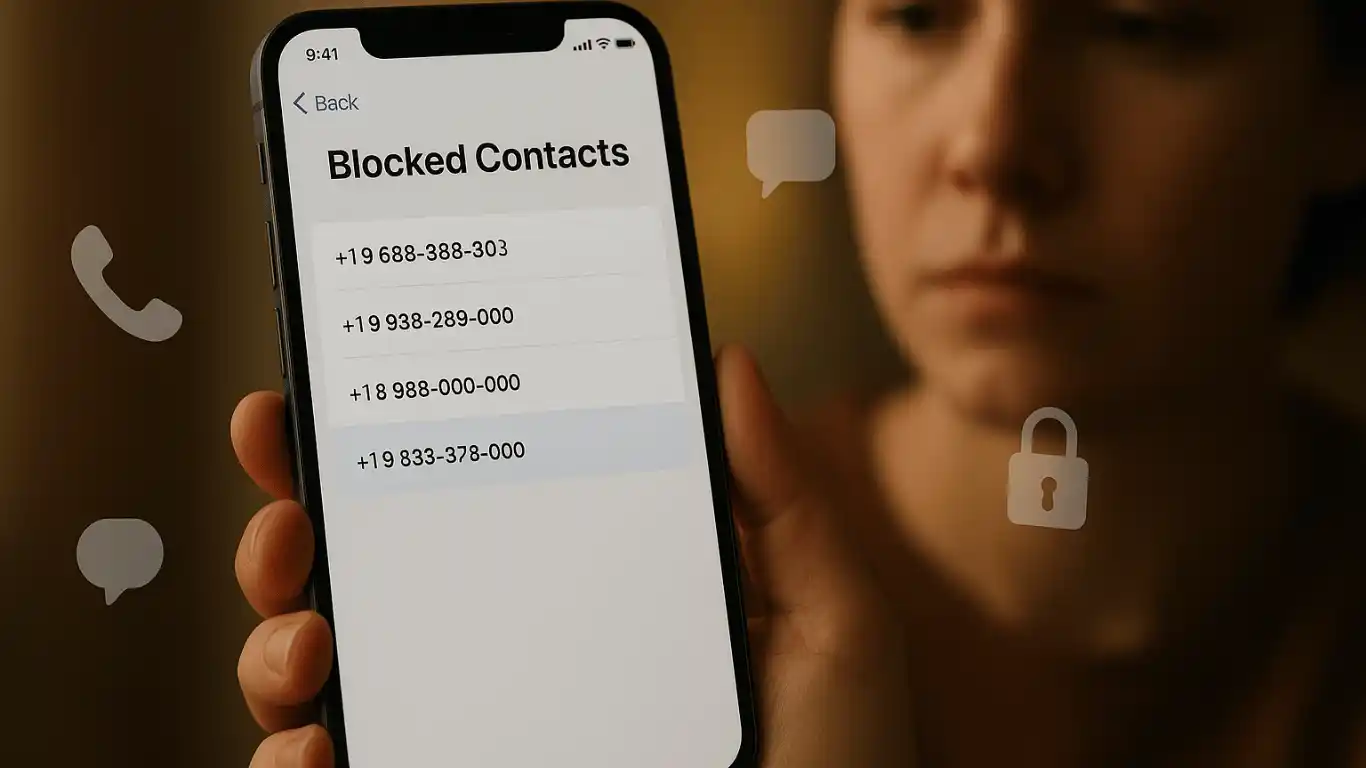
Blocking a contact on your iPhone is a useful way to stop unwanted calls, texts, and FaceTime requests. But what if you later want to check whether blocked messages were received? Many iPhone users assume blocked texts disappear forever, while others expect to find them hidden somewhere in the Messages app.
The truth is a little more nuanced: iPhones do not store blocked messages in a visible inbox. Once a number is blocked, new messages from that sender are generally prevented from reaching your Messages app. However, there are still a few ways to review related information, confirm whether messages were attempted, and manage your blocked contacts.
In this guide, you’ll learn how blocked messaging works on iPhone, whether blocked messages can be viewed, and the best methods to check for related activity safely and responsibly.
Table of Contents
ToggleHow Blocking Works on iPhone
When you block someone on an iPhone, Apple applies the block across several services tied to that contact or phone number:
- Phone calls from the blocked number are rejected.
- SMS and iMessage texts from that number are prevented from appearing in your Messages app.
- FaceTime requests are also blocked.
The sender is not officially notified that they’ve been blocked. They may still see messages marked as “Delivered” in some cases, especially with iMessage, but the messages will not appear on your device.
Can You Actually View Blocked Messages?
Short answer: No, not directly.
iPhones do not provide a built-in “Blocked Messages” folder or archive. Messages sent after a number is blocked are typically discarded before they reach your inbox.
That means:
- You cannot open and read blocked texts from within the Messages app.
- You cannot recover blocked messages that were never delivered to your device.
- There is no hidden section in iOS where blocked texts are stored.
However, there are a few indirect ways to gather information about blocked communications.
Check Your Blocked Contacts List
Before looking for message activity, confirm which contacts are currently blocked.
Steps
- Open the Settings app.
- Tap Apps.
- Tap Messages.
- Tap Blocked Contacts.
You’ll see a list of phone numbers and contacts that are blocked for messaging.
Unblock a Contact to Receive Future Messages
If you want to start receiving messages from someone again, you’ll need to unblock them.
How to Unblock
- Go to Settings → Apps → Messages → Blocked Contacts.
- Tap Edit.
- Tap the red minus button next to the contact.
- Tap Unblock.
Important
You will only receive new messages sent after the contact is unblocked. Messages sent while they were blocked will not suddenly appear.
Look for Evidence of Attempted Messages
While the actual texts are unavailable, you may sometimes infer that a blocked person tried to contact you.
Methods to Check
- Check carrier records
Some mobile carriers keep logs of SMS activity, though these logs usually show only metadata (date, time, and phone number), not message content. Log in to your carrier account online or contact support to see whether incoming texts from a blocked number were attempted. - Review notification history (limited)
If a message arrived before the number was blocked, you may still see traces of it in notification history or conversation previews. iOS itself does not maintain a full notification log, so this method is limited. - Ask the sender to resend
If you believe an important message was blocked accidentally, the simplest solution is often to unblock the contact and ask them to resend the message.
Check Recently Deleted Messages (Not for Blocked Texts)
Some users confuse deleted messages with blocked messages. Deleted conversations may still be recoverable for 30 days, but blocked messages are different because they never reached your inbox.
To view recently deleted messages
- Open Messages.
- Tap Edit in the top-left corner.
- Tap Show Recently Deleted.
This section only contains messages you manually deleted, not texts blocked by iOS.
Can Third-Party Apps Recover Blocked Messages?
Be cautious with apps or websites that claim they can “recover blocked iPhone messages.” In most cases, these tools cannot retrieve messages that were never delivered to your device.
Risks include:
- Privacy and security concerns
- Scams or malware
- Requests for your Apple ID credentials
- False promises of message recovery
Apple’s system-level blocking happens before messages are stored locally, so recovery software generally has nothing to retrieve.
Understanding iMessage vs. SMS Blocking
Blocking behavior is similar for both iMessage and standard SMS texts, but there are a few differences.
Feature | iMessage | SMS |
Blocked messages appear in Messages app | No | No |
Sender notified of block | No official notification | No official notification |
“Delivered” status may appear | Sometimes | No |
Recoverable after unblocking | No | No |
What Happens When Someone Sends a Message While Blocked?
- The sender composes and sends the message normally.
- Apple’s or your carrier’s system detects that the number is blocked on your device.
- The message is prevented from being delivered to your Messages app.
- No visible copy is stored for you to read later.
This design is intentional: blocking is meant to prevent unwanted communication entirely, not hide it in a separate folder.
How to Manage Blocked Contacts More Effectively
Add a Contact to Blocked List
- Open Messages.
- Open the conversation with the contact.
- Tap the contact name at the top.
- Tap Info.
- Scroll down and tap Block Caller.
Remove Unknown Senders from Your Main Inbox
Instead of blocking every unfamiliar number, you can filter messages from unknown senders.
- Go to Settings → Apps → Messages.
- Enable Filter Unknown Senders.
Messages from people not in your contacts will go to a separate tab, helping reduce spam without fully blocking them.
Common Myths About Blocked Messages
Myth 1: Blocked messages are stored in a hidden folder
False. iOS does not keep a hidden inbox for blocked texts.
Myth 2: Unblocking a contact restores old blocked messages
False. Messages sent during the blocked period are not recovered.
Myth 3: Third-party apps can always recover blocked texts
False in most cases. If the message never reached your device, there is usually nothing to recover.
Troubleshooting: Why Am I Still Receiving Messages?
If you continue to receive messages after blocking a number, check the following:
- Verify the correct number is blocked
Some contacts use multiple phone numbers or email addresses for iMessage. - Check blocked email addresses
In the contact card, make sure any associated iMessage email addresses are also blocked. - Restart your iPhone
Occasionally, changes to blocking settings may take a moment to apply fully.
Update iOS
Go to Settings → General → Software Update and install any available updates.
Privacy and Safety Considerations
Blocking is a privacy feature designed to protect you from unwanted contact. Avoid sharing your Apple ID credentials with recovery services or apps that promise access to blocked messages. If harassment or threatening messages are involved, consider:
- Saving any messages received before blocking
- Contacting your mobile carrier
- Reporting abuse to Apple or relevant authorities if necessary
Key Takeaways
- iPhone does not provide a way to view blocked messages directly.
- Messages sent while a contact is blocked are generally not delivered or stored on your device.
- You can review and manage blocked contacts in Settings → Apps → Messages → Blocked Contacts.
- Unblocking a contact only allows future messages through; it does not restore past blocked texts.
- Be cautious of third-party tools claiming to recover blocked messages.
- iPhone does not provide a way to view blocked messages directly.
- Messages sent while a contact is blocked are generally not delivered or stored on your device.
- You can review and manage blocked contacts in Settings → Apps → Messages → Blocked Contacts.
- Unblocking a contact only allows future messages through; it does not restore past blocked texts.
- Be cautious of third-party tools claiming to recover blocked messages.
- iPhone does not provide a way to view blocked messages directly.
- Messages sent while a contact is blocked are generally not delivered or stored on your device.
- You can review and manage blocked contacts in Settings → Apps → Messages → Blocked Contacts.
- Unblocking a contact only allows future messages through; it does not restore past blocked texts.
- Be cautious of third-party tools claiming to recover blocked messages.
Final Thoughts
Blocked messages on iPhone are intentionally inaccessible because Apple’s blocking system is designed to stop unwanted communication before it reaches your inbox. While you can’t open and read blocked texts later, you can still manage blocked contacts, verify whether communication attempts occurred through your carrier, and unblock contacts if needed.
For most users, the safest and simplest approach is to unblock the contact temporarily and ask them to resend any important message.