 admin
admin 
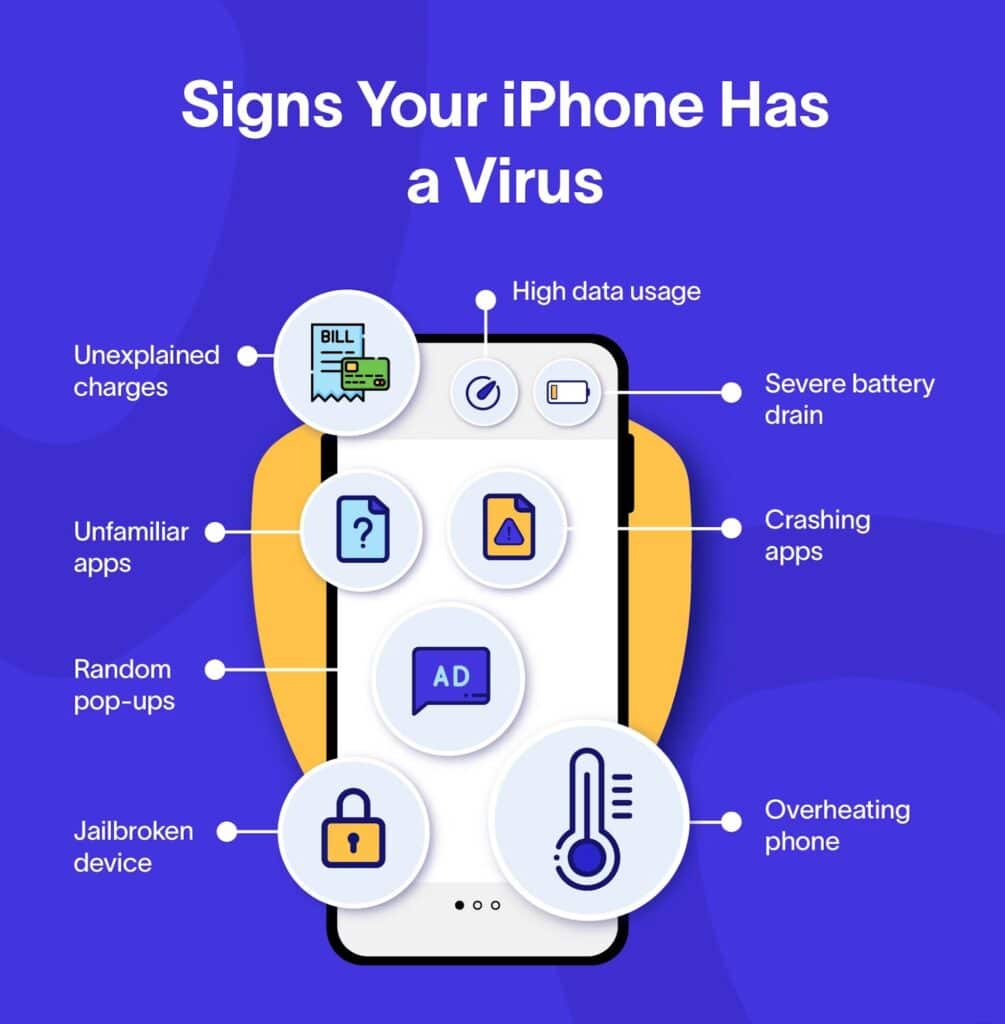
Many iPhone users trust Apple’s strong security measures and assume their devices are completely immune to malware—but no system is entirely invincible. If you’ve ever wondered how do you know if an iPhone has a virus, it’s important to understand that while true viruses are extremely rare on iOS, other forms of malicious activity can still occur. Apple’s strict app review process and sandboxed design make infections uncommon, yet iPhones can show signs of compromise such as unfamiliar apps, persistent pop-ups, overheating, rapid battery drain, sluggish performance, or unexplained data usage.
Malware can infiltrate your iPhone through unsafe downloads, malicious websites, phishing links, or compromised configuration profiles that alter normal system behavior. Jailbreaking your device can also weaken Apple’s built-in defenses and increase your exposure to security threats. Recognizing these warning signs and understanding how malware spreads are essential steps toward keeping your iPhone secure, protecting your personal data, and maintaining your privacy.
Table of Contents
ToggleWhy You Should Care About iPhone Viruses
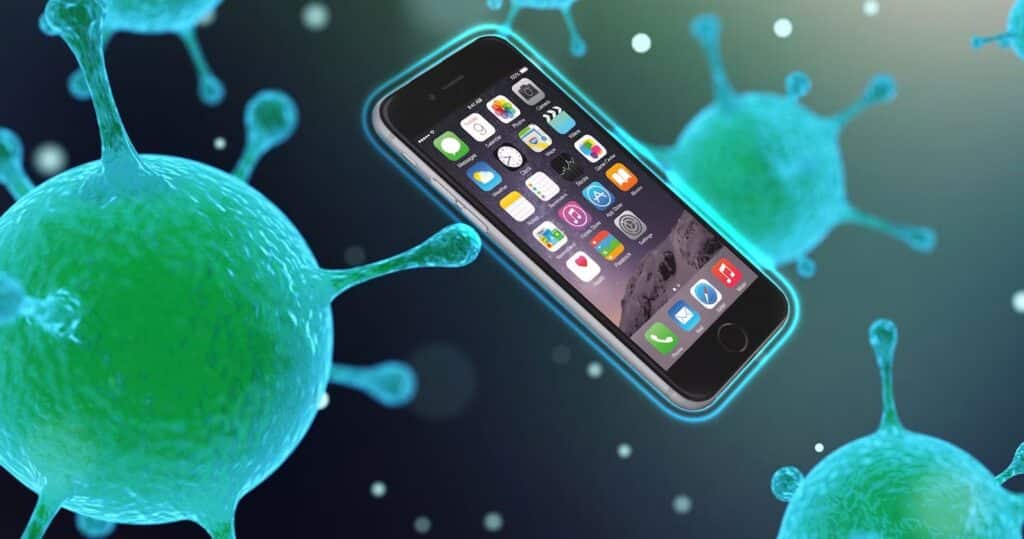
Even though Apple’s iOS is widely regarded as one of the most secure mobile operating systems in the world, no device or platform is 100% immune to threats. Cybercriminals are constantly evolving their tactics, searching for loopholes and weak spots that allow them to bypass Apple’s strict security protections. While iPhones benefit from features like app sandboxing, regular security updates, and the App Store’s rigorous review process, users can still encounter suspicious behavior that mimics a virus infection. This can happen through unsafe downloads, phishing links, or malicious configuration profiles that sneak past user awareness. Learning how do you know if an iPhone has a virus is essential to spotting these risks early and keeping your data safe.
- Adware (unwanted pop-ups or ads)
- Spyware (apps tracking your activity)
- Phishing attempts (fake emails, websites, or pop-ups stealing your information)
- Malware-infected profiles (installed through shady websites or emails)
Understanding how do you know if an iPhone has a virus ensures you can take action before your privacy, data, or financial information is compromised.
How Do You Know if an iPhone Has a Virus? Key Warning Signs
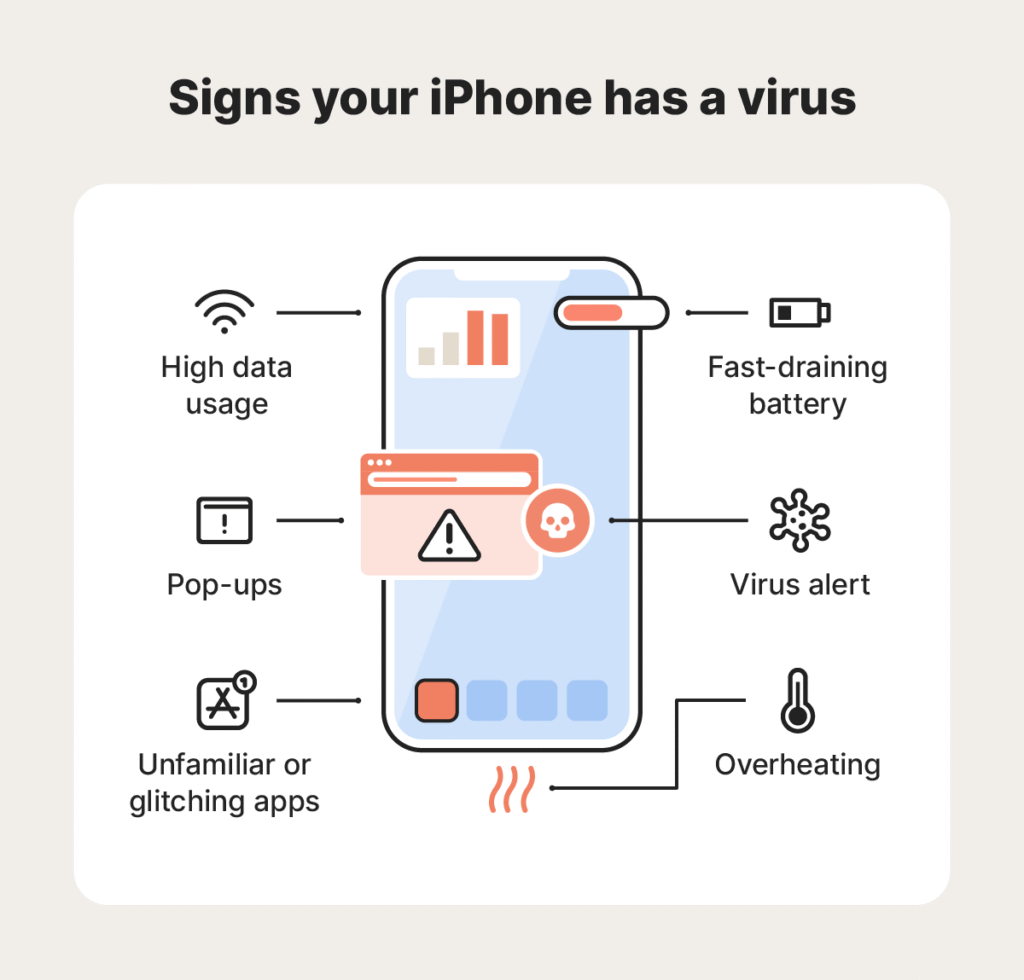
Even though Apple’s iOS is known for its strong security, it’s still important to stay alert—because no system is completely immune to digital threats. Cybercriminals are always developing new ways to exploit vulnerabilities, trick users, or slip malicious software onto devices. Knowing how do you know if an iPhone has a virus helps you recognize unusual behavior early and take quick action to protect your data and privacy.
Here are the most common red flags to look for:
1. Unusual Battery Drain
If your iPhone’s battery suddenly drains much faster than usual, it could mean a malicious app or process is running in the background.
2. Overheating Issues
Malware often forces the phone to work harder, leading to overheating even when you’re not using resource-heavy apps.
3. Slow Performance
Is your iPhone suddenly lagging, freezing, or crashing apps? A virus or hidden process could be consuming system resources.
4. Strange Pop-ups or Redirects
Seeing pop-ups in Safari or being redirected to unknown websites is a strong sign of adware or malware.
5. Data Overuse
If your data usage spikes unexpectedly, malicious software could be sending information in the background.
6. Apps You Don’t Recognize
Spot an app you don’t remember downloading? That’s a major red flag. Malicious apps often disguise themselves with generic icons.
7. Unauthorized Account Activity
Check your Apple ID, email, or bank accounts for unusual logins. Hackers sometimes gain access via compromised devices.
How Viruses Can Get on an iPhone
To truly understand how do you know if an iPhone has a virus or signs of malware, it’s just as important to learn how iPhones can get infected in the first place. While Apple’s iOS ecosystem is built with powerful security layers—such as app sandboxing, data encryption, and strict App Store guidelines—there are still ways that threats can slip through. Many users unknowingly expose their devices to risk through unsafe practices, careless downloads, or deceptive online traps. By knowing how viruses, spyware, and other forms of malware can reach an iPhone, you’ll be better prepared to prevent infections before they happen.To fully understand how do you know if an iPhone has a virus, you also need to know how they get there.
1. Jailbreaking
If you’ve jailbroken your iPhone, you’ve removed Apple’s built-in security protections. This makes it much easier for malware to infect your device.
2. Suspicious Links & Attachments
Clicking on links in scam emails, fake ads, or text messages can trigger downloads or install malicious profiles.
3. Malicious Profiles
Some malware disguises itself as a “configuration profile.” Installing one from an unknown source can compromise your device.
4. Fake Apps Outside the App Store
Although Apple’s App Store has strict security, sideloading apps or downloading from third-party sources increases risks.
How Do You Check if an iPhone Has a Virus?
If you’ve noticed your iPhone acting strangely—like running slower than usual, showing random pop-ups, or draining battery faster—it’s natural to wonder whether it might be infected. While true viruses on iPhones are rare, other types of malicious software, adware, or spyware can still cause significant issues. Knowing how do you know if your iPhone has a virus is essential for identifying threats early and keeping your data secure. Apple’s built-in security tools offer solid protection, but staying proactive and learning how to check for viruses on iPhone will help you catch problems before they escalate.
Here’s how to confirm whether your iPhone is infected:
Step 1: Review Installed Apps
- Go through your apps and uninstall anything suspicious or unknown.
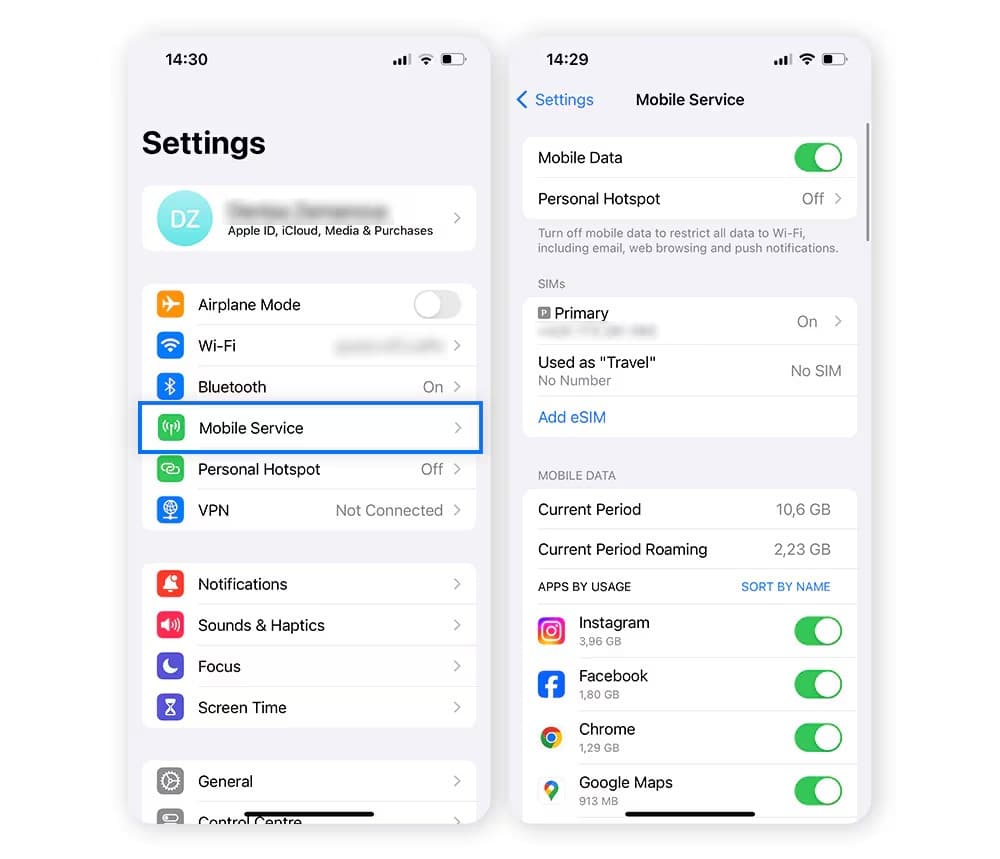
Step 2: Check Battery and Data Usage
- Go to Settings > Battery to see which apps consume the most power.
- Go to Settings > Cellular > Cellular Data Usage to spot abnormal data consumption.
Step 3: Look for Profiles You Didn’t Install
- Go to Settings > General > VPN & Device Management.
- If you see a profile you don’t recognize, delete it.
Step 4: Monitor Safari Behavior
- Excessive pop-ups or redirects are a sign of adware.
- Clear Safari cache via Settings > Safari > Clear History and Website Data.
Step 5: Scan for Jailbreaks
- If you bought your iPhone secondhand, it might already be jailbroken. Unusual app stores (like Cydia) are a big warning sign.
How to Remove a Virus from an iPhone
1. Restart Your iPhone
A simple restart can sometimes clear out temporary bugs and suspicious activity.
- Press and hold the power button.
- Slide to power off.
- Wait a few seconds and turn it back on.
2. Clear Safari History and Website Data
If the virus came from a malicious website, clearing your browser can help.
- Go to Settings
- Tap Safari
- Tap Clear History and Website Data
- Confirm the action
This removes unwanted pop-ups, redirects, and cached data.
3. Delete Suspicious Apps
If you installed an app just before the problems started, it might be the cause.
- Press and hold the app icon
- Tap Remove App
- Select Delete App
- Also, review your installed apps and remove anything unfamiliar.
4. Update iOS
Apple frequently releases updates to fix security issues.
- Go to Settings
- Tap General
- Tap Software Update
- Install the latest version
5. Check for Device Management Profiles
Sometimes malware installs profiles that control your device.
- Go to Settings
- Tap General
- Tap VPN & Device Management (if visible)
- Remove any suspicious profiles
6. Reset All Settings (If Needed)
If the problem continues, resetting settings can help without deleting your data.
- Go to Settings
- Tap General
- Tap Transfer or Reset iPhone
- Tap Reset → Reset All Settings
7. Restore iPhone to Factory Settings (Last Option)
If nothing works, you can erase everything and restore your iPhone.
- Backup your data first.
- Go to Settings → General → Transfer or Reset iPhone → Erase All Content and Settings.
- Set up your iPhone as new or restore from a clean backup.
How to Prevent Viruses on iPhone
Prevention is the best defense.
- Avoid Jailbreaking: Keep iOS security intact.
- Only Download from App Store: Apple reviews apps for safety.
- Be Wary of Links & Emails: Don’t click on unknown attachments.
- Enable Two-Factor Authentication: Protect your Apple ID from hackers.
- Keep iOS Updated: Always install the latest security patches.
Myths About iPhone Viruses
Many misconceptions exist about iPhone malware. Let’s clear them up:
- “iPhones can’t get viruses.”
False. Rare, but possible—especially with jailbreaking. - “Closing apps removes viruses.”
Not true. Malware often hides deeper in the system. - “A slow phone always means a virus.”
Sometimes lag comes from old software, not malware.
When to Seek Professional Help
If you still notice strange behavior after following all the steps, contact Apple Support or visit an Apple Store. They can run diagnostics and help remove malware.
Final Thoughts
So, how do you know if an iPhone has a virus? The key signs are unusual performance issues like overheating, pop-ups, battery drain, strange apps, and data overuse. While true viruses are rare on iOS, malware, spyware, and phishing attacks can still compromise your device.
By carefully monitoring your iPhone, deleting suspicious apps, removing unwanted profiles, and keeping iOS updated, you can keep your device safe and secure. And if things still don’t feel right, Apple Support is your best option.
Frequently Asked Questions (FAQ): iPhone Viruses and Security
Ans: While it’s extremely rare for an iPhone to get a traditional virus, it’s still possible for your device to be affected by other types of malware, such as adware, spyware, or phishing scams. These threats can come from unsafe links, fake apps, or malicious configuration profiles.
Ans: Common signs include frequent pop-ups, overheating, rapid battery drain, unusual data usage, or the presence of unfamiliar apps or profiles. You might also notice your phone running slower or Safari redirecting to suspicious websites.
Ans: Most infections happen when users click on deceptive links, install apps or profiles from untrusted sources, or jailbreak their devices. Apple’s system is secure, but human error and phishing tactics can still bypass built-in defenses.
Ans: You can manually inspect your iPhone by reviewing installed apps, checking battery and data usage, deleting unknown profiles under Settings > General > VPN & Device Management, and clearing Safari’s cache. These steps help identify and remove suspicious activity.
Ans: Start by deleting suspicious apps and configuration profiles, clearing Safari data, and restarting your device. Update iOS to the latest version, since Apple often patches security flaws. If the problem persists, restore your iPhone to factory settings or contact Apple Support.
Ans: While iPhones don’t need traditional antivirus software, reputable security apps can help detect phishing links, unsafe Wi-Fi networks, or risky configurations. However, always download security tools from the official App Store only.
Ans: Immediately change your Apple ID password and enable two-factor authentication. Check for unknown devices linked to your Apple ID and remove them. Then, back up your data and perform a full reset if suspicious activity continues.
Ans: Avoid jailbreaking your device, keep iOS updated, download apps only from the App Store, and be cautious with links or attachments in emails and messages. Regularly reviewing your phone’s settings and data usage can help you spot problems early.