How to Cancel ChatGPT Subscription: Complete Step-by-Step Detailed Guide
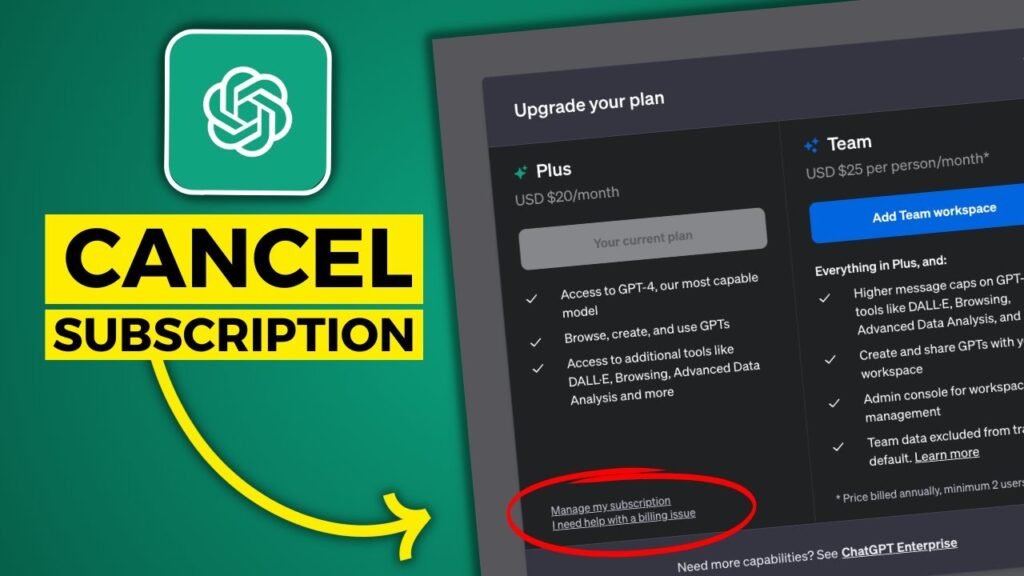
If you are looking for a complete and easy explanation of how to cancel ChatGPT subscription, this guide will walk you through everything in a clear, practical, and step-by-step manner so you can cancel your plan without confusion or technical issues. Many users subscribe to premium services of ChatGPT but later decide to cancel due to budget planning, reduced usage, switching to other AI tools, or temporary project completion needs. This article explains the full process including desktop and mobile cancellation methods, billing details, refund rules, troubleshooting solutions, and important things you must know before and after cancellation so you can manage your subscription confidently and safely.
What is ChatGPT Subscription and Why Users Use It Before Deciding to Cancel Later
A ChatGPT subscription is a paid upgrade offered by OpenAI that provides enhanced features, improved performance, and priority access compared to the free version of the platform. Users often upgrade to this plan when they need more advanced AI capabilities for professional, academic, or business-related tasks, especially when working on content creation, coding projects, marketing campaigns, or research-based activities.
Key features included in ChatGPT subscription
- Faster response generation even during high traffic
- Priority access to advanced AI models and tools
- Better accuracy and improved content quality output
- Enhanced performance for long-form writing and coding tasks
- More reliable access without waiting delays
Common reasons people subscribe
- SEO content writing and blogging work
- Freelancing and client project handling
- Academic research and assignments
- Business communication and automation tasks
- Software development and coding assistance
Why users later cancel subscription
- Monthly cost becomes unnecessary for low usage
- Switching to alternative AI platforms
- Completing short-term projects or tasks
- Budget planning and expense reduction
- Free version becomes enough for basic needs
Before You Cancel ChatGPT Subscription: Important Billing and Usage Details You Must Understand
Before you proceed with cancellation, it is very important to understand how subscription timing, billing cycles, and account access work so you do not face confusion or unexpected issues after cancelling your plan.
Important billing and access rules
- Subscription remains active until current billing period ends
- Cancellation does not stop immediate access to premium features
- Most plans do not offer instant refunds after cancellation
- Account remains active even after subscription is cancelled
- You can continue using free features after expiry
Things you should check before cancelling
- Remaining days left in your billing cycle
- Whether you still need premium AI features
- Important chats or data you may want to save
- Alternative tools available for your work needs
- Monthly cost compared to actual usage
Smart decision tips before cancellation
- Use remaining subscription days fully
- Compare free vs paid version performance
- Evaluate whether upgrading later is needed
- Avoid cancelling during active important projects
How to Cancel ChatGPT Subscription on Desktop Step-by-Step with Full Details
Cancelling your subscription from a desktop or laptop is one of the most direct and easiest methods because all settings and billing options are clearly visible in the browser version.
Step-by-step cancellation process
- Open the official ChatGPT platform: ChatGPT Official Website
- Log in using your registered email or login method
- Click on your profile icon located in bottom-left corner
- Open the Settings menu from the sidebar
- Navigate to Plan or Subscription section
- Click on Manage Subscription option
- Select Cancel Subscription button
- Confirm cancellation when prompted
What happens after desktop cancellation
- Subscription is scheduled for termination
- You receive confirmation email instantly
- Premium features remain active until expiry date
- No immediate interruption in service access
- Billing stops for next cycle automatically
How to Cancel ChatGPT Subscription on Mobile Devices (Android and iPhone Full Guide)
Mobile subscription cancellation depends entirely on whether you purchased the plan through Apple App Store or Google Play Store, because billing is controlled by those platforms rather than directly inside the ChatGPT application.
For iPhone Users (Apple Subscription Cancellation Method)
If you subscribed using Apple ID, cancellation must be completed through iPhone settings.
Step-by-step process
- Open iPhone Settings application
- Tap on your Apple ID profile at the top
- Select Subscriptions option from list
- Find ChatGPT subscription in active list
- Tap on it to open details
- Press Cancel Subscription button
- Confirm cancellation request
Important Apple subscription notes
- Apple manages all billing and payments
- ChatGPT app cannot cancel directly on iOS
- Subscription remains active until billing cycle ends
For Android Users (Google Play Subscription Cancellation Method)
If you purchased through Google Play Store, follow these steps carefully.
Step-by-step process
- Open Google Play Store application
- Tap profile icon in top-right corner
- Go to Payments and Subscriptions section
- Click on Subscriptions option
- Locate ChatGPT subscription
- Tap Cancel Subscription button
- Confirm final cancellation step
Important Android notes
- Google manages payment processing
- Cancellation affects only future billing cycles
- No immediate removal of premium access
How to Confirm Your ChatGPT Subscription Has Been Successfully Cancelled
After completing cancellation, it is very important to verify that your subscription has been properly closed to avoid confusion or unexpected billing charges.
How to confirm cancellation successfully
- Check email inbox for cancellation confirmation message
- Ensure subscription status shows “Cancelled” in account
- Verify there is no upcoming billing date listed
- Confirm premium access expiry date is visible
- Recheck billing platform (Apple or Google)
Additional verification tips
- Refresh account dashboard after a few minutes
- Log out and log in again to update status
- Double-check correct account was used
What Happens After You Cancel ChatGPT Subscription (Full Detailed Explanation)
Once your subscription is cancelled, your account goes through a transition phase where premium features gradually end but your account remains fully accessible.
What remains active after cancellation
- Access to premium features until billing period ends
- Full access to chat history and previous conversations
- Account login remains unchanged
- Free version of ChatGPT continues working
What changes after expiry
- Loss of advanced AI model access
- Reduced response speed compared to premium version
- Limited features available in free plan
- Removal of priority support access
Important user benefits after cancellation
- No data loss or account deletion
- Ability to resubscribe anytime
- Continued use of basic AI tools
Common Reasons Why Users Cancel ChatGPT Subscription
Users cancel subscriptions for many practical and financial reasons depending on their usage patterns and personal needs.
Major cancellation reasons
- Subscription cost no longer justified
- Limited usage of advanced features
- Switching to other AI tools or platforms
- Short-term project completion
- Budget optimization and expense control
Business-related reasons
- Reducing monthly software expenses
- Workflow changes in companies
- Testing alternative AI solutions
- Scaling down digital tools usage
Refund Policy for ChatGPT Subscription Explained in Detail
Understanding refund rules is important before cancelling because most subscription payments are handled under strict billing policies.
General refund rules
- Most payments are non-refundable
- No refund for unused subscription days
- Subscription continues until billing cycle ends
- Cancellation does not guarantee refund
Special refund cases
- Duplicate or accidental charges
- Billing system errors
- Technical payment issues
How to request refund support
- Contact OpenAI support team
- Provide registered email and payment details
- Wait for review and response from support
Troubleshooting Problems While Cancelling ChatGPT Subscription
Sometimes users face technical or account-related issues during cancellation, but most problems can be fixed easily with correct steps.
Common problems and solutions
- Subscription option not visible
- Check Apple or Google Play billing method
- Still being charged after cancellation
- Verify cancellation confirmation email
- Wrong account used
- Login with correct subscription email
- No confirmation received
- Check spam or junk folder
Extra troubleshooting tips
- Restart browser or app
- Try different device
- Contact support if issue continues
Final Thoughts on How to Cancel ChatGPT Subscription Successfully
Understanding how to cancel ChatGPT subscription properly helps you avoid billing issues, confusion, and unnecessary charges while giving you full control over your digital expenses. Whether you are using desktop, Android, or iPhone, the cancellation process is simple once you follow the correct steps carefully and verify your account status after completion.
The AI platform ChatGPT developed by OpenAI remains one of the most powerful tools for productivity, but you always have the flexibility to cancel or resubscribe whenever your needs change.