admin
admin 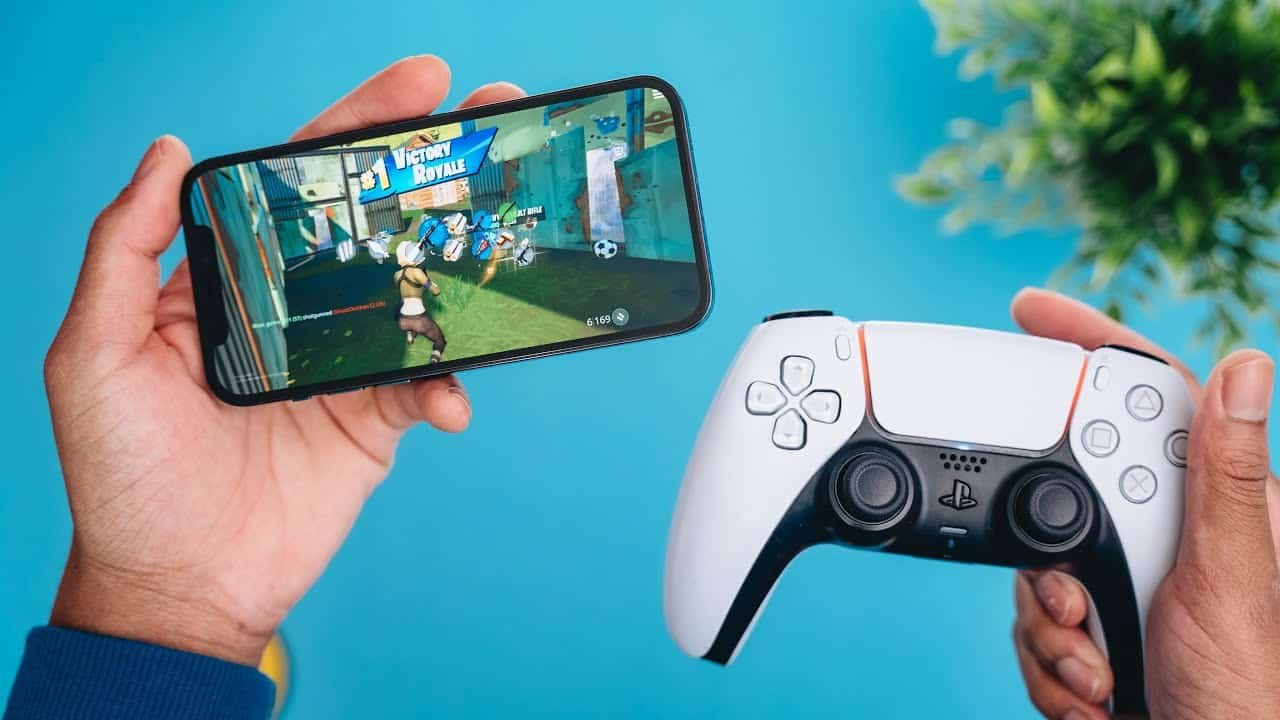
Gaming on an iPhone has become more enjoyable than ever thanks to powerful hardware, Apple Arcade, and cloud gaming services. If you’re wondering how to connect PS5 controller to iPhone, you’ve come to the right place. Using a PlayStation 5 DualSense controller with your iPhone provides console-quality controls, making racing, shooting, sports, and adventure games much more immersive.
In this comprehensive guide, you’ll learn how to connect a PS5 controller to an iPhone, troubleshoot common connection problems, disconnect or reconnect the controller, and discover which games support the DualSense controller. Whether you’re using an iPhone for Apple Arcade, Remote Play, or cloud gaming, this guide covers everything you need to know.
Table of Contents
ToggleWhy Connect a PS5 Controller to an iPhone?
Many touchscreen games can be difficult to control accurately. A PS5 DualSense controller offers several advantages:
- More precise movement and aiming
- Better comfort during long gaming sessions
- Console-like gaming experience
- Improved performance in competitive games
- Compatible with hundreds of controller-supported iPhone games
- Great for Apple Arcade and cloud gaming
If you’re serious about mobile gaming, learning how to connect PS5 controller to iPhone is one of the best upgrades you can make.
What You Need Before Connecting
Before pairing your controller, make sure you have the following:
- A PlayStation 5 DualSense wireless controller
- An iPhone running a recent version of iOS
- Bluetooth enabled on your iPhone
- A charged PS5 controller
Keeping both your iPhone and controller updated ensures the most stable connection.
Does the PS5 Controller Work with iPhone?
Yes. Apple officially supports the PlayStation 5 DualSense wireless controller. Once paired, you can use it with many controller-supported games, Apple Arcade titles, PS Remote Play, Xbox Cloud Gaming, GeForce NOW, and other compatible apps.
Keep in mind that not every iPhone game supports external controllers. Games that include controller support will automatically recognize the DualSense once connected.
How to Connect PS5 Controller to iPhone
Follow these simple steps.
Step 1: Turn Off the Controller
If your controller is already connected to a PlayStation 5, turn it off before pairing it with your iPhone.
Step 2: Put the Controller Into Pairing Mode
Press and hold both:
- The PS Button
- The Create (Share) Button
Hold them together for about five seconds.
The light bar around the touchpad will begin flashing rapidly in blue, indicating the controller is ready to pair.
Step 3: Open Bluetooth Settings
On your iPhone:
- Open Settings.
- Tap Bluetooth.
- Turn Bluetooth on if it is disabled.
Your iPhone will begin searching for nearby devices.
Step 4: Select the Controller
Under “Other Devices,” you should see: DualSense Wireless Controller
Tap it.
Within a few seconds, the controller will connect.
Once connected, it will appear under “My Devices” as Connected.
Congratulations! You’ve successfully learned how to connect a PS5 controller to an iPhone.
How to Test the Connection
After pairing:
- Open any controller-supported game.
- Press the analog sticks.
- Test the buttons.
- Check movement and camera controls.
If everything responds correctly, your controller is ready for gaming.
Best Games That Support PS5 Controller on iPhone
Many popular iPhone games support controllers.
Some examples include:
- Call of Duty Mobile
- Minecraft
- Genshin Impact
- Dead Cells
- Stardew Valley
- Asphalt 9
- NBA 2K
- Grand Theft Auto Series
- Oceanhorn 2
- Apple Arcade titles
Many new games automatically detect the controller without requiring additional setup.
Using PS5 Controller with Apple Arcade
Apple Arcade offers hundreds of premium games without advertisements.
Most Apple Arcade games include excellent controller support.
Simply connect your controller before launching the game, and it will usually be detected automatically.
Play PS5 Games on iPhone Using Remote Play
One of the biggest advantages of connecting a DualSense controller is PlayStation Remote Play.
Remote Play allows you to stream games directly from your PS5 console to your iPhone over Wi-Fi.
This means you can enjoy your PlayStation library anywhere in your home without needing a TV.
The controller makes the experience nearly identical to playing directly on the console.
Cloud Gaming with a PS5 Controller
Your DualSense controller also works well with cloud gaming platforms.
Popular services include:
- Xbox Cloud Gaming
- NVIDIA GeForce NOW
- Amazon Luna (where available)
These services let you play high-quality console games directly from your iPhone.
How to Disconnect PS5 Controller from iPhone
There are several ways to disconnect your controller.
- Method 1: Turn the controller off by holding the PS button.
- Method 2: Open: Settings → Bluetooth
Tap the information icon beside DualSense Wireless Controller and Choose Disconnect.
- Method 3: Turn Bluetooth off completely.
How to Reconnect PS5 Controller to iPhone
If you’ve already paired the controller before:
- Turn on Bluetooth.
- Press the PS button.
- The controller should reconnect automatically.
This makes future gaming sessions much faster.
How to Connect the Controller Back to PS5
If you want to use the controller with your PlayStation again:
- Connect it using a USB cable.
- Press the PS button.
- The controller will pair back with the console.
This only takes a few seconds.
Troubleshooting Connection Problems
Sometimes pairing doesn’t work immediately.
Here are common fixes.
Controller Doesn’t Appear in Bluetooth
- Restarting Bluetooth
- Restarting your iPhone
- Charging the controller
- Entering pairing mode again
Controller Won’t Connect
Remove the controller from Bluetooth settings.
Restart both devices.
Try pairing again.
Controller Disconnects Frequently
Possible causes include:
- Low battery
- Bluetooth interference
- Outdated iOS
- Software bugs
Updating your iPhone usually improves stability.
Buttons Don’t Work
Not every game supports controllers.
Test another controller-supported game before assuming there’s a problem.
Analog Sticks Feel Unresponsive
Some games allow controller sensitivity adjustments.
Check the in-game controller settings for customization options.
Benefits of Using a PS5 Controller on iPhone
There are many advantages.
Better Accuracy
Physical buttons provide more precise movement than touchscreen controls.
Improved Comfort
Long gaming sessions are easier with ergonomic grips.
Faster Reaction Time
Controller inputs are generally quicker and more consistent.
Enhanced Gameplay
Games become more immersive with responsive analog sticks and triggers.
Reduced Screen Clutter
On-screen buttons disappear in many supported games, giving you a larger view of the action.
Tips for the Best Gaming Experience
For the smoothest gameplay:
- Keep your controller fully charged.
- Update iOS regularly.
- Close background apps.
- Use a strong Wi-Fi connection for cloud gaming.
- Lower graphics settings if performance drops.
- Keep Bluetooth enabled only when needed.
These small improvements can make a noticeable difference.
Frequently Asked Questions
Most modern iPhones support the DualSense controller if they are running a compatible version of iOS.
No.
Only games that include controller support will recognize the DualSense.
Yes.
Some multiplayer games allow multiple Bluetooth controllers to connect simultaneously.
Support varies by game.
Most games primarily use the standard buttons and analog sticks.
Yes.
You can charge the controller with a USB-C cable while continuing to play.
Bluetooth uses very little power, although long gaming sessions naturally consume battery because of the game itself.
Common Mistakes to Avoid
Avoid these common issues:
- Forgetting to enable pairing mode.
- Trying to connect while the controller is still paired with the PS5.
- Using unsupported games.
- Ignoring software updates.
- Playing with a nearly empty controller battery.
Final Thoughts
Learning how to connect PS5 controller to iPhone is simple and takes only a few minutes. Once paired, you’ll enjoy significantly better controls, improved comfort, and a true console-style gaming experience on your mobile device.
Whether you’re playing Apple Arcade games, using PlayStation Remote Play, or streaming games through cloud gaming services, the DualSense controller delivers responsive controls that greatly enhance gameplay.
If you’ve been relying on touchscreen controls, now is the perfect time to upgrade. Follow the steps in this guide, pair your controller successfully, and enjoy smoother, more accurate gaming wherever you go.