
How to Fix DNS_PROBE_FINISHED_NXDOMAIN: A Complete Guide
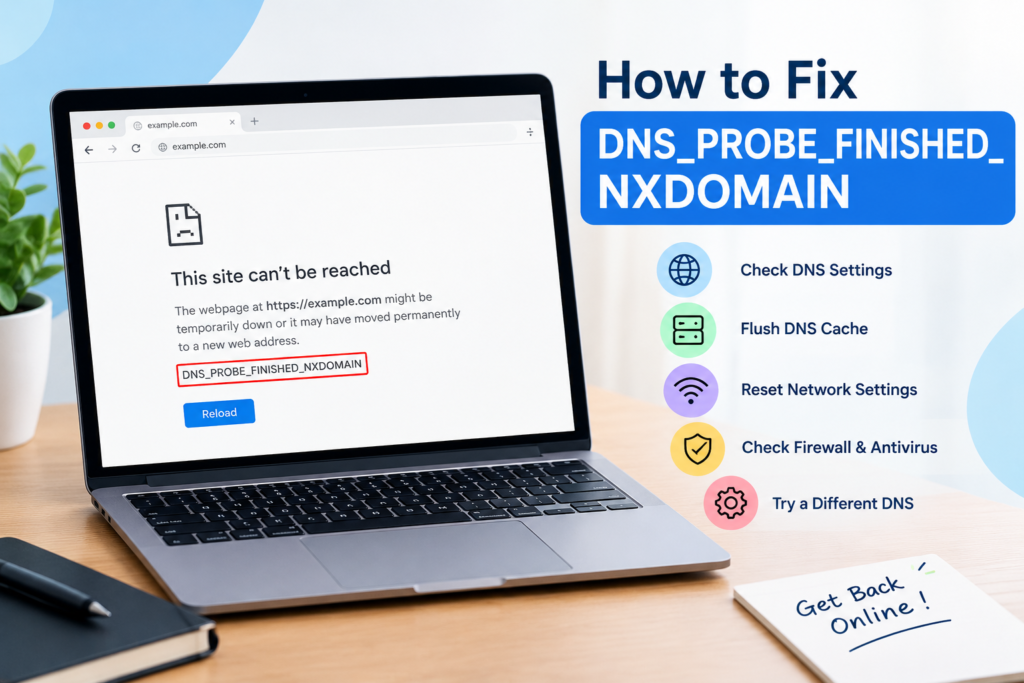
Have you ever opened a website in Google Chrome only to see the message DNS_PROBE_FINISHED_NXDOMAIN? This error can prevent you from accessing a website even when your internet connection appears to be working normally.
The good news is that you can often resolve the problem without advanced technical knowledge. In most cases, the issue is related to DNS settings, cached network information, an incorrect web address, or a problem with your internet service provider.
This guide explains how to fix DNS_PROBE_FINISHED_NXDOMAIN on Windows computers using practical, step-by-step solutions. You will learn how to restart your network, clear the DNS cache, change DNS servers, troubleshoot Chrome, and identify situations where the problem is outside your control.
What Does DNS_PROBE_FINISHED_NXDOMAIN Mean?
DNS_PROBE_FINISHED_NXDOMAIN is a browser error that appears when the Domain Name System (DNS) cannot find the requested domain name.
DNS works like an internet address directory. When you enter a website address, such as example.com, your device uses DNS to find the IP address associated with that domain.
If the domain cannot be resolved, Chrome may display the DNS_PROBE_FINISHED_NXDOMAIN error.
The problem does not always mean your internet connection is broken. The domain might be typed incorrectly, your DNS cache might contain outdated information, or your network’s DNS server might be experiencing an issue.
Common Causes of the DNS Error
Several problems can trigger this message:
- Incorrect website address: A spelling mistake or an incorrect domain extension can prevent DNS from finding the website.
- Outdated DNS cache: Your computer or browser may retain DNS information that is no longer valid.
- DNS server problems: Your current DNS provider might not be responding correctly.
- Router or network issues: Temporary network problems can interfere with domain resolution.
- VPN or proxy conflicts: Certain network configurations may prevent your device from resolving domains properly.
- Browser settings: Chrome extensions or Secure DNS settings can sometimes contribute to the issue.
- Domain registration problems: The website’s domain might have expired, been misconfigured, or no longer exist.
Understanding the likely cause helps you choose the right solution instead of changing several settings unnecessarily.
How to Fix DNS_PROBE_FINISHED_NXDOMAIN
Try the following methods in order. Start with the easiest checks before moving to advanced network commands.
1. Check the Website Address
Before changing your computer’s settings, make sure the website address is correct.
A small typing mistake can produce an NXDOMAIN error. For example, entering an incorrect domain extension or adding an extra character may direct your browser to a domain that does not exist.
Follow these steps:
- Click the address bar in Chrome.
- Carefully check the spelling of the website.
- Verify the domain extension, such as .com, .org, or .pk.
- If possible, open the website using a verified link from its official source.
- Try visiting another familiar website.
If other websites load normally but one particular website does not, the issue may be specific to that domain.
If the address is correct, continue to the next method.
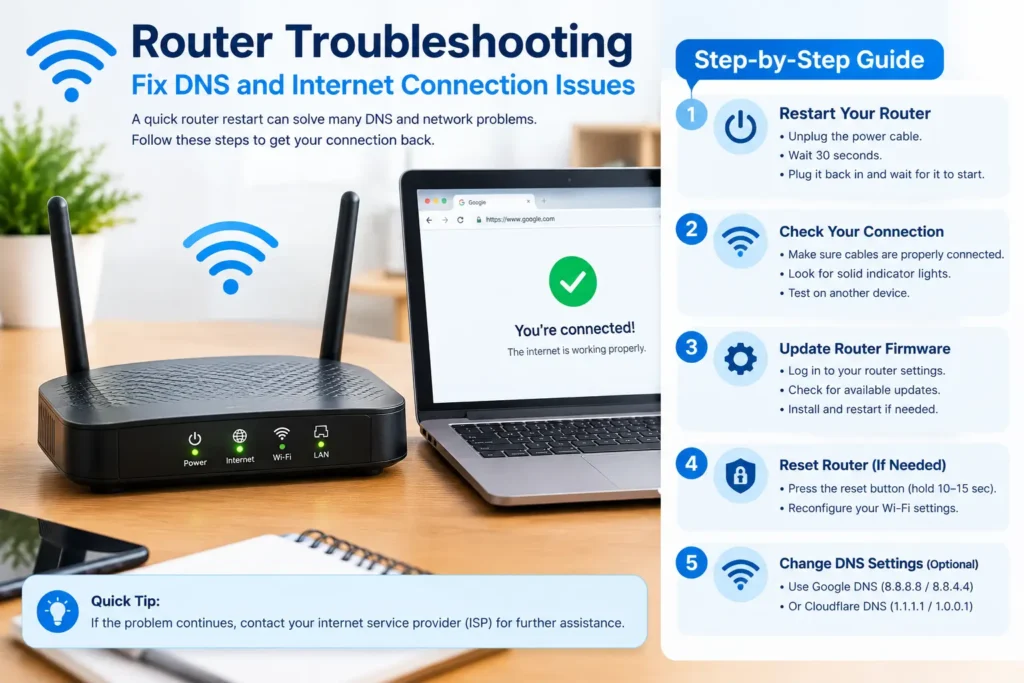
2. Restart Your Router and Computer
A temporary network problem can interfere with DNS resolution. Restarting your router and computer may clear the issue without requiring any configuration changes.
How to restart your network
- Close unnecessary browser tabs and save your work.
- Restart your computer through the Windows Start menu.
- Disconnect your router from its power source.
- Wait approximately 30 seconds.
- Reconnect the router and allow it to finish starting up.
- Open Chrome and test the website again.
If you use a separate modem and router, follow your internet provider’s recommended restart procedure.
This method is especially useful when several websites fail to load or multiple devices on the same network experience similar problems.
3. Clear the DNS Cache in Windows
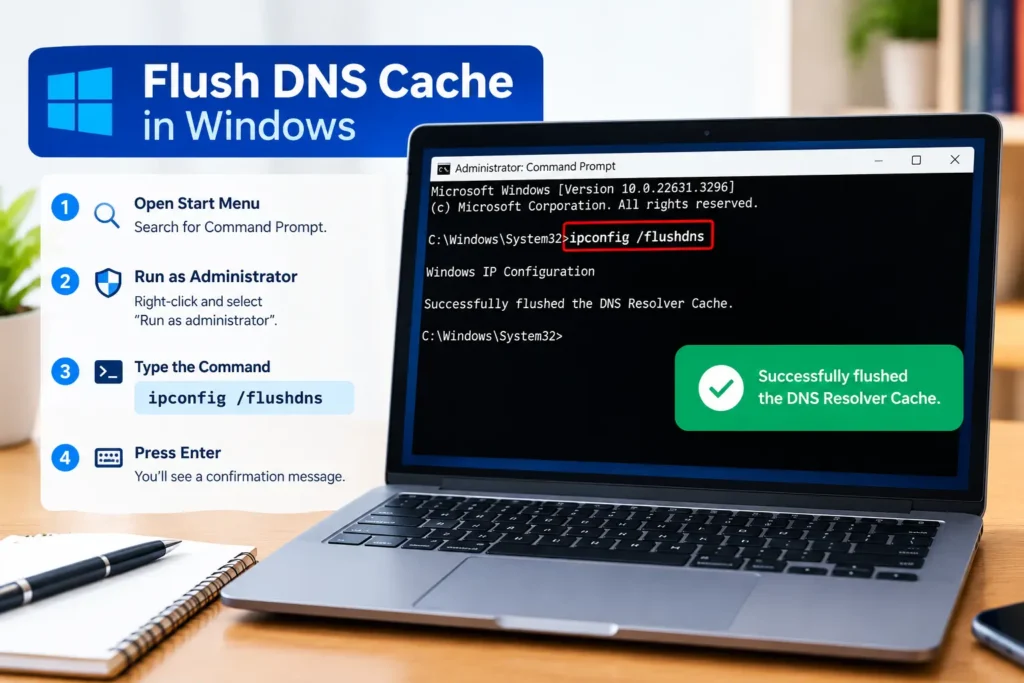
Windows stores recently resolved domain information in a local DNS cache. Clearing this cache forces your computer to request fresh DNS information when needed.
This is one of the most useful methods for fixing DNS_PROBE_FINISHED_NXDOMAIN on Windows.
Steps to flush the DNS cache
- Open the Windows Start menu.
- Search for Command Prompt.
- Right-click Command Prompt and select Run as administrator.
- Enter the following command:
ipconfig /flushdns - Press Enter.
- Wait for Windows to confirm that the DNS Resolver Cache was successfully flushed.
- Close Command Prompt and reopen Chrome.
Now try visiting the affected website again.
Why this works: If Windows was relying on outdated or incorrect cached DNS information, clearing the cache may allow it to obtain the correct information.
If the error remains, continue with the next solution.
4. Release and Renew Your IP Configuration
Your computer’s network configuration may occasionally need to be refreshed. Windows provides commands that release and renew its IP address information.
This can help when the error is related to a broader network configuration problem, although it will not fix an invalid domain or a DNS server outage.
Follow these steps
- Open Command Prompt as an administrator.
- Run the following command:
ipconfig /release - Wait for the command to finish.
- Enter:
ipconfig /renew - Press Enter and allow Windows to renew its network configuration.
- Finally, run:
ipconfig /flushdns - Close Command Prompt and test the website again.
Important: Your internet connection may temporarily disconnect while the IP configuration is being renewed. If you are connected through a network with a manually configured IP address, consult your network administrator before using these commands.
5. Change Your DNS Server
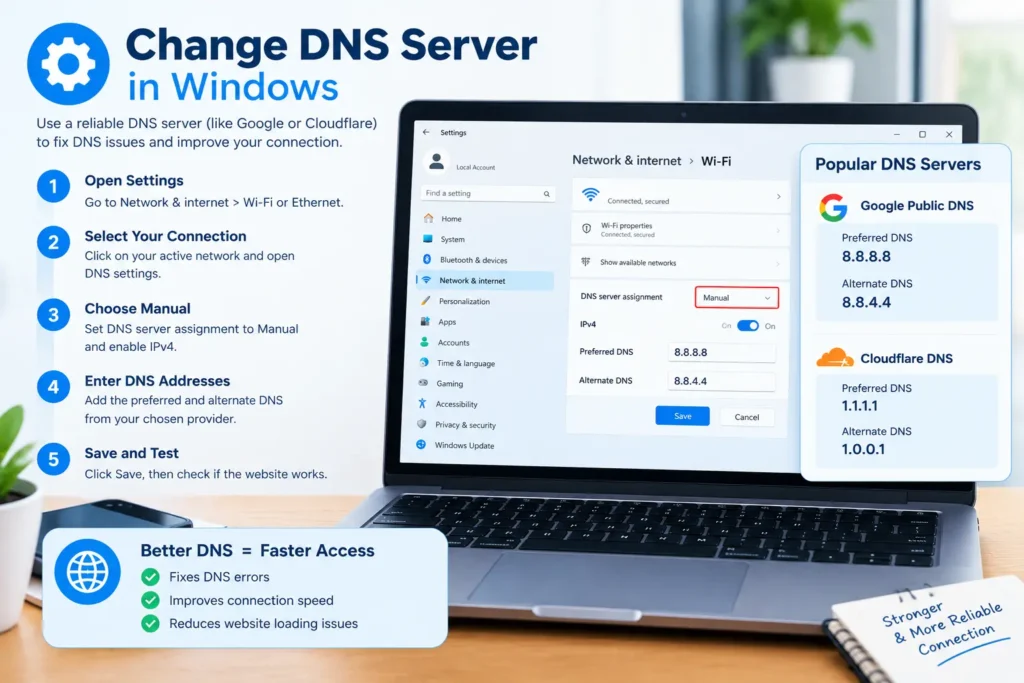
If your current DNS server is slow, unavailable, or returning incorrect results, switching to a reputable alternative DNS provider may resolve the error.
Two commonly used public DNS services are Google Public DNS and Cloudflare DNS.
DNS provider | Preferred IPv4 address | Alternate IPv4 address |
Google Public DNS | 8.8.8.8 | 8.8.4.4 |
Cloudflare DNS | 1.1.1.1 | 1.0.0.1 |
Choose one provider rather than mixing addresses from different providers.
How to change DNS settings in Windows 11
- Open Settings.
- Select Network & internet.
- Choose your active connection, such as Wi-Fi or Ethernet.
- Open the connection’s DNS settings or DNS server assignment.
- Select Edit.
- Change the setting to Manual and enable IPv4.
- Enter the preferred and alternate DNS addresses for your chosen provider.
- Save the changes.
- Close and reopen Chrome, then test the website.
The exact labels may vary slightly between Windows versions.
On Windows 10, you can generally access DNS settings through Network and Sharing Center, your active adapter’s Properties, and Internet Protocol Version 4 (TCP/IPv4).
Should you use Google DNS or Cloudflare DNS?
Both are established public DNS services. Neither is guaranteed to fix every DNS error.
If your internet connection uses a school, workplace, or managed network, its administrator may require specific DNS settings. In that situation, check the network policy before changing them.
If the website still fails after switching DNS providers, restore your original settings if necessary and proceed to the next method.
6. Clear Chrome's DNS Cache
Google Chrome maintains its own DNS-related cache. Clearing it can help when Chrome retains information that is no longer useful.
Steps to clear Chrome’s DNS cache
- Open Google Chrome.
- Enter the following address in the address bar:
chrome://net-internals/#dns - Press Enter.
- If the page provides a Clear host cache button, select it.
- Close and reopen Chrome.
- Try loading the affected website again.
Chrome’s internal troubleshooting pages can change between versions. If this page or option is unavailable, skip this method and continue with the Windows DNS-cache solution or other steps in this guide.
7. Check Chrome's Secure DNS Settings
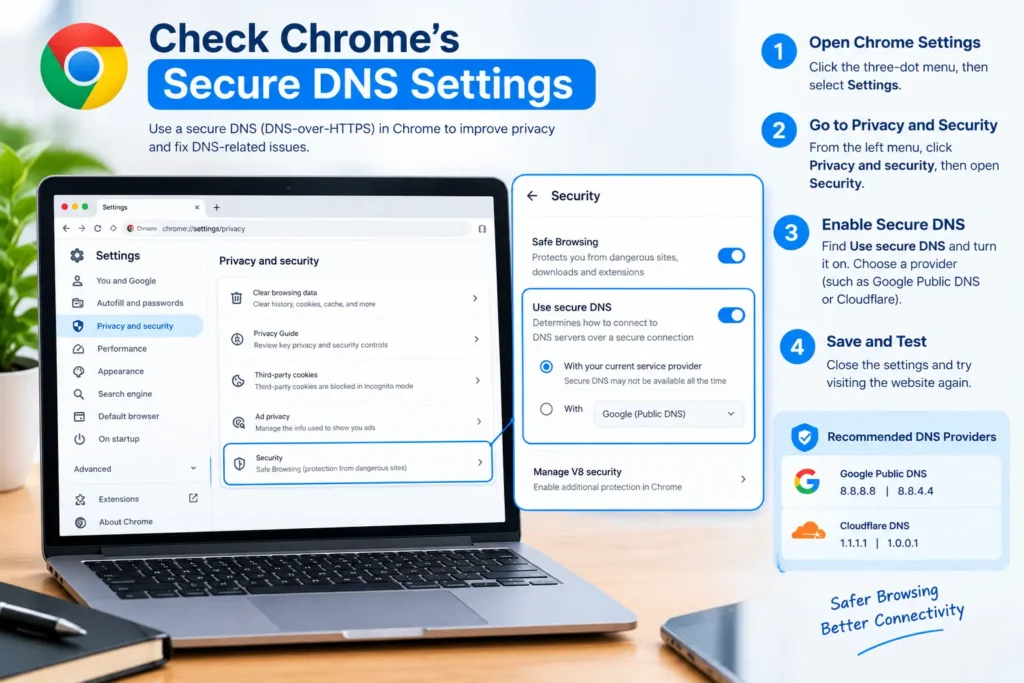
Chrome includes a Secure DNS feature that can use DNS-over-HTTPS to send DNS queries through a compatible provider.
In some situations, the selected provider or network configuration may contribute to domain-resolution problems.
How to check Secure DNS
- Open Chrome.
- Select the three-dot menu in the upper-right corner.
- Open Settings.
- Select Privacy and security.
- Open Security.
- Find Use secure DNS.
- Review the selected provider and current setting.
If you suspect a Secure DNS configuration problem, temporarily test the default setting or another compatible provider, if available.
Test the website after making the change. If it does not help, restore your preferred settings.
Do not permanently disable security features without a clear reason. On managed devices, some settings may be controlled by an administrator.
8. Disable VPN or Proxy Settings Temporarily
A VPN or proxy changes how your computer connects to websites. Depending on its configuration, it can affect which DNS server handles your requests.
If the error began after enabling a VPN, proxy, or network-filtering application, temporarily disconnecting it may help identify the cause.
What to do
- Disconnect your VPN using its normal application controls.
- Try opening the website in Chrome.
- If you use a manually configured proxy, review its settings in Windows.
- If appropriate, temporarily test the connection without the proxy.
- Restore your normal configuration after testing.
Only change settings you recognize and are authorized to manage. A work or school network may require its VPN or proxy to remain enabled.
If disabling the VPN does not help, reconnect it before trying other solutions.
9. Temporarily Disable Conflicting Chrome Extensions
Some browser extensions modify website requests, block connections, or change browsing behavior. Although extensions are not the most common cause of NXDOMAIN errors, testing Chrome without them can help identify a conflict.
Test Chrome in Incognito mode
- Open Chrome.
- Select the three-dot menu.
- Choose New Incognito window.
- Enter the affected website’s address.
If the website works in Incognito mode, an extension or browser-specific setting could be involved. Keep in mind that Incognito mode does not automatically eliminate every possible browser issue.
Disable extensions individually
- Open chrome://extensions/.
- Turn off one extension at a time.
- Test the website after each change.
- If the issue disappears, review the extension you most recently disabled.
Avoid disabling all security protections permanently. If you identify a problematic extension, update it, remove it, or review its settings.
10. Reset the Windows Network Configuration
If the previous methods fail, resetting parts of the Windows network configuration may help resolve persistent connectivity problems.
One option is to reset the Windows Sockets API (Winsock) configuration.
How to reset Winsock
- Open Command Prompt as an administrator.
- Enter:
netsh winsock reset - Press Enter.
- Restart your computer.
- Open Chrome and test the website.
If the problem persists, you can consider Windows’ built-in network reset feature under Settings > Network & internet > Advanced network settings > Network reset on supported Windows versions.
Use network reset carefully: It may remove or require you to reconfigure network adapters, VPN software, or other network settings. Save your work and make sure you have the details needed to reconnect before using it.
A network reset cannot correct an expired domain or a DNS problem affecting the website’s own configuration.
What If DNS_PROBE_FINISHED_NXDOMAIN Affects Only One Website?
If other websites work normally, avoid immediately resetting your entire network. First, determine whether the issue is specific to the domain.
Try these checks:
- Verify the exact website address.
- Open the website on another device.
- Test the site using a different network, such as a trusted mobile hotspot.
- Check the domain’s registration or DNS status through an appropriate domain lookup service.
- Contact the website owner if the domain appears to be misconfigured.
For example, if a website works on mobile data but not on your home Wi-Fi, your router, ISP, or DNS configuration may be involved.
If the website fails across multiple devices and networks, the domain itself or its authoritative DNS configuration may be the problem.
Avoid repeatedly changing computer settings when the evidence points to an issue with the website’s domain.
Common Mistakes to Avoid
When troubleshooting DNS_PROBE_FINISHED_NXDOMAIN, a few mistakes can waste time or create additional problems.
Assuming every DNS error means the internet is disconnected
Your computer may have a working internet connection while one domain fails to resolve. Test other websites before concluding that your entire connection is broken.
Changing multiple settings at once
If you change DNS providers, disable extensions, reset network settings, and modify your VPN simultaneously, you may not know which action helped.
Make one change at a time and test the website after each step.
Downloading unknown DNS repair tools
You generally do not need a third-party application to flush the DNS cache or update Windows network settings. Use built-in Windows and Chrome tools whenever possible.
Ignoring domain-related problems
If a domain has expired or its DNS records are incorrectly configured, changing your computer’s settings may not solve the problem. Sometimes the website owner must fix it.
Quick Summary: Which Fix Should You Try First?
Use this checklist to select the most appropriate next step.
- Only one website fails: Check the spelling and domain status.
- Several websites fail: Restart your router and check your network.
- The problem started suddenly: Flush the Windows DNS cache.
- Your DNS server may be unavailable: Test a reputable alternative DNS provider.
- Chrome alone has the problem: Clear its host cache and review browser settings.
- The error began after enabling a VPN: Test the connection with the VPN temporarily disconnected, if appropriate.
- Nothing works: Consider a Winsock reset or Windows network reset.
- The website fails on multiple networks: Investigate the domain’s DNS configuration.
Frequently Asked Questions
First, check that the website address is correct. Then open Command Prompt as an administrator and run ipconfig /flushdns. Restart Chrome and test the website. If the problem remains, restart your router and investigate your DNS settings or the domain’s status.
Chrome displays this error when it cannot resolve the requested domain name through DNS. Common causes include typing mistakes, outdated DNS information, unavailable DNS servers, network configuration issues, and problems with the domain’s registration or DNS records.
Yes, changing to a reputable public DNS provider may help if your current DNS server is unavailable or returning incorrect results. However, it will not fix every cause. An incorrect domain name, expired registration, or authoritative DNS problem may require a different solution.
When only one website fails, the domain may be misspelled, expired, or incorrectly configured. Your DNS provider may also have outdated information about that domain. Test the website on another network and check its DNS status before changing your computer’s network configuration.
No. DNS_PROBE_FINISHED_NXDOMAIN is a DNS-resolution error, not proof that your computer has a virus. However, unwanted software or altered network settings can sometimes interfere with browsing. If you notice other suspicious behavior, review your system’s security settings and run a scan with a trusted security application.
Conclusion
The DNS_PROBE_FINISHED_NXDOMAIN error can be frustrating, but it does not necessarily indicate a serious problem with your computer. It usually means that the requested domain could not be resolved through DNS.
To learn how to fix DNS_PROBE_FINISHED_NXDOMAIN effectively, start by checking the web address, restarting your network, and flushing the Windows DNS cache. If the problem continues, review your DNS server, Chrome settings, VPN, and network configuration.
The most important step is to identify whether the error affects one website or your entire connection. That simple distinction can save time and prevent unnecessary changes.
Your next step: Try ipconfig /flushdns in Command Prompt, then reopen Chrome. If the website still does not load, move through the remaining solutions in order.