How to Fix ERR_CONNECTION_RESET in Chrome
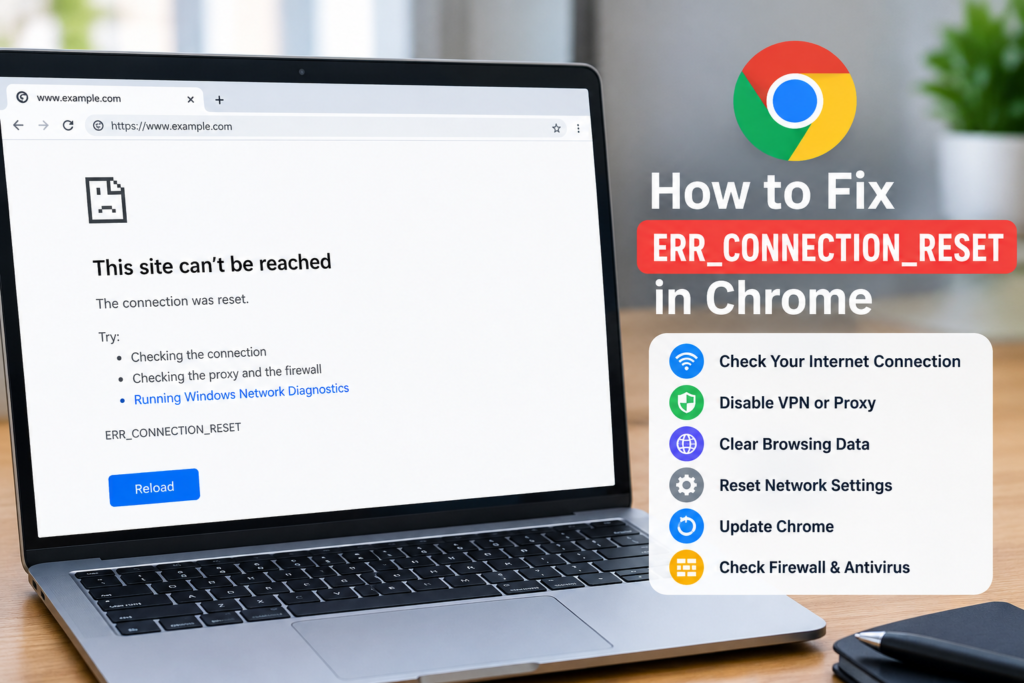
You open Google Chrome, enter a website address, and wait for the page to load. Instead of the content you expected, Chrome displays ERR_CONNECTION_RESET. Refreshing the page does not help, and other websites may also stop working.
This error usually means that the connection between your browser and the website was interrupted or reset before the request could finish. The cause might be your internet connection, router, VPN, proxy settings, browser extensions, or a problem with the website’s server.
If you are searching for how to fix ERR_CONNECTION_RESET in Chrome, you do not need to reinstall your browser immediately. Several straightforward troubleshooting steps can help identify and resolve the problem.
This guide explains ten practical solutions for Windows users, starting with quick checks and moving toward more advanced network repairs.
What Does ERR_CONNECTION_RESET Mean in Chrome?
The ERR_CONNECTION_RESET message indicates that Chrome could not maintain the network connection needed to load a website.
Your browser sends a request to a server, but the connection is interrupted before the page loads successfully. This does not automatically mean that Chrome is damaged or your computer has a virus.
The error can affect one website or multiple websites, depending on the underlying problem.
Common causes of ERR_CONNECTION_RESET
Some possible causes include:
- An unstable Wi-Fi or Ethernet connection.
- A router or modem that needs troubleshooting.
- Temporary problems with the website’s server.
- A VPN or proxy interfering with the connection.
- Browser extensions or corrupted cached data.
- Incorrect DNS or network configuration.
- Firewall or security software blocking a connection.
- Network restrictions on a school, office, or public Wi-Fi network.
Before changing your settings, check whether the problem affects one website or every website. This simple distinction can save you time.
1. Check Your Internet Connection First
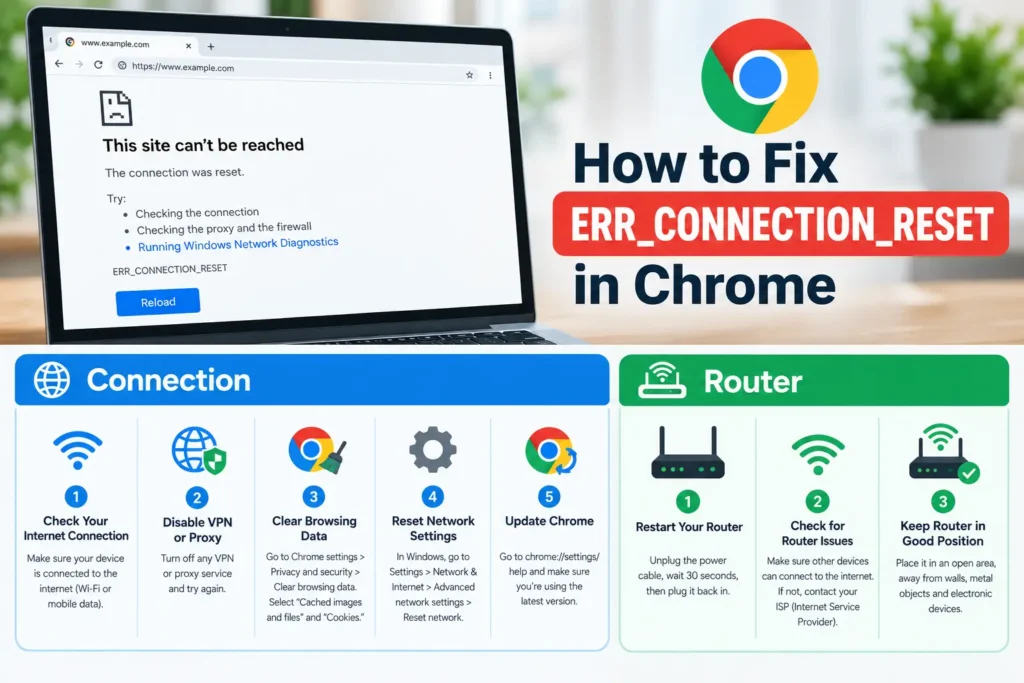
Start with the simplest possibility: your internet connection may be unstable.
A Wi-Fi connection can appear connected even when the router has temporarily lost internet access. Similarly, an Ethernet cable may be loose or a network service may be experiencing an interruption.
What to do
- Open another website in Chrome.
- Try opening the same website in another browser, if available.
- Check whether other devices connected to your network can access the internet.
- If you use Ethernet, check that the cable is firmly connected.
- If you use Wi-Fi, check whether the signal is stable.
If only one website fails, the issue may be specific to that website or its connection path. If several websites fail across multiple devices, your router or internet service may be responsible.
Tip: Do not change advanced Windows network settings until you have checked the connection itself.
2. Restart Your Router and Computer
A router restart can resolve temporary connection problems. Restarting your computer can also clear temporary software or network issues.
Restart your router
- Save your work on your computer.
- Use your router’s normal power controls or follow the manufacturer’s restart instructions.
- Wait for the router to reconnect to your internet service.
- Reconnect your computer if necessary.
- Open Chrome and try the website again.
Avoid pressing the router’s factory-reset button. A factory reset can erase custom Wi-Fi names, passwords, and other network settings.
Restart Windows
Open the Start menu, select Power, and choose Restart. Once Windows has loaded, open Chrome and test the affected website.
If the error continues, proceed to the next solution.
3. Test the Website in Incognito Mode
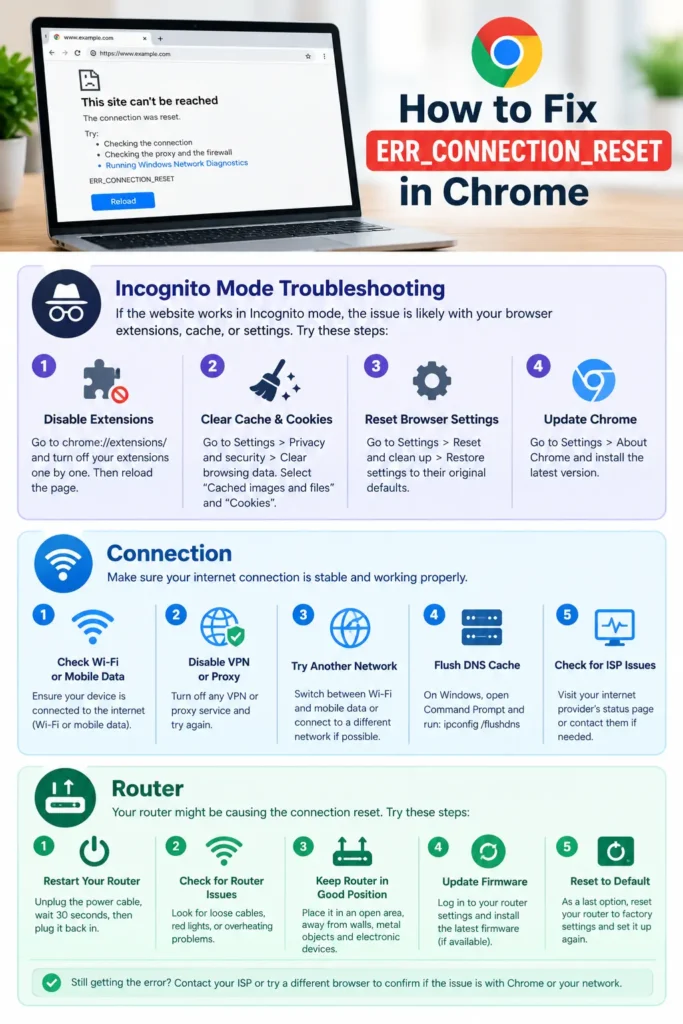
Chrome extensions can sometimes interfere with websites or network requests. Incognito mode provides a quick way to check whether the issue might be related to your normal browsing setup.
Follow these steps
- Open Chrome.
- Press Ctrl + Shift + N.
- Enter the website address in the new Incognito window.
- Check whether the page loads.
Extensions are generally disabled in Incognito mode unless you have explicitly allowed them to run there.
If the website works in Incognito mode, an extension or browser data may be responsible. However, this test does not identify the exact cause on its own.
If the website still fails, continue with the network troubleshooting steps below.
4. Clear Chrome's Cached Data
Chrome stores temporary website data to help pages load more efficiently. Occasionally, corrupted or outdated browser data can contribute to loading problems.
Clearing cached files is a reasonable troubleshooting step, especially if a website worked previously but no longer loads correctly.
How to clear the cache
- Open Chrome.
- Press Ctrl + Shift + Delete.
- Set the time range to All time if you want to clear the full cache.
- Select Cached images and files.
- Select Clear data.
- Restart Chrome and revisit the website.
You can initially leave browsing history and cookies unchecked.
Important: Clearing cookies can sign you out of websites and remove certain saved site preferences. You generally do not need to delete cookies just to test whether the cached files are causing the problem.
5. Disable Problematic Chrome Extensions
If the website works in Incognito mode but fails in your normal window, inspect your installed extensions.
Privacy tools, traffic filters, VPN extensions, and other add-ons may change how Chrome connects to a website.
How to check extensions
- Open Chrome.
- Enter chrome://extensions in the address bar.
- Review your installed extensions.
- Turn off extensions that you do not need or suspect may be interfering.
- Reload the affected website.
Disable extensions one at a time when possible. This helps you identify the specific extension responsible for the issue.
If disabling an extension resolves the error, check for an update or consult its developer’s instructions before deciding whether to remove it.
Avoid disabling security-related extensions permanently without understanding their purpose.
6. Turn Off an Unnecessary VPN or Check Proxy Settings
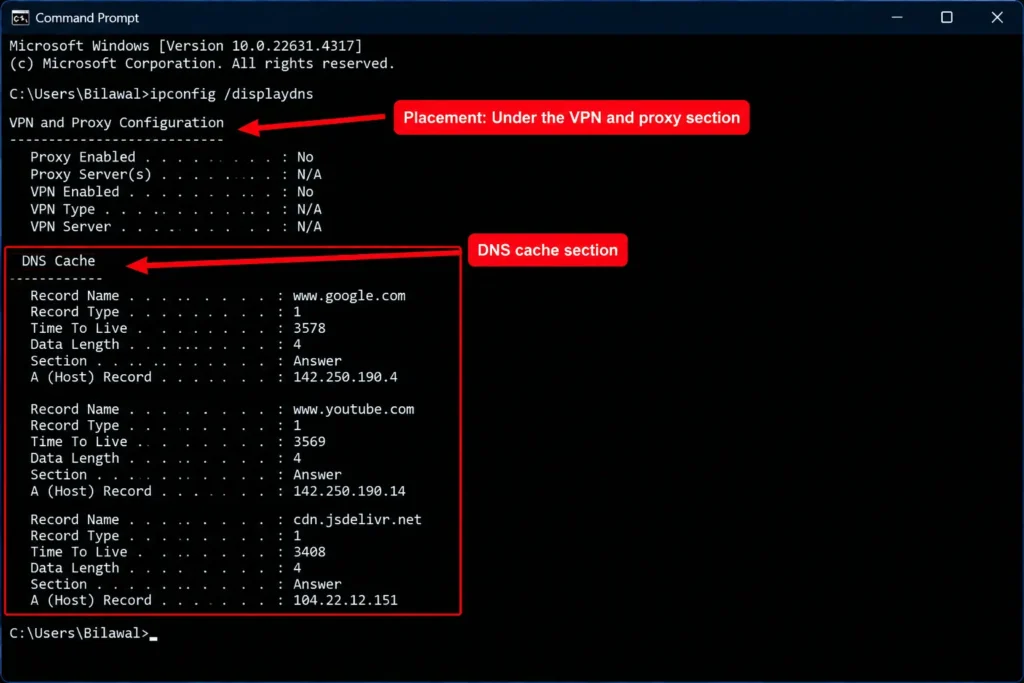
VPNs and proxy servers route your internet traffic through another connection. If that connection is unstable or incorrectly configured, Chrome may display ERR_CONNECTION_RESET.
If you use a VPN, disconnect it temporarily and test the website again, provided you do not need it for your organization’s security or network access.
Check Windows proxy settings
On Windows 11:
- Open Settings.
- Select Network & internet.
- Choose Proxy.
- Review the automatic and manual proxy settings.
- If a proxy was enabled intentionally, confirm that its configuration is correct.
Do not disable a proxy managed by your school, employer, or network administrator. If you are unsure why a proxy is enabled, ask the person who configured it.
After checking the settings, reopen Chrome and test the affected page.
7. Flush the DNS Cache
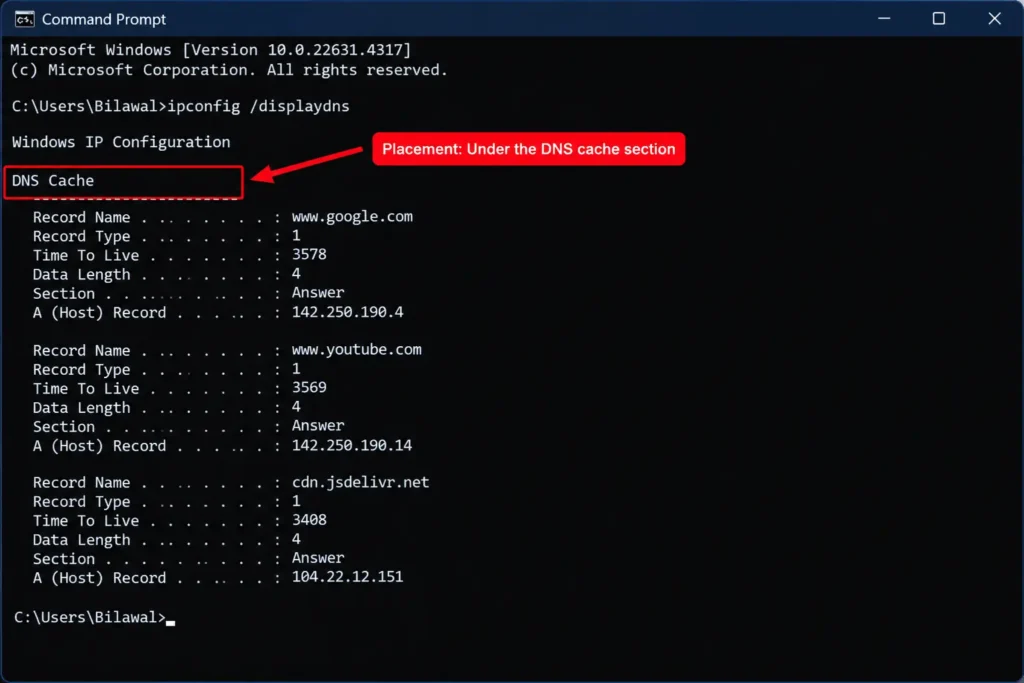
DNS translates website names into the addresses computers use to communicate. Problems with cached DNS information can sometimes prevent a website from loading correctly.
Windows provides a command that clears its local DNS resolver cache.
Steps to flush DNS
- Open the Start menu.
- Search for Command Prompt.
- Select Run as administrator.
- Enter the following command:
ipconfig /flushdns
- Press Enter.
- Wait for the confirmation message.
- Close Command Prompt and try the website again.
This command clears the local DNS cache. It does not delete personal files or reset your entire network configuration.
If the problem remains, consider checking your DNS configuration before moving to more advanced repairs.
8. Reset Winsock and TCP/IP Settings
Windows uses networking components to manage connections between applications and the internet. A damaged or incorrect network configuration can contribute to connection problems.
If the earlier solutions have not helped, you can try resetting Winsock and TCP/IP. These are more advanced steps, so use them only after simpler checks.
Step 1: Open an administrator Command Prompt
Search for Command Prompt in the Start menu and select Run as administrator.
Step 2: Reset Winsock
Enter:
netsh winsock reset
Press Enter.
Step 3: Reset TCP/IP
Enter:
netsh int ip reset
Press Enter.
Step 4: Restart your computer
Restart Windows to complete the process, then reconnect to your network if needed.
These commands reset networking components and settings. Depending on your configuration, you may need to reconfigure certain custom network settings afterward.
If you use a managed work or school computer, consult the network administrator before performing a reset.
9. Check Firewall and Security Software
Firewalls and security applications help protect your computer, but an incorrect rule or configuration may sometimes interfere with legitimate connections.
If ERR_CONNECTION_RESET appears only with particular websites or applications, review your security software for relevant alerts.
What to check
- Review firewall logs or recent security alerts.
- Confirm that Chrome is allowed to access the network.
- Check whether a recently installed security application coincides with the problem.
- Install available updates for your security software.
- Consult the software vendor’s instructions if you identify a potentially incorrect rule.
Avoid turning off Windows Firewall or your antivirus protection as a routine fix. Instead, correct the specific rule or configuration if you can identify it.
If the problem occurs only on an office or school network, the network’s security policies may be responsible.
10. Update Chrome and Check for Website Problems
An outdated browser or a temporary server-side issue may also affect website access.
Update Google Chrome
- Open Chrome.
- Select the three-dot menu.
- Choose Help, then About Google Chrome.
- Allow Chrome to check for available updates.
- Follow any prompts to complete the update.
- Relaunch the browser if requested.
If the website still does not load, try accessing another reliable website or checking the affected site’s official status page, if one is available.
A website may be experiencing a temporary outage, maintenance, or a network problem outside your control. In that situation, changing Windows settings may not solve the issue.
If only one website is affected and it fails in multiple browsers and networks, the website’s owner or support team may need to investigate.
Common Mistakes to Avoid
When troubleshooting Chrome connection errors, avoid these unnecessary or risky actions:
- Factory-resetting the router too early: This can erase your network configuration.
- Deleting all browser data immediately: Start with cached files before removing cookies or saved information.
- Changing DNS repeatedly: Make one controlled change at a time and record the original settings.
- Disabling firewall protection: Investigate specific alerts and rules instead of leaving security features disabled.
- Installing unknown repair utilities: Untrusted tools can introduce unwanted software.
- Assuming Chrome is always responsible: Router, network, DNS, and website problems can produce similar symptoms.
A systematic process makes it easier to identify the real cause and avoid introducing new problems.
Key Takeaways
- ERR_CONNECTION_RESET means a network connection was interrupted before the website finished loading.
- Check your internet connection and restart your router before changing advanced settings.
- Test Incognito mode and clear cached files to investigate browser-related causes.
- Review extensions, VPNs, and proxy settings when appropriate.
- Use ipconfig /flushdns to clear the Windows DNS cache.
- Reset Winsock and TCP/IP only if simpler fixes fail.
- Check security software and update Chrome.
- If one website alone fails, investigate whether its server or network is responsible.
Frequently Asked Questions
This error occurs when a connection is interrupted before a website finishes loading. Possible causes include unstable internet access, router problems, VPN or proxy settings, browser extensions, security software, or incorrect network configuration. Checking whether the error affects one website or multiple websites helps narrow down the likely cause.
Start by checking your internet connection and restarting your router. Then test the website in Chrome Incognito mode, clear cached files, and review extensions. If the problem continues, flush the DNS cache or reset Winsock and TCP/IP using Command Prompt, following the instructions carefully.
Clearing cached images and files may help if outdated or corrupted browser data contributes to the problem. However, it will not resolve every connection error. If the issue originates from your router, network configuration, firewall, or the website’s server, you may need to investigate those areas instead.
If other websites load normally, the affected website may have a server problem, a network routing issue, or a connection that is being blocked by a security or filtering rule. Try another browser and, if practical, another trusted network. If the problem continues, contact the website’s support team.
Not necessarily. This error is commonly associated with ordinary network or browser problems and is not proof of malware. If you notice other suspicious behavior, run a scan using Windows Security or another reputable security application. Avoid downloading unknown tools that promise to repair the error automatically.
Conclusion
Knowing how to fix ERR_CONNECTION_RESET in Chrome can help you restore website access without reinstalling your browser or making unnecessary changes to Windows.
Start by checking your internet connection, restarting your router, and testing Chrome in Incognito mode. If those steps do not work, clear the browser cache, review extensions and proxy settings, and move on to DNS or network repairs only when necessary.
If the error persists, note whether it affects one website or all websites, whether other devices can connect, and whether another browser works. These details can help narrow down the cause.