Netflix Error Code M7361-1253 Fix: Complete Guide
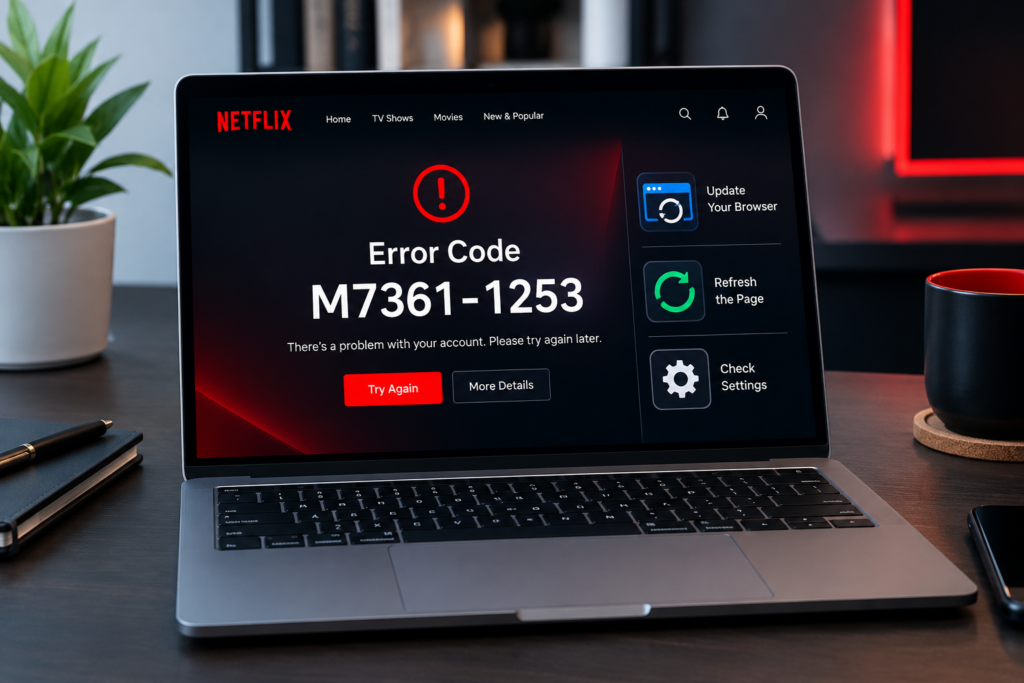
Seeing Netflix Error Code M7361-1253 when you try to watch a movie or TV show can be frustrating, especially when Netflix should normally start playing immediately. The good news is that this error is usually related to Google Chrome needing an update or stored data on your computer needing to be refreshed. Netflix’s official Help Center specifically identifies these as common causes of the M7361-1253 error. (Netflix Help Center)
You do not normally need complicated technical knowledge to resolve it. In most cases, updating Chrome and completely restarting your computer is enough.
This guide explains what the error means, why it happens, and the practical steps you can follow to get Netflix working again.
What Is Netflix Error Code M7361-1253?
Netflix Error Code M7361-1253 is a playback-related error that can appear when using Netflix on a computer, particularly when Google Chrome is involved.
According to Netflix, the error generally indicates one of two things:
- Google Chrome needs to be updated.
- Data stored on the device needs to be refreshed.
Netflix recommends updating Chrome first and then shutting down the computer completely before trying Netflix again. (Netflix Help Center)
The error does not necessarily mean your Netflix account is damaged or that your subscription has a problem. It is often something local to the browser or computer.
Why Does Netflix Error M7361-1253 Happen?
Understanding the possible cause helps you avoid unnecessary troubleshooting.
1. Chrome Is Outdated: Netflix relies on browser technologies that can change over time. If Chrome has an available update that has not yet been installed, Netflix may fail to play correctly.
Google recommends keeping Chrome updated because updates can include security fixes, compatibility improvements, and other browser changes. (Google Help)
2. Stored Browser Data Needs Refreshing: Browsers store information from websites to make future visits faster and preserve certain settings. Sometimes this stored information can interfere with a website’s normal operation.
Netflix specifically says that M7361-1253 can occur when data stored on the device needs to be refreshed. (Netflix Help Center)
3. The Computer Needs a Full Restart: Closing a browser window is not always the same as completely restarting the computer. Temporary browser or system processes can remain active.
Netflix recommends shutting down the computer and leaving it off for at least 10 seconds before turning it back on. (Netflix Help Center)
How to Fix Netflix Error Code M7361-1253
Try the following solutions in order. Start with the simplest method before changing other browser settings.
Solution 1: Update Google Chrome
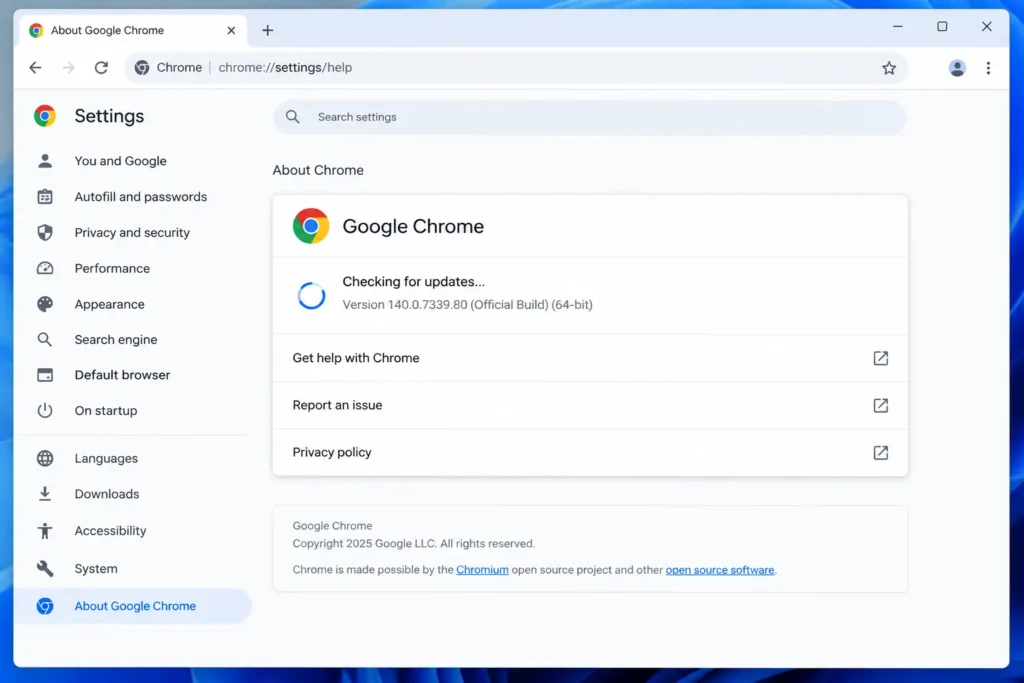
This should be your first step because Netflix specifically recommends updating Chrome for this error.
- Open Google Chrome on your computer.
- Select the three-dot menu in the upper-right corner.
- Go to Help.
- Select About Google Chrome.
- Chrome will automatically check for an available update.
- If an update is available, select Relaunch.
- Open Netflix again.
- Try playing the same title.
Google confirms that Chrome checks for updates from the About Chrome page and that selecting Relaunch applies an available update. (Google Help)
If Chrome already says it is up to date, move to the next solution.
Solution 2: Completely Shut Down Your Computer
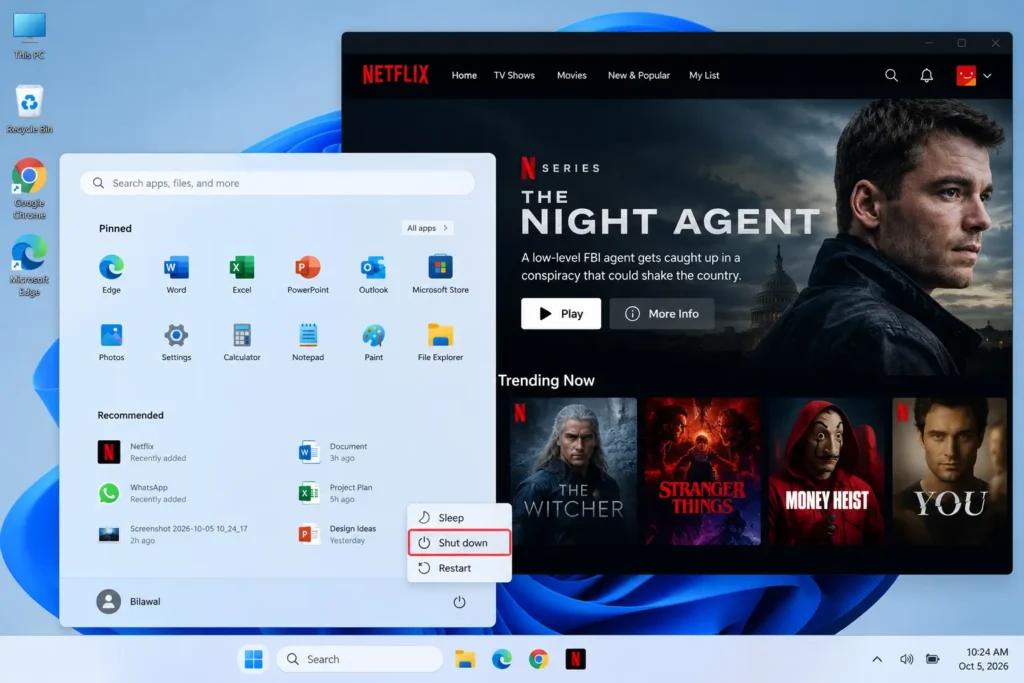
If updating Chrome does not fix the problem, Netflix recommends a complete computer shutdown.
For Windows:
- Open the Start menu.
- Select Power.
- Choose Shut down.
- Leave the computer completely powered off for at least 10 seconds.
- Turn it back on.
- Open Chrome and visit Netflix again.
For Mac:
- Select the Apple menu.
- Choose Shut Down.
- Leave the Mac off for at least 10 seconds.
- Turn it back on.
- Open Netflix and try playback again.
For Chromebook, use the system’s sign-out and shutdown options, then restart the device.
These are the shutdown steps recommended by Netflix for M7361-1253. (Netflix Help Center)
Solution 3: Clear Netflix-Related Browser Data
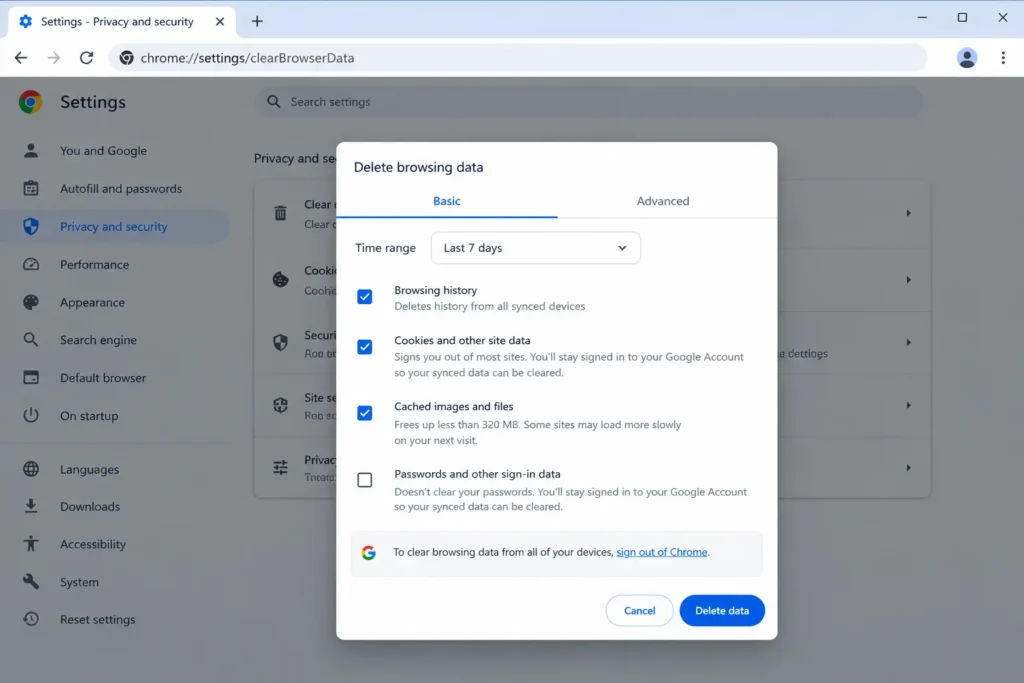
If the error continues, refreshing Chrome’s stored data can help.
Chrome allows you to delete cookies and other site data through its browsing-data settings. Google notes that deleting cookies can sign you out of websites and remove some saved preferences, so make sure you are comfortable signing in again before proceeding. (Google Help)
To clear browsing data:
- Open Chrome.
- Select the three-dot menu.
- Choose Delete browsing data.
- Select an appropriate time range.
- Select Cookies and other site data.
- You can also select cached files if appropriate.
- Select Delete data.
- Reopen Netflix.
- Sign in if necessary.
- Try playing a title.
If you want to minimize the effect on other websites, Chrome also provides options for deleting data associated with an individual site rather than clearing everything. (Google Help)
Solution 4: Restart Chrome Completely
If Chrome has been running for a long time, restarting it can eliminate temporary browser problems.
Close every Chrome window and then open Chrome again.
Google’s Chrome troubleshooting guidance recommends restarting the browser when connection or loading problems continue, including when Chrome is already up to date. (Google Help)
After restarting:
- Visit Netflix.
- Sign in.
- Select the movie or show you were trying to watch.
- Check whether playback starts normally.
Solution 5: Check Whether Other Websites Work
Although Netflix identifies Chrome updates and stored device data as the main considerations for M7361-1253, it is useful to determine whether the problem is limited to Netflix.
Open a few other websites in Chrome.
If other websites load normally but Netflix does not, the problem is more likely related to Netflix, Chrome, or stored site data.
If multiple websites are also failing to load, check your internet connection, router, or network settings. Google recommends checking the connection when Chrome problems affect multiple websites. (Google Help)
Solution 6: Try Netflix Again After Restarting Your Network
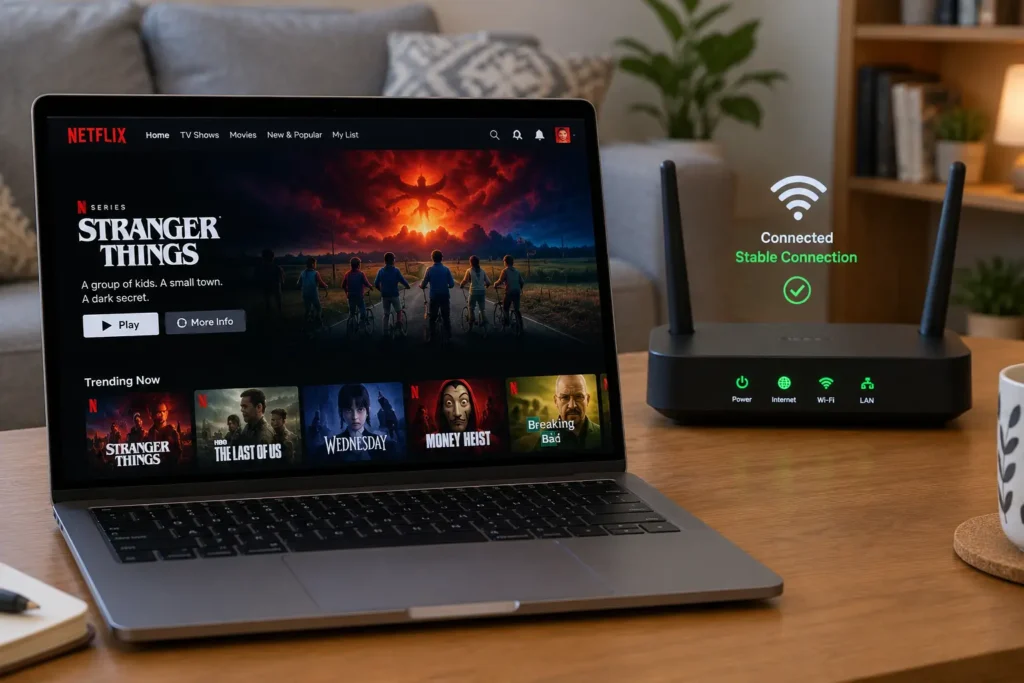
If other websites are slow or unavailable, restart your network equipment as a general connectivity check.
- Close Netflix.
- Restart your router or modem according to the manufacturer’s normal procedure.
- Wait until your connection is available again.
- Restart Chrome.
- Open Netflix.
- Test playback.
This is not the primary Netflix recommendation specifically for M7361-1253, so treat it as an additional troubleshooting step if you are experiencing broader connection problems.
Solution 7: Test Netflix in a Fresh Browser Session
Browser extensions or customized settings can sometimes interfere with websites.
Try opening Netflix in a clean Chrome session. If Netflix works there but not in your normal session, an extension or browser setting may be contributing to the problem.
You can also temporarily disable extensions one at a time to identify whether one is causing the issue.
Avoid disabling security software permanently. If you suspect security software is interfering, use its official troubleshooting instructions instead.
What If Netflix Error M7361-1253 Still Appears?
If the basic solutions do not work, check the following:
- Make sure Chrome is genuinely updated.
- Restart the entire computer rather than only closing Chrome.
- Refresh or clear relevant browser data.
- Check whether other websites work normally.
- Test Netflix again after restarting your network if other sites are also having problems.
- Check Netflix’s official Help Center for any updated troubleshooting instructions.
If none of these steps resolves the problem, contacting Netflix Support is the appropriate next step. Netflix’s own M7361-1253 guidance directs users to contact Netflix when the listed troubleshooting steps do not solve the issue. (Netflix Help Center)
Common Mistakes When Fixing M7361-1253
Mistake 1: Reinstalling Chrome Immediately: You generally do not need to reinstall Chrome as the first troubleshooting step. Check for updates before considering more drastic browser changes.
Mistake 2: Only Closing the Netflix Tab: Closing a Netflix tab does not provide the same troubleshooting effect as completely shutting down the computer. Netflix specifically recommends a full shutdown for this error. (Netflix Help Center)
Mistake 3: Clearing Everything Without Checking the Consequences: Deleting cookies and site data can sign you out of websites and remove stored preferences. Google explicitly warns about this behavior. (Google Help)
If possible, start with the least disruptive solution.
Mistake 4: Assuming Your Netflix Account Is Broken: M7361-1253 is not automatically an indication that your account or subscription has a problem. The official Netflix explanation points first toward Chrome and stored device data. (Netflix Help Center)
Quick Fix Checklist
Before moving to advanced troubleshooting, work through this checklist:
- Update Google Chrome.
- Relaunch Chrome after the update.
- Shut down your computer completely.
- Keep it off for at least 10 seconds.
- Turn it back on.
- Open Netflix again.
- Clear relevant Chrome data if necessary.
- Check whether other websites are working.
- Restart your network if broader connectivity problems exist.
- Contact Netflix Support if the error remains.
For most users, beginning with Chrome’s update and a complete computer restart is the most sensible approach.
Key Takeaways
Netflix Error Code M7361-1253 is generally associated with Google Chrome requiring an update or stored data on the device needing to be refreshed. (Netflix Help Center)
The most important fixes are:
- Update Google Chrome.
- Relaunch Chrome.
- Completely shut down your computer.
- Leave it off for at least 10 seconds.
- Restart the computer and test Netflix.
- Clear relevant browser data if necessary.
- Check your connection if other websites are also experiencing problems.
Avoid changing multiple settings at once. Working through the solutions in order makes it easier to identify what actually fixed the problem.
Frequently Asked Questions
Netflix says M7361-1253 usually means Google Chrome needs to be updated to play Netflix or that stored data on your device needs to be refreshed. Updating Chrome and completely restarting the computer are the first recommended troubleshooting steps. (Netflix Help Center)
Open Chrome, go to More → Help → About Google Chrome, and install any available update. Select Relaunch when prompted, then open Netflix again. If the problem continues, completely shut down your computer for at least 10 seconds and restart it. (Google Help)
Clearing stored browser data can help when outdated or problematic site data is interfering with Netflix. However, deleting cookies can sign you out of websites and remove saved preferences, so try updating Chrome and restarting your computer first. (Google Help)
If Netflix works on another device but shows M7361-1253 on your computer, the issue may be specific to the computer or browser. Check Chrome for updates, restart the computer completely, and refresh relevant browser data before trying Netflix again.
If updating Chrome, restarting the computer, and refreshing stored browser data do not resolve the error, check whether other websites work normally and review Netflix’s current troubleshooting guidance. If the problem remains, contact Netflix Support. (Netflix Help Center)
Conclusion
Netflix Error Code M7361-1253 can usually be approached as a browser or local-device troubleshooting problem rather than an indication that your Netflix account is unusable. Start by updating Chrome, then completely shut down and restart your computer as Netflix recommends. (Netflix Help Center)
If that does not work, refresh Chrome’s stored data and check whether your internet connection is working normally. These straightforward steps can eliminate the most likely causes without unnecessarily changing your computer’s configuration.
If the error continues after following the official troubleshooting steps, use Netflix Support for further assistance.