 admin
admin 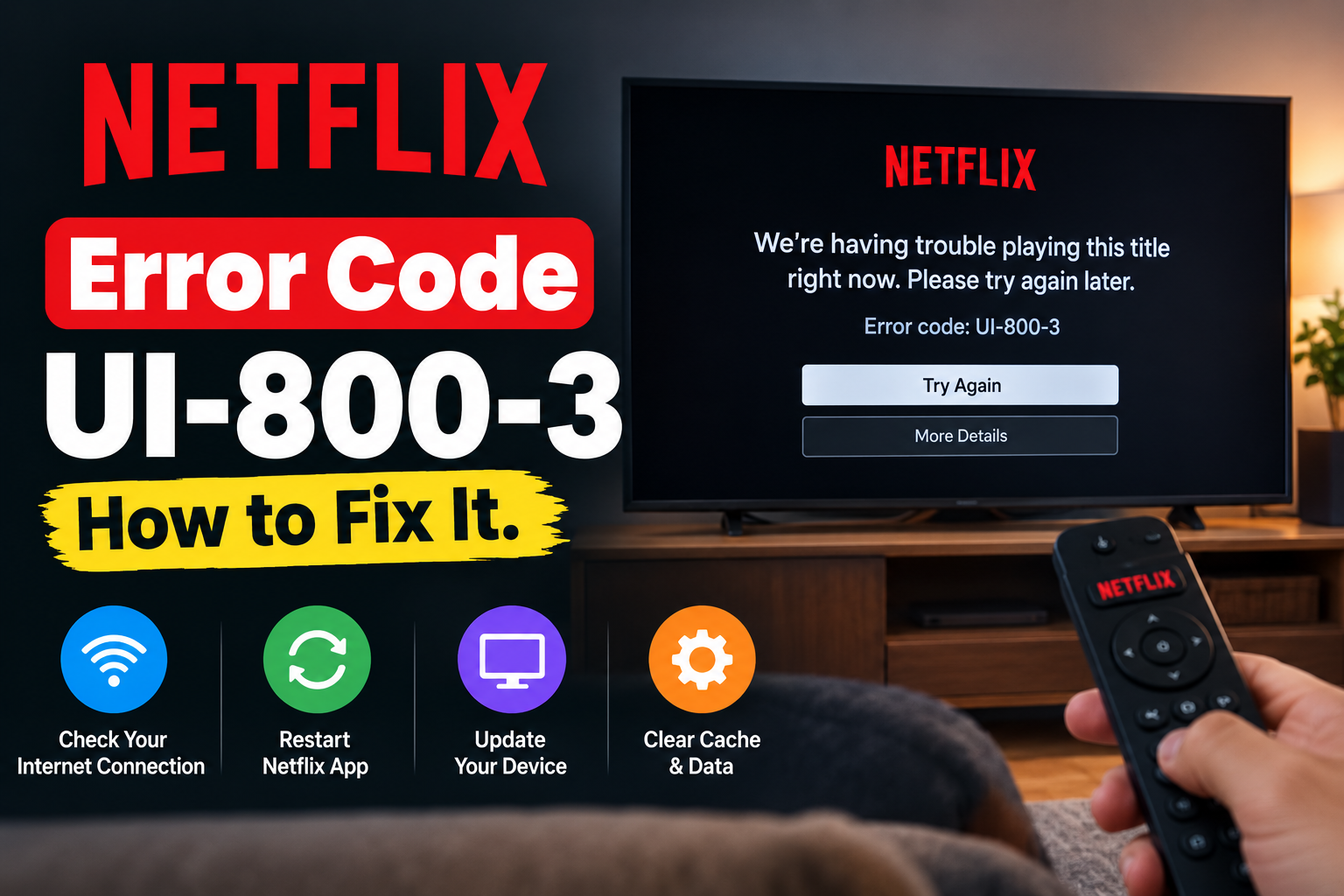
You sit down to watch something on Netflix, choose a movie or episode, and instead of seeing the familiar playback screen, you get Netflix Error Code UI-800-3. The message can be frustrating because it may appear even when your internet connection seems completely normal.
The good news is that UI-800-3 is usually related to information stored by the Netflix app on your device rather than a permanent problem with your account. Cached data, an outdated Netflix session, device configuration, or a temporary software issue can prevent the app from loading correctly.
In this guide, you’ll learn what Netflix Error Code UI-800-3 means, why it happens, and which troubleshooting methods are worth trying first. Rather than jumping straight into complicated settings, we’ll work through practical solutions that help identify the actual cause of the problem.
What Is Netflix Error Code UI-800-3?
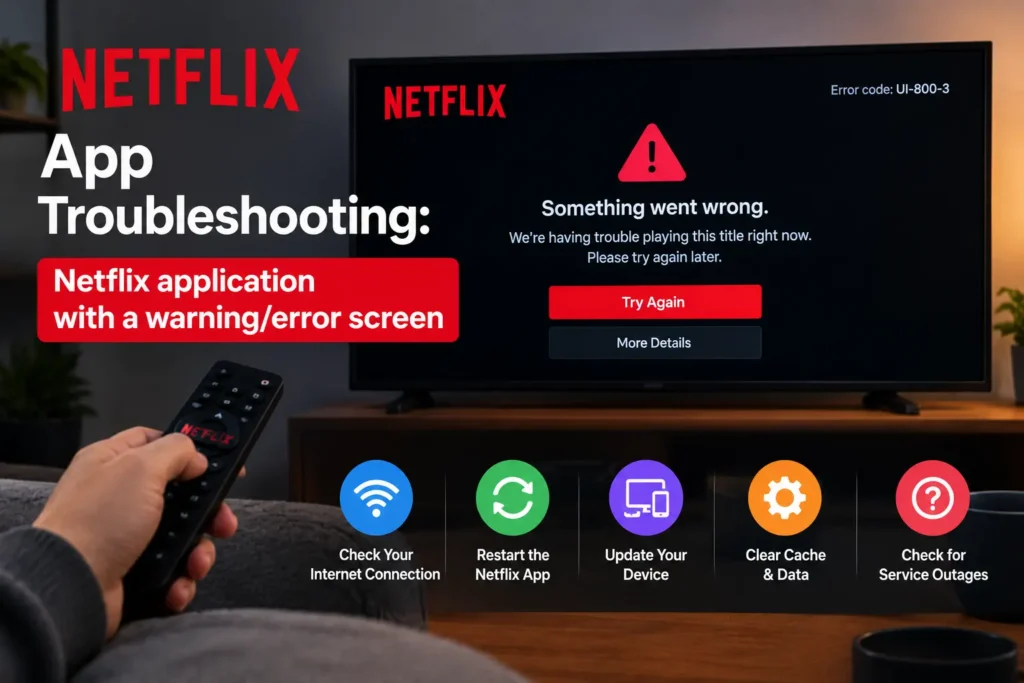
Netflix Error Code UI-800-3 is commonly associated with a problem involving the Netflix application or information stored on a supported streaming device.
The error can occur when Netflix is unable to start normally because the app’s stored information needs to be refreshed, the device has an outdated session, or the application is not communicating correctly with the device’s software.
You may encounter this error on devices such as:
- Smart TVs
- Streaming media players
- Blu-ray players
- Set-top boxes
- Game consoles
- Other Netflix-compatible devices
The exact troubleshooting process can vary depending on the device. That’s why a solution that works on one Smart TV may not look exactly the same on another.
What Causes Netflix Error Code UI-800-3?
Unlike a purely internet-related error, UI-800-3 can have several possible causes.
Some common possibilities include:
- Temporary Netflix app data problems
- An outdated Netflix session
- Cached information that needs to be refreshed
- Device software problems
- Netflix application issues
- Network communication problems
- A device that has been running for an extended period without a restart
- Temporary service-related problems
This is why repeatedly checking your internet speed may not always solve the problem.
Your device can have a perfectly good internet connection and still display UI-800-3 if the Netflix application itself is not functioning correctly.
How to Fix Netflix Error Code UI-800-3
The best way to troubleshoot this error is to begin with low-risk solutions and move toward more specific fixes.
After completing each major step, open Netflix again and see whether the application starts normally.
1. Restart Your Device Completely
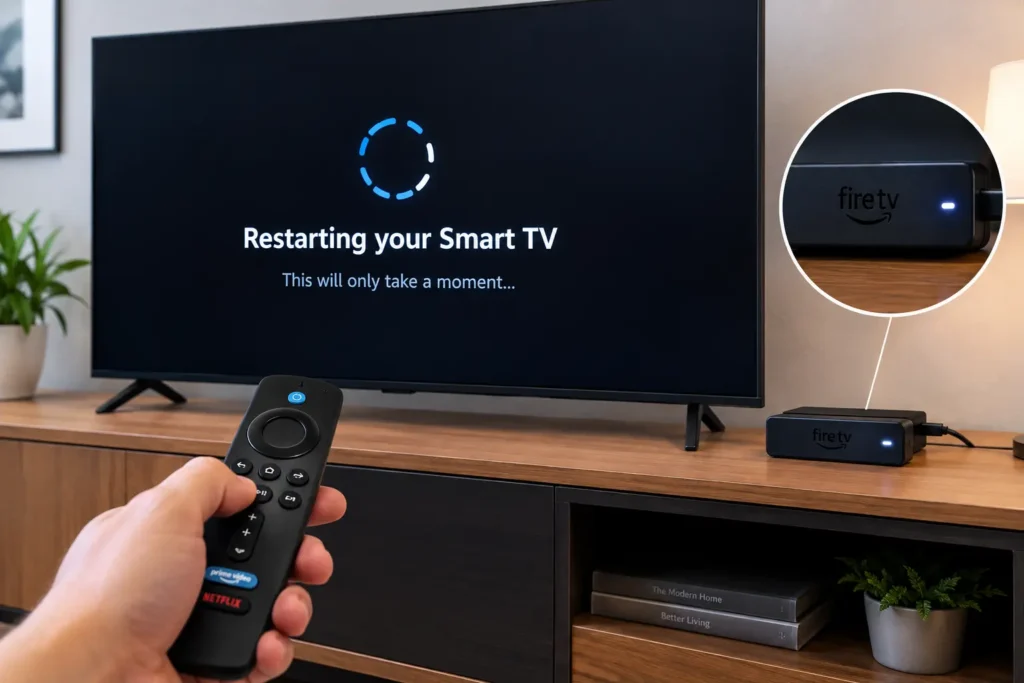
Start with the simplest solution: restart the device displaying the error.
Turn off your Smart TV, streaming player, Blu-ray player, or game console. Allow it to shut down completely before turning it back on.
Once the device starts again, open Netflix and test it.
Why can this help?
Streaming devices can accumulate temporary processes and cached information while they are running. A restart gives the device a fresh session and may clear a temporary software problem without requiring you to change any settings.
If the error disappears after the restart, you don’t need to perform more complicated troubleshooting.
2. Sign Out of Netflix and Sign Back In
If Netflix opens far enough to show its menu, try signing out of your account.
Look for the Netflix settings or help menu and choose the sign-out option. Then sign back into the account.
This forces Netflix to establish a new account session on the device.
It can be especially useful if the application has been running with an old or corrupted session.
Keep in mind that the exact location of the sign-out option depends on the device and Netflix interface.
3. Restart Your Home Network
Although UI-800-3 is often associated with application or stored-data problems, network communication can still play a role.
Restart your modem and router if the error continues.
A basic process is:
- Turn off your streaming device.
- Turn off the modem and router.
- Disconnect the networking equipment from power.
- Wait briefly.
- Reconnect the modem.
- Allow it to reconnect to your internet service.
- Reconnect the router if it is separate.
- Start your streaming device.
- Open Netflix again.
This gives your device and network a fresh connection.
4. Check Whether Other Apps Are Working
Before assuming Netflix is the only problem, test another application on the same device.
Open another streaming service or internet-connected application.
If other applications work normally, your internet connection is probably available and the issue may be specific to Netflix.
If several applications are failing, investigate the device’s internet connection or network before concentrating on Netflix.
This small test can save considerable time because it tells you whether you are dealing with a Netflix-specific problem or a broader device/network problem.
5. Refresh Netflix App Data
One of the most important troubleshooting approaches for UI-800-3 is refreshing information stored by the Netflix application.
Depending on your device, this may happen through a sign-out option, app reset option, or device-specific application settings.
Do not assume every Smart TV provides the same controls. Some televisions allow you to clear app data directly, while others provide only options to reinstall or reset the application.
If your device has an option specifically intended to reset or refresh Netflix, follow the manufacturer’s instructions.
The goal is to remove outdated application information and allow Netflix to establish a clean session.
6. Restart Netflix After a Device Power Cycle
Some devices do not fully shut down when you press the normal power button. They may enter a standby mode instead.
If the error keeps returning, perform a complete power cycle according to your device manufacturer’s instructions.
After the device starts again, wait for the operating system to load completely before launching Netflix.
Then test the application.
This is particularly useful when the device has been left in standby for long periods.
7. Update Your Device Software
Your Smart TV or streaming device relies on system software to run applications.
If the device is significantly behind on available updates, application compatibility problems can occur.
Open the system settings and check for software or firmware updates.
If an update is available, install it using the manufacturer’s recommended process.
After updating:
- Restart the device.
- Open Netflix.
- Sign in if necessary.
- Try playing a title.
Keep in mind that menus differ between manufacturers, so use the instructions designed specifically for your device.
8. Check for a Netflix App Update
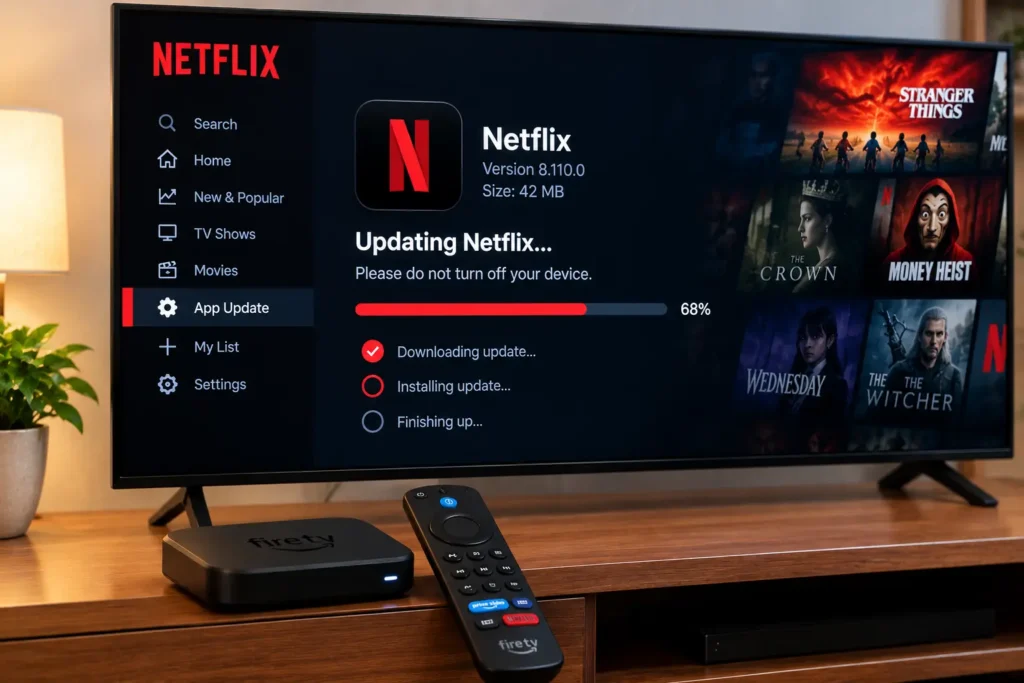
The Netflix application itself may also need to be updated.
On devices that provide an app store or application-management section, check whether Netflix has an available update.
If an update exists, install it and then restart the application.
If Netflix is already updated, continue with the other troubleshooting methods instead of repeatedly reinstalling the same version.
9. Reinstall Netflix When Your Device Allows It
If Netflix continues displaying UI-800-3 and your device supports removing and reinstalling applications, reinstalling Netflix can provide a clean installation.
First, remove the Netflix application using the device’s normal application-management settings.
Then reinstall Netflix from the device’s official application store or supported application source.
After installation, open Netflix and sign into your account.
This process can replace damaged or outdated application files and give the app a fresh starting point.
However, not every Smart TV allows users to completely uninstall Netflix. Some manufacturers treat Netflix as a built-in application. In that situation, use the device’s available reset, sign-out, or app-management options instead.
10. Check Your Internet Connection
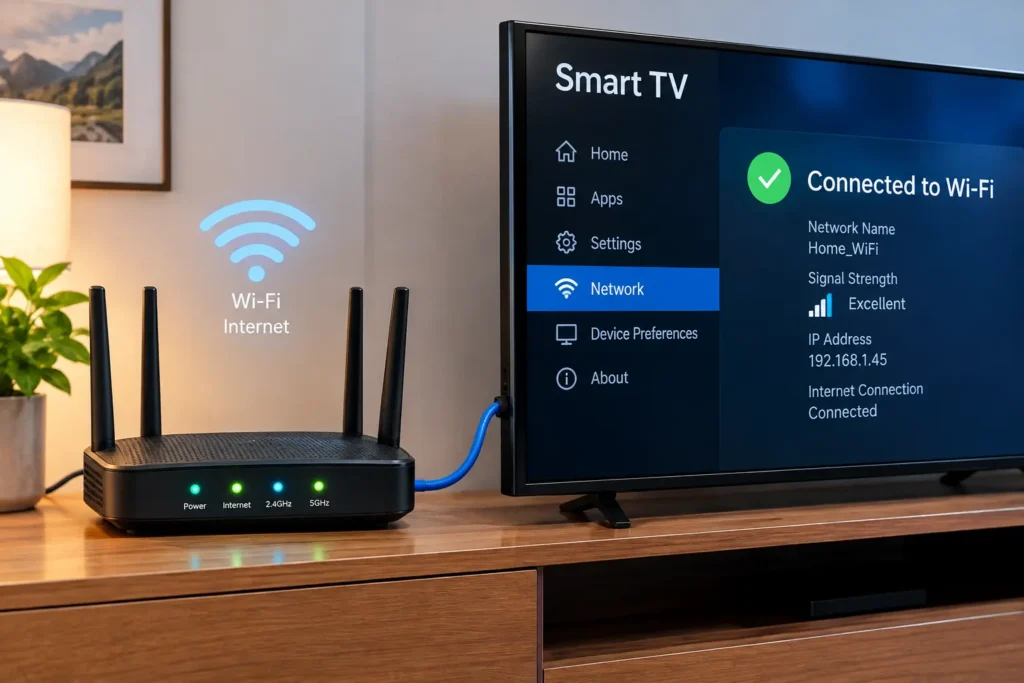
Although UI-800-3 is not simply an internet-speed error, your device still needs a reliable connection to communicate with Netflix.
Check whether your device reports an active internet connection.
You can also test another application.
If the device cannot access the internet at all, fix the network connection before continuing with Netflix-specific troubleshooting.
If possible, test the connection through another network or temporarily use an Ethernet connection on a supported device.
This can help determine whether your home network is contributing to the problem.
11. Try Netflix on Another Device
Testing another device is an excellent way to narrow down the source of the problem.
For example, if Netflix displays UI-800-3 on your Smart TV, try opening Netflix on a phone or computer using the same internet connection.
If Netflix works normally elsewhere, the issue may be isolated to the television or streaming device.
If Netflix fails across multiple devices, investigate your network or possible Netflix service problems.
This test is more useful than simply guessing which component is responsible.
Netflix Error UI-800-3 on Smart TVs
Smart TV troubleshooting can vary considerably between manufacturers.
If your television displays UI-800-3, start with the following sequence:
- Restart the TV.
- Open another streaming application.
- Confirm that the TV has internet access.
- Sign out of Netflix if the option is available.
- Restart your router.
- Check for TV software updates.
- Check for a Netflix app update.
- Refresh, reset, or reinstall Netflix if your TV provides that option.
Avoid changing advanced television or router settings without a specific reason.
If other apps work but Netflix continues showing the same error, concentrate your troubleshooting on Netflix and the TV’s application environment.
Netflix UI-800-3 on Streaming Devices
External streaming devices can also encounter application-data problems.
If you use a dedicated streaming player, restart both the player and router.
Then check whether the Netflix application needs an update.
If the device provides options for clearing application data, resetting the app, or reinstalling it, use the appropriate option.
Also check whether the streaming device itself has a pending system update.
Netflix UI-800-3 on Gaming Consoles
If Netflix is installed on a gaming console, start by checking whether other online services work correctly.
A console with normal internet access but a Netflix-specific error may need an application refresh or restart.
Close Netflix completely, restart the console, and launch Netflix again.
If the error persists, check for available system and application updates.
For network problems affecting multiple online services, troubleshoot the console’s network connection instead.
What If None of the Solutions Work?
If you have restarted the device, refreshed Netflix, checked the network, installed updates, and tested another device but UI-800-3 continues appearing, avoid repeatedly performing the same steps.
Instead, identify what the evidence tells you.
If Netflix works on other devices
The problem is likely specific to the affected TV, streaming player, or console.
Focus on device software, Netflix application data, and manufacturer-specific troubleshooting.
If Netflix fails on several devices
The issue may involve your network or a temporary service problem.
Check your internet connection and Netflix’s official service information.
If only one network causes the problem
The network configuration may be contributing to the issue.
For home networks, your internet provider or router manufacturer can help investigate further.
Common Mistakes When Fixing UI-800-3
Reinstalling Netflix Immediately
Reinstalling can help, but it should not always be the first step.
A restart or sign-out may solve a temporary problem without removing the application.
Assuming a Fast Internet Connection Rules Out Network Problems
Internet speed and connection reliability are not exactly the same thing.
A device can have adequate speed while still experiencing intermittent connectivity.
Changing Router Settings Without a Reason
Advanced DNS, IP, or router configuration changes can introduce additional problems if you don’t know why you’re changing them.
Start with basic troubleshooting.
Ignoring Device Updates
If Netflix and the device software are significantly outdated, application problems may continue even after restarting.
Keep both the streaming application and device software current when updates are available.
Quick Fix Checklist
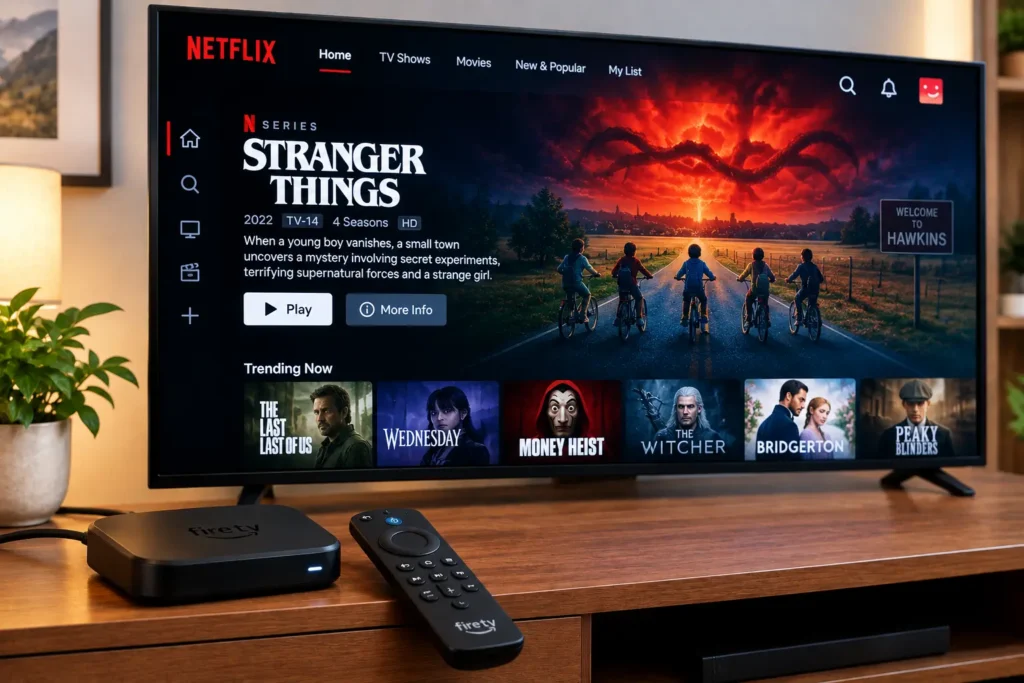
Before contacting support, work through these steps:
- Restart the device.
- Sign out of Netflix and sign back in.
- Restart the modem and router.
- Test another application.
- Check the device’s internet connection.
- Refresh or reset Netflix if the device supports it.
- Check for Netflix app updates.
- Check for device software updates.
- Reinstall Netflix if supported.
- Test Netflix on another device.
- Check Netflix’s official service information.
- Contact the device manufacturer or internet provider if necessary.
Key Takeaways
Netflix Error Code UI-800-3 usually points toward a problem with Netflix application information, the device environment, or communication between the device and Netflix.
The most useful troubleshooting strategy is to work from simple solutions toward more targeted ones.
Start by restarting the device and Netflix. If that does not help, sign out, refresh the application, restart your network, check for updates, and test Netflix on another device.
If the problem continues, the comparison between different devices and networks can help reveal whether the issue belongs to Netflix, your streaming device, or your network.
Frequently Asked Questions
Netflix Error Code UI-800-3 generally indicates that Netflix is having trouble using information stored on the device or establishing a normal application session. It can be associated with outdated or corrupted app data, device software issues, network communication problems, or other temporary application conditions.
Start by restarting your streaming device and Netflix application. If the error remains, sign out and sign back in, restart your router, check for application and device updates, and refresh or reinstall Netflix if your device supports those options. Testing another device can also identify where the problem originates.
Reinstalling Netflix can help when the application’s stored information or installation is causing the problem. However, it is not always necessary. Try restarting the device, signing out, and refreshing the application first. If those options do not work and your device supports reinstalling Netflix, a fresh installation may resolve the issue.
When Netflix works on your phone but displays UI-800-3 on your Smart TV, the issue may be isolated to the TV’s Netflix application, stored data, or device software. Restart the TV, check its internet connection, update its software, and refresh or reinstall Netflix if the television supports those options.
Yes, network communication can contribute to Netflix application problems, even though UI-800-3 is not exclusively an internet-speed error. If other apps also fail on the device, troubleshoot the network. If everything else works normally, concentrate on Netflix and the affected device.
Conclusion
Netflix Error Code UI-800-3 can look like a complicated Netflix failure, but the cause is often much simpler: the application or streaming device needs a fresh start, updated software, or refreshed stored information.
Begin with a complete device restart, then sign out and back into Netflix. If the problem remains, restart your network, check for updates, refresh or reinstall the Netflix application when possible, and compare the service on another device.
Most importantly, don’t change advanced settings randomly. Use each troubleshooting step to determine whether the problem is coming from Netflix, the streaming device, or the network. That approach gives you a clearer path toward a lasting solution.