
How to Copy and Paste on a MacBook: A Complete Beginner-to-Advanced Guide
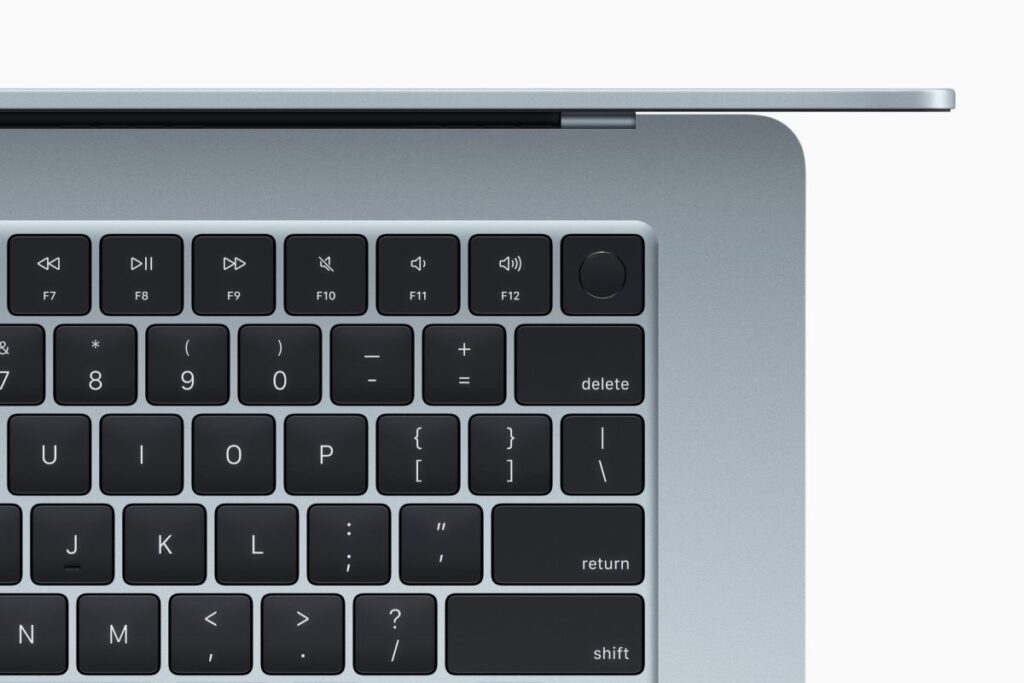
Copying and pasting are two of the most important skills every computer user should know. Whether you are working on documents, browsing the internet, editing images, or managing files, understanding how to copy and paste on a MacBook can save time and improve productivity.
Many new Mac users often switch from Windows and feel confused because the keyboard shortcuts and trackpad gestures are slightly different. The good news is that Apple makes the process very simple once you learn the basics.
In this complete guide, you will learn everything about copying and pasting on a MacBook, including keyboard shortcuts, trackpad methods, right-click options, troubleshooting tips, and advanced techniques.
What Does Copy and Paste Mean?
Before learning the steps, it is important to understand the meaning of copy and paste.
- Copy means creating a duplicate of selected text, files, images, or content.
- Paste means placing the copied item into a new location.
For example:
- Copying text from a website into a document
- Copying photos into another folder
- Copying files to an external drive
The original content remains unchanged when you use the copy function.
Basic Keyboard Shortcuts for Copy and Paste on MacBook
MacBooks use the Command (⌘) key instead of the Control (Ctrl) key used on Windows computers.
Here are the most important shortcuts:
Action | Shortcut |
Copy | Command (⌘) + C |
Paste | Command (⌘) + V |
Cut | Command (⌘) + X |
Select All | Command (⌘) + A |
These shortcuts work in almost every app on macOS.
How to Copy and Paste Text on a MacBook
Step 1: Select the Text
Use your trackpad or mouse to highlight the text you want to copy.
- Click and drag across the text
- The selected text will become highlighted
Step 2: Copy the Text
After selecting the text:
Press: Command (⌘) + C
The text is now copied to your clipboard.
Step 3: Paste the Text
Move your cursor where you want the text to appear.
Press: Command (⌘) + V
The copied text will instantly appear.
How to Copy and Paste Files and Folders on MacBook
Copying files is very similar to copying text.
Method 1: Keyboard Shortcut
Copy a File
- Click the file once
- Press:
Command (⌘) + C
Paste the File
- Open the destination folder
- Press:
Command (⌘) + V
The file will be duplicated in the new location.
How to Move Files Instead of Copying
If you want to move a file instead of creating a duplicate:
Step 1: Copy the File
Command (⌘) + C
Step 2: Move the File
At the destination folder press:
Option + Command (⌘) + V
This cuts and moves the file to the new location.
How to Copy and Paste Using Right-Click
You can also use the right-click menu.
For Text
- Highlight the text
- Right-click
- Select Copy
- Right-click again where needed
- Select Paste
For Files
- Right-click the file
- Choose Copy
- Go to another folder
- Right-click empty space
- Choose Paste Item
How to Right-Click on a MacBook
Many beginners struggle with right-clicking on a MacBook.
Here are the easiest methods:
Method 1: Two-Finger Tap
Tap the trackpad with two fingers.
Method 2: Control Click
Hold:
Control + Click
This opens the right-click menu.
How to Copy and Paste on MacBook Without a Mouse
MacBooks are designed for trackpad efficiency.
Using Keyboard Only
- Select Text: Shift + Arrow Keys
- Copy: Command + C
- Paste: Command + V
How to Copy and Paste Between Apple Devices
Apple’s ecosystem allows clipboard sharing between devices.
This feature is called Universal Clipboard.
You can:
- Copy on iPhone
- Paste on MacBook
- Copy on iPad
- Paste on Mac
Requirements:
- Same Apple ID
- Bluetooth enabled
- Wi-Fi enabled
- Handoff activated
How to Enable Universal Clipboard
On MacBook
- Go to: System Settings → General → AirDrop & Handoff
- Enable: Handoff
On iPhone or iPad
- Go to: Settings → General → AirPlay & Handoff
- Enable: Handoff
How to Paste Without Formatting on MacBook
Sometimes copied text keeps unwanted fonts, colors, or sizes.
To paste plain text only:
Use: Option + Shift + Command + V
This removes formatting in supported apps.
Clipboard on MacBook Explained
The clipboard temporarily stores copied items.
MacBooks normally store:
- One copied item at a time
When you copy something new, the old copied content disappears.
Best Clipboard Manager Apps for MacBook
If you want clipboard history, these apps are popular:
- Paste
- CopyClip
- Alfred
- Raycast
These tools allow multiple clipboard entries and advanced productivity features.
Common Copy and Paste Problems on MacBook
Sometimes copy and paste may stop working.
Here are common issues and solutions.
Problem 1: Keyboard Shortcuts Not Working
Restart the application or restart the MacBook.
You can also check:
- Keyboard settings
- App permissions
Problem 2: Clipboard Freezing
Open Terminal and type:
killall pboard
This resets the clipboard system.
Problem 3: Right Click Not Working
Enable secondary click.
Go to: System Settings → Trackpad → Secondary Click
Turn it on.
How to Copy and Paste Screenshots on MacBook
MacBooks make screenshots very easy.
Capture Entire Screen
Shift + Command + 3
Capture Selected Area
Shift + Command + 4
The screenshot can then be copied and pasted into apps.
Drag and Drop vs Copy and Paste
MacBooks also support drag and drop.
Drag and Drop
- Click and hold a file
- Drag it into another folder
Copy and Paste
- Better for precise duplication
- Safer when moving important files
Both methods are useful depending on the task.
Productivity Tips for MacBook Users
Learn Essential Shortcuts
Using shortcuts can dramatically improve workflow speed.
Useful shortcuts include:
Action | Shortcut |
Undo | Command + Z |
Redo | Shift + Command + Z |
Save | Command + S |
Find | Command + F |
Use Split Screen While Copying
MacBooks support multitasking.
You can:
- Open two apps side-by-side
- Copy content more efficiently
Practice Trackpad Gestures
Apple trackpads are highly advanced.
Learning gestures improves productivity:
- Two-finger scroll
- Pinch zoom
- Three-finger swipe
Copy and Paste in Different Applications
The process is nearly identical across apps:
- Microsoft Word
- Google Docs
- Safari
- Adobe Photoshop
- Pages
The same shortcuts work almost everywhere.
MacBook Copy and Paste vs Windows
Here is a quick comparison:
Function | Windows | MacBook |
Copy | Ctrl + C | Command + C |
Paste | Ctrl + V | Command + V |
Cut | Ctrl + X | Command + X |
The only major difference is the use of the Command key.
Why Learning MacBook Shortcuts Is Important
Learning shortcuts helps:
- Save time
- Improve productivity
- Reduce repetitive clicking
- Work professionally
- Increase efficiency
Professional users rely heavily on shortcuts daily.
Final Thoughts
Learning how to copy and paste on a MacBook is one of the first and most essential skills every Mac user should master. Although the shortcuts differ slightly from Windows, Apple’s system is intuitive, fast, and user-friendly once you understand the basics.
Whether you are copying text, moving files, sharing content between Apple devices, or using advanced clipboard tools, mastering these functions can significantly improve your workflow and productivity.
By practicing keyboard shortcuts, trackpad gestures, and clipboard techniques regularly, you can become much faster and more efficient while using your MacBook for work, study, or personal tasks.