admin
admin 
The Xbox Series X is one of the most powerful gaming consoles ever built, designed to deliver high frame rates, stunning graphics, and near-instant load times. However, despite its powerful hardware, many gamers still experience input lag, delayed responses, or unstable online gameplay.
Low latency gaming means reducing the delay between:
- Your controller input
- Processing inside the console
- Display output on your screen
- Communication with game servers
When properly optimized, your Xbox Series X can deliver ultra-responsive gameplay that feels instant and smooth. This guide will walk you through console settings, display tweaks, network optimization, and hardware upgrades to achieve the lowest possible latency.
Table of Contents
Toggle1. Understand What Causes Latency
Before optimization, you need to understand what creates lag.
Main Sources of Latency:
- Display Input Lag – Delay from TV/monitor processing
- Network Latency (Ping) – Internet connection delay
- Controller Input Lag – Wireless delays
- Frame Rate & Performance – Lower FPS = higher delay
Among these, your display and internet connection are usually the biggest factors affecting latency.
2. Enable Game Mode on Your TV (Most Important Step)
Why it matters:
Modern TVs apply heavy image processing (motion smoothing, HDR effects, upscaling), which adds 60–120ms delay.
What to do:
- Go to your TV settings
- Find Picture Mode
- Select Game Mode / Gaming Mode
Result:
- Reduces lag drastically (down to 10–20ms)
- Faster on-screen response
👉 This is the single biggest improvement you can make.
3. Set Xbox to 120Hz Refresh Rate
Why it matters:
Higher refresh rate = lower latency.
- 60Hz → slower response
- 120Hz → smoother + faster
Steps:
- Settings → General
- TV & Display Options
- Set Refresh Rate = 120Hz
If your TV supports it, this can cut input lag nearly in half.
4. Adjust Resolution for Performance
Many gamers think 4K is always best—but for competitive gaming:
👉 Lower resolution = faster response
Recommended:
- Competitive games → 1080p or 1440p
- Casual gaming → 4K
Reducing resolution can improve responsiveness on some displays.
5. Enable Variable Refresh Rate (VRR)
What VRR does:
- Matches your display refresh rate with game FPS
- Eliminates screen tearing
- Reduces perceived lag
Steps:
- Settings → TV & Display Options
- Enable Variable Refresh Rate (VRR)
This creates smoother gameplay and reduces stuttering.
6. Turn On Auto Low Latency Mode (ALLM)
What it does:
- Automatically switches your TV into Game Mode
Enable:
- Settings → Video Modes
- Turn ON Auto Low Latency Mode
⚠️ Tip:
Some TVs perform better with manual Game Mode instead of ALLM. If you notice lag, test both options.
7. Use Performance Mode in Games
Many modern games offer:
- Quality Mode (better graphics)
- Performance Mode (higher FPS)
Choose:
👉 Always select Performance Mode
Why?
- Higher FPS = lower input delay
- 120 FPS feels significantly faster than 60 FPS
8. Switch to Wired Internet (Ethernet)
Why Wi-Fi is bad for latency:
- Adds 5–50ms delay
- Causes packet loss
- Unstable connection
Solution:
👉 Use Ethernet cable
Benefits:
- Lower ping
- Stable connection
- No lag spikes
Ethernet is considered the best method for online gaming.
9. Optimize Your Internet Connection
Even with Ethernet, you can improve further.
Tips:
- Restart router regularly
- Place router close to console
- Use gaming router with QoS
- Avoid downloads while gaming
Bonus:
Enable QoS (Quality of Service) in router:
- Prioritizes gaming traffic
- Reduces lag during congestion
10. Use a Gaming Monitor Instead of TV
Why monitors are better:
- 1–10ms input lag
- No heavy image processing
- Faster pixel response
TVs vs Monitors:
Device | Input Lag |
TV (normal) | 60–120ms |
TV (Game Mode) | 10–20ms |
Gaming Monitor | 1–10ms |
👉 If you’re serious about competitive gaming, use a gaming monitor.
11. Use HDMI 2.1 Cable
Why it matters:
- Required for 4K @ 120Hz
- Enables VRR & ALLM
Make sure:
- You’re using HDMI 2.1 cable
- Connected to correct HDMI port
12. Reduce Background Activity
Why it matters:
Background apps consume system resources.
Steps:
- Close unused apps
- Pause downloads
- Restart console regularly
This helps maintain consistent performance.
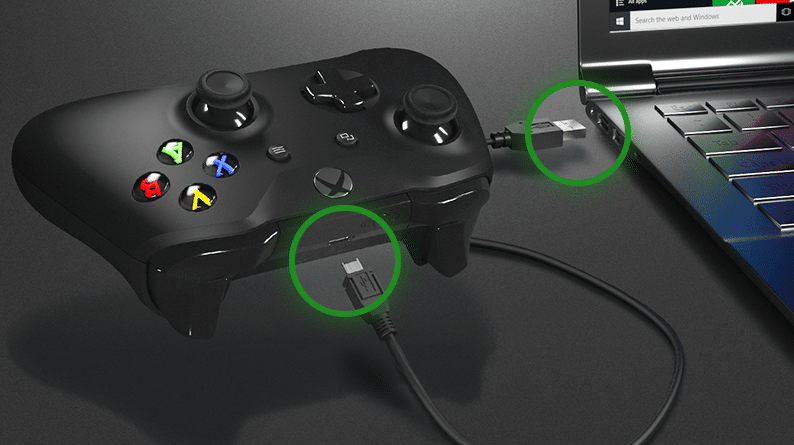
13. Update Controller Firmware
Why:
Outdated firmware can cause input delay.
Steps:
- Settings → Devices & Connections
- Accessories → Update controller
Bonus Tip:
👉 Use wired controller for lowest latency
14. Disable Unnecessary Visual Features
Some features increase latency:
Consider disabling:
- Motion smoothing
- Noise reduction
- Dynamic contrast
- Excessive HDR modes
These add extra processing delay.
15. Manage Storage & System Performance
Tips:
- Keep at least 10–15% storage free
- Use internal SSD for games
- Restart console regularly
These improve overall system responsiveness.
16. Choose the Right Gaming Display
A good gaming display should support:
- 120Hz or higher
- HDMI 2.1
- VRR
- Low input lag
Modern gaming TVs now offer under 10ms latency and advanced gaming features.
17. Optimize Audio Latency
Audio lag can ruin gameplay timing.
Solutions:
- Use wired headset
- Avoid Bluetooth audio
- Use Xbox-compatible headsets
18. Test Your Latency
After optimization:
Check:
- Ping in multiplayer games
- Input response
- Frame smoothness
You should notice:
- Faster aiming
- Instant controls
- No stutter
19. Common Mistakes to Avoid
❌ Playing on Wi-Fi
❌ Using 4K 60Hz for competitive games
❌ Ignoring Game Mode
❌ Running background downloads
❌ Using outdated cables
20. Best Setup for Lowest Latency (Quick Checklist)
✔ Game Mode ON
✔ 120Hz enabled
✔ VRR enabled
✔ Ethernet connection
✔ Performance mode in games
✔ HDMI 2.1 cable
✔ Gaming monitor or low-lag TV
Conclusion
Optimizing your Xbox Series X for low latency gaming is not about one single setting—it’s about combining multiple tweaks across your display, console, and network.
The most impactful changes are:
- Enabling Game Mode
- Using Ethernet
- Running games at 120Hz
- Choosing Performance Mode
When everything is properly configured, your gameplay becomes:
- Faster
- Smoother
- More responsive
For competitive players, this can be the difference between winning and losing. Even for casual gamers, it creates a far more immersive and enjoyable experience.