
MacBook Keyboard Shortcuts Every Beginner Should Know

If you recently started using an Apple Inc. MacBook: Learning keyboard shortcuts can save you a huge amount of time. Instead of clicking through menus again and again, shortcuts help you work faster, multitask better, and improve productivity. Whether you are a student, office worker, freelancer, or content creator, understanding MacBook keyboard shortcuts is one of the best ways to master macOS quickly.
In this complete beginner-friendly guide, you will learn the most useful MacBook keyboard shortcuts, how they work, and why they are important for everyday use.
Why MacBook Keyboard Shortcuts Are Important
Keyboard shortcuts are combinations of keys that perform specific tasks instantly. On a MacBook, shortcuts are designed to make navigation smooth and efficient.
Benefits of using MacBook shortcuts include:
- Faster workflow
- Better productivity
- Easy multitasking
- Less dependence on a mouse or trackpad
- Improved professional efficiency
- Quicker editing and browsing
Once you start using shortcuts daily, your MacBook experience becomes much easier and more professional.
Understanding MacBook Modifier Keys
Before learning shortcuts, beginners should understand the main modifier keys used in macOS.
Command (⌘)
The Command key is the most important shortcut key on a MacBook. Most shortcuts use this key.
Example:
- Command + C = Copy
- Command + V = Paste
Option (⌥)
The Option key provides additional functions and special actions.
Control (⌃)
The Control key is used for advanced functions and right-click alternatives.
Shift (⇧)
The Shift key is mainly used for capital letters and extra shortcut actions.
Function (Fn)
The Fn key controls brightness, volume, emojis, and function keys.
Essential MacBook Keyboard Shortcuts for Beginners
Here are the most useful MacBook keyboard shortcuts every beginner should know.
Basic Editing Shortcuts
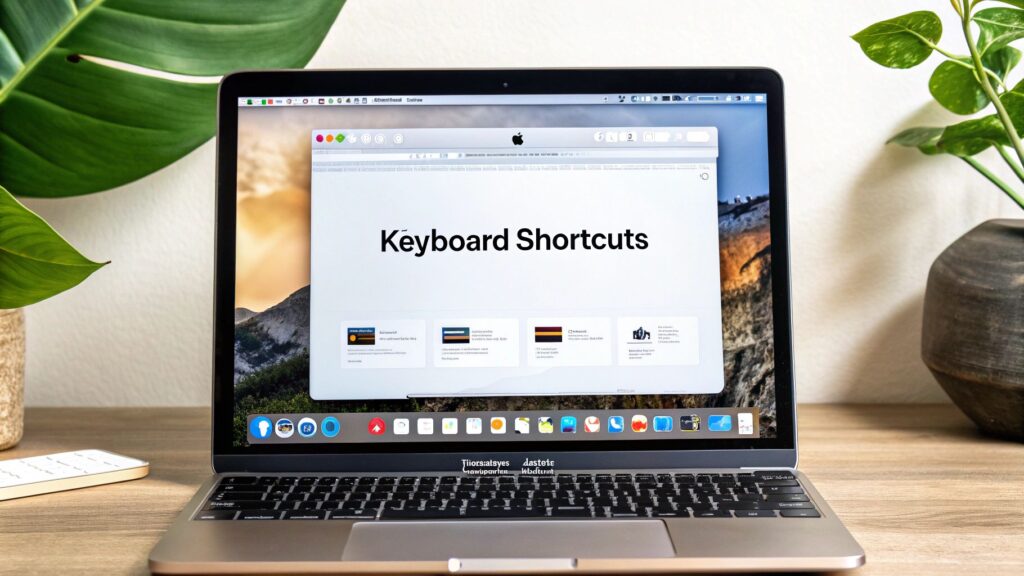
These shortcuts are used daily while typing, editing documents, or browsing online.
Shortcut | Function |
Command + C | Copy |
Command + V | Paste |
Command + X | Cut |
Command + Z | Undo |
Shift + Command + Z | Redo |
Command + A | Select All |
Command + S | Save |
Command + P | |
Command + F | Find |
These are among the first MacBook shortcuts every beginner should memorize.
Screenshot Shortcuts on MacBook
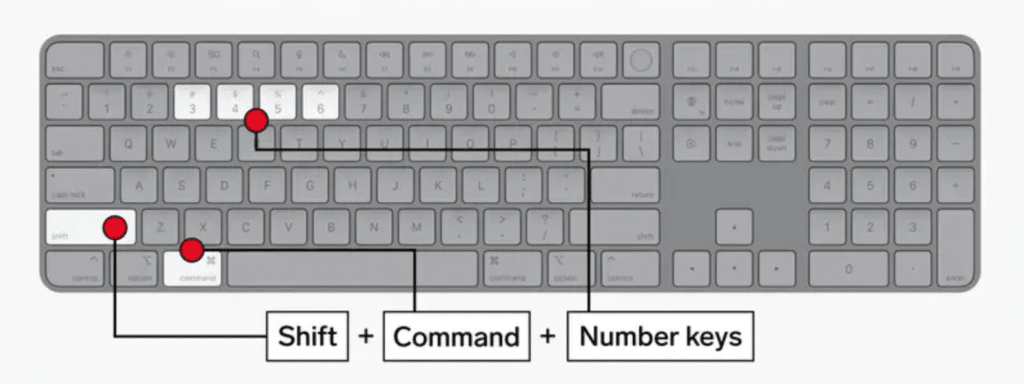
Taking screenshots on a MacBook is extremely easy using keyboard shortcuts.
Shortcut | Function |
Shift + Command + 3 | Capture full screen |
Shift + Command + 4 | Capture selected area |
Shift + Command + 5 | Open screenshot toolbar |
These shortcuts are useful for students, designers, bloggers, and office users.
Browser Shortcuts for Faster Internet Browsing
When using browsers like Google Chrome or Safari, these shortcuts improve browsing speed.
Shortcut | Function |
Command + T | Open new tab |
Command + W | Close tab |
Command + Shift + T | Reopen closed tab |
Command + R | Refresh page |
Command + L | Select address bar |
Command + Tab | Switch apps |
Command + Plus (+) | Zoom in |
Command + Minus (-) | Zoom out |
These shortcuts are especially useful for online work and digital marketing tasks.
Finder Shortcuts on MacBook
Finder is the file management system in macOS.
Shortcut | Function |
Command + N | New Finder window |
Command + Shift + N | New folder |
Space Bar | Quick Look preview |
Command + Delete | Move file to trash |
Command + Shift + Delete | Empty trash |
Command + I | Get file information |
Finder shortcuts help organize files professionally and save time.
MacBook Text Editing Shortcuts
These shortcuts are helpful while writing articles, emails, blogs, or assignments.
Shortcut | Function |
Command + B | Bold text |
Command + I | Italic text |
Command + U | Underline text |
Option + Delete | Delete previous word |
Command + Left Arrow | Move to line start |
Command + Right Arrow | Move to line end |
Writers and students use these shortcuts frequently for fast editing.
Window Management Shortcuts
Managing multiple windows becomes easier with keyboard shortcuts.
Shortcut | Function |
Command + M | Minimize window |
Command + H | Hide current app |
Command + Option + Esc | Force quit apps |
Control + Up Arrow | Mission Control |
Control + Down Arrow | App windows view |
These shortcuts improve multitasking on a MacBook.
MacBook Emoji Shortcut
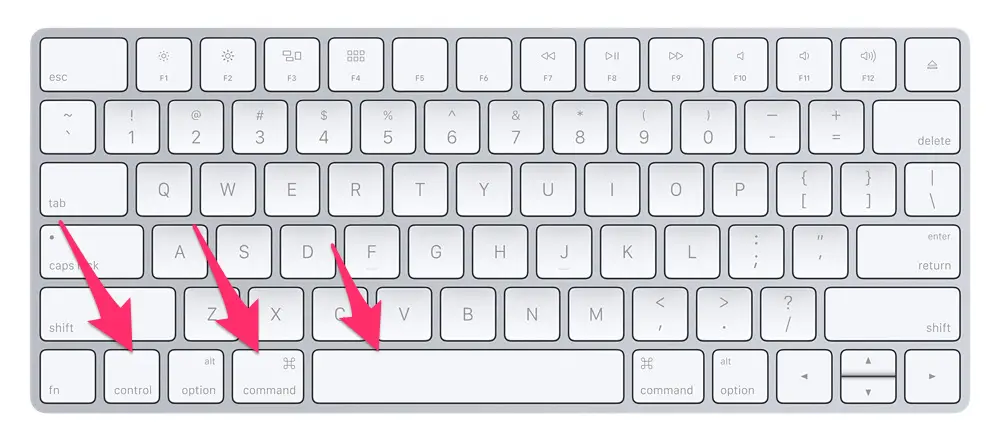
Did you know you can quickly open emojis on your MacBook?
Shortcut:
Control + Command + Space
This opens the emoji panel instantly.
Perfect for:
- Social media posts
- Chatting
- Blogging
- Marketing captions
Spotlight Search Shortcut
Spotlight Search is one of the best features in macOS.
Shortcut:
Command + Space
You can:
- Open apps quickly
- Search files
- Find documents
- Perform calculations
- Search the web
Spotlight dramatically speeds up MacBook usage.
MacBook Shortcut for Switching Between Apps
If you work with multiple apps simultaneously, this shortcut is essential.
Shortcut:
Command + Tab
This allows you to switch between open applications instantly.
For example:
- Switch from Microsoft Word to Google Chrome
- Move between editing and browsing quickly
Useful Function Key Shortcuts
The top row on your MacBook keyboard controls important system settings.
6
Key | Function |
F1/F2 | Brightness control |
F10/F11/F12 | Volume control |
F3 | Mission Control |
F4 | Launchpad |
These keys help manage your MacBook quickly.
Shortcuts for Students
Students can improve productivity using MacBook shortcuts.
Helpful shortcuts include:
- Command + C for copying notes
- Command + V for pasting
- Command + F for searching PDFs
- Shift + Command + 4 for screenshots
- Command + Tab for multitasking
These shortcuts save time during assignments and online classes.
Shortcuts for Office Work
Office users rely heavily on keyboard shortcuts for daily tasks.
Important office shortcuts:
- Command + S to save work
- Command + P to print documents
- Command + Z to undo mistakes
- Command + Shift + N to create folders
Using shortcuts increases workplace efficiency.
MacBook Keyboard Shortcut Tips for Beginners
Practice Daily
Try using 2–3 shortcuts every day until they become habits.
Start With Common Shortcuts
Focus first on:
- Copy
- Paste
- Undo
- Screenshot
- App switching
Use Sticky Notes
Write important shortcuts on paper and place them near your desk.
Learn Gradually
You do not need to memorize everything in one day.
Common Mistakes Beginners Make
Many new MacBook users confuse Windows shortcuts with macOS shortcuts.
For example:
Windows | MacBook |
Ctrl + C | Command + C |
Ctrl + V | Command + V |
Alt + Tab | Command + Tab |
The biggest difference is replacing the Ctrl key with the Command key.
How Keyboard Shortcuts Improve Productivity
Using MacBook shortcuts can:
- Reduce working time
- Improve concentration
- Speed up editing
- Make navigation easier
- Enhance multitasking
Professional users often rely more on shortcuts than trackpads or external mice.
Best Way to Memorize MacBook Shortcuts
The easiest method is grouping shortcuts by category.
For example:
- Editing shortcuts
- Browser shortcuts
- Screenshot shortcuts
- Finder shortcuts
This makes learning simpler and faster.
Advanced Shortcuts Beginners Can Learn Later
Once comfortable with basic shortcuts, you can explore advanced options such as:
- Terminal shortcuts
- Split screen shortcuts
- Automation commands
- Accessibility shortcuts
Advanced shortcuts help power users work even faster.
Final Thoughts
Learning MacBook keyboard shortcuts is one of the smartest things a beginner can do. These shortcuts make everyday tasks faster, smoother, and more efficient. Whether you are using your MacBook for studying, office work, blogging, editing, or digital marketing, shortcuts can significantly improve your workflow.
Start with the most common commands like copy, paste, screenshots, and app switching. After regular practice, these shortcuts will become second nature, helping you use your MacBook like a professional.
If you want to become truly productive on macOS, mastering keyboard shortcuts is the perfect place to begin.