How to Figure Out What Motherboard I Have: A Complete Step-by-Step Guide for Windows Users
If you’ve ever wanted to upgrade your computer, install new RAM, replace your CPU, update your BIOS, or troubleshoot hardware issues, one of the first things you need to know is how to figure out what motherboard you have.
Your motherboard is the backbone of your computer. It connects every major component, including the processor, memory, graphics card, storage devices, and expansion cards. Without knowing your motherboard model, you may end up buying incompatible hardware or downloading the wrong BIOS update.
Many users ask questions like:
- How to figure out what motherboard I have?
- How to find out what motherboard I have?
- How to see what motherboard I have?
The good news is that you don’t have to open your computer case immediately. Windows offers several built-in tools that can identify your motherboard in just a few clicks. There are also third-party applications that provide even more detailed information.
This comprehensive guide explains every reliable method to identify your motherboard, whether you’re using Windows 11, Windows 10, or an older version of Windows.
Why Knowing Your Motherboard Matters
Before learning how to figure out what motherboard you have, it’s important to understand why this information is useful.
Your motherboard determines:
- CPU compatibility
- RAM type and maximum capacity
- Storage options (SATA and NVMe)
- PCIe generation
- BIOS version
- Expansion slots
- USB ports
- Overclocking capabilities
- Upgrade possibilities
Knowing your motherboard model can help you:
- Upgrade your processor
- Install compatible RAM
- Update BIOS safely
- Find motherboard drivers
- Troubleshoot hardware issues
- Check Windows compatibility
- Build a better gaming PC
Method 1: How to Figure Out What Motherboard I Have Using Command Prompt
This is one of the easiest methods.
Step 1
Press:
Windows + R
Type:
cmd
Press Enter.
Step 2
Type:
wmic baseboard get product,manufacturer,version,serialnumber
Press Enter.
You should see something similar to:
Manufacturer: ASUS
Product: PRIME B550M-A
Version: Rev X.0x
SerialNumber: XXXXXXXX
This command instantly tells you:
- Motherboard manufacturer
- Model
- Version
- Serial number
This is one of the fastest answers to the question:
How to find out what motherboard I have?
Method 2: How to See What Motherboard I Have Using System Information
Windows includes a built-in utility called System Information.
Open It
Press:
Windows + R
Type:
msinfo32
Press Enter.
Look for:
- BaseBoard Manufacturer
- BaseBoard Product
- BaseBoard Version
Example:
Manufacturer
Gigabyte
Product
B760 Gaming X AX
Version
1.0
This method is ideal for users who prefer a graphical interface instead of Command Prompt.
Method 3: Use PowerShell
PowerShell also provides motherboard information.
Open PowerShell.
Run:
Get-CimInstance Win32_BaseBoard
You’ll see:
- Manufacturer
- Product
- Version
- Serial Number
PowerShell often displays more detailed hardware information than Command Prompt.
Method 4: Check the BIOS or UEFI
If Windows isn’t installed or you can’t boot into Windows, BIOS is another excellent option.
Restart your PC.
Press one of these keys repeatedly:
- Delete
- F2
- Esc
- F10
The BIOS homepage usually displays:
- Motherboard manufacturer
- Motherboard model
- BIOS version
This is particularly useful before updating your BIOS.
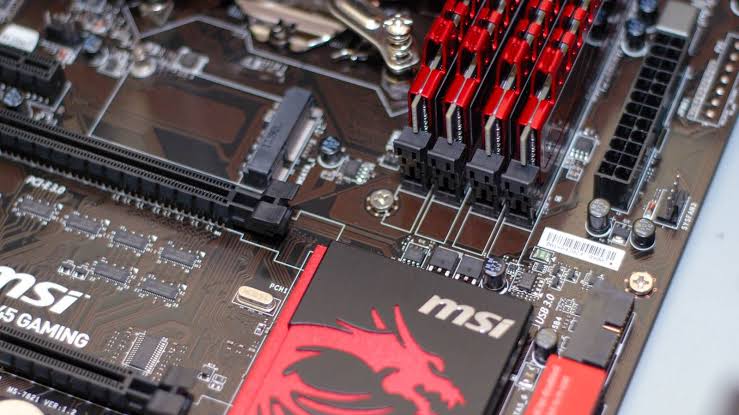
Method 5: Physically Inspect the Motherboard
If software methods don’t work, you can inspect the motherboard directly.
Turn Off Your Computer
Disconnect:
- Power cable
- Monitor
- Peripherals
Open the side panel.
Look for the printed motherboard model.
Manufacturers usually print it between:
- PCIe slots
- RAM slots
- CPU socket
Examples:
- ASUS ROG STRIX B650E-F
- MSI MAG B760 Tomahawk
- Gigabyte B550 AORUS Elite
- ASRock Z790 Steel Legend
This method is 100% accurate.
Method 6: Use CPU-Z
CPU-Z is one of the most popular free hardware information tools.
Install CPU-Z.
Open it.
Click the:
Mainboard
tab.
You’ll see:
- Manufacturer
- Model
- Chipset
- BIOS Version
- Southbridge
CPU-Z is widely used by PC enthusiasts because it provides detailed motherboard information.
Method 7: Use HWiNFO
HWiNFO offers one of the most comprehensive hardware reports available.
After installing:
- Launch HWiNFO
- Choose Summary
- Expand Motherboard
You’ll find:
- Manufacturer
- Model
- BIOS Version
- Chipset
- PCIe details
- Sensors
It’s an excellent choice for advanced users.
Method 8: Speccy
Speccy provides an easy-to-read overview of your PC.
The motherboard section includes:
- Manufacturer
- Model
- Chipset
- Temperature
- BIOS
Its simple interface makes it beginner-friendly.
Method 9: Check Your Computer Documentation
If you purchased a prebuilt desktop, the documentation often lists the motherboard.
Look at:
- User manual
- Product box
- Purchase invoice
- Manufacturer website
OEM computers from Dell, HP, Lenovo, and Acer often use custom motherboard models.
Method 10: Check Manufacturer Support Software
Some manufacturers provide software that automatically detects motherboard information.
Examples include:
- ASUS Armoury Crate
- MSI Center
- Gigabyte Control Center
- ASRock App Shop
These applications can display motherboard details along with driver and BIOS updates.
How to Figure Out What Motherboard I Have in Windows 11
Windows 11 supports all the methods discussed above.
The easiest options are:
- Command Prompt
- System Information
- PowerShell
- CPU-Z
Windows 11 also supports Windows Terminal, where you can run the WMIC or PowerShell commands.
How to Figure Out What Motherboard I Have in Windows 10
Windows 10 users can use the same tools.
The quickest method is:
wmic baseboard get product,manufacturer
Or open:
msinfo32
Both methods provide accurate motherboard information within seconds.
How to Figure Out What Motherboard I Have Without Opening My PC
If you don’t want to open your computer, use:
- Command Prompt
- PowerShell
- System Information
- CPU-Z
- HWiNFO
- Speccy
These methods work for most desktop PCs and laptops.
How to Find Out What Motherboard I Have on a Laptop
Laptop motherboards can also be identified using:
- System Information
- Command Prompt
- PowerShell
- CPU-Z
However, many laptops use proprietary motherboards designed specifically for that model.
How to See What Motherboard I Have for BIOS Updates
Before updating your BIOS, always confirm:
- Manufacturer
- Model
- Revision
- Current BIOS version
Installing the wrong BIOS can make your system unusable.
Common Motherboard Manufacturers
Popular motherboard brands include:
- ASUS
- MSI
- Gigabyte
- ASRock
- Biostar
- EVGA
- Supermicro
Prebuilt PC manufacturers include:
- Dell
- HP
- Lenovo
- Acer
- ASUS
- Alienware
Why Your Motherboard Model Might Not Appear
Sometimes Windows shows:
To Be Filled By O.E.M.
Possible reasons include:
- OEM system
- Missing BIOS information
- Custom motherboard
- Older BIOS firmware
In such cases, use CPU-Z or inspect the motherboard physically.
How to Identify Motherboard Chipset
The chipset determines CPU compatibility and available features.
Examples:
Intel:
- H610
- B760
- Z790
AMD:
- A520
- B550
- X570
- B650
- X670
Tools like CPU-Z and HWiNFO can display chipset information.
What Information Should You Record?
When identifying your motherboard, note the following:
- Manufacturer
- Model
- Version
- BIOS Version
- Serial Number
- Chipset
- Socket Type
- RAM Support
- PCIe Version
Keeping this information handy simplifies future upgrades and repairs.
Common Reasons People Need Their Motherboard Model
People often search how to find out what motherboard I have because they want to:
- Upgrade RAM
- Replace CPU
- Install an SSD
- Update BIOS
- Fix driver issues
- Build a gaming PC
- Add expansion cards
- Verify Windows 11 compatibility
Troubleshooting Tips
If Windows cannot detect your motherboard:
- Update BIOS
- Update chipset drivers
- Use CPU-Z
- Use HWiNFO
- Check BIOS directly
- Inspect the motherboard physically
One of these methods will almost always provide the correct model information.
Frequently Asked Questions
Use Command Prompt, System Information, PowerShell, CPU-Z, or HWiNFO. These tools can identify your motherboard without requiring you to open your computer case.
Open Command Prompt and run:
wmic baseboard get product,manufacturer
Or launch System Information (msinfo32) to view your motherboard details.
Windows Settings does not directly display motherboard information. Instead, use System Information, PowerShell, or Command Prompt for accurate details.
Yes. Most motherboard manufacturers allow you to search the serial number on their support websites to identify the exact model and warranty status.
Yes. Many laptops use custom-designed motherboards specific to the laptop model, while some high-end gaming laptops may use more standardized designs.
Final Thoughts
Learning how to figure out what motherboard I have is an essential skill for every PC owner. Whether you’re planning to upgrade hardware, troubleshoot problems, install compatible components, or update your BIOS, identifying your motherboard is the first step.
Fortunately, Windows provides several simple ways to discover this information. You can use Command Prompt, PowerShell, System Information, or trusted tools like CPU-Z and HWiNFO to quickly identify your motherboard model. If software methods don’t work, a quick physical inspection of the motherboard will provide the exact manufacturer and model.
If you’ve been wondering how to find out what motherboard I have or how to see what motherboard I have, the methods covered in this guide offer reliable solutions for both beginners and advanced users. By keeping a record of your motherboard model, BIOS version, and chipset, you’ll be better prepared for future upgrades, maintenance, and troubleshooting, ensuring your PC remains compatible, stable, and ready for years of reliable performance.