What Are the Different Types of USB Ports? A Complete Guide to USB Connectors, Speeds, and Uses
USB (Universal Serial Bus) has become the global standard for connecting computers, smartphones, tablets, gaming consoles, printers, cameras, storage devices, and countless other electronic gadgets. Whether you’re charging your phone, transferring files, connecting a keyboard, or powering external devices, chances are you’re using a USB port.
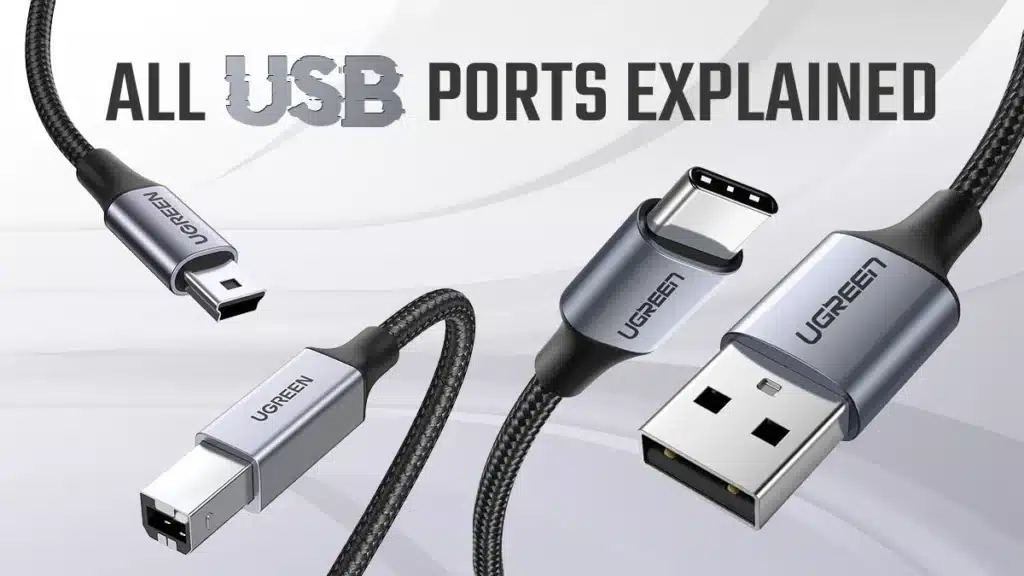
However, many users are confused by the different types of USB ports and connectors available today. USB Type-A, USB Type-B, Mini USB, Micro USB, and USB Type-C all look different and serve different purposes. On top of that, USB standards such as USB 2.0, USB 3.0, USB 3.2, and USB4 can make choosing the right cable even more confusing.
In this comprehensive guide, you’ll learn everything you need to know about the different types of USB ports, their features, advantages, speeds, compatibility, and which one is best for your devices.
What Is a USB Port?
A USB (Universal Serial Bus) port is a standardized interface that allows electronic devices to communicate with each other while also providing power. USB ports are used to:
- Transfer data
- Charge devices
- Connect peripherals
- Power accessories
- Update firmware
- Connect storage devices
Since its introduction in 1996, USB technology has evolved dramatically, becoming faster, more powerful, and more versatile.
Why Are There Different Types of USB Ports?
Different devices have different size requirements, power needs, and data transfer capabilities. For this reason, manufacturers created multiple USB connector types.
Each connector is designed for specific purposes, including:
- Desktop computers
- Laptops
- Smartphones
- Tablets
- Cameras
- Printers
- Gaming consoles
- External hard drives
- Flash drives
- Monitors
Understanding these connectors helps you buy the correct cable and maximize your device’s performance.
Main Types of USB Ports
There are five major USB connector types.
1. USB Type-A
USB Type-A is the most recognizable USB connector.
It is the traditional rectangular USB connector found on:
- Desktop PCs
- Laptops
- Gaming consoles
- Smart TVs
- Power banks
- Car chargers
Features
- Rectangular shape
- One-way insertion
- Supports charging
- Supports data transfer
- Most widely used connector
Common Devices
- Keyboard
- Mouse
- Printer
- USB Flash Drive
- External Hard Drive
- Webcam
- Controller
Advantages
- Extremely common
- Durable
- Easy to find
- Compatible with older devices
Disadvantages
- Not reversible
- Larger than modern connectors
2. USB Type-B
USB Type-B connectors are mainly used for larger peripheral devices.
These include:
- Printers
- Scanners
- Audio interfaces
- External hard drive docks
Features
- Square-shaped connector
- Secure connection
- Rarely used on consumer electronics
Advantages
- Reliable connection
- Ideal for stationary devices
Disadvantages
- Large size
- Becoming less common
3. Mini USB
Mini USB was popular before smartphones switched to Micro USB.
It was commonly used on:
- Digital cameras
- MP3 players
- GPS units
- Camcorders
Features
- Smaller than USB Type-A
- Compact design
- Five-pin connector
Advantages
- Smaller than Type-A
- Good for portable electronics
Disadvantages
- Mostly obsolete
- Replaced by Micro USB
4. Micro USB
Micro USB became the standard connector for Android smartphones for many years.
It is still found on:
- Budget smartphones
- Bluetooth speakers
- Power banks
- Wireless headphones
- Kindle eReaders
- Action cameras
Features
- Very small connector
- Supports charging
- Supports data transfer
Advantages
- Compact
- Affordable
- Widely available
Disadvantages
- Not reversible
- Fragile after heavy use
- Slower compared to USB-C
5. USB Type-C
USB Type-C is the newest and most advanced USB connector.
It is quickly replacing all previous USB connectors.
Modern devices using USB-C include:
- Windows laptops
- MacBooks
- Android phones
- iPads
- Gaming handhelds
- External SSDs
- Docking stations
- Monitors
Features
- Reversible connector
- High-speed data transfer
- Fast charging
- Video output
- Audio support
- Universal compatibility
Advantages
- Reversible design
- Smaller connector
- Extremely fast
- Supports Thunderbolt
- Future-proof
Disadvantages
- Older devices require adapters
- Cable quality varies
USB Port Versions Explained
Besides connector types, USB also has different performance versions.
These determine transfer speed and charging capability.
USB 2.0
Released in 2000.
Speed
480 Mbps
Best For
- Keyboard
- Mouse
- Printer
- Flash drives
- Webcam
USB 3.0
Released in 2008.
Speed
5 Gbps
Improvements
- Faster file transfers
- Better power efficiency
- Blue-colored ports
Ideal for:
- External SSDs
- High-speed storage
- HD video transfer
USB 3.1
Maximum Speed:
10 Gbps
Offers:
- Faster transfers
- Better charging
- Improved performance
USB 3.2
Maximum Speed:
20 Gbps
Perfect for:
- Professional video editing
- Large file transfers
- External NVMe SSDs
USB4
USB4 is the latest USB standard.
Maximum Speed:
40 Gbps
Supports:
- Thunderbolt compatibility
- Multiple displays
- External GPUs
- High-speed storage
- Advanced docking stations
USB Speed Comparison
USB Version | Maximum Speed |
USB 2.0 | 480 Mbps |
USB 3.0 | 5 Gbps |
USB 3.1 | 10 Gbps |
USB 3.2 | 20 Gbps |
USB4 | 40 Gbps |
USB Connector Comparison
Connector | Reversible | Common Devices |
USB Type-A | No | PCs, laptops |
USB Type-B | No | Printers |
Mini USB | No | Older cameras |
Micro USB | No | Older Android phones |
USB Type-C | Yes | Modern devices |
USB Type-C vs USB Type-A
USB Type-A
Pros
- Very common
- Affordable
- Compatible with older devices
Cons
- One-way insertion
- Larger connector
- Lower future compatibility
USB Type-C
Pros
- Reversible
- Faster charging
- Faster transfer
- Video output
- Audio support
Cons
- Older accessories need adapters
USB-C is the clear winner for modern devices.
USB-C Fast Charging
USB Type-C supports advanced charging technologies like USB Power Delivery (USB PD).
Charging speeds can reach:
- 18W
- 30W
- 45W
- 65W
- 100W
- 140W
- Up to 240W (with the latest USB PD specification and compatible hardware)
This allows users to charge:
- Smartphones
- Tablets
- Gaming laptops
- Ultrabooks
- Portable monitors
using one cable.
Which USB Port Is Fastest?
The fastest USB technologies currently include:
- USB4 (up to 40 Gbps)
- USB 3.2 Gen 2×2 (20 Gbps)
For most users, USB-C paired with USB4 or USB 3.2 provides outstanding speed and versatility.
Which USB Port Should You Use?
For Smartphones
USB Type-C
For Laptops
USB Type-C
For External SSDs
USB-C with USB 3.2 or USB4
For Printers
USB Type-B
For Flash Drives
USB Type-A or USB-C
For Gaming
USB-C and USB 3.2
For Professional Creators
USB4 or Thunderbolt-compatible USB-C
How to Identify Different USB Ports
Here are a few visual clues:
- USB Type-A: Rectangular and flat.
- USB Type-B: Nearly square with beveled top corners.
- Mini USB: Small trapezoid shape (older cameras and devices).
- Micro USB: Thin, flat connector with a tapered profile.
- USB Type-C: Small, oval, symmetrical, and reversible.
Some USB ports are also color-coded:
- Black or White: Usually USB 2.0
- Blue: Typically USB 3.0 or USB 3.1 Gen 1
- Teal or Turquoise: Often USB 3.1 Gen 2
- Red or Yellow: May indicate high-power or always-on charging ports (varies by manufacturer)
Keep in mind that color conventions are not universal, so checking your device’s specifications is always a good idea.
Common USB Problems
Many users encounter USB-related issues. Here are some common ones:
Device Not Recognized
Possible causes:
- Faulty cable
- Outdated drivers
- Damaged USB port
- Incompatible device
Slow File Transfers
This may occur because:
- You’re using a USB 2.0 port instead of USB 3.0 or higher.
- The cable only supports charging.
- The storage device has limited read/write speeds.
Charging Issues
If your device charges slowly:
- Use a certified fast-charging cable.
- Ensure the charger supports USB Power Delivery (PD) or the required charging standard.
- Avoid low-quality or damaged cables.
Tips for Choosing the Right USB Cable
When buying a USB cable, consider the following:
- Match the connector type (Type-A, Type-C, Micro USB, etc.).
- Check the USB version for the speed you need.
- Verify charging wattage support if charging laptops or fast-charging phones.
- Choose certified, high-quality cables from reputable brands.
- Consider cable length—longer cables may reduce charging efficiency or transfer speeds if poorly made.
Investing in a quality cable improves performance, safety, and durability.
The Future of USB Technology
USB technology continues to evolve toward a single universal connector. USB Type-C is becoming the standard across smartphones, tablets, laptops, monitors, and accessories.
Future USB developments are expected to offer:
- Higher data transfer speeds
- Greater charging power
- Better compatibility between devices
- Fewer proprietary connectors
- Simplified setups with one cable for charging, data, audio, and video
As more manufacturers adopt USB Type-C and USB4, users can expect a more seamless and efficient experience.
Frequently Asked Questions (FAQs)
USB Type-A remains common on many desktop computers and accessories, while USB Type-C has become the standard on most new smartphones, tablets, and laptops.
USB4 currently offers speeds of up to 40 Gbps, depending on the device and cable.
Yes. USB-C offers a reversible design, faster data transfer, higher charging power, and support for video output, making it more versatile than USB-A.
For most modern devices, yes. However, many legacy peripherals still use USB Type-A or Type-B, so adapters or hubs may be needed during the transition.
No. Some USB-C cables support only charging, while others support high-speed data transfer, video output, or high-wattage charging. Always check the cable’s specifications.
Conclusion
Understanding the different types of USB ports is essential for choosing the right cable, connecting devices correctly, and getting the best performance from your electronics. While USB Type-A, Type-B, Mini USB, and Micro USB continue to serve many existing devices, USB Type-C has emerged as the modern universal standard thanks to its compact reversible design, fast charging capabilities, and high-speed data transfer.
By learning the differences between USB connectors and USB standards like USB 2.0, USB 3.0, USB 3.2, and USB4, you can make smarter purchasing decisions, avoid compatibility issues, and future-proof your setup. Whether you’re connecting a printer, charging a smartphone, or transferring large files to an external SSD, selecting the right USB port and cable ensures a faster, safer, and more reliable experience.