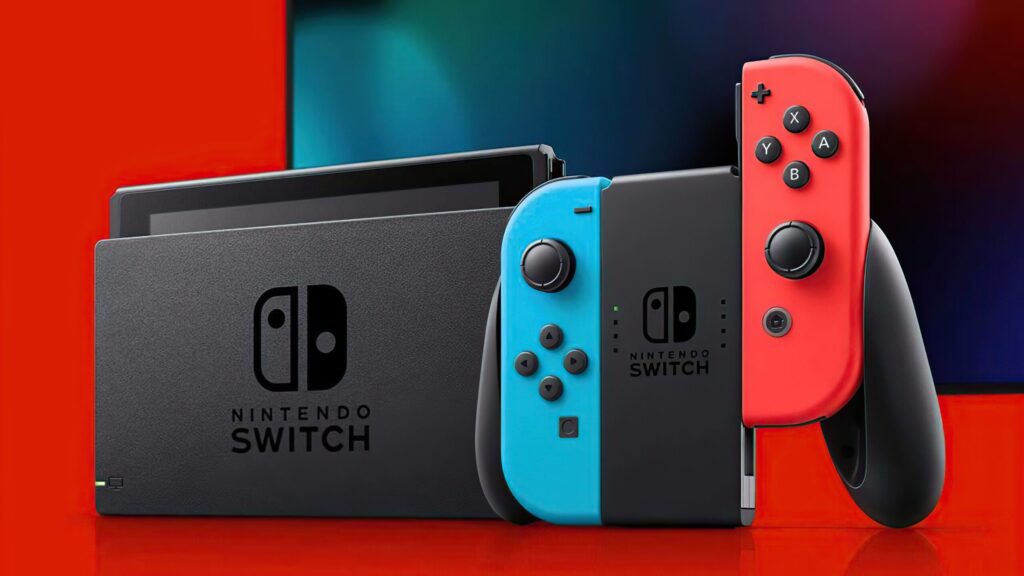
Streaming your favorite game online is a nice little feature to share your gameplay experience with your friends and family. Unlike PS4 or Xbox One, Stream Nintendo Switch doesn’t come with a dedicated option for streaming games.
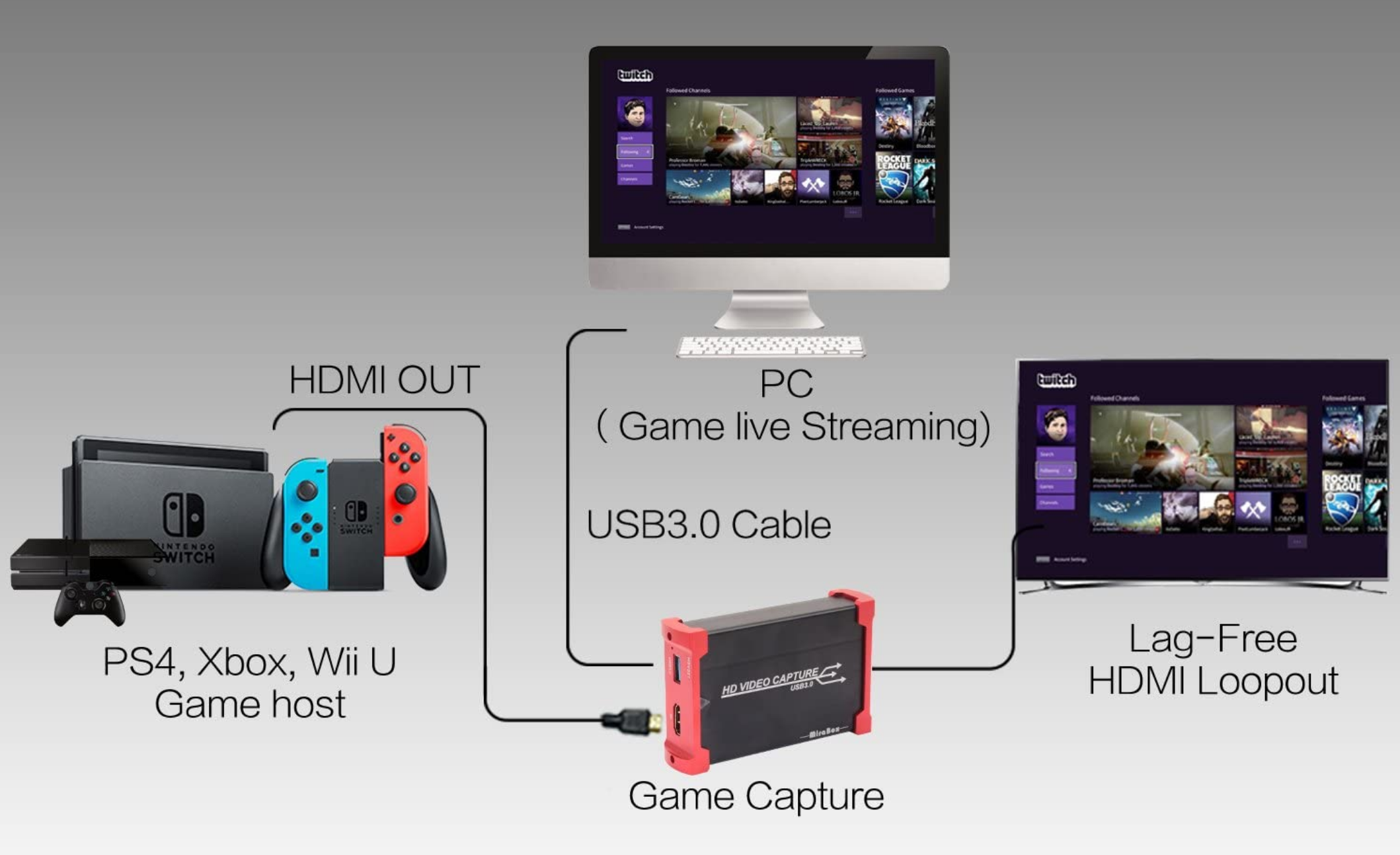
With Stream Nintendo Switch, your Zelda or Mario kart gameplay is mostly restricted to your console or TV. But, there’s a solution for everything on the internet. By using a video or game capture card device, you can stream your favorite game on Facebook, YouTube, and Twitch.
Table of Contents
Things you need to get Started:
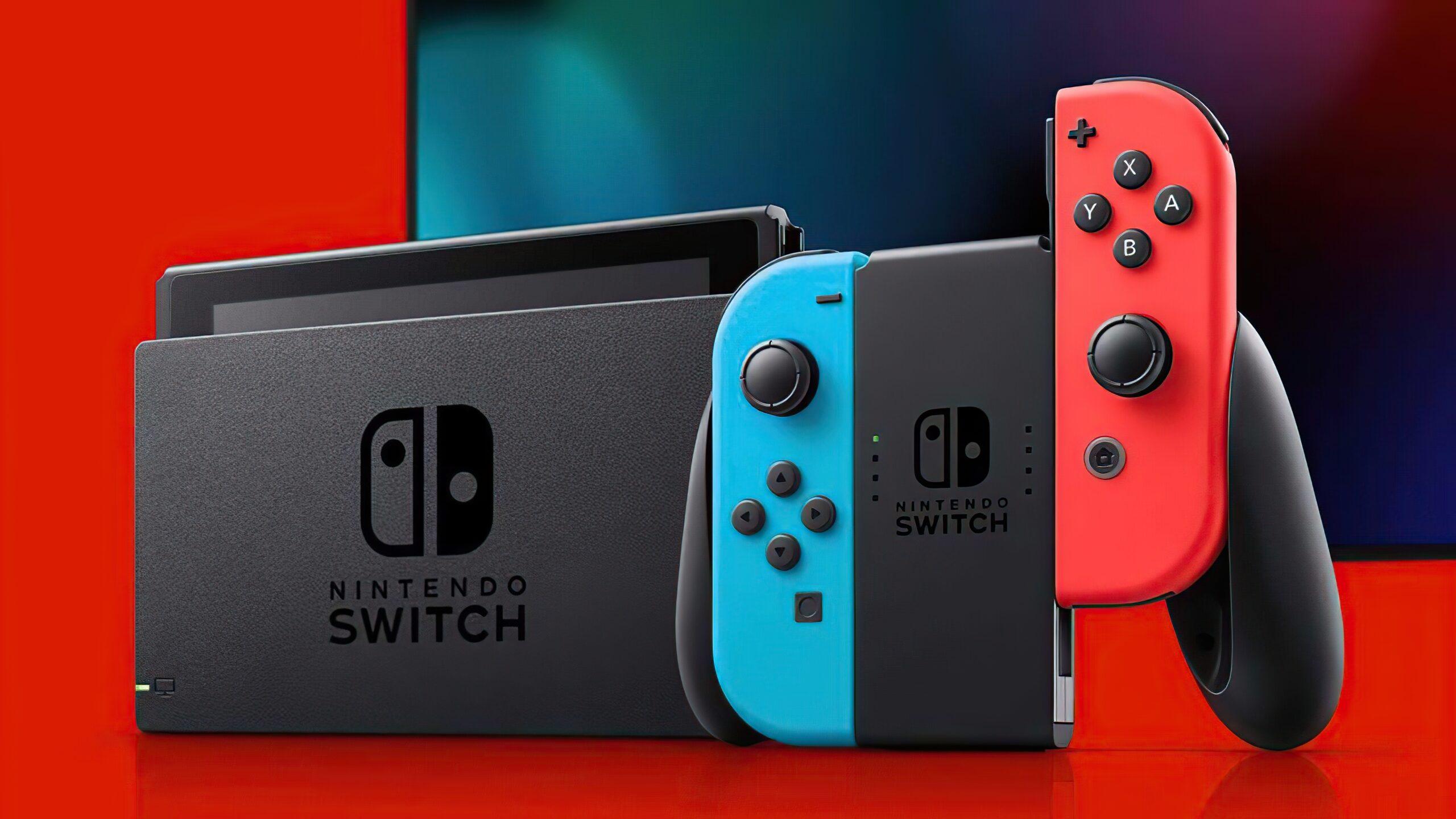
Nintendo Switch: Well, of course, you need your console to get started with the streaming.
Microphone: If you have plans to speak while stream, you need a Microphone.
Computer: This is the brains of all the process, a PC or a Laptop will do the trick.
Capture Card: This device allows you to stream console videos on the internet.
Headset: For a seamless sound experience, it’s compulsory.
Webcam: For a live reaction to your videos, you need this.
The main investment here is the Capture card, excluding the computer.
Each model of the capture card has a specific video quality, streaming functionality, and software compatibility. At the end of the day, the streaming process is pretty much the same.
How to Stream on Nintendo Switch with Capture Card:
Here’s an overview of how to get started with Nintendo Switch streaming
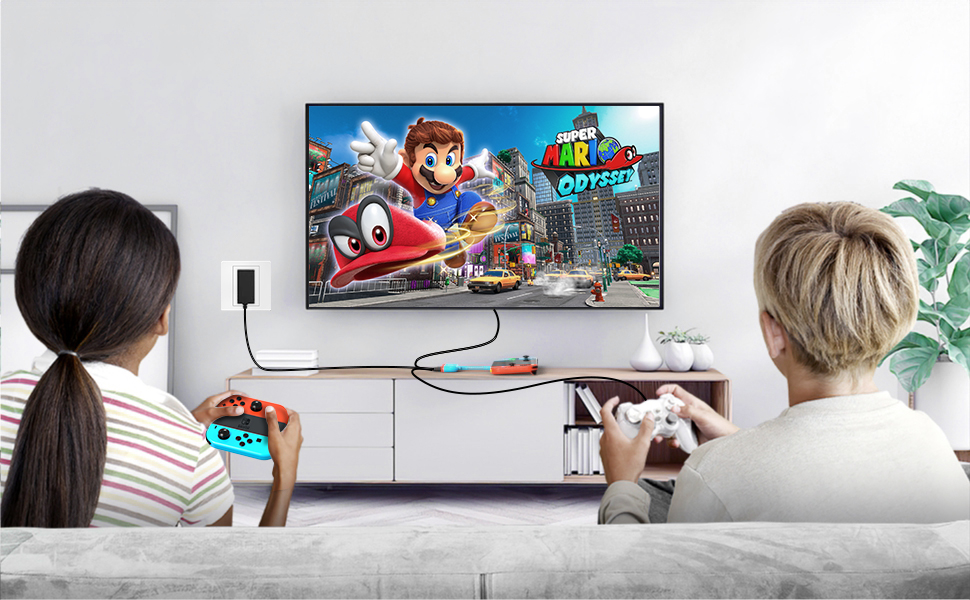
Dock your Switch console to the charging area
Connect the HDMI cable with the Capture Card Input HDMI Cable
Connect the Nintendo Switch dock HDMI cable to your Laptop/PC HDMI port
Download the relevant software that comes with the capture card
Your computer will automatically connect both the devices
Additional Information:
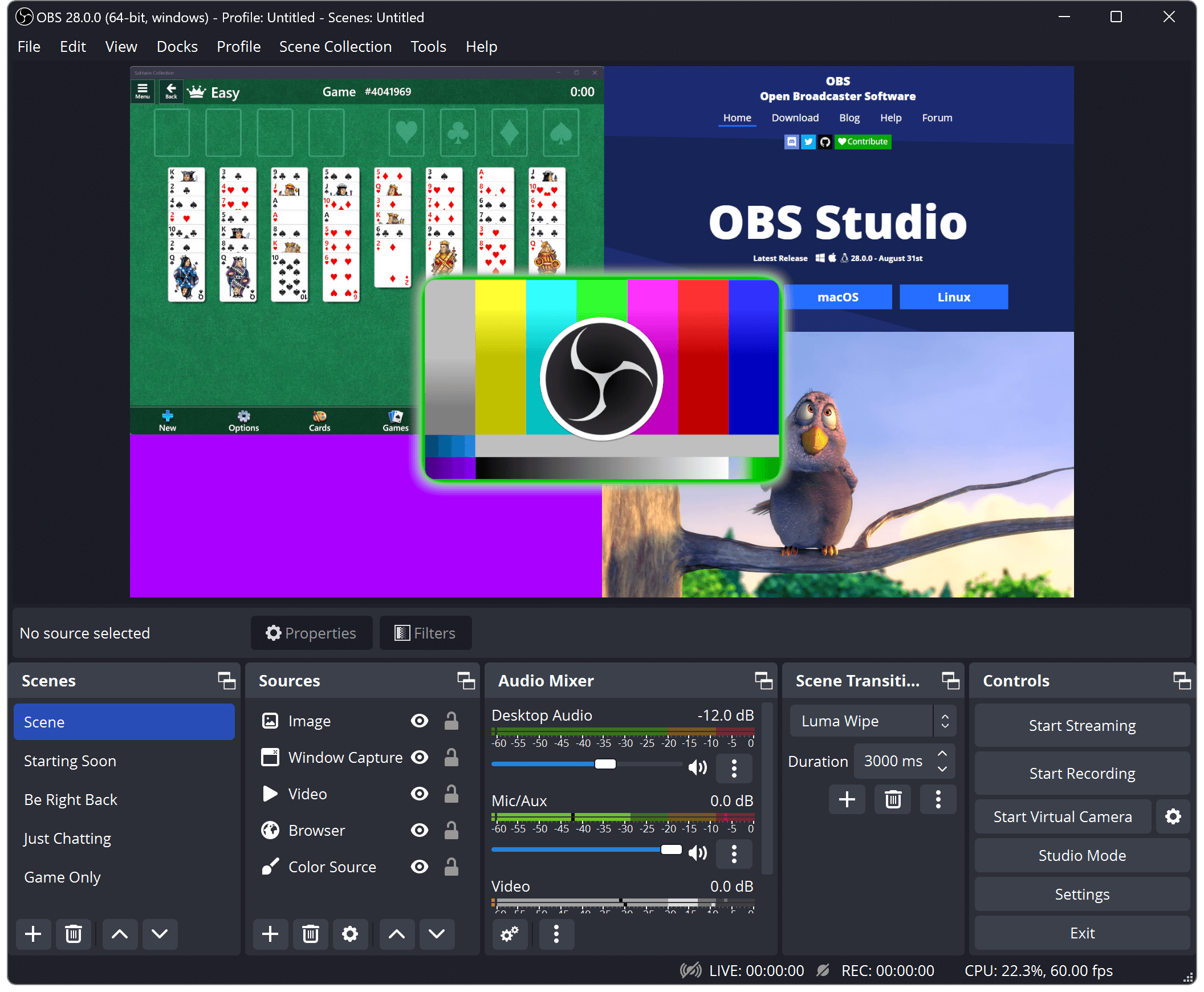
Although you can directly stream from your capture card integrated software, we’re using third-party software. For this, you have to download OBS on your computer. It is free streaming software, used by millions of streamers around the world.
Open the Program and under the Source section, right-click and select ‘Add Video Capture Device’
Here select ‘Create New’ and enter the name of your device
Under the ‘Device’ drop-down menu, select your capture device name
Scroll down and Select ‘Resolution/FPS Type‘ to Custom
Select Resolution: 1920×1080 and FPS: 60
Click OK
Now your device will be visible on the screen. Go ahead and adjust the frame on the Canvas. You can also add a watermark and other text overlays in the following window.
This is pretty much all the steps that are required for Nintendo Switch Streaming. Now we just have to select the Platform and click that ‘Start Stream’ button. For this, we will be covering only the 3 most popular platforms for streamers out there.
Twitch
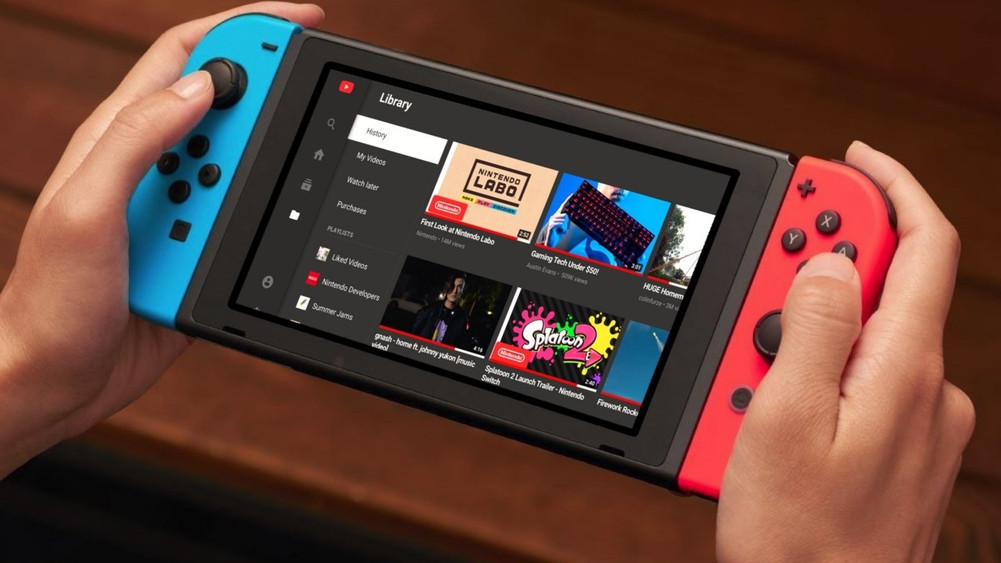
YouTube
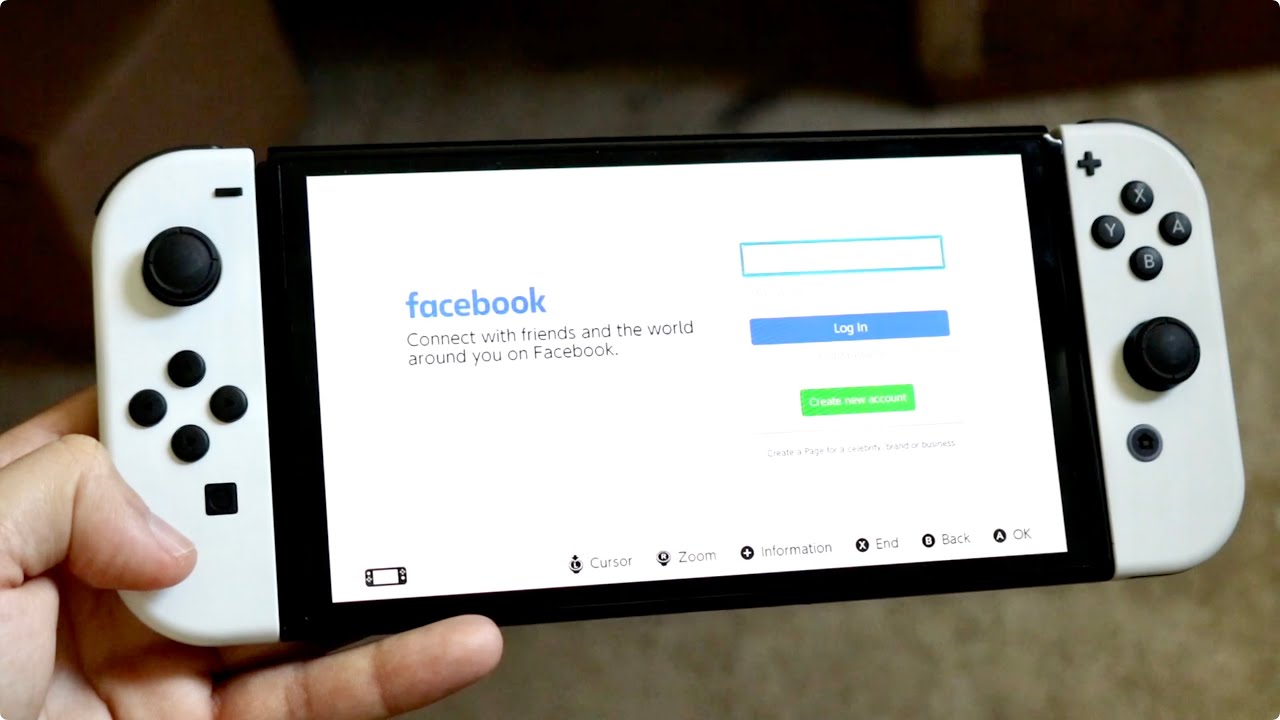
Facebook
How to stream Nintendo Switch on Twitch:
Go to twitch.tv and Sign up/log in to your account
Click on your name on the top right corner and select Dashboard
Switch to the Settings tab and press the button ‘Show Key‘
Note: This key is private, don’t disclose this to anyone.
Go back to the OBS program
Click File > Settings > Streaming and select Twitch in the service tab
Now select Server which is closest to your home
You can search on the Internet which Twitch server is closest to you
Paste the Stream Key in the box and select OK
A preview will showcase on your Stream channel, where you can check how your stream looks. If you want to customize more settings, do it from here.
How to stream Nintendo Switch on YouTube:
Go to YouTube.com and Log in/ Sign up with your account
Create a Channel, Go to Dashboard, and on the left panel select ‘Live Streaming’
Fill the Basic Info, Stream Options, Monetization, and Cards, if you have any
Add the Title and Description, Category, and the Privacy settings
In the Encoder Setup, click Reveal to showcase your Stream name/key
Go back to the OBS program
Click File > Settings > Streaming and select YouTube / YouTube Gaming in the service tab
Note: YouTube doesn’t allow you to Preview streaming video. Put your video in Private to check how it looks.
How to stream Nintendo Switch on Facebook:
Go to Facebook.com and Log in/ Sign up with your account
Go to your Channel / Page > Publication tools > Videos and then select Live Streaming
Note: Here you can select all the options for the streaming process.
In the Live Stream Setup tab, copy Stream Key
Go back to the OBS program
Click File > Settings > Streaming and select Facebook Live in the service tab
Now select Default Server
Paste the Stream Key in the box and select OK
How to Stream on Nintendo Switch without Capture Card
Nintendo Switch doesn’t come with a dedicated option for Streaming video. Unless you use a Capture card, there’s no other way to stream videos. However, you can do record your screen while you’re playing. Just angle your camera on the screen and start streaming.
Nintendo Partner Program:
Unlike other consoles, that encourages you to stream on a different platform, Nintendo seems to be very private for its games. Especially for Zelda, a lot of YouTubers complain that their videos were taken down by Nintendo.
So to stay on the safe side, sign up for the Nintendo Partner Program. This lets you share the revenue you make with Nintendo of those streaming videos.
This is it, now you can easily stream your favorite Nintendo Switch game on your favorite streaming platform. You can follow the same technique to stream on other platforms like PS4 and Xbox One. Have any question in mind? Do let us know down in the comment section.